











KoCAD · Mga screen at feature
How to make KoCAD your own: shortcuts, shortcut bar, theme, language and panels
Change keys, use command search and the S bar, light/dark theme, language, font size and two monitors.
Hindi pa naisasalin ang artikulong ito sa inyong wika: ipinapakita ang bersyong English.
Sa pahinang ito
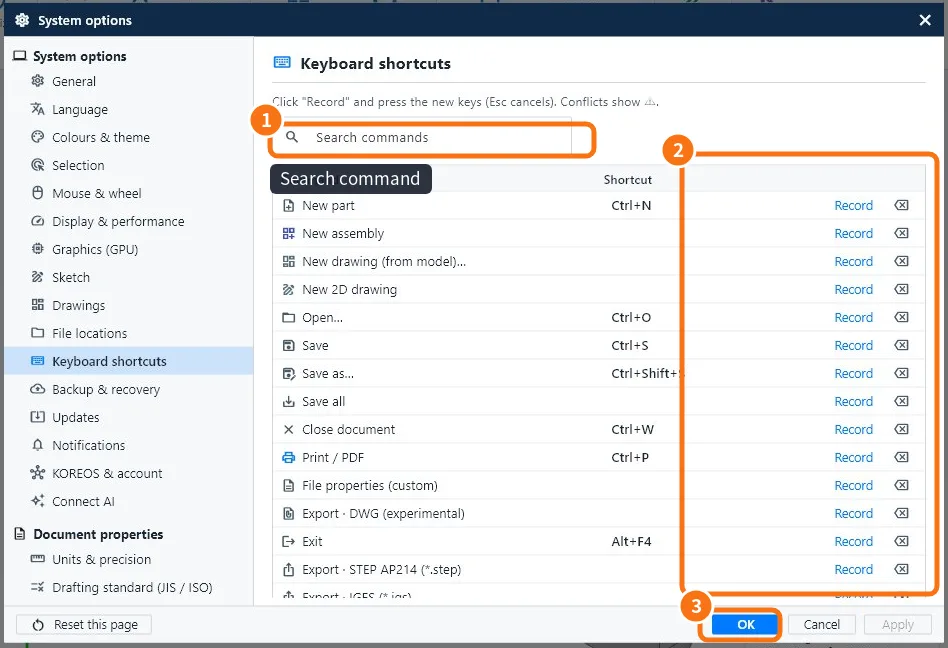
Keyboard shortcuts
- Tools → Customize (shortcuts)… (or Options → Keyboard shortcuts).
- Search the command ①, click Record ② and press the new combination.
- A conflict shows ⚠; use Clear shortcut on the other command.
- OK ③ saves.
Find commands without memorising
- Search commands (top of the window): type part of the name and Enter.
- S key: shortcut bar near the cursor, with the commands for the moment.
- Right-click in the view or the tree: a menu with what makes sense for the selection.
- F1: list of every shortcut.
Look of the program
- Options → Colours & theme: light, dark or same as the system; density (compact/normal); font size; 3D view background (gradient, white, grey, dark).
- View tab → Dark theme: quick switch.
- Options → Language: the interface language (the drawing language is chosen in the project).
Panels and windows
- View → Detach to another window: moves the tree, properties or library to the second monitor.
- View → Restore the default layout: puts everything back.
- The ^ arrow at the corner of the ribbon: folds the commands to gain room.
Common mistakes
- A shortcut does not work: the cursor is in a text box.
- Text too small on a 4K screen: increase the font size in Colours & theme.
Related articles
- Mouse, trackpad and keyboard shortcuts (full list)
- KoCAD Options: every page and what it changes
- The KoCAD main window, part by part