











KoCAD · Primeros pasos
Mouse, trackpad and keyboard shortcuts (full list)
Rotate, pan and zoom like SolidWorks, Fusion or Blender, the factory shortcuts and how to change a key.
Este artículo aún no está traducido a su idioma: se muestra la versión en English.
En esta página
What this is for
In CAD almost everything is done with one hand on the mouse and the other on the keyboard. Learning these moves and a dozen keys makes the work two to three times faster.
Mouse (default "like SolidWorks")
- Action · How
- Zoom at the cursor · Wheel
- Rotate the view · Middle button + drag
- Pan · Ctrl + middle button
- Continuous zoom · Shift + middle button
- Fit to screen · Double-click the middle button or press F
- Go into a part of the assembly · Alt + click or double-click
- Pick what is behind · Right-click → Select other
Factory keyboard shortcuts
- Key · Command
- Ctrl+N / Ctrl+O · New part / Open
- Ctrl+S / Ctrl+Shift+S · Save / Save as
- Ctrl+P · Print / PDF
- Ctrl+W · Close document
- Ctrl+Z / Ctrl+Y · Undo / Redo
- Ctrl+B · Rebuild
- Ctrl+D · Edit dimensions
- Ctrl+1 … Ctrl+7 · Front, back, left, right, top, bottom, isometric
- Ctrl+8 · Normal to (look straight at the face)
- Arrows / Shift+arrows · Rotate 15° / 90°
- Ctrl+arrows · Pan the view
- Z / Shift+Z · Zoom out / in
- D · Smart Dimension (in a sketch)
- S · Shortcut bar
- F · Fit to screen
- Del · Delete the selection
- Esc · Cancel the command
- F1 · Shortcut list
- Ctrl+, · Options
Step by step: change the mouse style
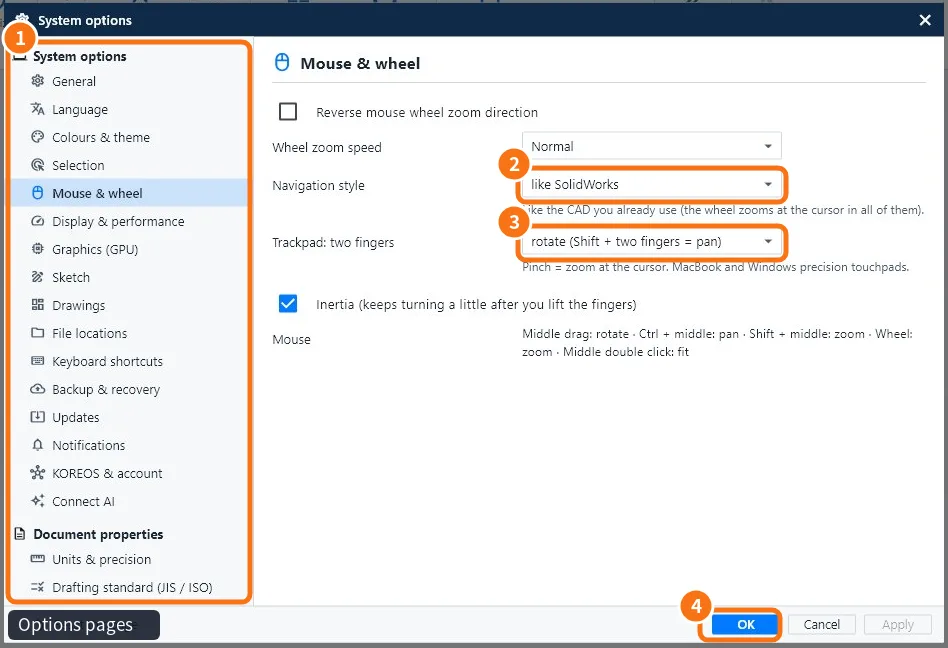
- Open Tools → Options… (Ctrl+,).
- In the list on the left ①, click Mouse & wheel.
- In Navigation style ② choose like SolidWorks, Orbit with Shift + middle button (Fusion style), like Blender, AutoCAD or KoCAD (middle = orbit). You can also set the Orbit style (free trackball or turntable) and the Orbit centre (point under the cursor or centre of the view).
- On a trackpad ③ (MacBook or Windows precision touchpad), choose whether two fingers rotate or pan; pinch zooms at the cursor. Turn inertia off if you prefer hard stops.
- Click OK ④.
Step by step: change a shortcut
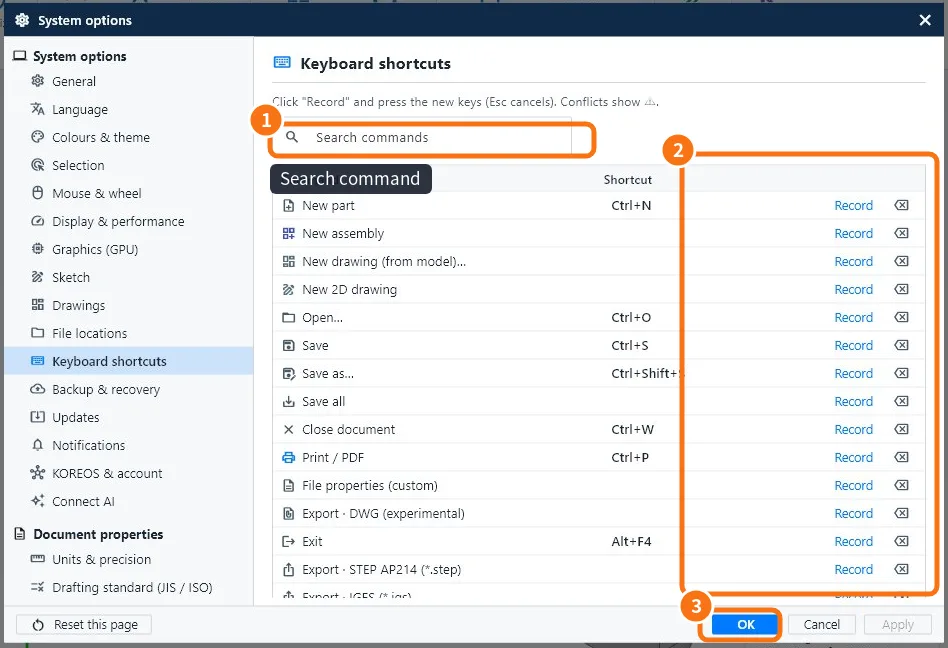
- In Options, open Keyboard shortcuts (or Tools → Customize).
- Type the command name in the search box ①.
- Click Record ② and press the new combination. Esc cancels.
- If the key already belongs to another command, ⚠ appears: use Clear shortcut on the other one.
- Click OK ③.
Common mistakes
- The key does nothing: the cursor is in a text box, which takes the letters. Click the 3D view and try again.
- Zoom goes the wrong way: tick Reverse mouse wheel zoom direction in Mouse & wheel.
- Mouse without a middle button: choose the Shift style or use the trackpad.
Related articles
- The KoCAD main window, part by part
- How to make KoCAD your own: shortcuts, shortcut bar, theme, language and panels
- KoCAD Options: every page and what it changes