











KoCAD · Pantallas y funciones
Drawing tab and the 2D drawing workspace
Create a 2D drawing from this part, New 2D drawing, 3-view DXF, flat DXF and DWG; inside the drawing, the Drawing, Annotate, Draw, Modify, Sheet and Output tabs.
Este artículo aún no está traducido a su idioma: se muestra la versión en English.
En esta página
What it is
The JIS manufacturing drawing (.kcdrw) is associative: when the part changes, views and dimensions follow. It also works for 2D drafting from scratch, like AutoCAD.
On the Drawing tab (3D model)
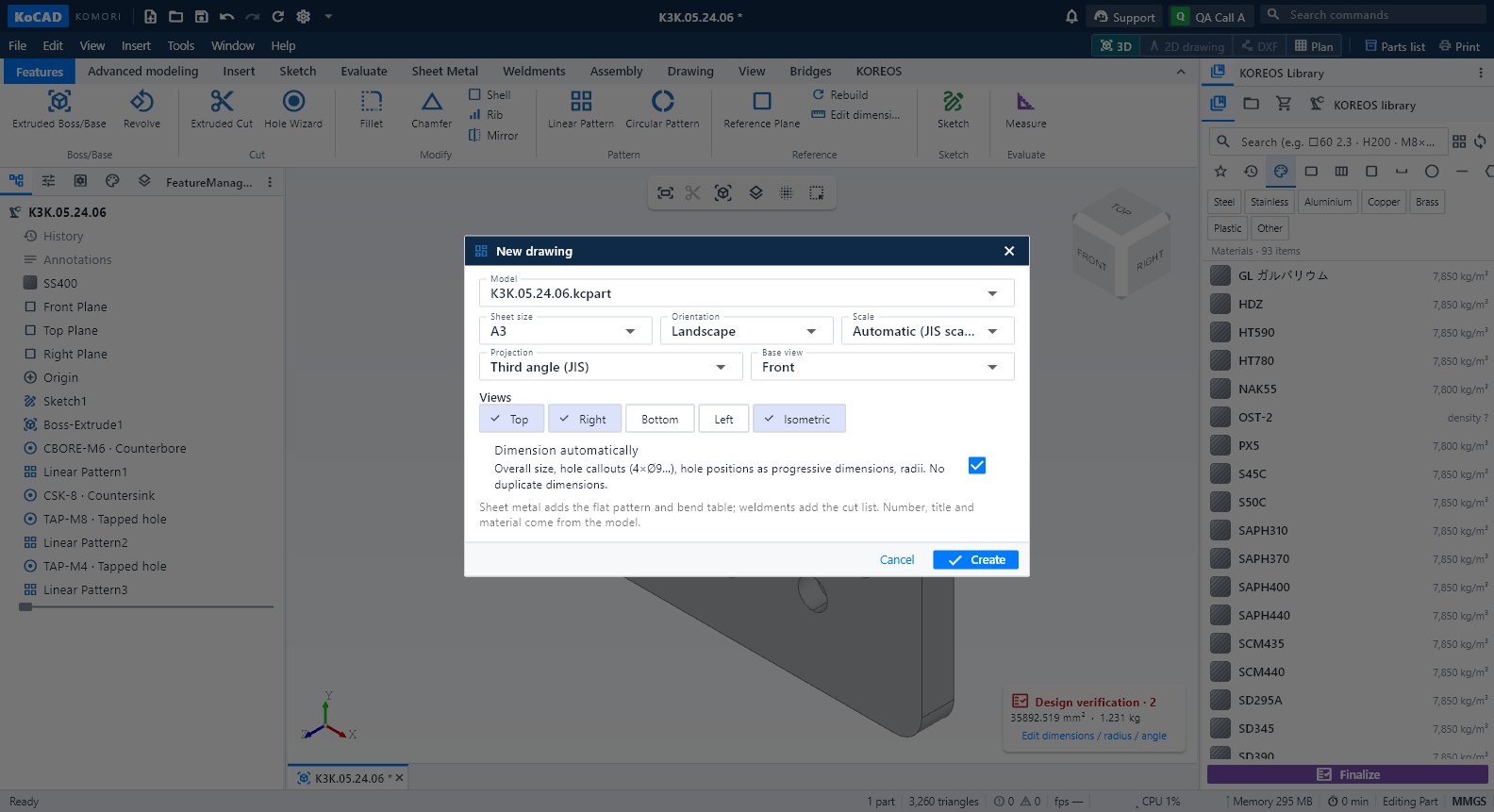
- Drawing: Create a 2D drawing from this part · New 2D drawing.
- Export: 3-view DXF (third angle) · Flat DXF (laser) · Export · DWG (experimental).
Inside the 2D drawing
- Drawing: Drawing from model, Projected view, Section, Half section, Offset section, Detail, Auxiliary view, Broken view, Partial view, Move view, Arrange views, Update.
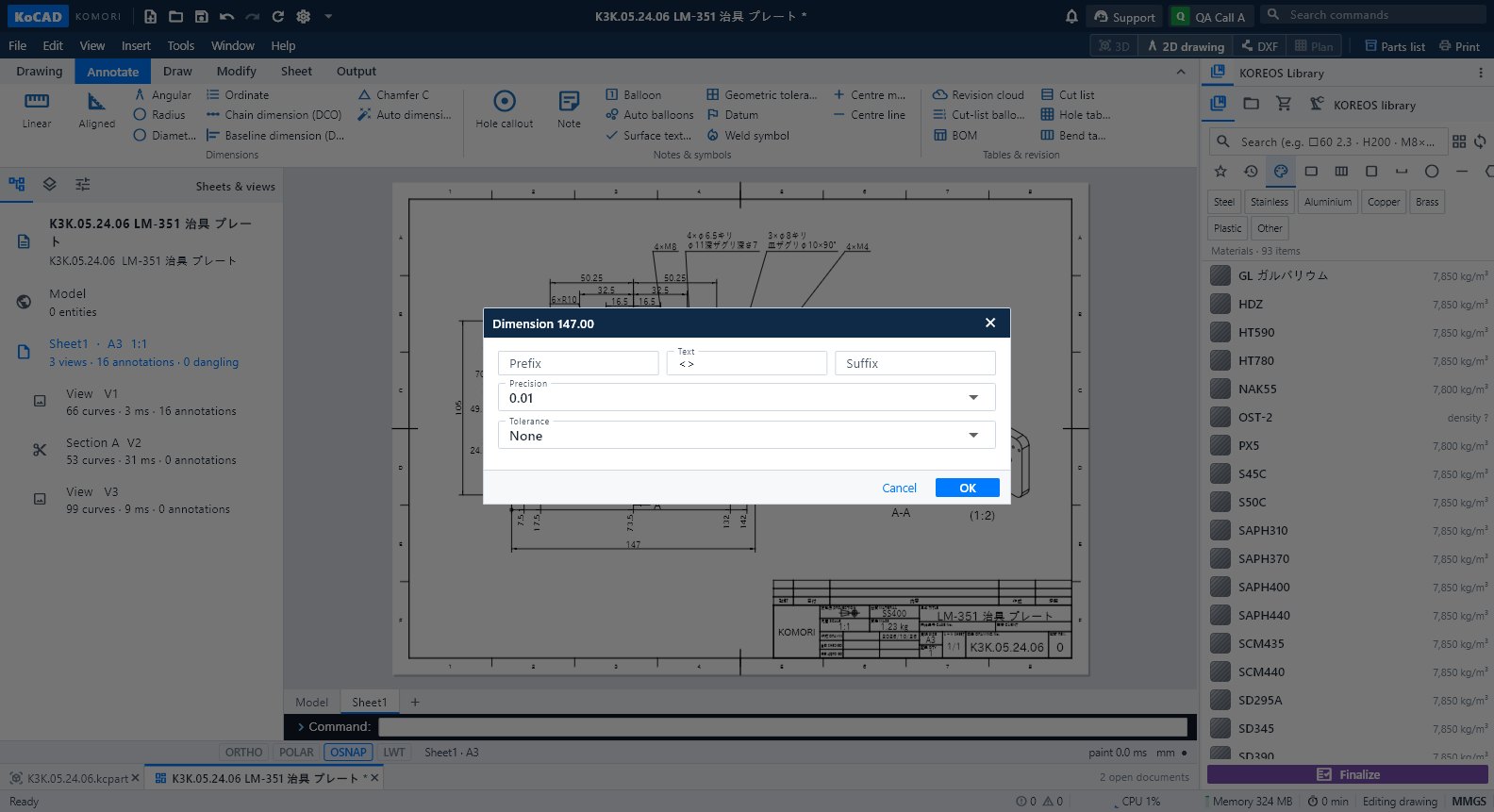
- Annotate: dimensions (linear, aligned, angular, radius, diameter, ordinate, chain DCO, baseline DBA, chamfer C, Auto dimension), Hole callout, Note, Balloon, Auto balloons, Surface texture, Geometric tolerance, Datum, Weld symbol, centre mark/line, tables (BOM, cut list, holes, bends) and revision cloud.
- Draw and Modify: lines, hatch, text, blocks, move/copy, measure — with an AutoCAD-style command line (aliases, absolute/relative/polar coordinates).
Step by step
- Open the part and click Create a 2D drawing from this part. Choose sheet, projection (third angle JIS) and scale; tick auto dimensions if you want.
- Adjust views and dimensions on the Annotate tab. Fill in the title block (図番, 品名, 材質, 尺度…).
- Run Check (Output tab) (overlapping texts, dangling dimensions, empty fields).
Common mistakes
- View out of date after changing the part: Drawing → Update.
- Third-party DWG: opened through LibreDWG in a separate process; if a block looks odd, check the original.