











KoCAD · Primeros pasos
Install, sign in and work offline
Where to download, how to sign in with your KOREOS account (ID/password, or KOREOS/Google in the browser), what works offline and how to see your PCs.
Este artículo aún no está traducido a su idioma: se muestra la versión en English.
En esta página
What it is
KoCAD uses your KOREOS account. Who may use it is set by the KoCAD permission in KOREOS. The installer is in KOREOS Downloads (Windows, Mac and Linux) and the app updates itself through KOMORI's channel.
Step by step
- Download the installer from KOREOS Downloads and install it. On Windows it is a normal wizard; on Mac drag KoCAD into Applications.
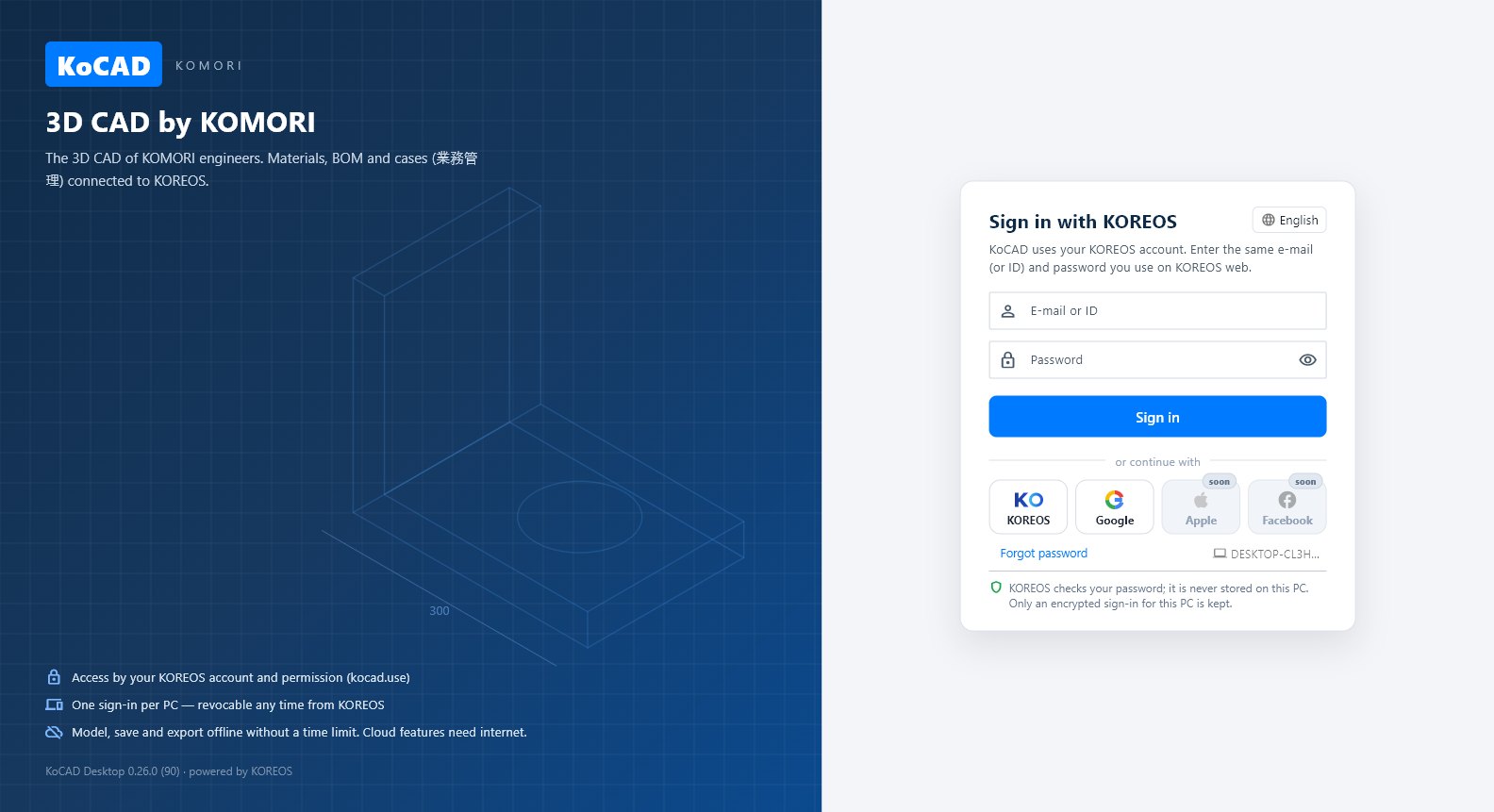
- Open KoCAD. On Sign in with KOREOS, type your KOREOS e-mail or ID and password (the same as on the web) and click Sign in — or use the KOREOS or Google button: the browser opens, you finish there and KoCAD continues by itself.
- Check this PC's name (shown under "connected devices" in KOREOS).
- After signing in your name appears at the top right. Click it for the account, My PCs (signed-in devices) and Sign out.
Without internet
- After the first sign-in KoCAD keeps a signed identity for this PC. Offline you can still open, model, save and export local files — the status bar shows "Offline · local work available".
- Network is needed for Bob/AI, cases, library sync and official prices. When the network returns, a revoked or expired session goes back to the sign-in screen.
Tips
- The password is checked by KOREOS and is not stored on the PC.
- Help → Check for updates looks for a new version now; Help → What's new shows what changed.
- Language: Tools → Options… → Language (Japanese, Portuguese, English; more languages come from KOREOS).
Common mistakes
- "Could not sign in": check your ID/password on the KOREOS web. If the account lacks the KoCAD permission, ask your manager.
- Browser sign-in "stuck": finish the sign-in in the browser tab; KoCAD waits and continues. Cancel returns to the sign-in screen.