











KoCAD · Pantallas y funciones
How to draw over a photo or drawing (image reference)
Put an image in the sketch, set the scale from a known size and trace the part.
Este artículo aún no está traducido a su idioma: se muestra la versión en English.
En esta página
What this is for
When all you have is a photo, a scanned sketch or a customer PDF, put the image behind the sketch and draw over it. With one known size, KoCAD sets the scale and the outline comes out at real size.
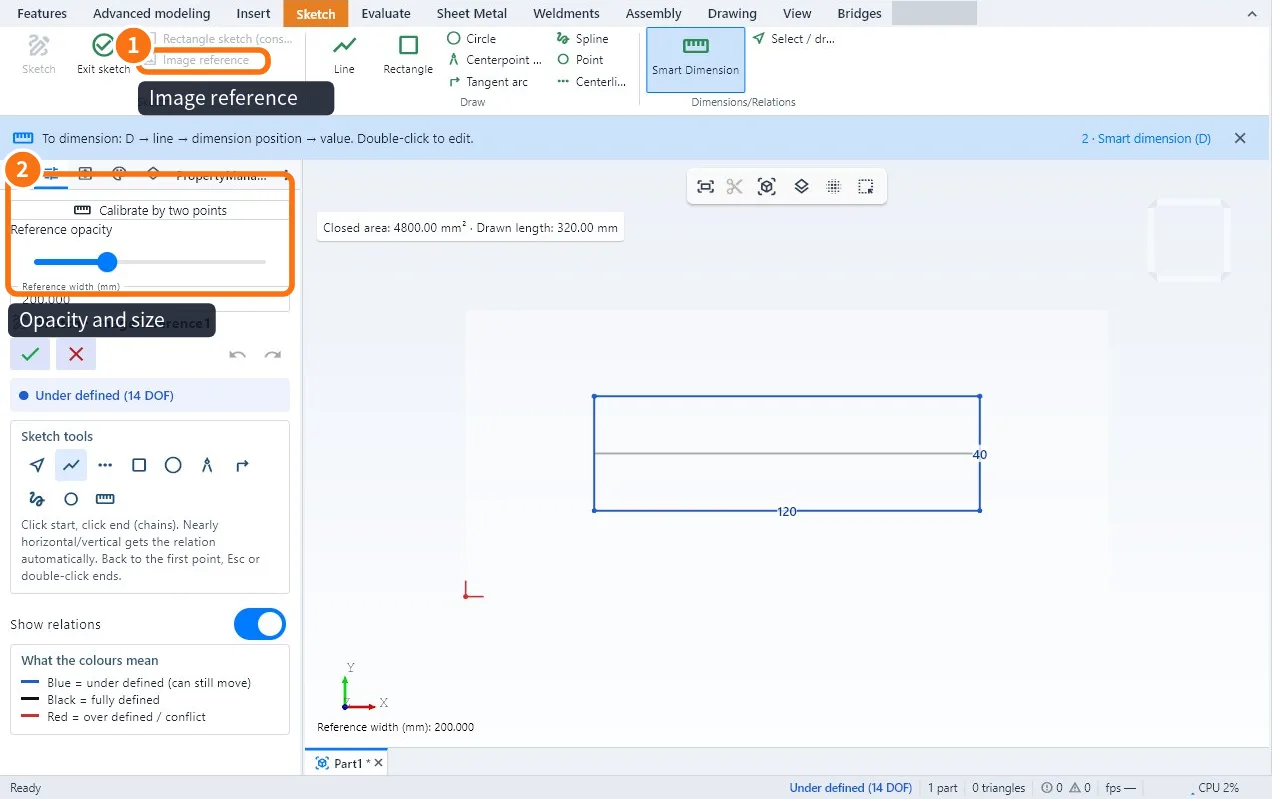
Step by step
- Open a sketch on the plane you want.
- Click Image reference ① on the Sketch tab and choose the file (PNG, JPG or PDF).
- In the panel ②, adjust the opacity so you can see your lines on top.
- Set the scale: draw over a known size in the image (for example a 200 mm width) and enter the real value. The image is resized.
- Trace the part with Line, Arc and Circle and dimension the important sizes.
- Exit the sketch and extrude.
Tips
- Use a photo taken straight on, without perspective; angled photos distort sizes.
- Confirm with dimensions: the image is a guide, the dimension is the truth.
- For technical drawings in PDF or DXF with several views, try 2D → 3D (Advanced modeling), which rebuilds the part from the views.
Common mistakes
- The image became huge or tiny: redo the scale setting with the largest known size.
- I cannot click the lines: the image is background only; the lines are the sketch lines you draw.
Related articles
- How to draw a sketch with dimensions and relations
- Workflow: from a drawing (photo, PDF, DXF, DWG) to a 3D model
- How to turn a 2D drawing (DXF/DWG) into a 3D part