











KoCAD · Pantallas y funciones
How to extrude and cut (boss, cut and end conditions)
Turn a sketch into a solid, remove material, choose depth, direction and what happens to other bodies.
Este artículo aún no está traducido a su idioma: se muestra la versión en English.
En esta página
What this is for
Extruded Boss/Base pulls the sketch outline and creates volume. Extruded Cut does the opposite: it uses the outline to remove material. They are the two most used commands in CAD.
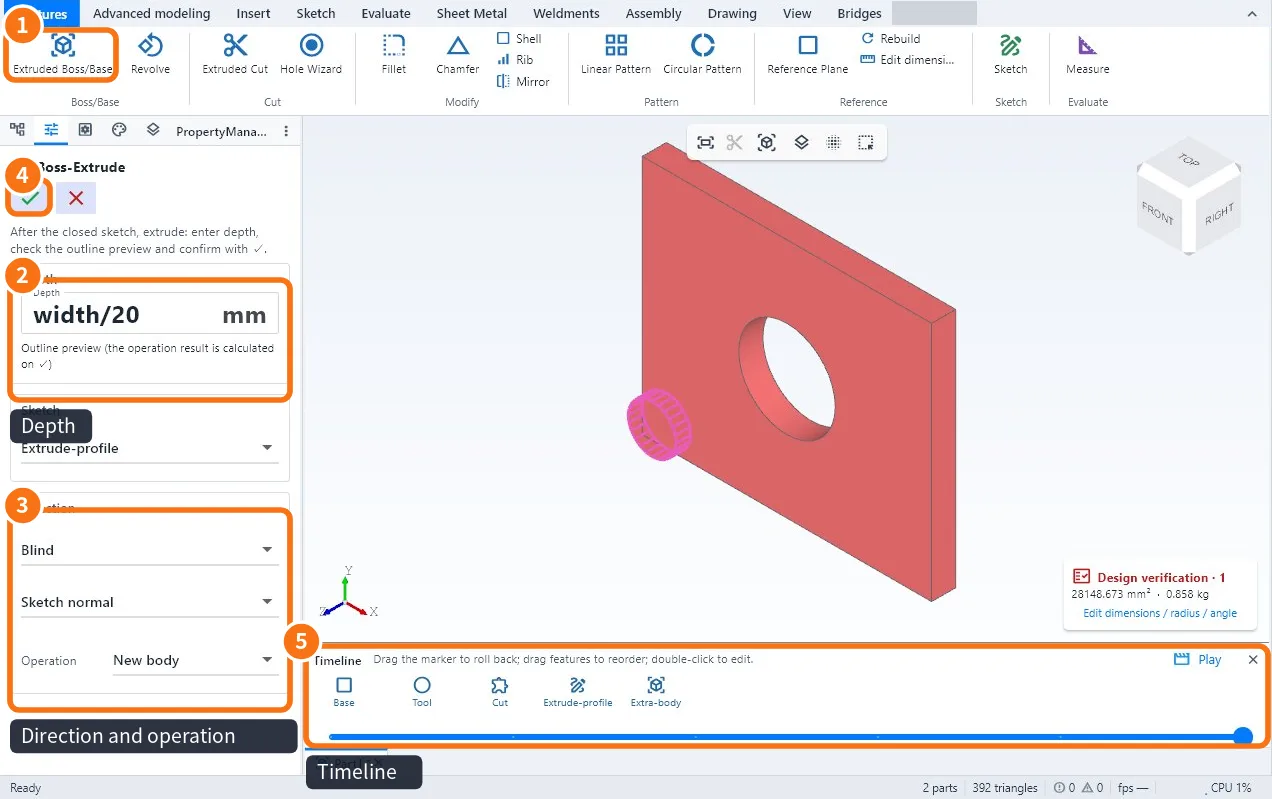
Step by step: add volume
- Finish the sketch (closed outline) and click Extruded Boss/Base ① on the Features tab.
- In Depth ② type the size in mm. It can be a formula, such as width/20. The preview shows the outline before the calculation.
- In Direction ③ choose the end condition: Blind (the typed size), Mid Plane (half to each side) or another; and the sense (normal to the sketch or reversed).
- In Operation choose New body or merge into the existing body.
- Confirm with the green ✓ ④. The feature goes into the tree and the Timeline ⑤.
Step by step: remove material
- Make a sketch on the face of the part with the shape of the cut-out.
- Click Extruded Cut.
- Choose Blind with the depth, or Through All to go through the part.
- Confirm with ✓.
Tips
- To change the thickness later, double-click the feature in the tree and change the depth.
- Ctrl+D (Edit dimensions) shows the dimensions in the view to edit them directly.
- The red ✗ cancels without changing anything.
Common mistakes
- "Open outline": go back to the sketch and close the drawing.
- The cut removes nothing: the direction points out of the part; reverse it.
- Two separate solids: the operation was New body; edit it and choose merge.
Related articles
- Features tab: extrude, cut, holes, fillets and patterns
- How to draw a sketch with dimensions and relations
- How to make holes with the Hole Wizard (clearance, tapped, counterbore, countersink)
- How to edit a part from the tree and the timeline