











KoCAD · Primeros pasos
The KoCAD main window, part by part
Tabs, command ribbon, design tree, 3D view, Verification card, open documents and status bar.
Este artículo aún no está traducido a su idioma: se muestra la versión en English.
En esta página
What this is for
Knowing the areas of the window saves time: each command has a fixed place, and the same area changes its content according to what you are doing (part, sketch, sheet metal, assembly or 2D drawing).
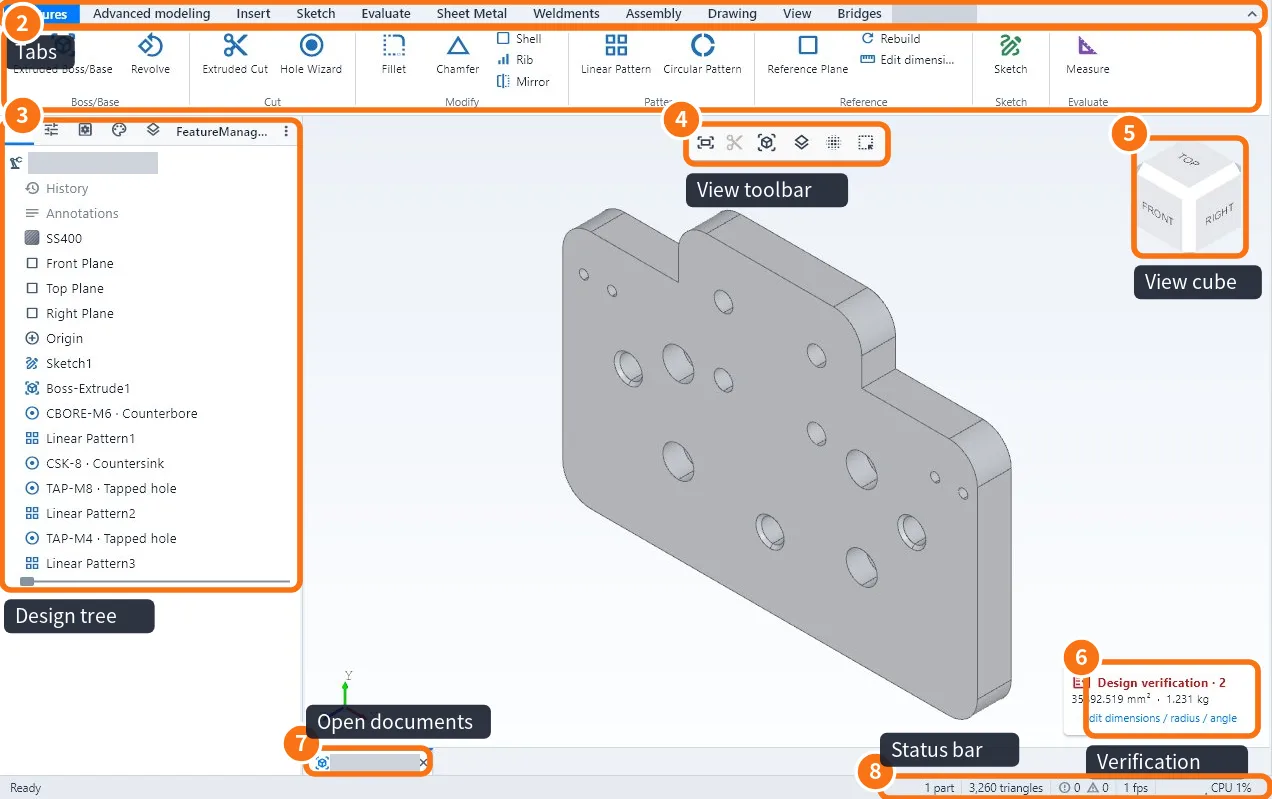
The areas of the window
- Tabs: Features, Advanced modeling, Insert, Sketch, Evaluate, Sheet Metal, Weldments, Assembly, Drawing, View and Bridges. Each tab shows the commands of that subject.
- Command ribbon: the buttons of the tab, in groups (Boss/Base, Cut, Modify, Pattern…). A grey button means something is needed first; hover to see why. The ^ arrow in the corner folds the ribbon.
- Design tree: everything the part has, in the order it was made — planes, sketches, features, material. Click to select, double-click to edit, right-click for more. The icons above the tree switch to Properties, Configurations, Appearance and Layers.
- View toolbar: fit to screen, section view, orientation, display style and selection.
- View cube: click a face (FRONT, TOP, RIGHT) to look straight at it; click a corner for the isometric view.
- Verification card: counts the design warnings and shows area and mass. Click it to open the list and the Edit dimensions / radius / angle shortcut.
- Open documents: each part, assembly or drawing is a tab. An asterisk * means unsaved changes.
- Status bar: number of parts, triangles, warnings, memory and the document unit (MMGS = mm, g, s).
Also at the top of the window
- Quick access bar: new, open, save, undo, redo, rebuild and options.
- Search commands: type part of the name (for example "fillet") and press Enter.
- Bell: messages from the program (file saved, export ready, update).
- File / Edit / View / Insert / Tools / Window / Help menus: the same commands as the ribbon, as a list.
- 3D · 2D drawing · DXF: quick switch between the model and the open drawings.
Common mistakes
- The tree disappeared: View → Restore the default layout.
- The ribbon became thin: double-click a tab or click the ^ arrow to expand it.
- I cannot find the KOREOS tab mentioned elsewhere: it is not part of the KoCAD customer license; every CAD feature is in the other tabs.
Related articles
- Mouse, trackpad and keyboard shortcuts (full list)
- Features tab: extrude, cut, holes, fillets and patterns
- KoCAD Options: every page and what it changes
- How to edit a part from the tree and the timeline