











KoCAD · Pantallas y funciones
Library: standard profiles, fasteners and standard parts
Search by size, filter, see the details and insert profiles, bolts, nuts and washers into the model.
Este artículo aún no está traducido a su idioma: se muestra la versión en English.
En esta página
What this is for
The Library, in the right panel, gathers the standard items you use every day: structural profiles (tubes, angles, channels, H beams, flat bars) and fasteners (bolts, nuts, washers, anchors), with standard sizes and materials. It is downloaded the first time and kept for offline use.
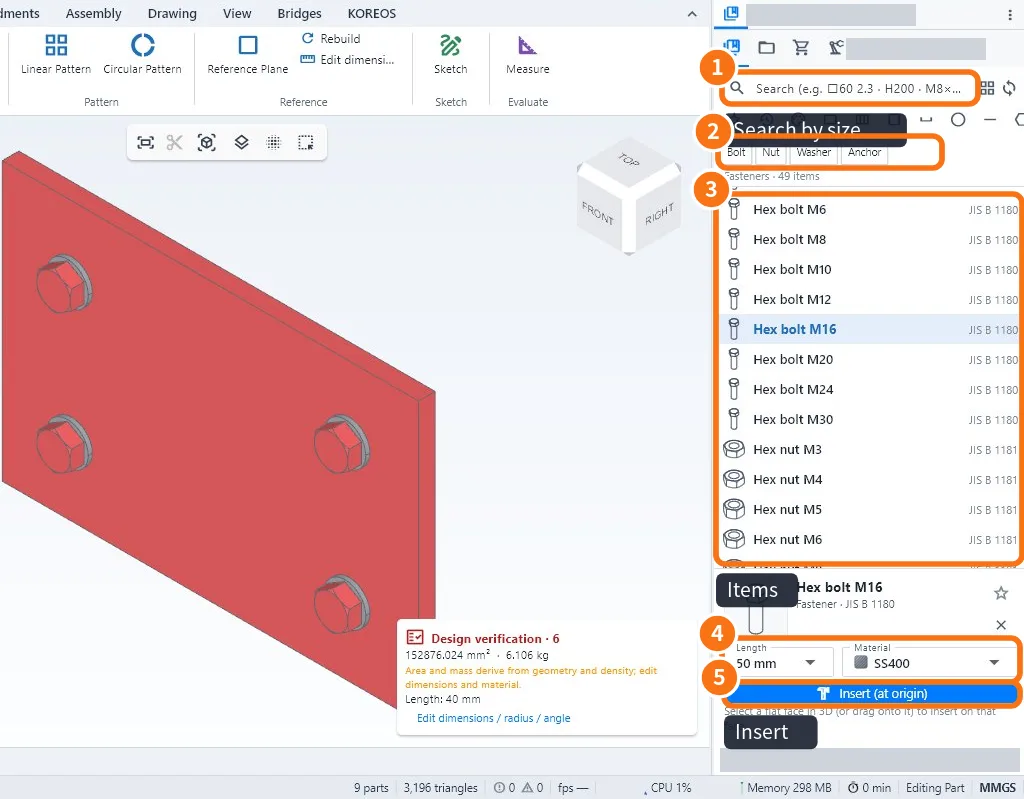
Step by step: insert a bolt
- Open the library: Weldments tab → Standard parts (or Library for profiles).
- In the search box ①, type the size — for example M16, □60 2.3 or H200.
- Use the filters ② (Bolt, Nut, Washer, Anchor…) to narrow the list.
- Click the item ③. Below you see the standard, the Length and the Material ④; adjust if needed.
- Select a flat face in 3D and click Insert ⑤. Or drag the item straight onto the face.
Step by step: use a profile in a weldment
- Draw the skeleton lines in a sketch.
- Click Weldments → Structural Member.
- In the library, choose the profile (search by size) and click the lines.
- Confirm. Each line becomes a member with the chosen profile.
Tips
- Star = favourites; clock = recently used.
- The sync button (arrows next to the search) downloads the newest library when there is internet.
- Items follow the project standard; parts specific to your company you model once and reuse as files.
Common mistakes
- Nothing happens when clicking Insert: select a flat face in 3D first.
- The search finds nothing: type only the numbers and symbols of the size; check the active filters.
- Empty library: connect to the internet once and use the sync button.
Related articles
- Weldments tab: members, plates, welds, cut list and bars
- How to build a weldment (tube frame) from sketch to weld
- Insert tab: standard parts, materials and members
- Part material, mass and bill of materials