











KoCAD · Pantallas y funciones
Project the 3D Showcase on a projector (projection mapping)
Project sends the live 3D Showcase to a projector (or TV) on the computer's HDMI and fits the picture exactly onto a wall, table, display case or object — *projection mapping*. Plug the projector into HDMI. On Windows press Win+P and choose Extend (the projector becomes the 2nd screen). Open the project, click 3D Showcase at the top of the window, then Project in the bottom bar (cast icon).
Este artículo aún no está traducido a su idioma: se muestra la versión en English.
Project sends the live 3D Showcase to a projector (or TV) on the computer's HDMI and fits the picture exactly onto a wall, table, display case or object — *projection mapping*. Plug the projector into HDMI. On Windows press Win+P and choose Extend (the projector becomes the 2nd screen). Open the project, click 3D Showcase at the top of the window, then Project in the bottom bar (cast icon).
Choose the screen and send: at the top of the modal, Output screen already picks the screen that is not the main one (the projector). Click Send to projector: a borderless, full-screen window opens on the projector with the model turning. With a single screen, choose Window (drag it to the projector) — you can try it on your own monitor. To stop, click Stop output (or press Esc on the projector screen).
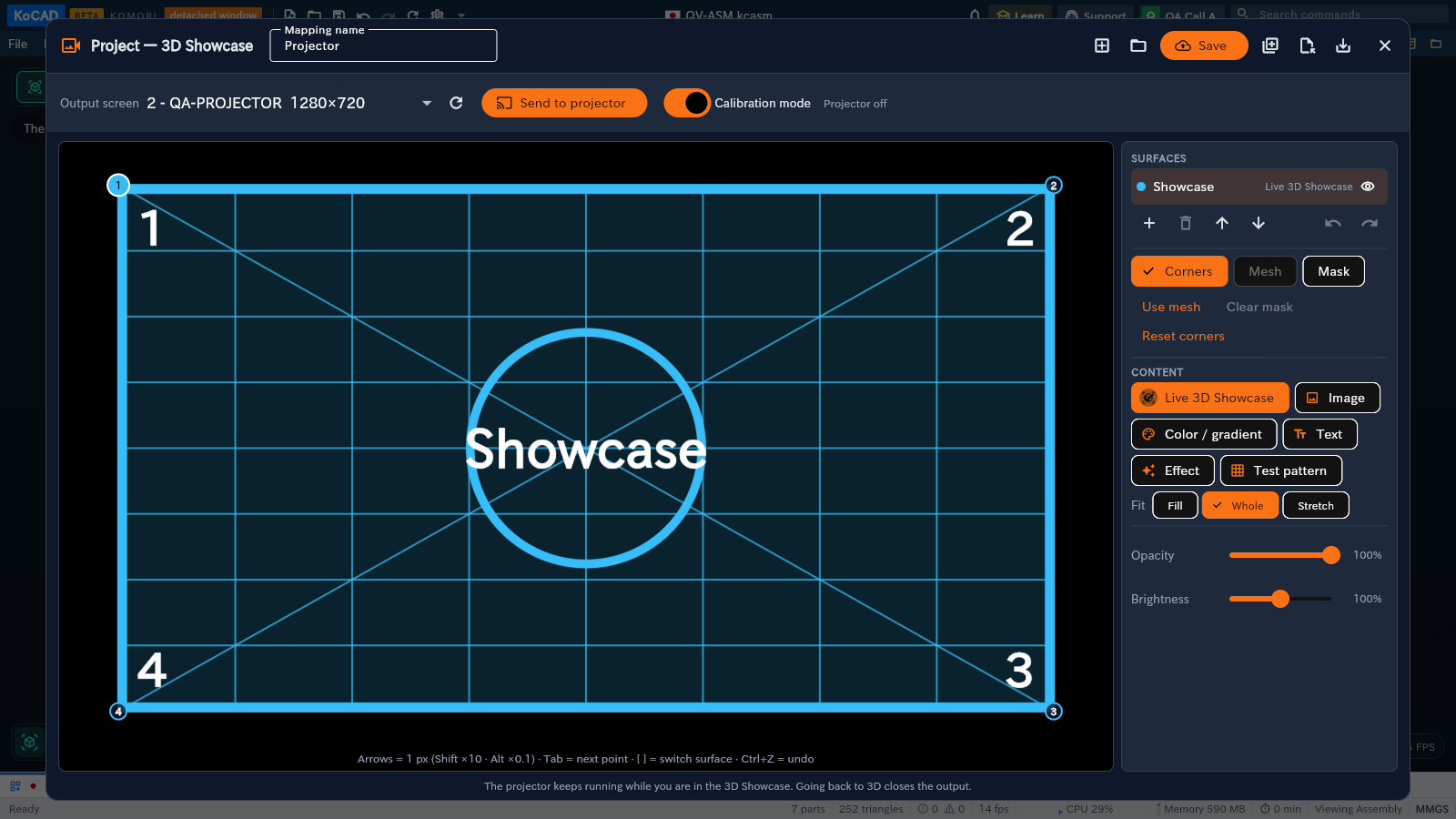
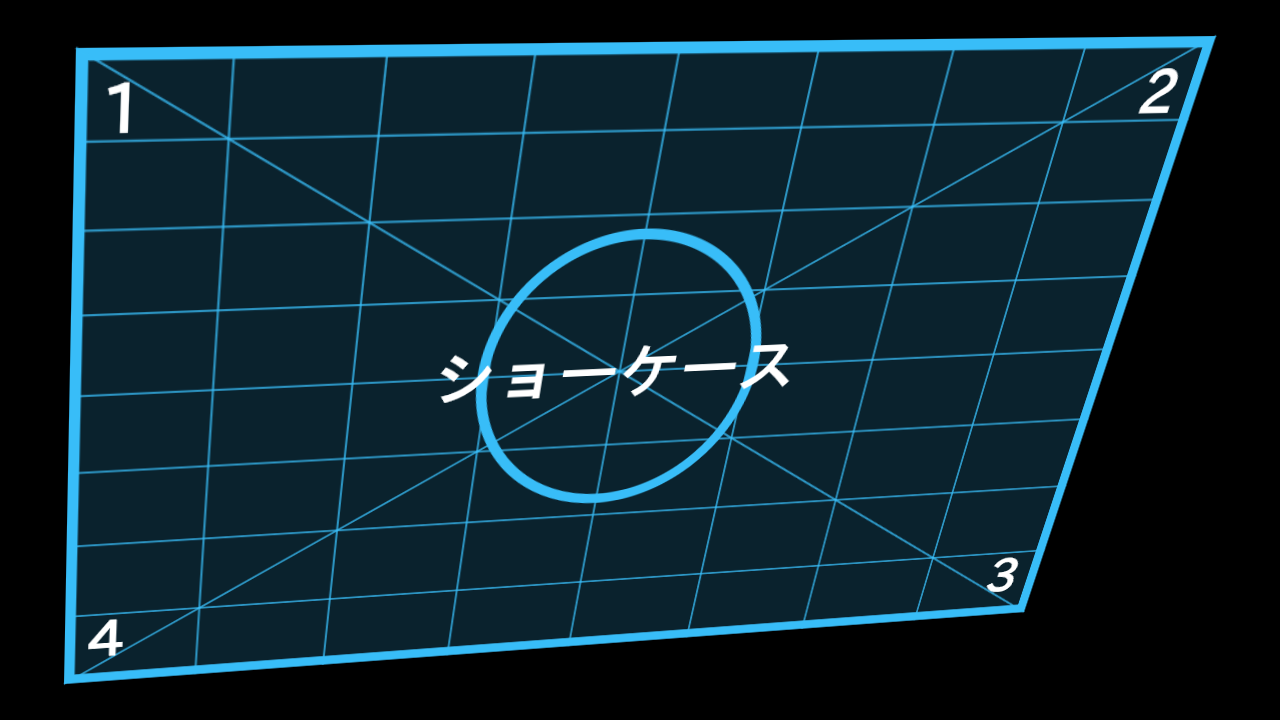
Mapping (fit it to the surface): switch on Calibration mode — the projector shows a coloured grid with the corners numbered 1 2 3 4. Drag the corners in the editor until the grid lands exactly on the wall or object: the projector changes at once. Fine-tune with the keyboard: arrows = 1 projector pixel (Shift ×10, Alt ×0.1), Tab next corner, [ ] switch surface, Ctrl+Z undo. A curved or crooked surface: Use mesh and drag the inner points. To hide a part (a door, a frame): Mask mode, tap to mark points. When done, switch Calibration mode off to see the content.
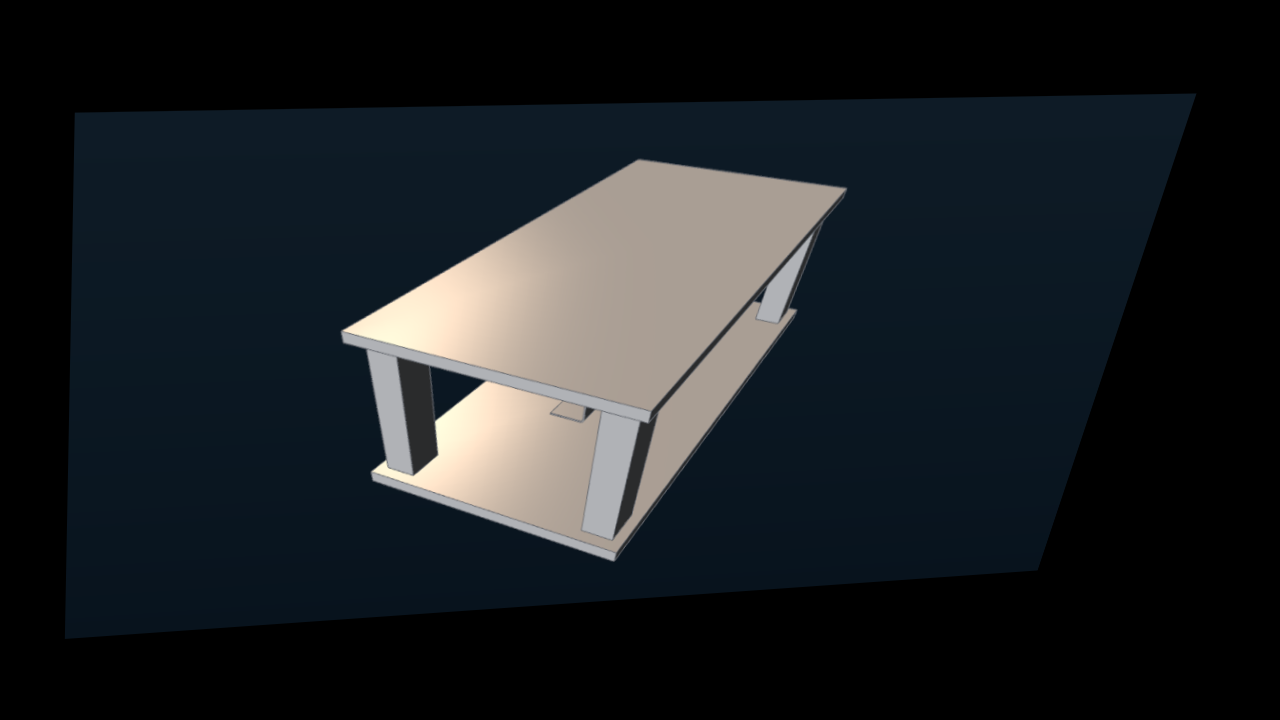
Several surfaces and content: Add surface creates another quad (e.g. the table top and the wall). Each surface shows: Live 3D Showcase (the 5 views, light, turntable and dimensions), Image (stored on the server, opens on other PCs), Color / gradient, Text or Effect (pulse, sweep, particles, rings). You can also change the fit (fill, whole, stretch), opacity, brightness, layer order, and hide a surface.
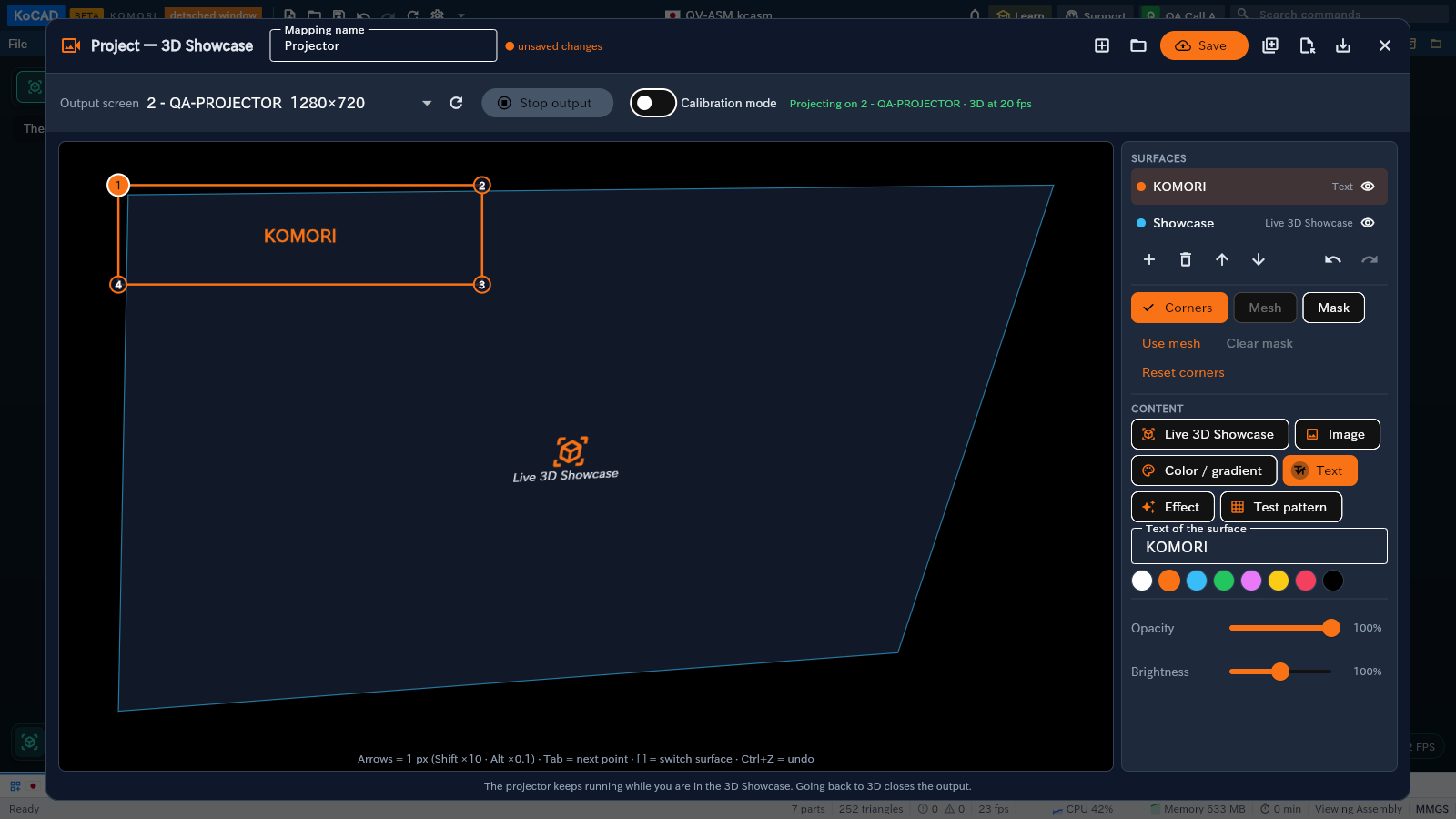
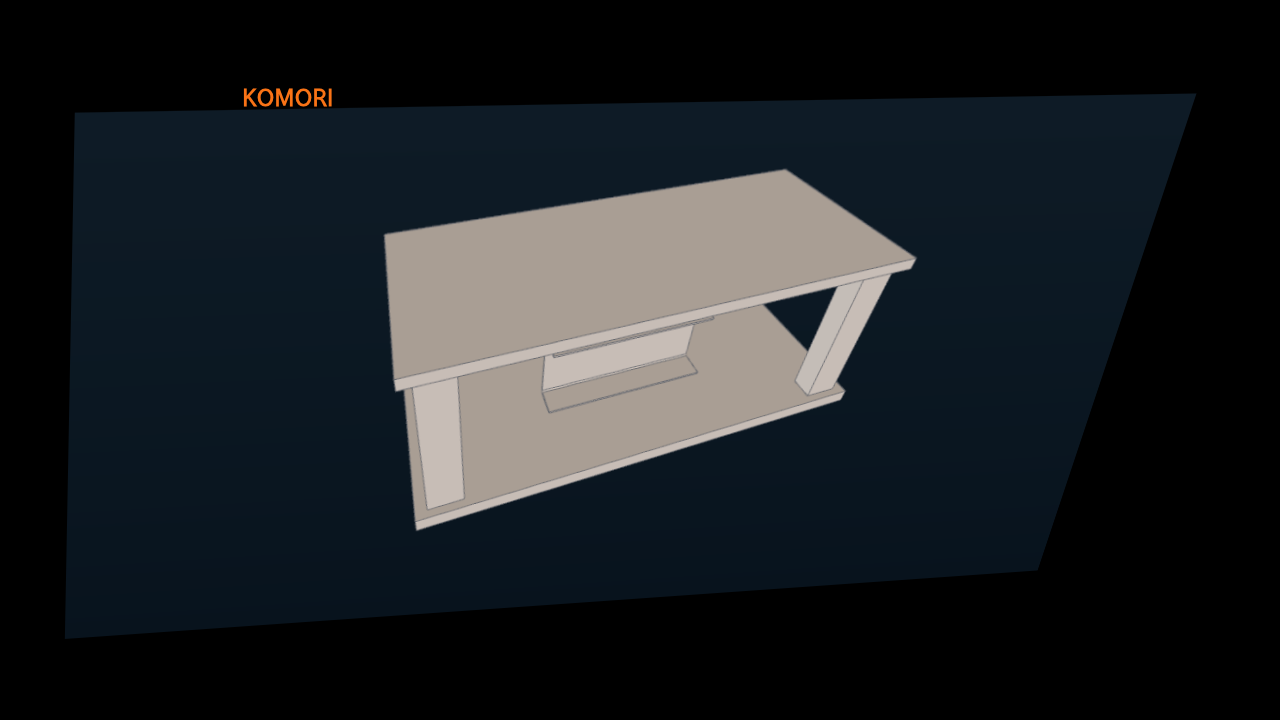
Save and reuse in other projects: give it a name (e.g. "Meeting room wall") and click Save. The mapping is kept on the KOREOS server: it opens in any KoCAD project and also in EASY and on the web — same surfaces, just change the content. Open saved ones from the folder icon; Save as new makes a copy; Archive removes it from the list. Offline, it saves on this PC and goes to the server on the next "Save" with network. To carry it on a USB stick: Export .kmap / Import .kmap.
Good to know: you can close the modal — the projector keeps showing the 3D Showcase while you present; going back to the engineering 3D closes the output. The document never changes. Video surfaces play in EASY and on the web; in KoCAD they show the test pattern. The account needs the Projection permission (projection.use) in KOREOS.