











KoCAD · Pantallas y funciones
How to edit a part from the tree and the timeline
Edit features, roll back in time, change the order, suppress, rename and use the right-click menu.
Este artículo aún no está traducido a su idioma: se muestra la versión en English.
En esta página
What this is for
The part keeps the recipe of how it was made. From the tree and the Timeline you can change any earlier step, and everything after it is recalculated. That is the big difference between a parametric CAD and a "dead" drawing.
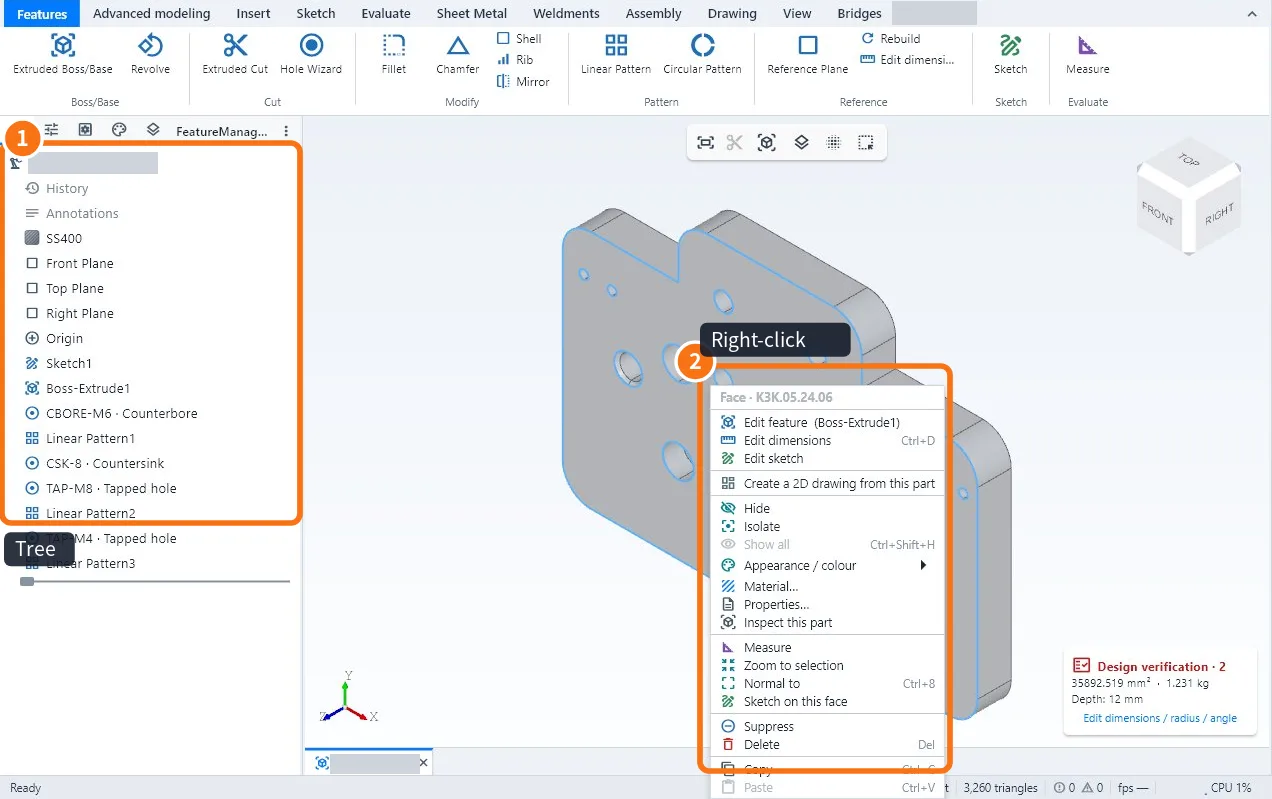
Step by step: change an earlier step
- In the tree ①, double-click the feature (for example Boss-Extrude1). Its panel opens.
- Change the size or option and confirm with ✓.
- To change the sketch, right-click ② → Edit sketch.
- Ctrl+B (Rebuild) recalculates if something is out of date.
The right-click menu
- Edit feature and Edit sketch.
- Edit dimensions: shows the dimensions in the view.
- Hide, Isolate, Appearance, Material, Properties….
- Suppress: turns the feature off without deleting it (handy to test versions).
- Roll back to here / Roll forward to the end: puts the part back at a point of the history.
- Move up/down, Rename, Copy, Delete.
- Select other: picks the face or part hidden behind.
Timeline
- Open it in Advanced modeling → Timeline.
- Drag the marker to go back in time; later steps turn grey.
- Drag an icon to change the order; double-click edits.
- Play shows the build as a movie.
Common mistakes
- Feature in error (red) after editing: the face or edge it used changed. Edit it and pick the reference again.
- Nothing changes when editing: the timeline marker is before the feature; move it to the end.
Related articles
- Design tree, PropertyManager and part properties
- How to use user parameters and formulas (a part that changes size)
- How to extrude and cut (boss, cut and end conditions)