











KoCAD · Screens & features
Library: standard profiles, fasteners and standard parts
Search by size, filter, see the details and insert profiles, bolts, nuts and washers into the model.
On this page
What this is for
The Library, in the right panel, gathers the standard items you use every day: structural profiles (tubes, angles, channels, H beams, flat bars) and fasteners (bolts, nuts, washers, anchors), with standard sizes and materials. It is downloaded the first time and kept for offline use.
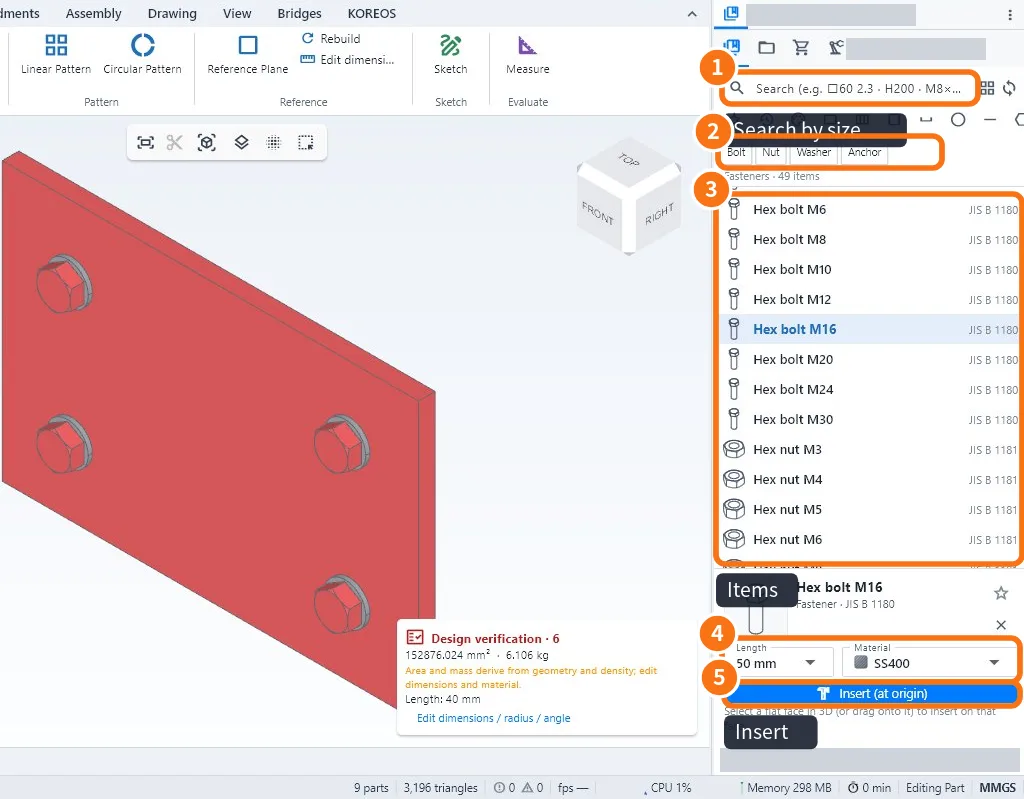
Step by step: insert a bolt
- Open the library: Weldments tab → Standard parts (or Library for profiles).
- In the search box ①, type the size — for example M16, □60 2.3 or H200.
- Use the filters ② (Bolt, Nut, Washer, Anchor…) to narrow the list.
- Click the item ③. Below you see the standard, the Length and the Material ④; adjust if needed.
- Select a flat face in 3D and click Insert ⑤. Or drag the item straight onto the face.
Step by step: use a profile in a weldment
- Draw the skeleton lines in a sketch.
- Click Weldments → Structural Member.
- In the library, choose the profile (search by size) and click the lines.
- Confirm. Each line becomes a member with the chosen profile.
Tips
- Star = favourites; clock = recently used.
- The sync button (arrows next to the search) downloads the newest library when there is internet.
- Items follow the project standard; parts specific to your company you model once and reuse as files.
Common mistakes
- Nothing happens when clicking Insert: select a flat face in 3D first.
- The search finds nothing: type only the numbers and symbols of the size; check the active filters.
- Empty library: connect to the internet once and use the sync button.
Related articles
- Weldments tab: members, plates, welds, cut list and bars
- How to build a weldment (tube frame) from sketch to weld
- Insert tab: standard parts, materials and members
- Part material, mass and bill of materials