











KoCAD · Screens & features
How to record an MP4 or GIF movie of the build or the assembly
Play the timeline, choose build, exploded or assembly, and export the video — all on your PC.
On this page
What this is for
A short video explains a design better than ten screenshots: it shows the part being built or the machine being assembled. KoCAD records straight from the 3D view, on your PC, without internet.
Step by step
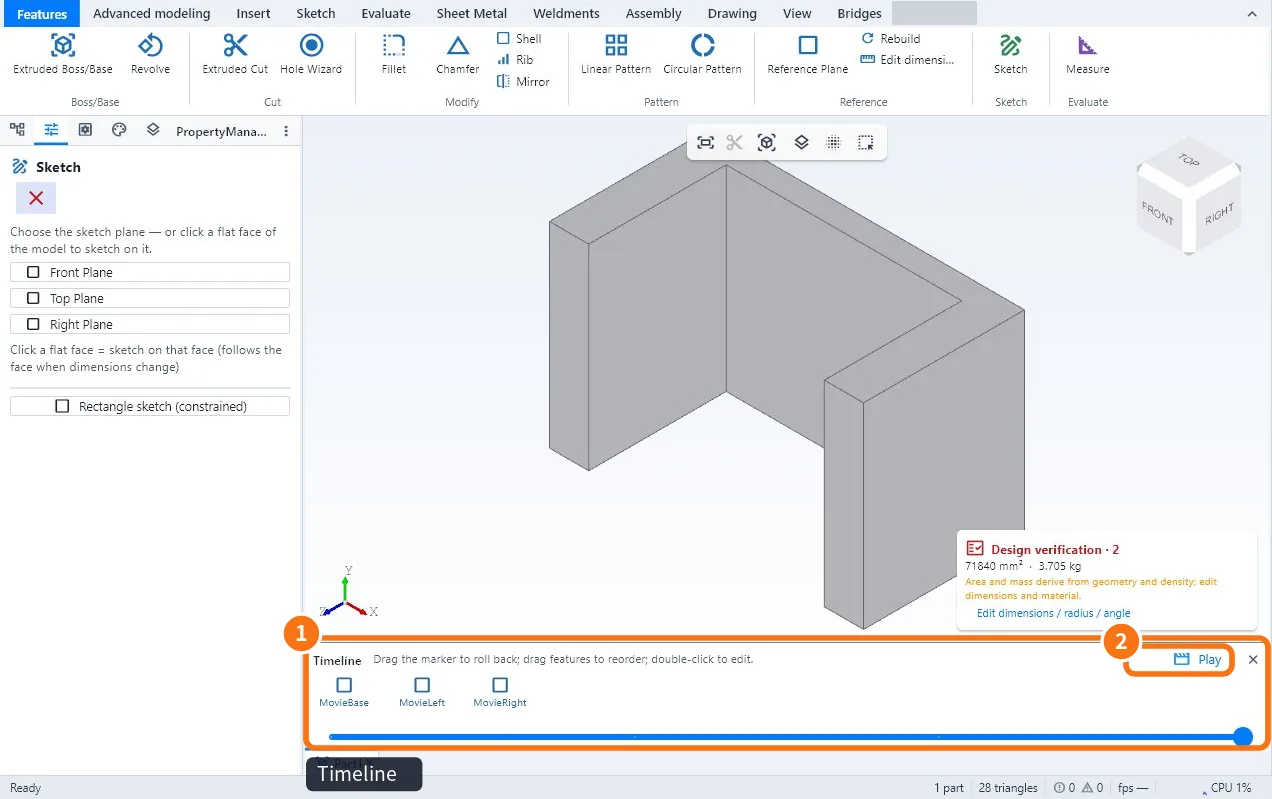
- Open the model and turn on the Timeline ① (Advanced modeling → Timeline).
- Click Play ②. A preview opens: the file, parameters and undo stay untouched.
- Choose Build (features in project order), Exploded view or Assembly (steps in reverse). The last two need an exploded view.
- Use the green button to play/pause, drag the bar and choose the speed (0.5×, 1×, 2×, 4×).
- To save choose MP4 720p or 1080p (H.264, 30 fps) or GIF (640×360, 10 fps, up to 6 s) and click Export video.
- Close with the X to go back to the previous model and camera.
Shortcut: File → Film MP4… opens the same panel.
Note: If you want to record a presentation video with a dark stage and viewing modes (Solid, X-ray, Exploded, Dimensions, Flat pattern), use the ● Record button in the 3D Showcase tab — see Showcase mode and cinema mode.
Common mistakes
- "Exploded view" greyed out: create the exploded view on the Assembly tab first.
- Linux does not record MP4: the system needs GStreamer with H.264 installed.
- GIF cut short: GIF is limited to 6 s; use MP4 for longer movies.
Related articles
- Workflow: film of the build or of the assembly (MP4 / GIF)
- How to make the exploded view and detect interference
- How to change appearance, apply textures and generate with AI