











KoCAD · Screens & features
How to assemble parts: new assembly, insert components and mates
Create the assembly, bring in the parts, fix the base and position with coincident, concentric, parallel and distance.
On this page
What this is for
An assembly (.kcasm) brings together parts saved in their own files and says how they fit. Mates tie one part to another: face to face, hole to shaft, at a distance.
Step by step
- Click New assembly (Assembly tab) and confirm the project.
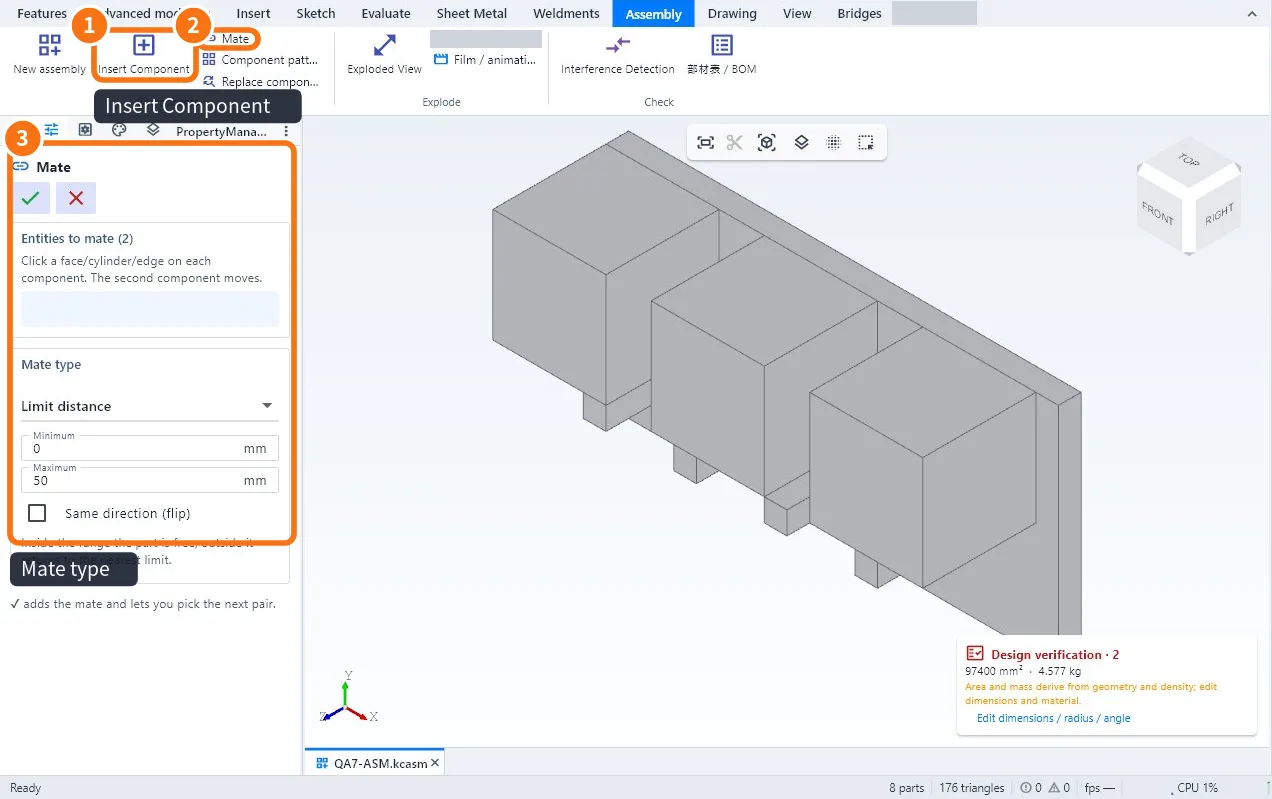
- Click Insert Component ① and choose the part (.kcpart), another assembly (.kcasm) or a STEP. The first part comes in fixed.
- Insert the other parts. They come in free and can be dragged.
- Click Mate ②. Click a face, cylinder or edge on each part (the second one moves).
- Choose the type ③: Coincident, Concentric, Parallel or Distance (with a value). Same direction (flip) turns it round.
- ✔ adds the mate and lets you pick the next pair. Repeat until the part is held.
- Save the assembly.
Tips
- Bolt in a hole: Concentric (shaft with hole) + Coincident (head with face).
- To move a part by hand, use Move / rotate; directions held by mates do not move.
- Fix this component locks a part in place.
- Library standard parts (bolts, nuts) go straight onto a face.
Common mistakes
- The part jumps to the wrong place: flip the mate direction.
- Conflicting mates: two mates ask for different things; delete the last one in the tree.
- Mate button grey: it only works inside an assembly (components in files).
Related articles
- Assembly tab: components, mates, exploded view and BOM
- How to make the exploded view and detect interference
- How to make the bill of materials (部材表 / BOM) and export it to CSV
- How to repeat and replace components and work with large assemblies