











KoCAD · Screens & features
Sheet Metal tab: flanges, bends, flat pattern and laser DXF
Base Flange, Edge Flange, Miter Flange, Hem, Sketched Bend, Convert to Sheet Metal, Sheet rules (K = 0.44 default), Flatten, Flat DXF (laser), Sheets and manufacturability.
On this page
What it is
Bent sheet-metal parts with an exact flat pattern for laser cutting. A sheet-metal part opens straight on this tab.
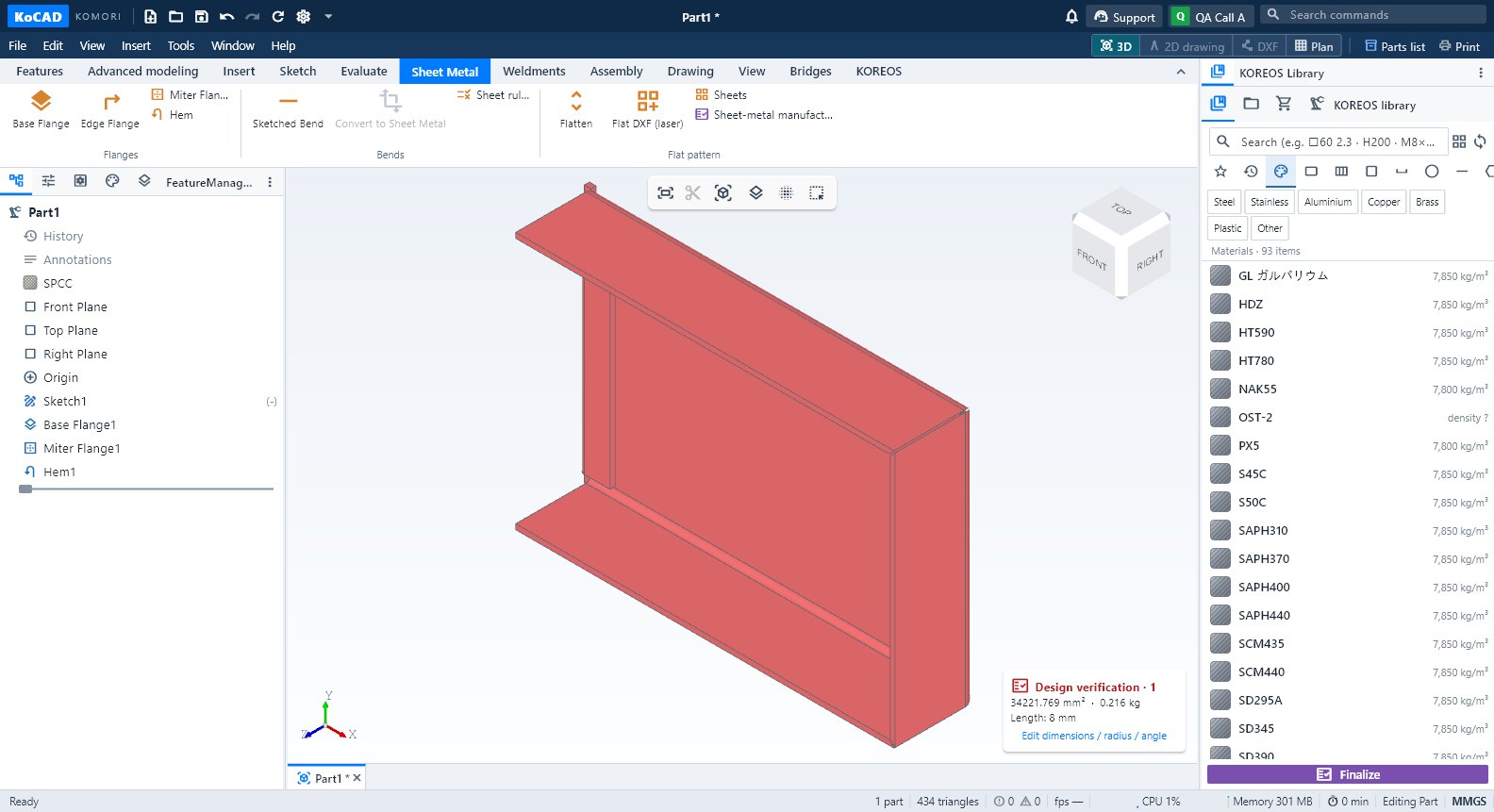
Groups and buttons
- Flanges: Base Flange · Edge Flange · Miter Flange · Hem.
- Bends: Sketched Bend · Convert to Sheet Metal · Sheet rules.
- Flat pattern: Flatten · Flat DXF (laser) · Sheets (nesting) · Sheet-metal manufacturability check.
Step by step: a bent part
- Draw the outline in a sketch and click Base Flange. Enter thickness and inner radius.
- Select an edge and click Edge Flange; set length, angle and position in the PropertyManager.
- In Sheet rules check material, thickness, inner radius, K-factor (default 0.44), relief and minimum flange. Apply regenerates the part.
- Click Flatten to see the flat part with bend lines.
- Flat DXF (laser) writes the cutting DXF: cut outline on layer AM_0, bends on AM_3 and notes on AM_5.
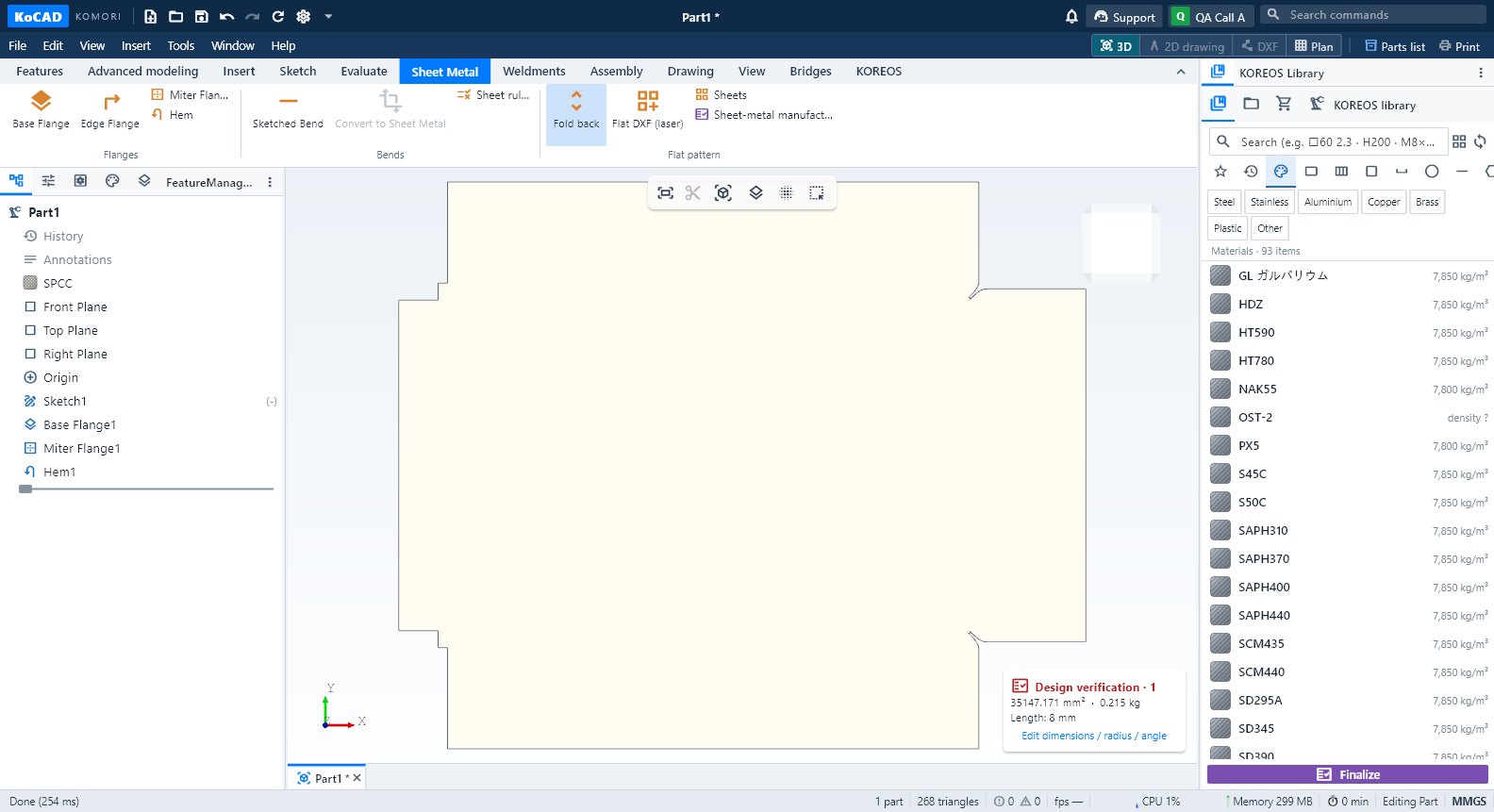
Tips
- Convert to Sheet Metal turns a bent STEP solid (from another CAD) into a KoCAD sheet part with flat pattern and DXF.
- Manufacturability check: hole too close to a bend, flange too short, missing relief — with reason and suggestion.
- Saving the rule table needs the KoCAD approval permission; read-only users can pick a rule.
Common mistakes
- Flattening fails on a STEP: the solid has no constant thickness. Use Convert to Sheet Metal or fix it in the source CAD.
- Wrong size on the laser: check the unit (mm) and 1:1 scale in the laser software. Check one physical part before the first production run.