











KoCAD · Screens & features
Materials & purchasing, Processes and the Finalize button
The document's materials list (edit, purchased items, prices), processes per part with the shop letters, and Finalize with what is missing and the printouts.
On this page
What it is
In the right panel: Materials & purchasing (cart) lists the material of each part of the open document; Processes shows cutting, holes/taps, bends and welds; Finalize closes the package for the shop.
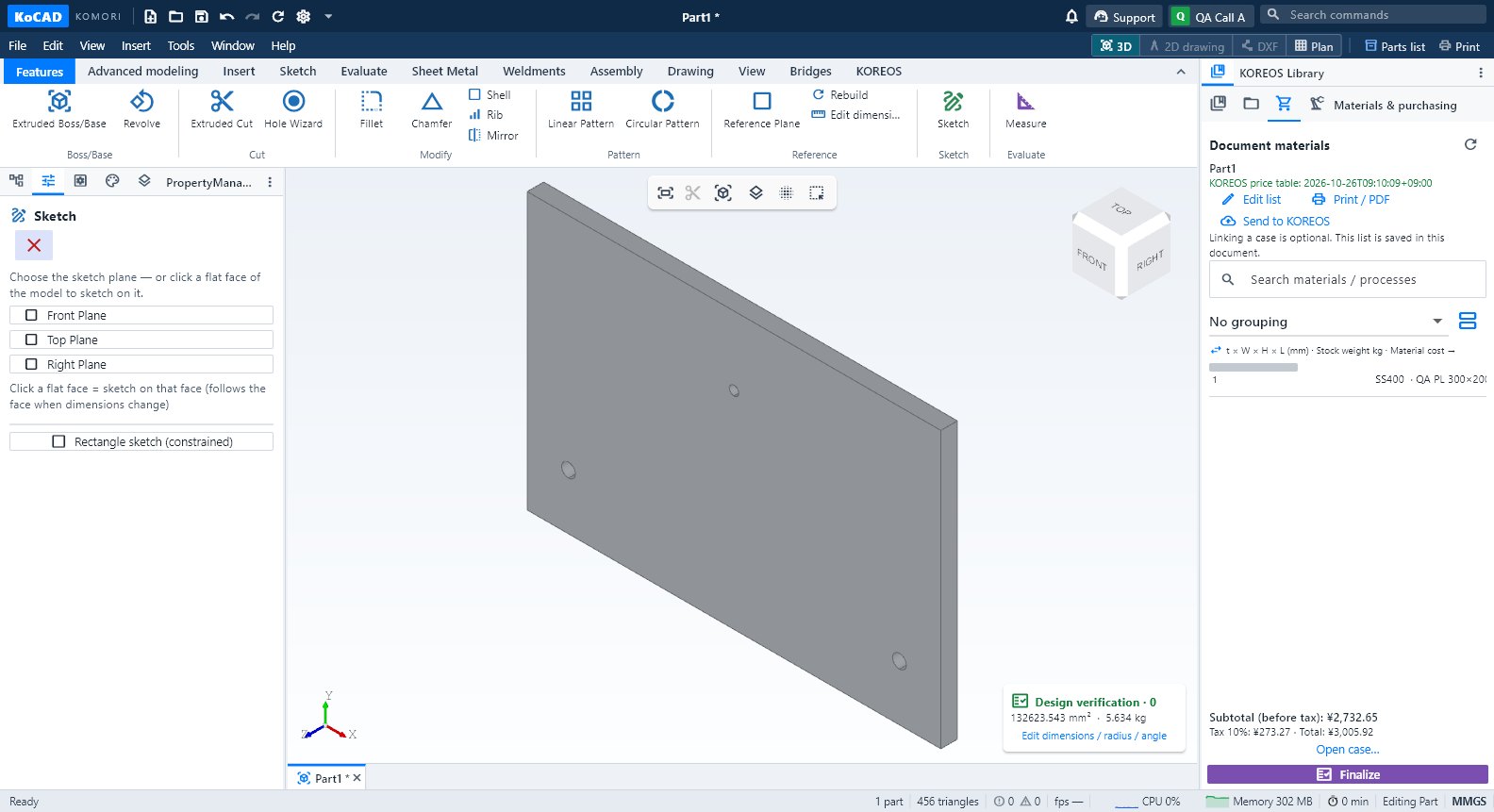
Materials & purchasing
- The list follows the model: material, size, quantity, weight, cost and process letters (B バンドソー, D 穴あけ…). Click a row for details and the catalogue suggestion.
- Edit list: choose type, standard/profile, material and size from the catalogue; adjust quantity; add processes; Add purchased item for bolts and ready-made items (with unit price).
- Apply to document keeps the changes; save the file. A manual edit is marked with a pencil (Modified) and is not replaced when the geometry changes. Restore model row undoes that row's edit.
- Red badge = outside catalogue. Unconfirmed price = Pending; the subtotal adds only known values and the 10 % tax is shown separately.
Processes
- Each part shows the processes the model really has. ST per part and total come from the official calculation.
- Click the target to highlight the part, the holes or the weld seam in 3D. Edit list adjusts time/quantity.
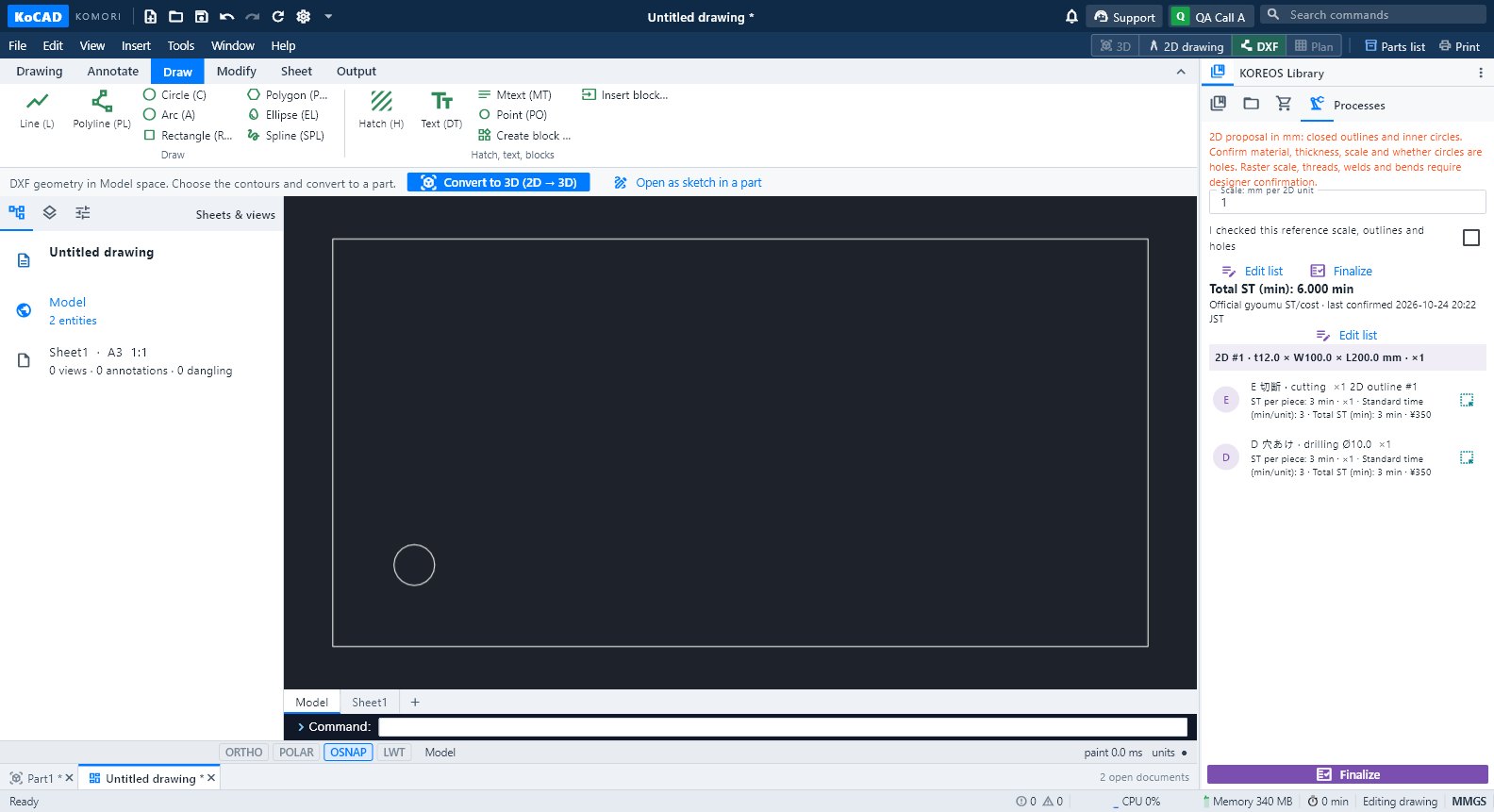
Finalize
- Click Finalize (fixed purple button). You get the list of what is missing (material, pending times) and the printouts: materials, purchasing, costs/ST, process sheet, labels and Kanban.
- Fix what is missing. With a linked case and online, printing uses the KOMORI template and the case QR; offline it uses KoCAD.
- Review the differences before applying. Finalize never orders material by itself.
Common mistakes
- Everything "Pending" offline: official values need the network (offline uses the last downloaded table, with its date).
- Two files with the same destination in the case: the batch upload is blocked before it starts.