











KoCAD · Screens & features
How to measure distances, see mass and centre of gravity and section the view
Measure, Mass properties and Section view, to check the model without changing anything.
On this page
Measure
- Click Evaluate → Measure (or the Measure button on the Features tab).
- Click two things: points, edges, faces or holes. KoCAD shows the distance, angle, diameter or radius, depending on the selection.
- Click empty space to start another measurement; Esc closes.
Mass properties
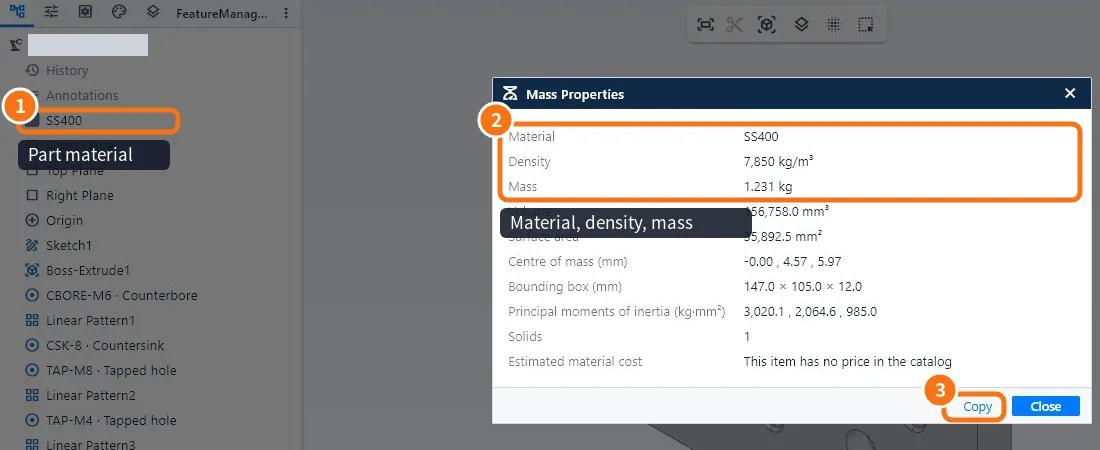
- Evaluate → Mass properties.
- Read material ①, density, mass, volume, area, centre of mass, overall dimensions and moments of inertia ②.
- Copy ③ puts the numbers on the clipboard.
Section view
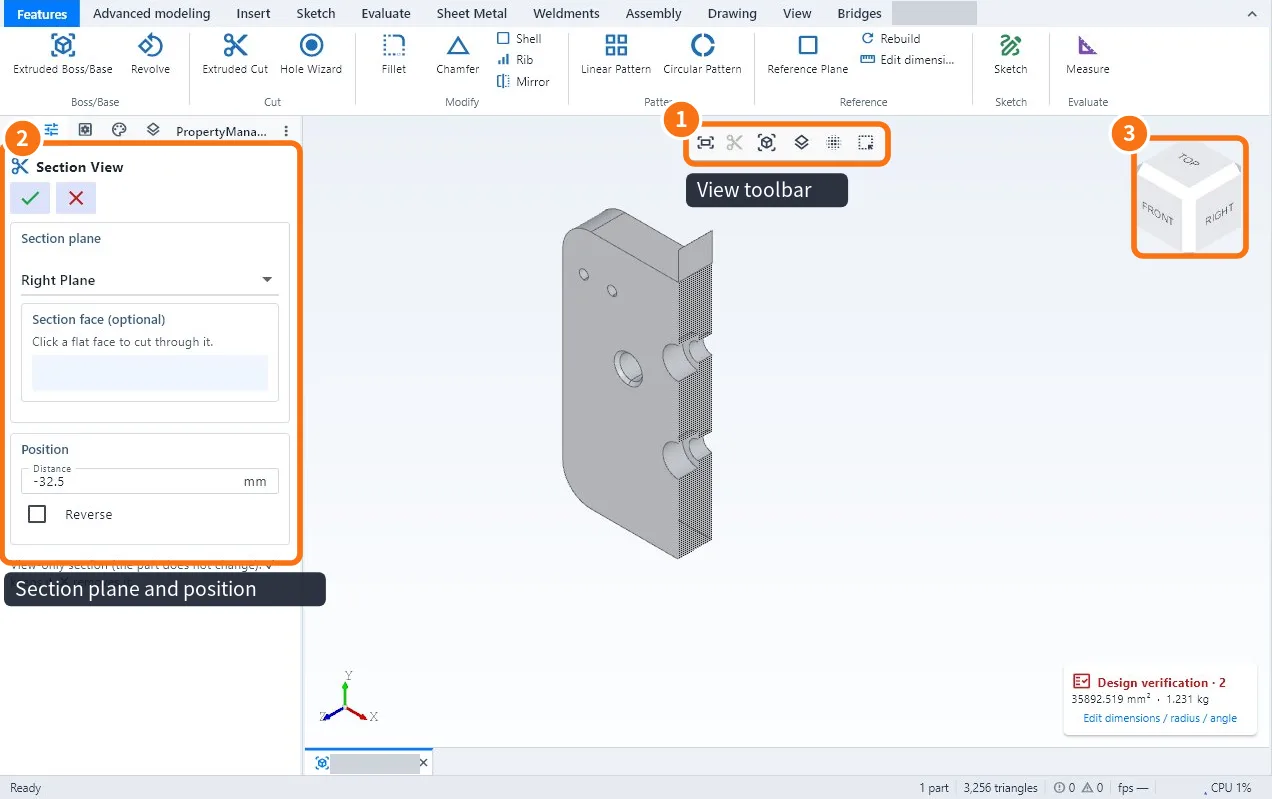
- Click Section view on the view toolbar ①.
- Choose the plane ② and drag the position.
- Confirm; to leave, Turn off section view.
Common mistakes
- Wrong mass: check the material; without material the mass is 0.
- Measurement on a mesh (STL/GLB) is approximate: meshes have no exact faces; measure on the STEP.
- Centre of mass outside the part: normal for U- or L-shaped parts.
Related articles
- Evaluate tab: measure, mass, verification, interference and cost
- Part material, mass and bill of materials
- View tab: orientation, styles, section, hide/isolate and windows
- How to make the exploded view and detect interference