











KoCAD · Getting started
Basics: draw by typing the size, then give thickness
An exact rectangle by typing 200x100, then a 3D block with “Give thickness” — the fastest way to make a part from scratch.
- Simple tab › Rectangle. You draw on the plane in view (turn the view first for another plane, or click a flat face of the part to draw on it).
- Click where the first corner goes and, instead of dragging, type the size: 200x100, Enter.
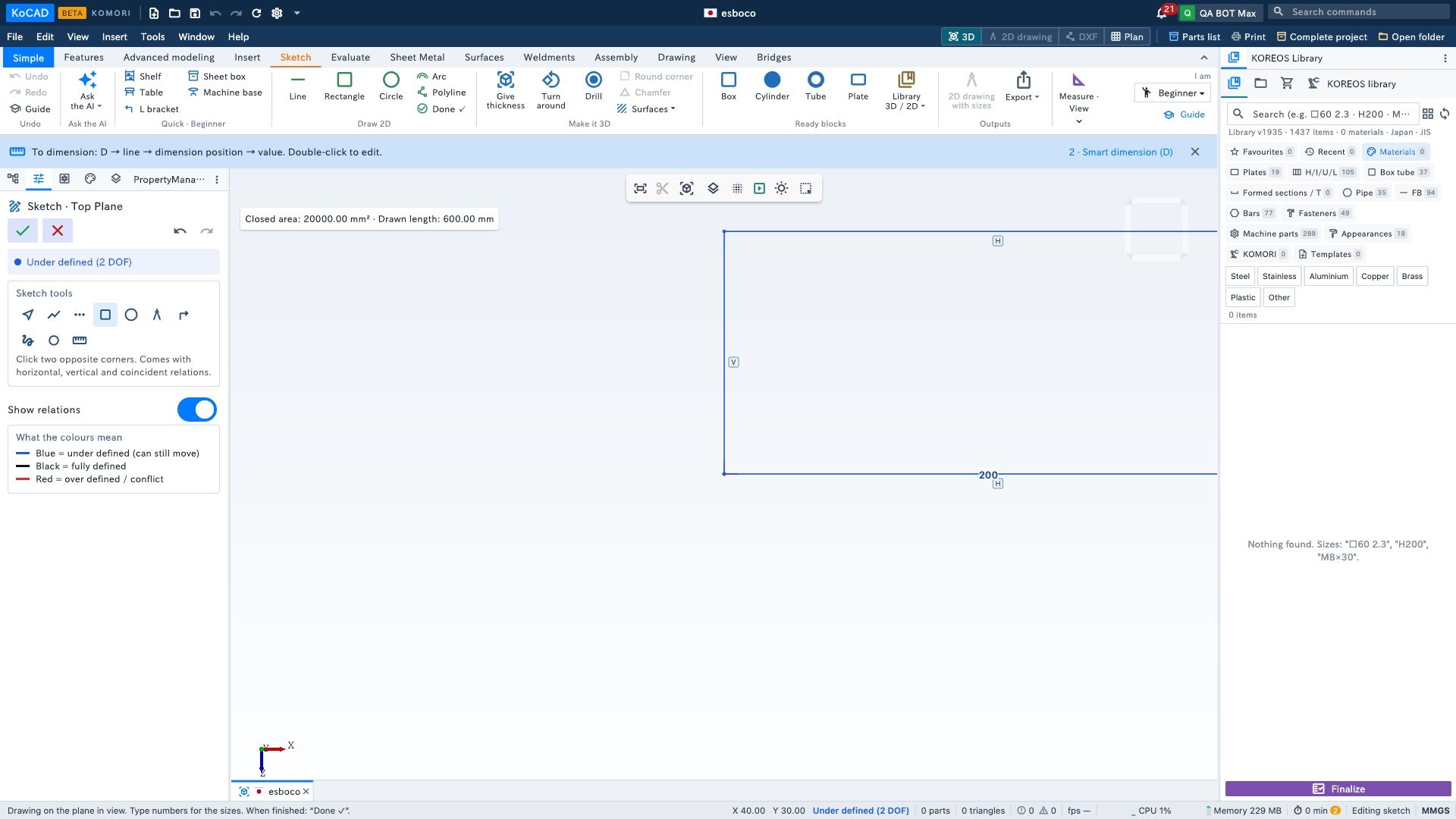
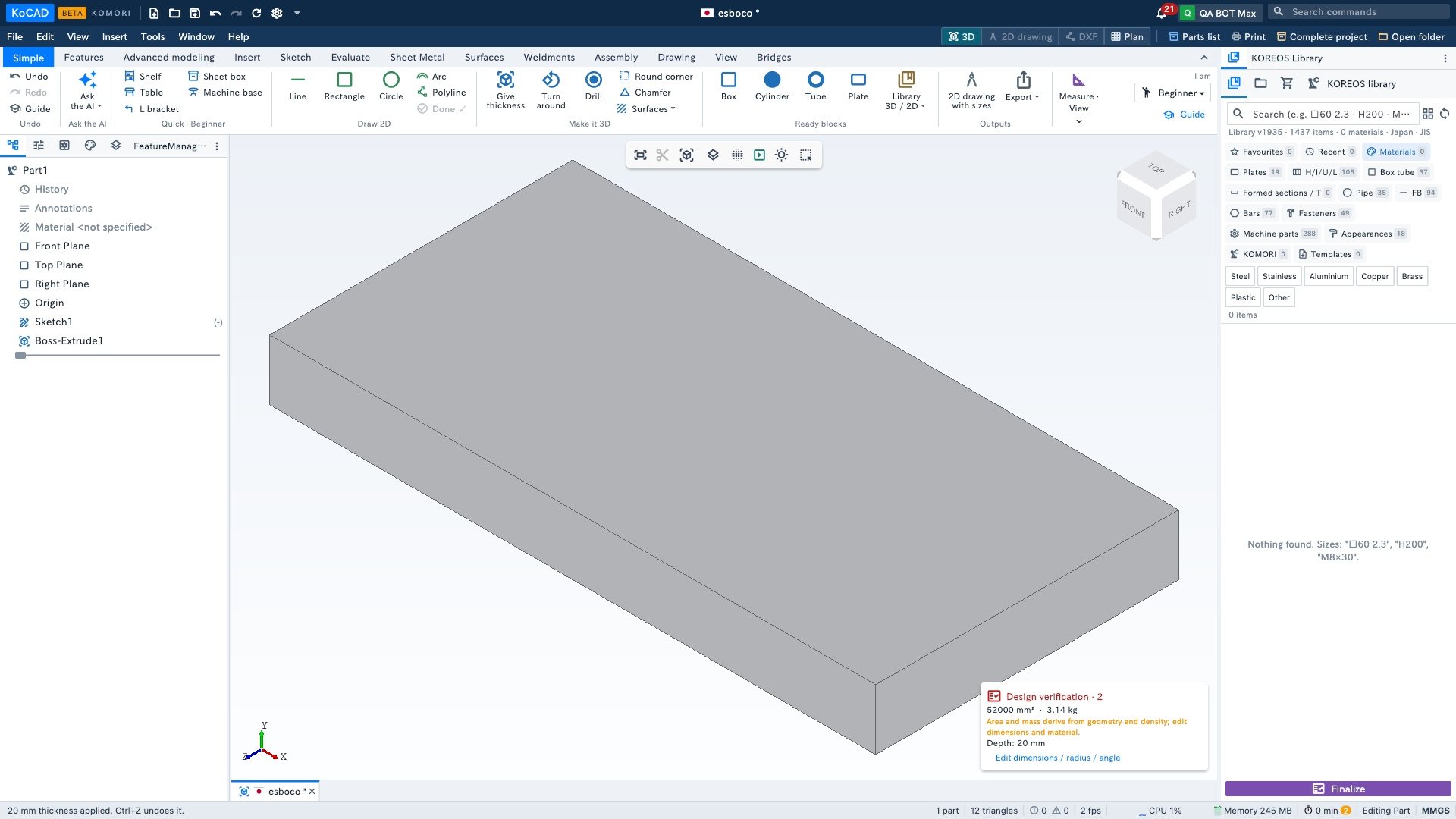
- Click Done ✓. The shape is closed, so KoCAD asks for the thickness: type 20, OK.
Other sizes you can type
- Line: 150<30 = 150 mm at 30°.
- Circle: 50 = 50 mm.
- In the thickness box: up, down or both sides, and whether the new block joins, stays separate or cuts out.