KoCAD · Screens & features
KoCAD 0.43.6 — laser layers and steps (the station makes the G-code)
How to make a simple drawing, set layers and steps (contour, engrave fill, cut) and send it to the station.
On this page
In Print & Cut › Laser, KoCAD builds the job plan and the station does the rest: it makes the G-code with the same engine as the station screen. The images are real KoCAD captures with a sample drawing (a cork coaster); the times are what the station computed for that drawing.
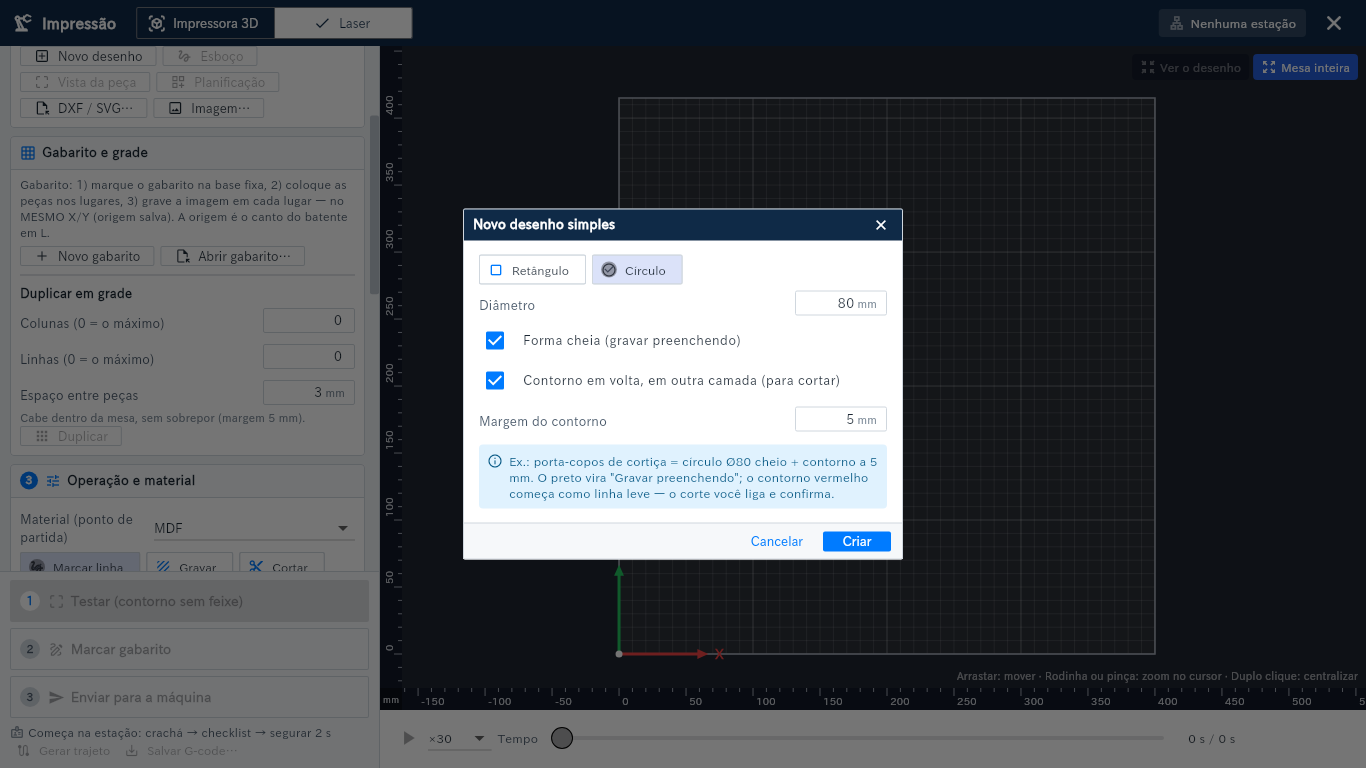
1. Make a simple drawing (or open yours)
Click "New drawing". Pick Circle or Rectangle, the size, "Filled shape" to engrave the inside and "Outline around it" for a separate line (another colour) a few millimetres out — that is the coaster: filled Ø80 circle + outline 5 mm out. You can also open an SVG (each colour is a layer) or a DXF (each DXF layer is a layer).
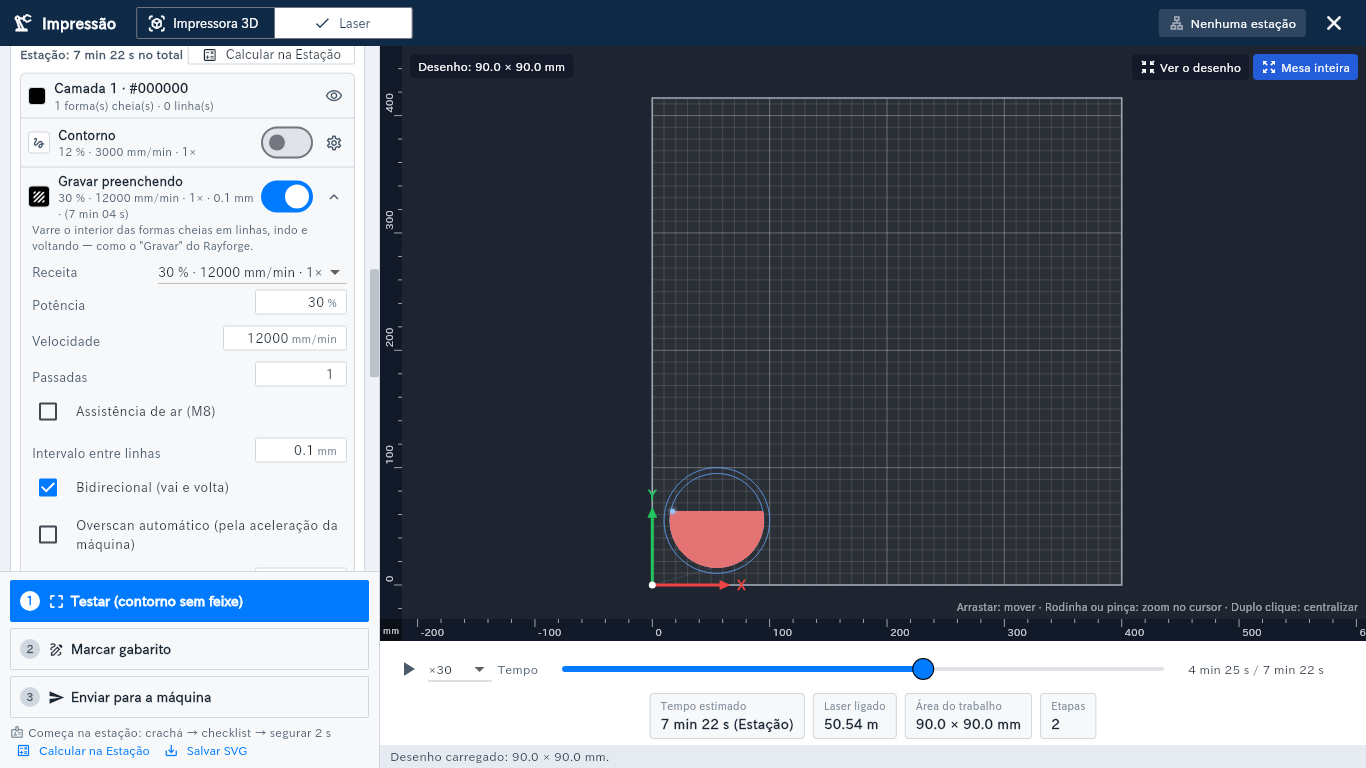
2. Layers and steps, with the time computed by the station
Each layer (colour) has three steps: Contour (traces the line), Engrave (fill) (scans the inside of filled shapes line by line) and Cut. Turn on what you need, pick the material (e.g. Cork) and, on the gear, set power, speed, passes, air and — for the fill — interval, back-and-forth, overscan and direction. "Compute on the station" shows the time of each step and the real path before sending. X/Y is where the drawing's bottom-left corner goes on the bed.
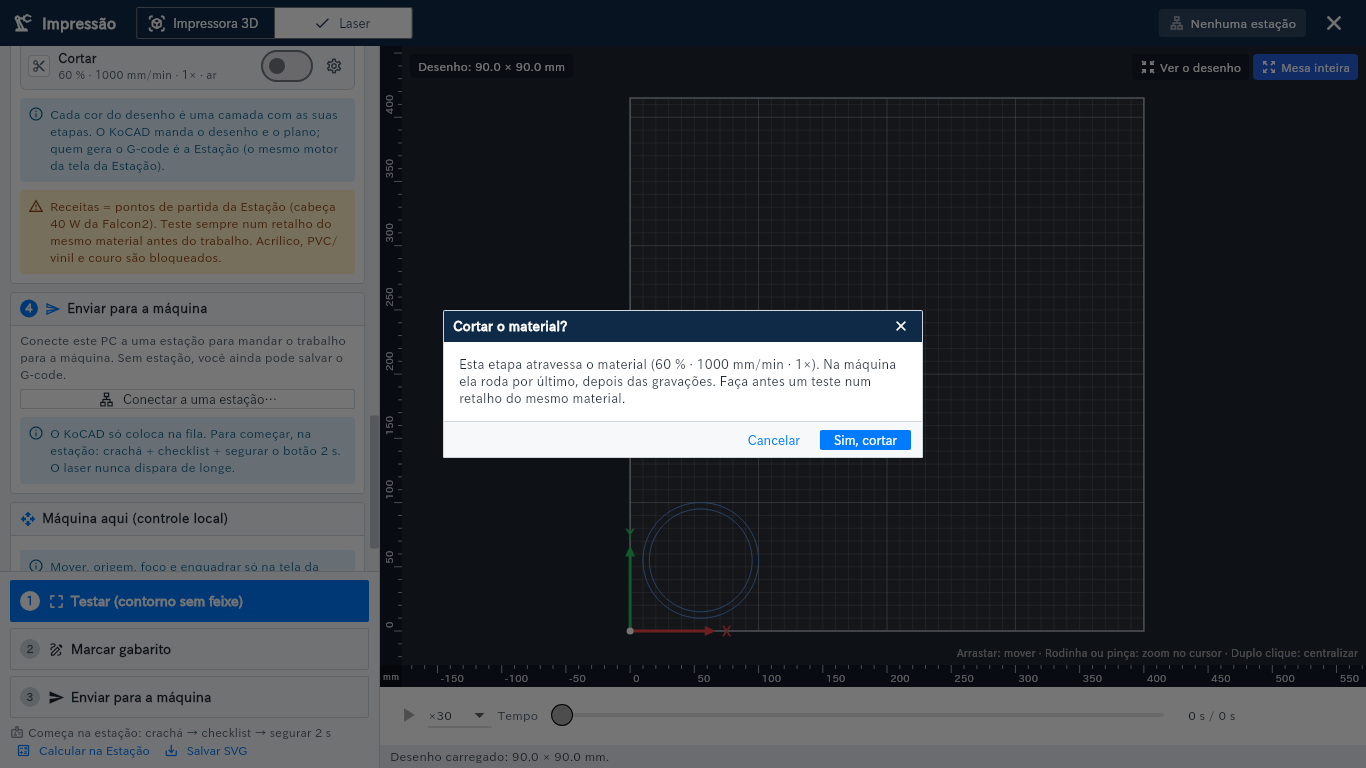
3. Confirmed cut and sending
Cut never starts on: turning it on asks first. On the machine the cut always runs last. "Send to the machine" sends the drawing and its steps (no KoCAD G-code); the job shows in the station queue, and starting is still at the machine: badge, checklist and hold 2 s. Always test on a scrap of the same material.