











KoCAD · Screens & features
How to work together with SolidWorks (Bridges tab)
Open SolidWorks files, open the project folder and send STEP back.
On this page
What this is for
Many companies have old SolidWorks files or customers who use SolidWorks. The Bridges tab ① makes the back-and-forth easy without rework.
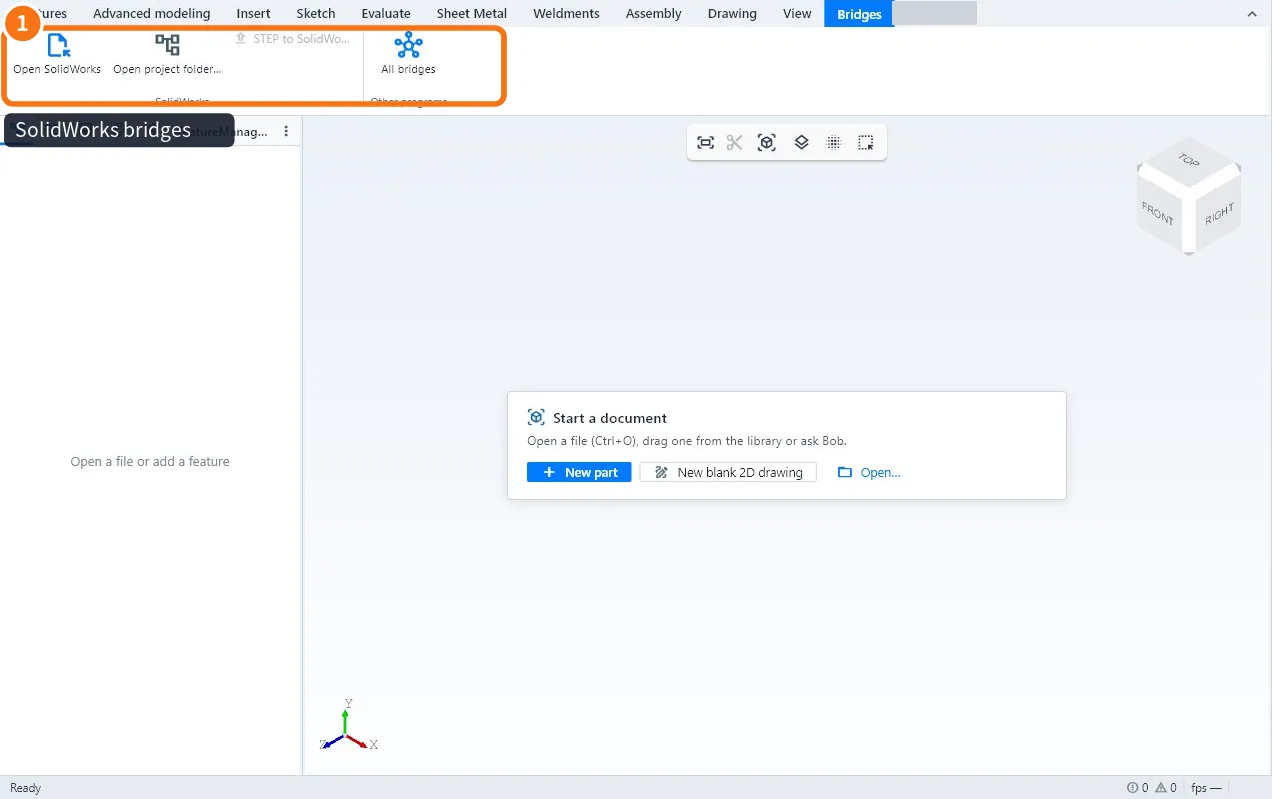
Open from SolidWorks
- Click Open SolidWorks and choose the .sldprt, .sldasm or .slddrw.
- The preview and the properties (name, material, code) show at once.
- The full 3D comes from the STEP file with the same name in the same folder, or from SolidWorks installed on this PC (KoCAD asks it to convert).
Open project folder
- Click Open project folder… and choose the folder.
- KoCAD lists the files with previews and opens the one you click.
Send back
- With the part or assembly open, click STEP to SolidWorks.
- Save the STEP and open it in SolidWorks.
All bridges lists the integrations with other programs and the state of each; the ones not ready yet show as "coming soon".
Common mistakes
- Only the picture shows: the STEP with the same name is missing; ask the author or export it from SolidWorks.
- Different material in SolidWorks: STEP does not carry material; set it at the destination.
Related articles
- Bridges tab: SolidWorks, project folder and other programs
- How to open and import files (KoCAD, STEP, IGES, STL, DXF, SolidWorks and more)
- How to export the 3D (STEP, IGES, STL, OBJ, GLB, BREP)