











KoCAD · Screens & features
How to make the cut list and work out how many bars to buy
Length, angles, quantity and mass of each member, and the yield of 5.5 m, 6 m or other stock bars.
On this page
What this is for
The Cut List is the saw's work order: each profile with length, end angles, quantity and weight. Bars works out how many whole bars to buy and how to cut each one with the least waste.
Step by step: cut list
- With the frame open, click Weldments → Cut List.
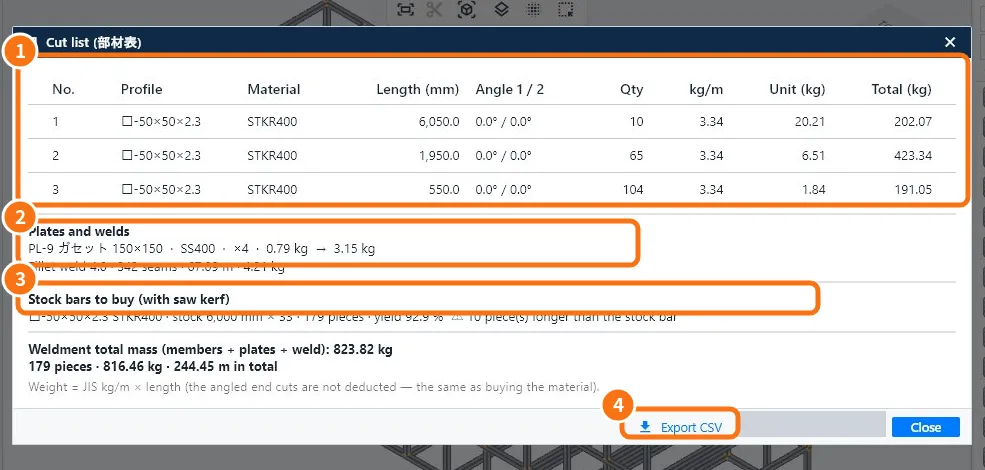
- Check the members ①: profile, material, length, angle 1/2, quantity, kg/m, unit and total weight.
- Below come the plates and welds ② (gussets, caps, beads) and the stock bars to buy ③.
- Click Export CSV ④ to take it to the shop or the supplier.
Step by step: bars
- Click Weldments → Bars.
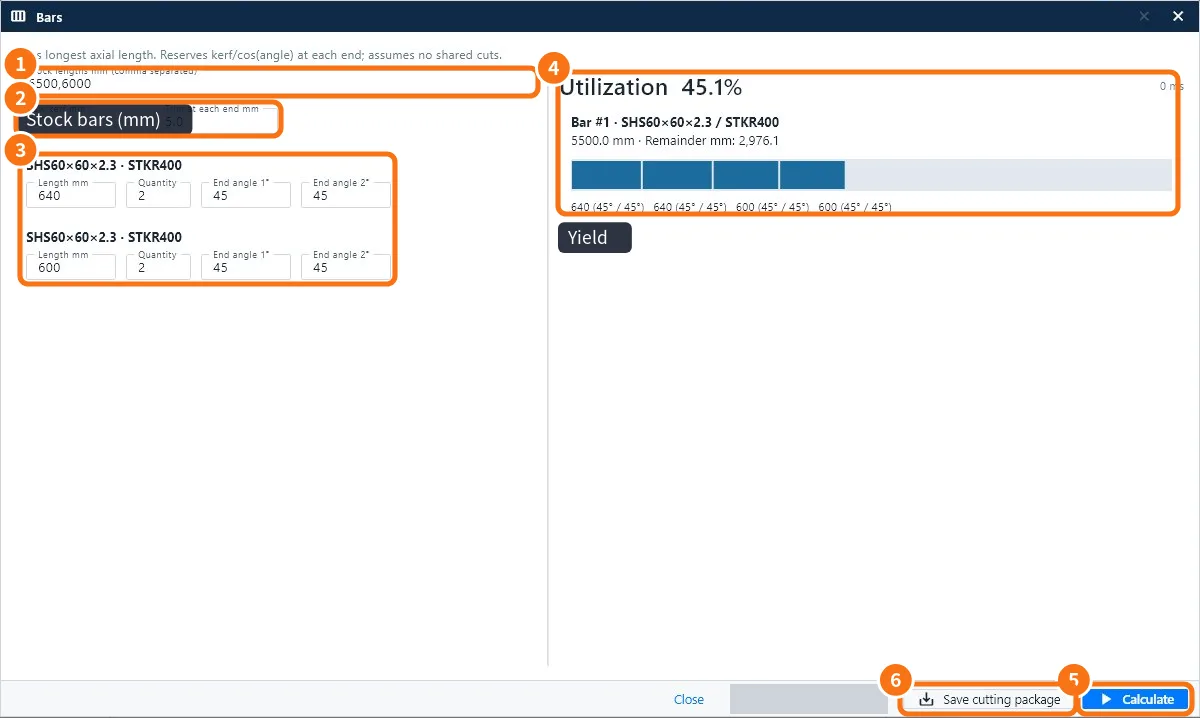
- In Bars mm ① type the lengths the supplier sells, separated by commas (e.g. 5500,6000).
- Enter the Saw kerf and the Trim at each end ②.
- Check the pieces per profile ③ (length, quantity and angles come from the model).
- Click Calculate ⑤. The result ④ shows each bar with its pieces, the leftover and the yield.
- Save cutting package ⑥ saves the cutting package for the saw.
Common mistakes
- "Piece longer than the bar": a member is longer than the bars entered; add a longer size or split the member.
- Wrong quantity: duplicated members in the sketch; check for overlapping lines.
Related articles
- How to build a weldment (tube frame) from sketch to weld
- Workflow: weldment → cut list → stock bars to buy
- How to make the bill of materials (部材表 / BOM) and export it to CSV