











KoCAD · Screens & features
How to check the design before sending it to the shop (Verification and JIS rules)
Read the Verification card, run Verify all and understand each warning: hole × bolt, edge, weld × material, safety.
On this page
What this is for
While you model, KoCAD checks JIS design rules and practical manufacturing rules. Each warning says what is wrong, why, what to do and where the rule comes from. It is like having a reviewer beside you. Since 0.38, Verification also checks assembly (leg, top, rail, wobbly table, loose piece) and highlights the problem directly in the 3D view. A counter at the top tracks open warnings, and a warning pops up before you export if any remain uncorrected.
Step by step
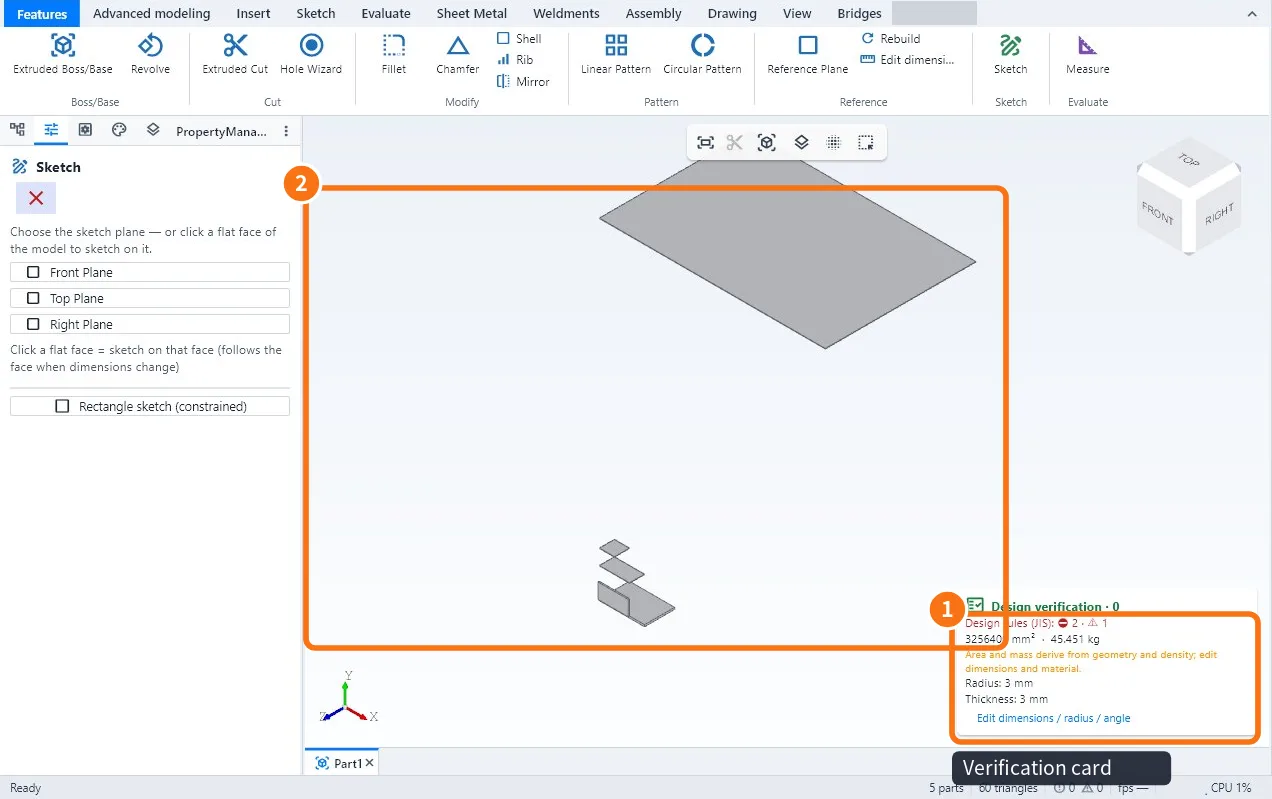
- Look at the Verification card ① in the corner of the view: it shows the number of warnings, the area and the mass.
- Click the Design verification · N button (or Evaluate → Verification). The button always responds: one click opens the panel and jumps to the first pending item with a visual pulse; another click closes it. The number N shown on the button, in the top bar and at the top of the panel is a single count (design rules + geometry).
- In Project data, enter the type (table, platform, stairs, structure), the load and the floor height — some rules depend on it.
- Click Verify all for the full check.
- Click a warning: the part or hole is highlighted in the view ②.
- Click Fix on the warning: it shows the current value → the suggested value and applies the change. Press Ctrl+Z to undo.
- When you export, a warning appears if uncorrected issues remain. Review them before proceeding.
What is checked
- Group · Examples
- Holes and bolts · Hole smaller than the bolt or outside the JIS B 1001 clearance; hole close to the edge or to another hole; bolt without a property class
- Materials and welding · Steel touching stainless/aluminium (corrosion); aluminium × steel weld; filler wire per material pair; weld leg; sheet too thin for MAG; welded galvanised steel
- Cutting and shape · Slanted bar with a square cut; cut-out with a sharp corner
- Assembly · Missing leg or top; rail not aligned; wobbly table (uneven legs); loose piece not connected
- Safety · Guard rail on a high platform; stair height, going, slope and width
Common mistakes
- Lots of warnings at once: start with the red ones (errors), then the yellow ones (attention).
- The stair rule does not show: the project type is not set to stairs in Project data.
- Imported mesh (GLB/STL) not verified: open the STEP to verify.
Related articles
- Workflow: check design rules (JIS) before the shop
- How to measure distances, see mass and centre of gravity and section the view
- How to convert a solid (or a STEP) to sheet metal and check manufacturability
- How to run an engineering study (BETA): frame, plate, thermal and second opinion