











KoCAD · Screens & features
How to use revolve, sweep, loft and multiple bodies
Turned parts, bent tubes, shape transitions and parts made of several bodies (combine, move, split).
On this page
What this is for
Not every part comes from an extrusion. Shafts and pulleys come from a Revolve; handrails and bent tubes from a Sweep; nozzles and round-to-square transitions from a Loft. The Bodies commands combine, move or split solids inside the same part.
Revolve (Features tab)
- Draw half the profile of the part in a sketch and a Centerline as the axis.
- Click Revolve.
- Choose the axis and the angle (360° = full part). Confirm.
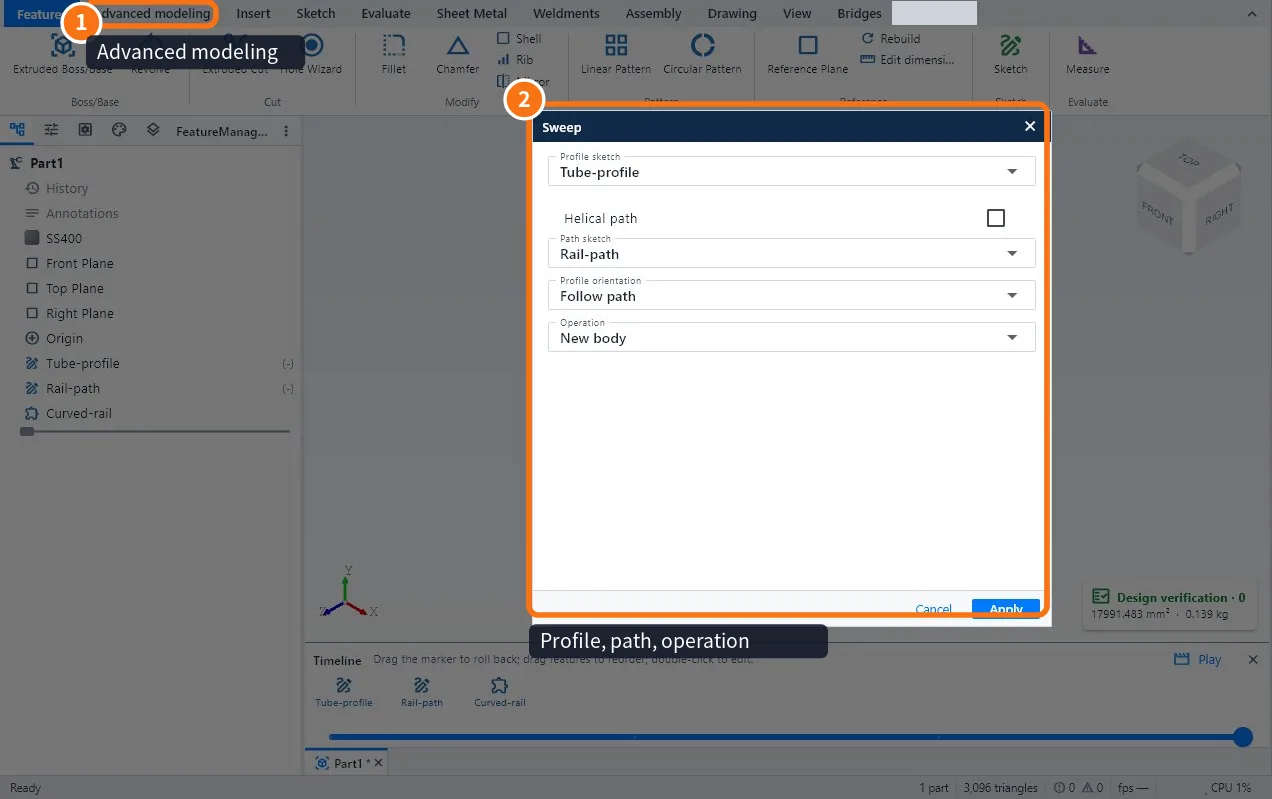
Sweep (Advanced modeling tab ①)
- Make two sketches: the profile (for example a circle) and the path (the line or curve it follows), on different planes.
- Click Sweep. In the window ② choose the profile, the path and the operation (New body or merge).
- Confirm. For tubes, use a hollow profile or Shell afterwards.
Loft
- Make two or more sketches on parallel planes (for example a square below and a circle above).
- Click Loft and pick the profiles in order.
- Confirm. The shape flows smoothly from one profile to the next.
Bodies
- Command · What it does
- Combine bodies · Adds, subtracts or keeps the intersection of two bodies
- Move/copy body · Moves or rotates a body, with or without a copy
- Split body · Cuts a body in two by a plane or face
Common mistakes
- Revolve fails: the profile crosses the axis; it must stay on one side.
- Sweep twists: the path bends tighter than the profile; increase the bend radius.
- Loft gives an odd shape: the profiles have very different numbers of points; split lines so the corners match.
Related articles
- Advanced modeling tab: parameters, timeline, bodies and AI
- How to draw a sketch with dimensions and relations
- How to use user parameters and formulas (a part that changes size)