











KoCAD · 入门
Mouse, trackpad and keyboard shortcuts (full list)
Rotate, pan and zoom like SolidWorks, Fusion or Blender, the factory shortcuts and how to change a key.
此文章暂无您的语言版本,以English显示。
本页目录
What this is for
In CAD almost everything is done with one hand on the mouse and the other on the keyboard. Learning these moves and a dozen keys makes the work two to three times faster.
Mouse (default "like SolidWorks")
- Action · How
- Zoom at the cursor · Wheel
- Rotate the view · Middle button + drag
- Pan · Ctrl + middle button
- Continuous zoom · Shift + middle button
- Fit to screen · Double-click the middle button or press F
- Go into a part of the assembly · Alt + click or double-click
- Pick what is behind · Right-click → Select other
Factory keyboard shortcuts
- Key · Command
- Ctrl+N / Ctrl+O · New part / Open
- Ctrl+S / Ctrl+Shift+S · Save / Save as
- Ctrl+P · Print / PDF
- Ctrl+W · Close document
- Ctrl+Z / Ctrl+Y · Undo / Redo
- Ctrl+B · Rebuild
- Ctrl+D · Edit dimensions
- Ctrl+1 … Ctrl+7 · Front, back, left, right, top, bottom, isometric
- Ctrl+8 · Normal to (look straight at the face)
- Arrows / Shift+arrows · Rotate 15° / 90°
- Ctrl+arrows · Pan the view
- Z / Shift+Z · Zoom out / in
- D · Smart Dimension (in a sketch)
- S · Shortcut bar
- F · Fit to screen
- Del · Delete the selection
- Esc · Cancel the command
- F1 · Shortcut list
- Ctrl+, · Options
Step by step: change the mouse style
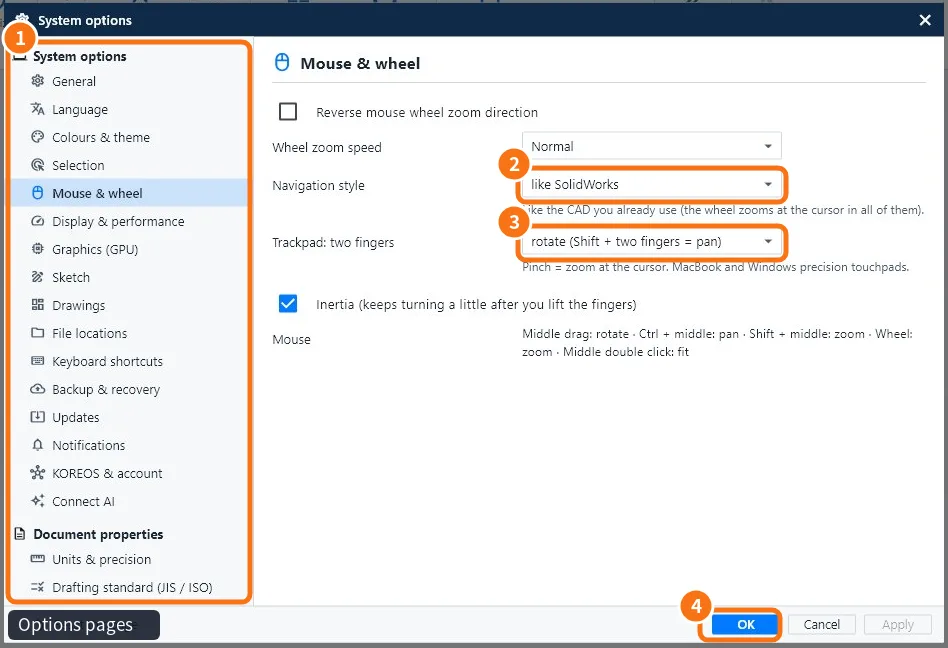
- Open Tools → Options… (Ctrl+,).
- In the list on the left ①, click Mouse & wheel.
- In Navigation style ② choose like SolidWorks, Orbit with Shift + middle button (Fusion style), like Blender, AutoCAD or KoCAD (middle = orbit). You can also set the Orbit style (free trackball or turntable) and the Orbit centre (point under the cursor or centre of the view).
- On a trackpad ③ (MacBook or Windows precision touchpad), choose whether two fingers rotate or pan; pinch zooms at the cursor. Turn inertia off if you prefer hard stops.
- Click OK ④.
Step by step: change a shortcut
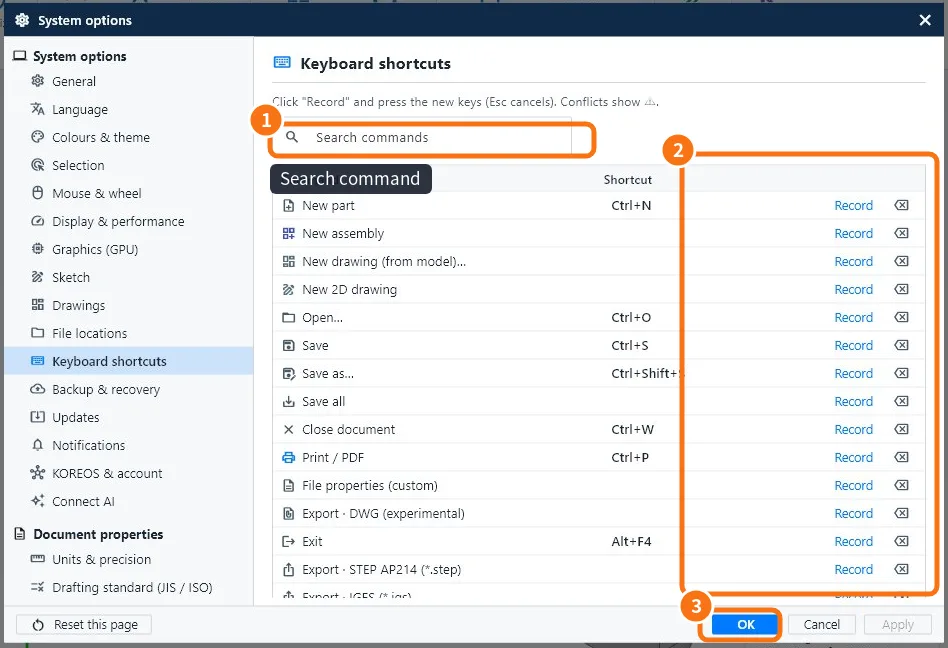
- In Options, open Keyboard shortcuts (or Tools → Customize).
- Type the command name in the search box ①.
- Click Record ② and press the new combination. Esc cancels.
- If the key already belongs to another command, ⚠ appears: use Clear shortcut on the other one.
- Click OK ③.
Common mistakes
- The key does nothing: the cursor is in a text box, which takes the letters. Click the 3D view and try again.
- Zoom goes the wrong way: tick Reverse mouse wheel zoom direction in Mouse & wheel.
- Mouse without a middle button: choose the Shift style or use the trackpad.
Related articles
- The KoCAD main window, part by part
- How to make KoCAD your own: shortcuts, shortcut bar, theme, language and panels
- KoCAD Options: every page and what it changes