











KoCAD · 界面与功能
How to draw a sketch with dimensions and relations
Lines, rectangles, circles and arcs with exact sizes, and what blue, black and red mean.
此文章暂无您的语言版本,以English显示。
本页目录
What this is for
Every part starts with a sketch: a 2D drawing on a plane. Dimensions and relations (horizontal, vertical, parallel, tangent) tell KoCAD the exact size and shape. A well-defined sketch does not change by itself when you edit something else.
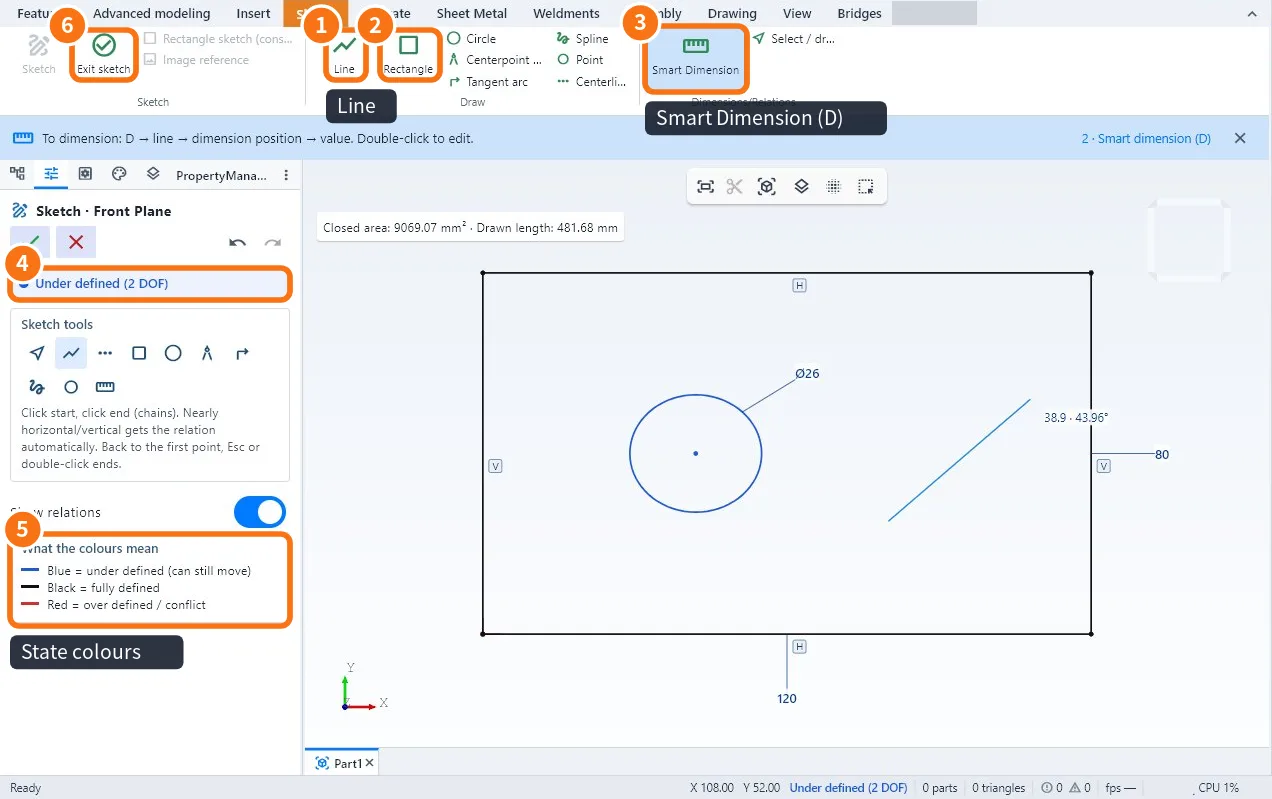
Step by step
- On the Sketch tab, click Sketch and choose a plane (Front, Top or Right Plane) or click a flat face of the part.
- Draw with Line ①: click the start and the end; the next line starts where the previous one ended. Nearly horizontal or vertical becomes an automatic relation. Go back to the first point or double-click to finish.
- Use Rectangle ②, Circle, Centerpoint arc, Tangent arc, Spline, Point or Centerline as the shape needs.
- Click Smart Dimension ③ (D key). Click a line (length), two lines (distance or angle) or a circle (diameter), place the dimension and type the value. Double-click a dimension to edit it.
- Watch the state ④ in the panel: Under defined (n DOF) tells how many sizes are still missing.
- When everything is black, click Exit sketch ⑥ and use a 3D feature (extrude, revolve).
What the colours mean ⑤
- Colour · Meaning · What to do
- Blue · Under defined: still moves · Add dimensions or relations
- Black · Fully defined · Done
- Red · Over defined or conflict · Delete the extra dimension or relation
Tips
- Turn off Show relations in the panel if the symbols get in the way.
- Type formulas in a dimension: width/2 or 120+15. With User parameters, the dimension follows the parameter.
- The closed area and drawn length show at the top of the view.
Common mistakes
- Exit sketch does not make a solid: the outline has a gap (loose end). Zoom in and join the points.
- A dimension turns red: two dimensions say the same thing; delete one.
- The circle moved: the centre position is not dimensioned from the edges.
Related articles
- Sketch tab: draw, dimension and trace an image
- How to extrude and cut (boss, cut and end conditions)
- How to use user parameters and formulas (a part that changes size)
- How to draw over a photo or drawing (image reference)