KoCAD · 入门
Customer account: parts list, standard library, AI and clear errors
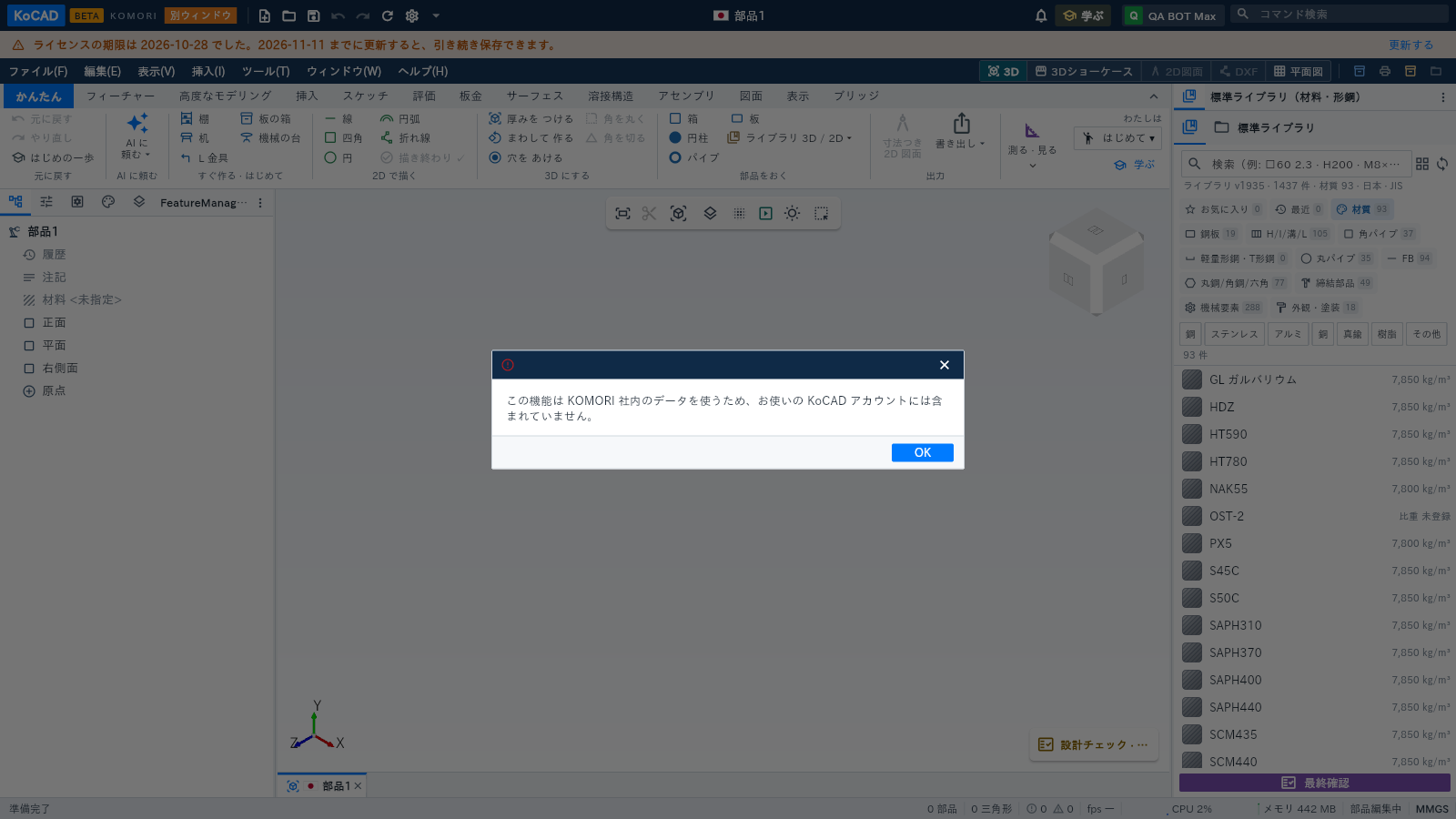
KoCAD has two kinds of account. KOMORI staff sign in with their KOREOS account (as always) and see everything, including the KOREOS tab. KoCAD customers sign in with the e-mail and password of the client portal (DX) and use the full CAD — the KOREOS tab and anything that uses KOMORI data or AI do not show for them. The server decides, not the app.
此文章暂无您的语言版本,以English显示。
KoCAD has two kinds of account. KOMORI staff sign in with their KOREOS account (as always) and see everything, including the KOREOS tab. KoCAD customers sign in with the e-mail and password of the client portal (DX) and use the full CAD. KOMORI internal features (KOREOS tab, KOMORI data, KOMORI AI) are hidden for customer accounts — they are not disabled or deleted, just not shown. The server decides, not the app.
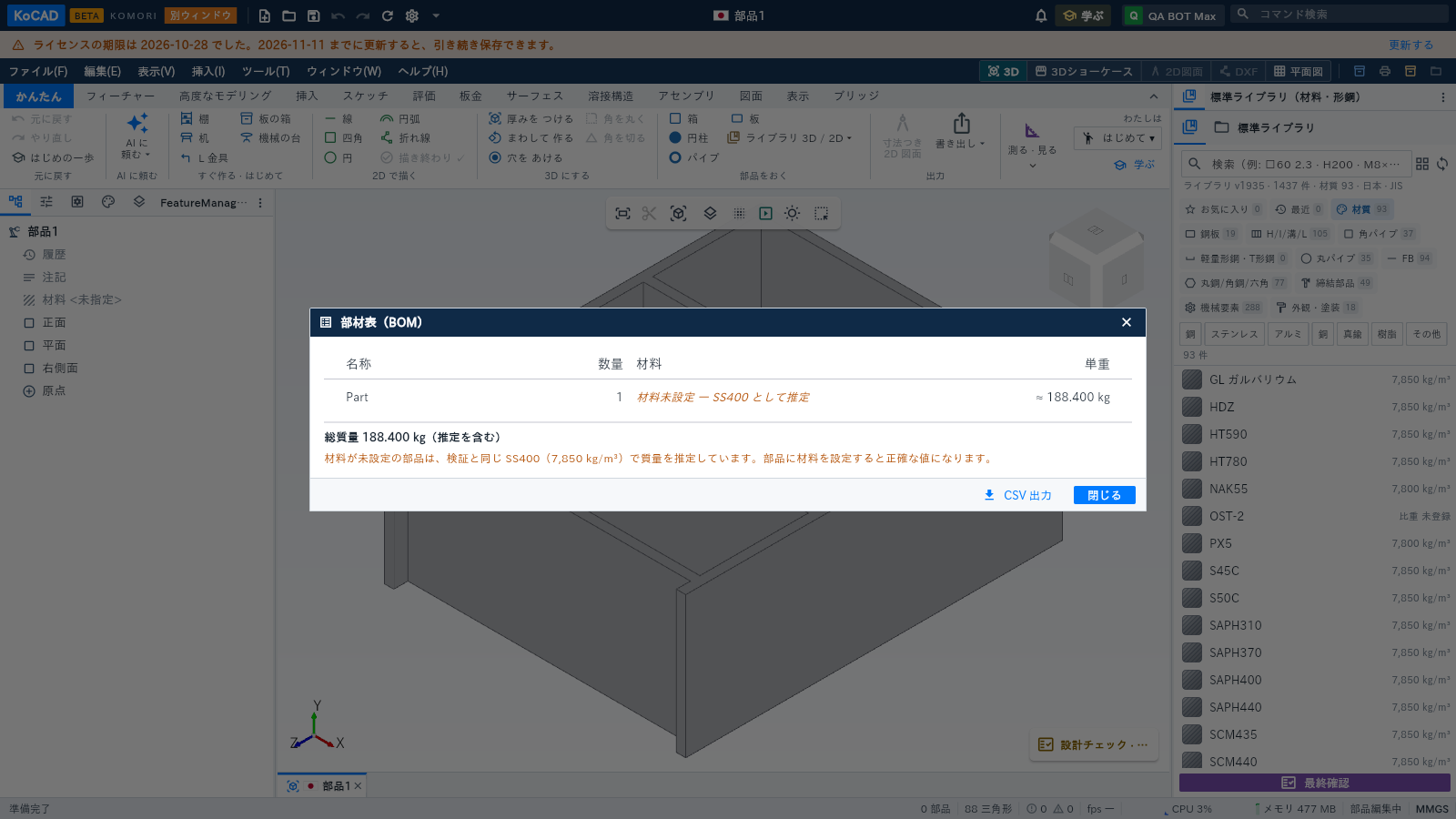
部材表 / BOM: for a customer account the BOM estimates the mass of a part that has no material assigned the same way the Verification does — it assumes SS400 and marks the value so you know it is a default. The BOM shows no price and no 見積 (quotation) for customer accounts.
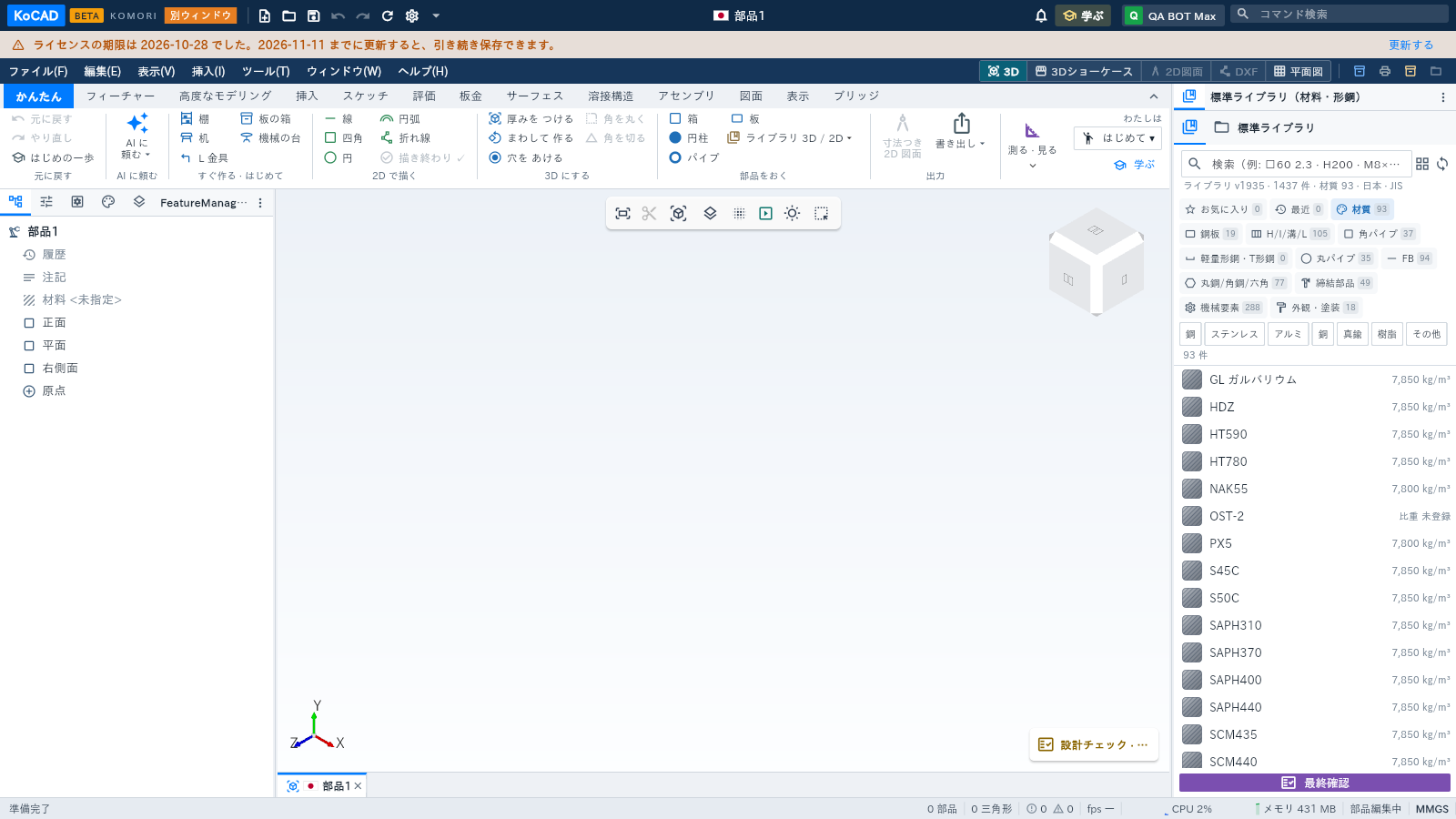
Standard library: a new "Standard library" panel lists the materials defined in the applicable norm, ready to pick from. You do not need to type a grade by hand.
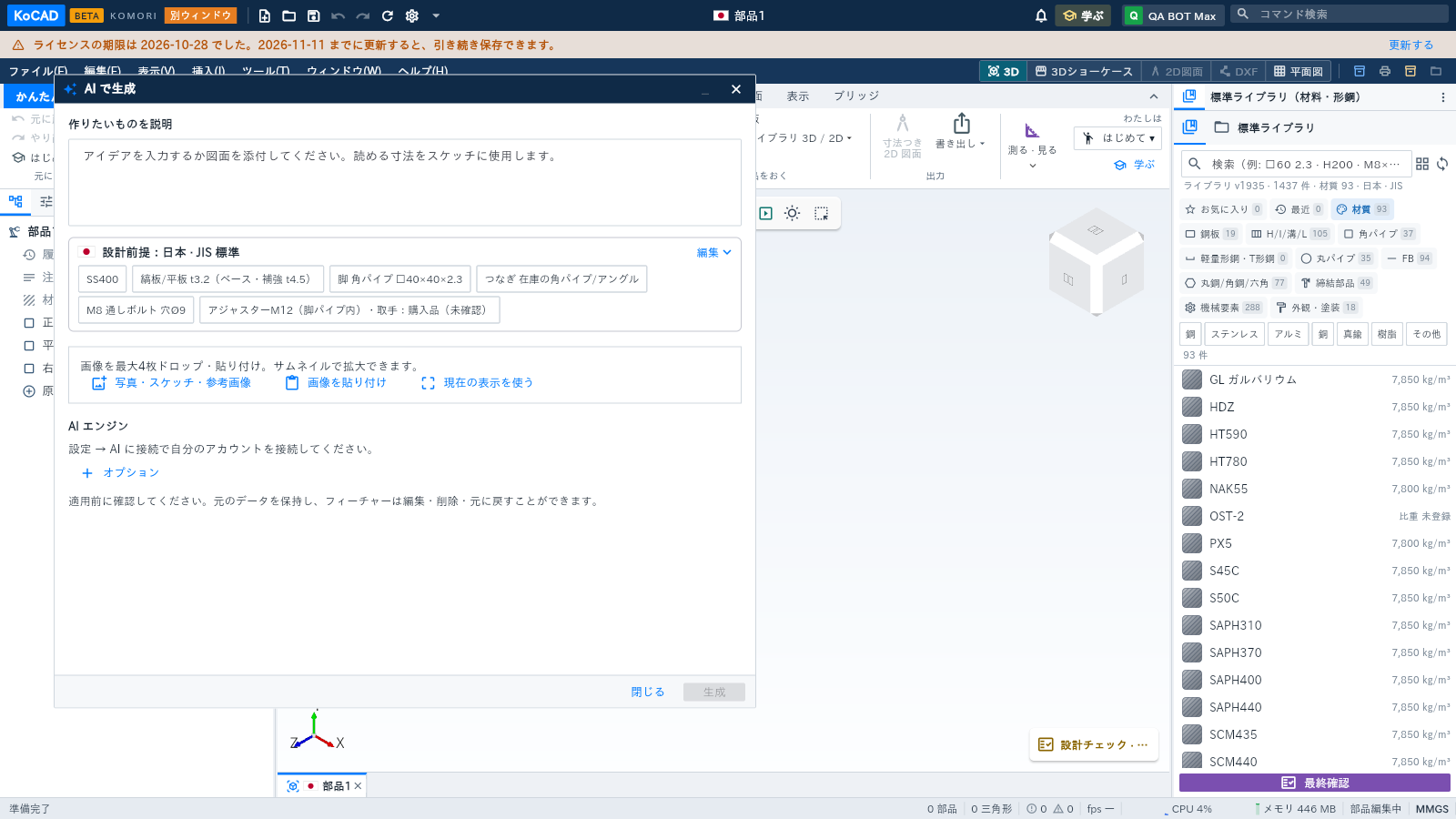
AI: when you open the AI assistant, KoCAD asks for your own account / API key before it runs. KOMORI does not supply a shared key for customer accounts.
Error messages: instead of a generic "KOREOS error", the app now shows a clear sentence that tells you what went wrong and what to do next.
Stations: a customer license discovers only the stations on its own network and keeps pairings and profiles separate. KOMORI internal inventory, addresses and machines are hidden. You can also export G-code or SVG without pairing a station.
How to buy: at dx.its-komori.com/client?buy=kocad fill in your details (company or individual), confirm your e-mail with the 6-digit code and pay by card on Stripe. Price: installation ¥500,000 (one-time) + annual license ¥100,000, plus 10% consumption tax — the first payment is ¥660,000. A discount coupon changes the amount; a VIP coupon creates an account with no charge. The welcome e-mail has the installer link (Windows, macOS or Linux) and the steps.
Signing in: open KoCAD and type the portal e-mail and password. The license covers up to 3 computers. On a 4th, the app shows the PCs in use: pick one to disconnect and sign-in continues on this PC. You can also disconnect from the portal (KoCAD › Connected computers).
My account / License: click your photo (top right) › My account / License. Tabs: License (plan, status, valid until, PCs in use, renewal), Devices (disconnect another PC), Invoices (view, pay, PDF) and Details. The pay, renew and edit buttons open the client portal in the browser already signed in (one-time link, 2 minutes).
Renewal and expired license: every year, before it is due, you get the renewal notice and the annual invoice (card or bank transfer in the portal). If it is not paid there is a 14-day grace period with a yellow warning bar. After that the license is expired: KoCAD still opens and shows your files, but Save, Export and print ask for renewal. Nothing is deleted. Paid? Use Already paid — check again and the app unlocks right away.