KoCAD · 界面与功能
KoCAD 0.43.5 — installation references, stations and live preview
How to open release news, create installation references and inspect the active machine job.
此文章暂无您的语言版本,以English显示。
本页目录
Open Help → What’s new to see this version and the history. Each card contains a real QA screenshot with sample data, rather than customer work.
Create references without moving parts
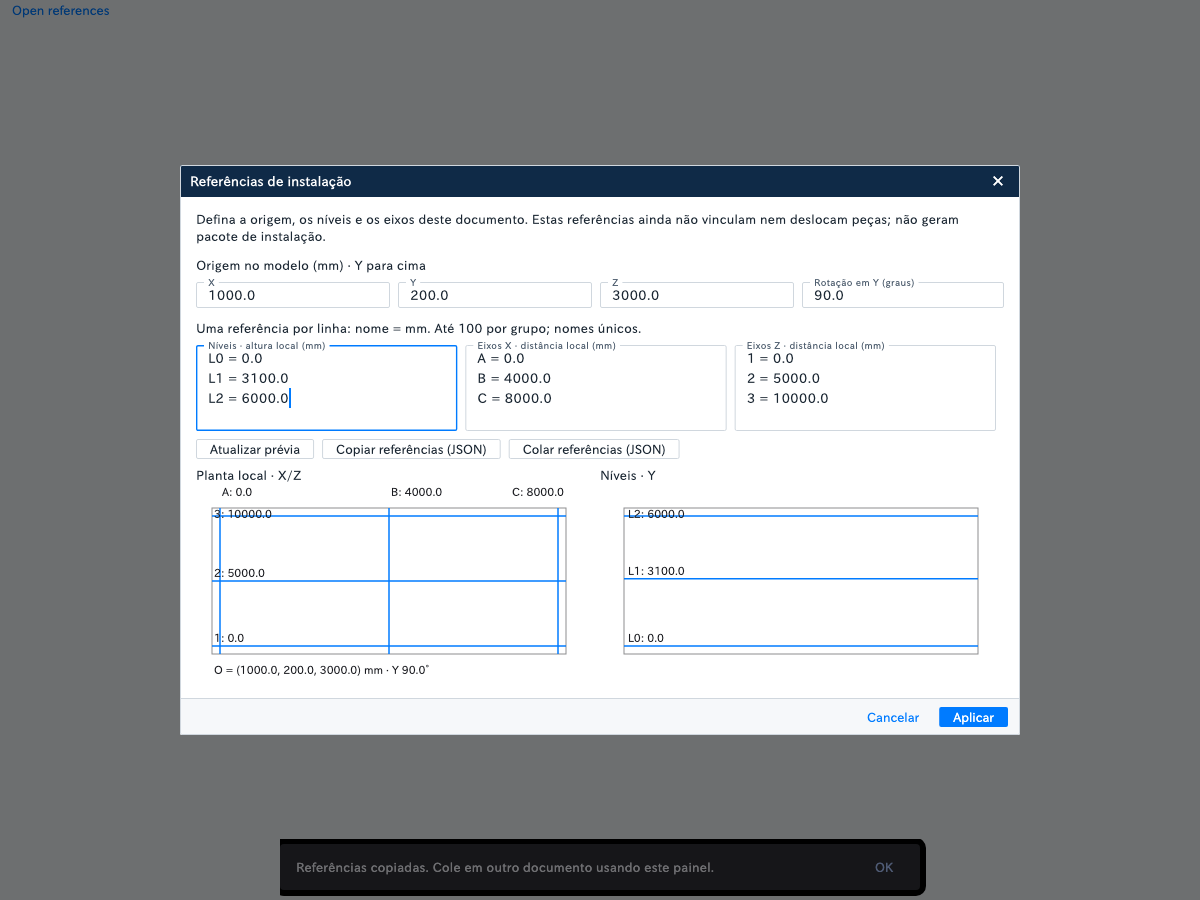
Installation references: in File → Installation references, set the origin, rotation, levels and grid axes in millimetres. Check the plan and levels, copy them to another document and save. Undo and Redo preserve the frame. This first step does not yet bind or move parts. These are visual and document references. They do not yet constrain parts to grid axes or move the assembly. Check dimensions before manufacturing.
Find your station with separate accounts
Stations are separate for each account: customer licenses discover their own network stations and keep their pairings and profiles separate. KOMORI internal inventory, addresses and machines are hidden. You can also export G-code or SVG without pairing a station. Open Print and discover or pair a station on your own network. If no station is available, export the file. Pairing and sending a file do not replace the machine’s local checks.
Show the active job in the centre
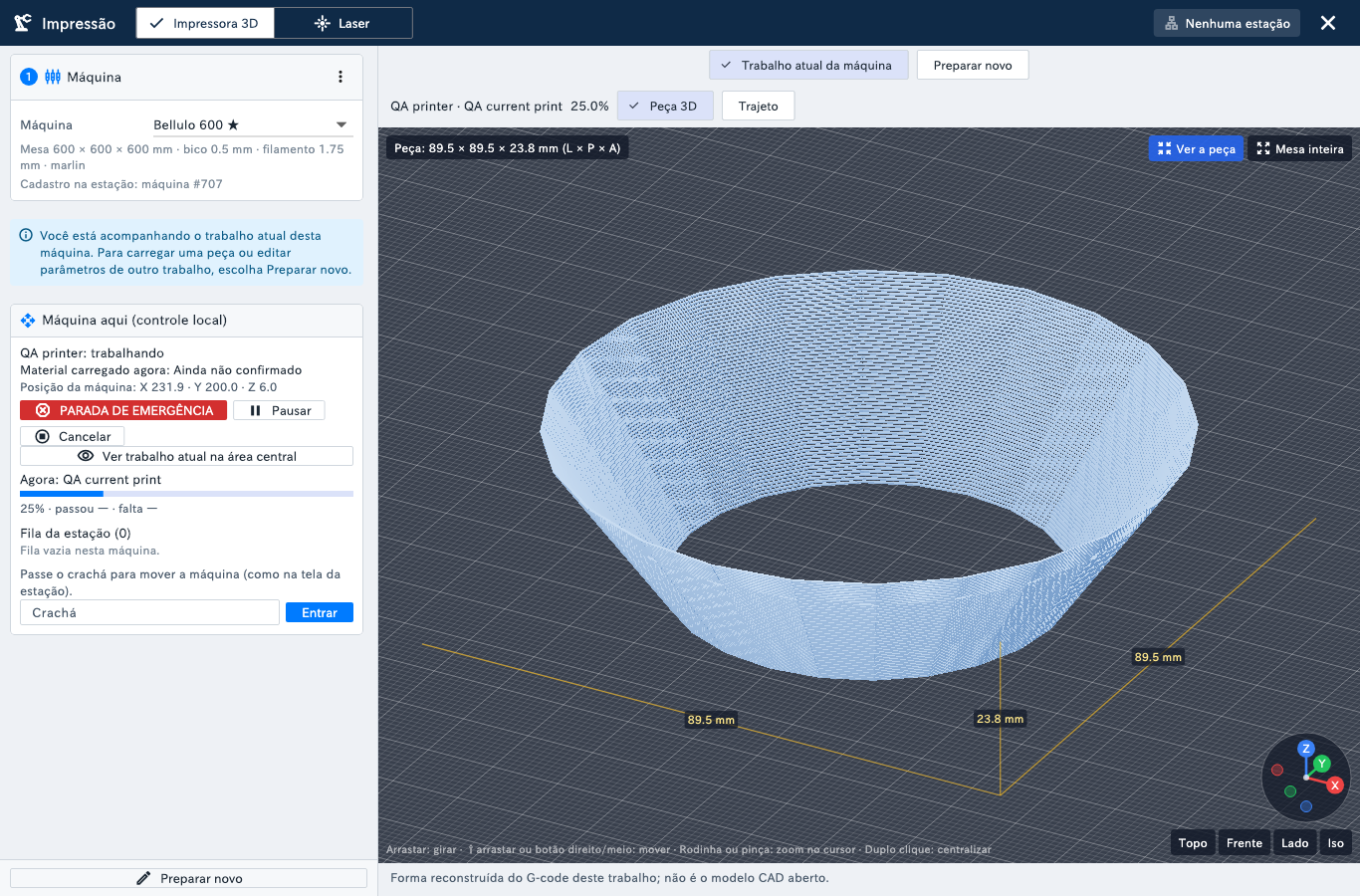
Machine here: select a local machine to show its active job in the large central preview. 3D Part shows the shape; Toolpath shows completed work in blue and the position on the part. The preview uses that job’s data and identifies a reconstruction when no original model is available. Open Print → Machine here and select a machine with an active job. Check the job name, then switch between 3D Part and Toolpath. Blue marks completed work. “Shape reconstructed” means the shape was reconstructed from the toolpath: it is not the original model or dimensional inspection evidence. Machine and part positions use different origins and have distinct labels. Blue progress and the position marker appear in Toolpath; 3D Part shows the shape. An estimate from the file is identified when machine coordinates are unavailable.
Slice containers with vase mode disabled
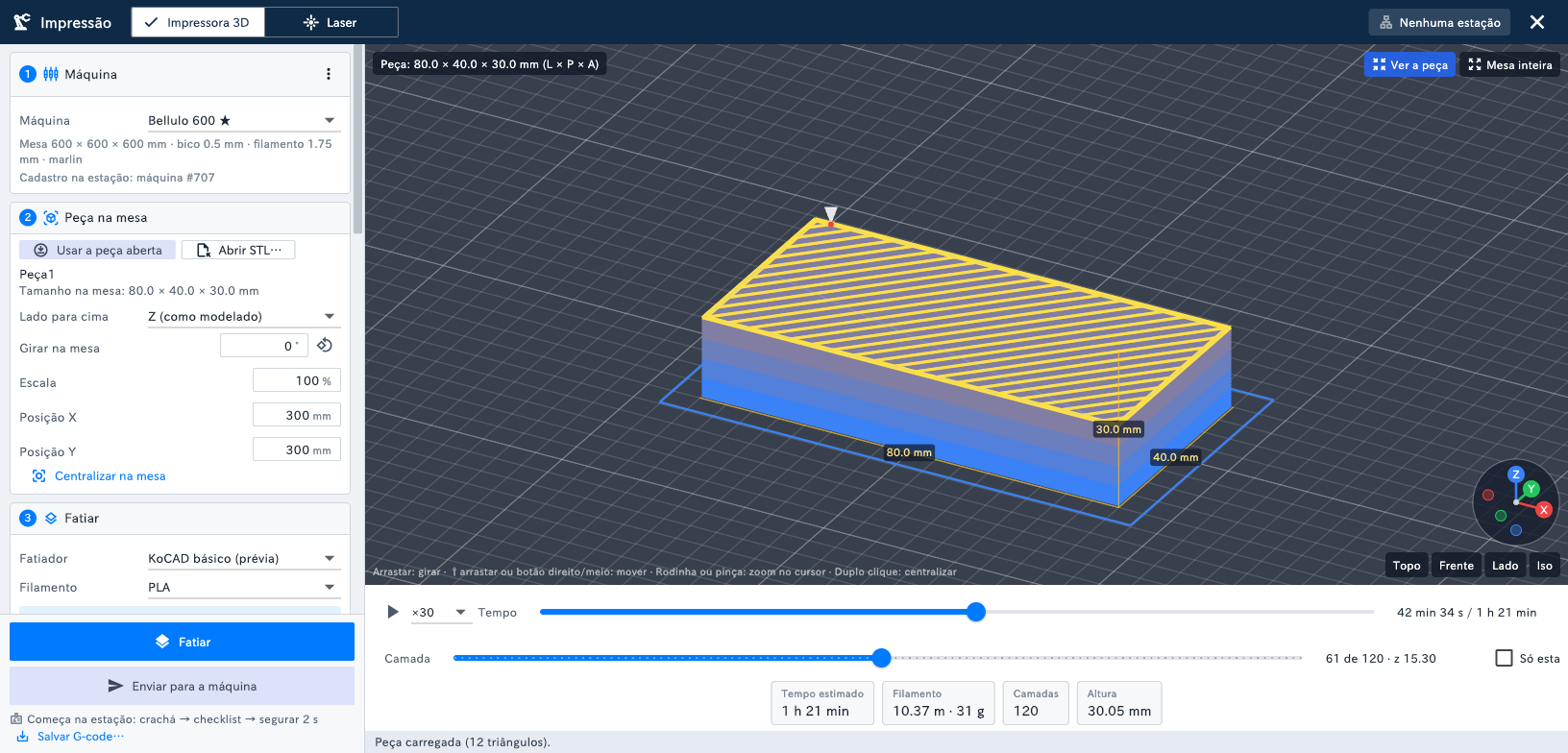
Containers never use vase mode: the external PrusaSlicer always receives vase mode disabled, even when the station’s base profile enables it. The walls, top layers and infill chosen in KoCAD are preserved. This is automatic when invoking external PrusaSlicer; no preference needs changing. Check the layer preview and material before sending. Viewing the preview does not start the machine. The picture illustrates layers shown by the basic KoCAD slicer. The vase-mode correction is applied when calling external PrusaSlicer.