











KoCAD · 入门
New project: country and standard, language and the folder created for you
Japan JIS, USA ANSI/ASME, Brazil ABNT/ISO, ISO or Europe EN: what each choice changes and how the project folder looks.
此文章暂无您的语言版本,以English显示。
本页目录
What this is for
Each country draws its own way: the projection (first or third angle), sheet formats, threads, welding symbols and tolerances change. In the New project window you choose this once and KoCAD applies it to every part, assembly and drawing of that project.
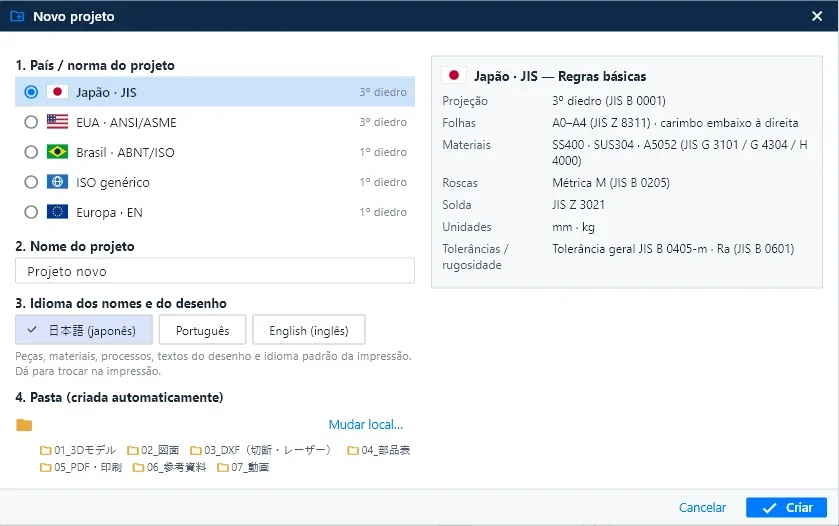
Step by step
- Click New part, New assembly or New 2D drawing. The New project window opens.
- 1. Country / standard: choose Japan · JIS, USA · ANSI/ASME, Brazil · ABNT/ISO, generic ISO or Europe · EN. The Basic rules of the chosen standard appear on the right.
- 2. Project name: type a clear name (for example the machine code). It becomes the folder name.
- 3. Language of names and drawing: Japanese, Portuguese or English. It is used for part names, materials, processes and drawing texts, and is the default print language (you can change it when printing).
- 4. Folder: KoCAD creates the folder with ready-made sub-folders. Use Change location… for another disk, or Add to the current project folder to put the new part with the others.
- Click Create.
What each standard changes
- Standard · Projection · Examples of rules
- Japan · JIS · Third angle (JIS B 0001) · Sheets A0–A4 (JIS Z 8311), materials SS400/SUS304/A5052, metric M thread, welding JIS Z 3021, general tolerance JIS B 0405
- USA · ANSI/ASME · Third angle · ANSI/ASME sheets and conventions
- Brazil · ABNT/ISO · First angle · ABNT/ISO conventions
- Generic ISO · First angle · ISO conventions
- Europe · EN · First angle · EN conventions
The project sub-folders
- 01 · 3D model (.kcpart, .kcasm)
- 02 · 2D drawings (.kcdrw)
- 03 · DXF for cutting / laser
- 04 · Bill of materials
- 05 · PDF / printing
- 06 · References (photos, customer PDFs)
- 07 · Movies
When you save or export, KoCAD already suggests the right sub-folder. To see the folder, use Open folder in the project files panel.
Common mistakes
- I picked the wrong standard: create the project again with the right standard and copy the parts, or adjust the drawing standard in the document Options → Drafting standard (JIS / ISO).
- The folder went somewhere unexpected: check the default location in Options → File locations.
Related articles
- Getting started: what KoCAD is and your first part
- How to print and make a PDF (drawing, 5 views of the 3D, parts list)
- How to save, save the complete project, and recover work after a crash
- KoCAD Options: every page and what it changes