











KoCAD · 界面与功能
Assembly tab: components, mates, exploded view and BOM
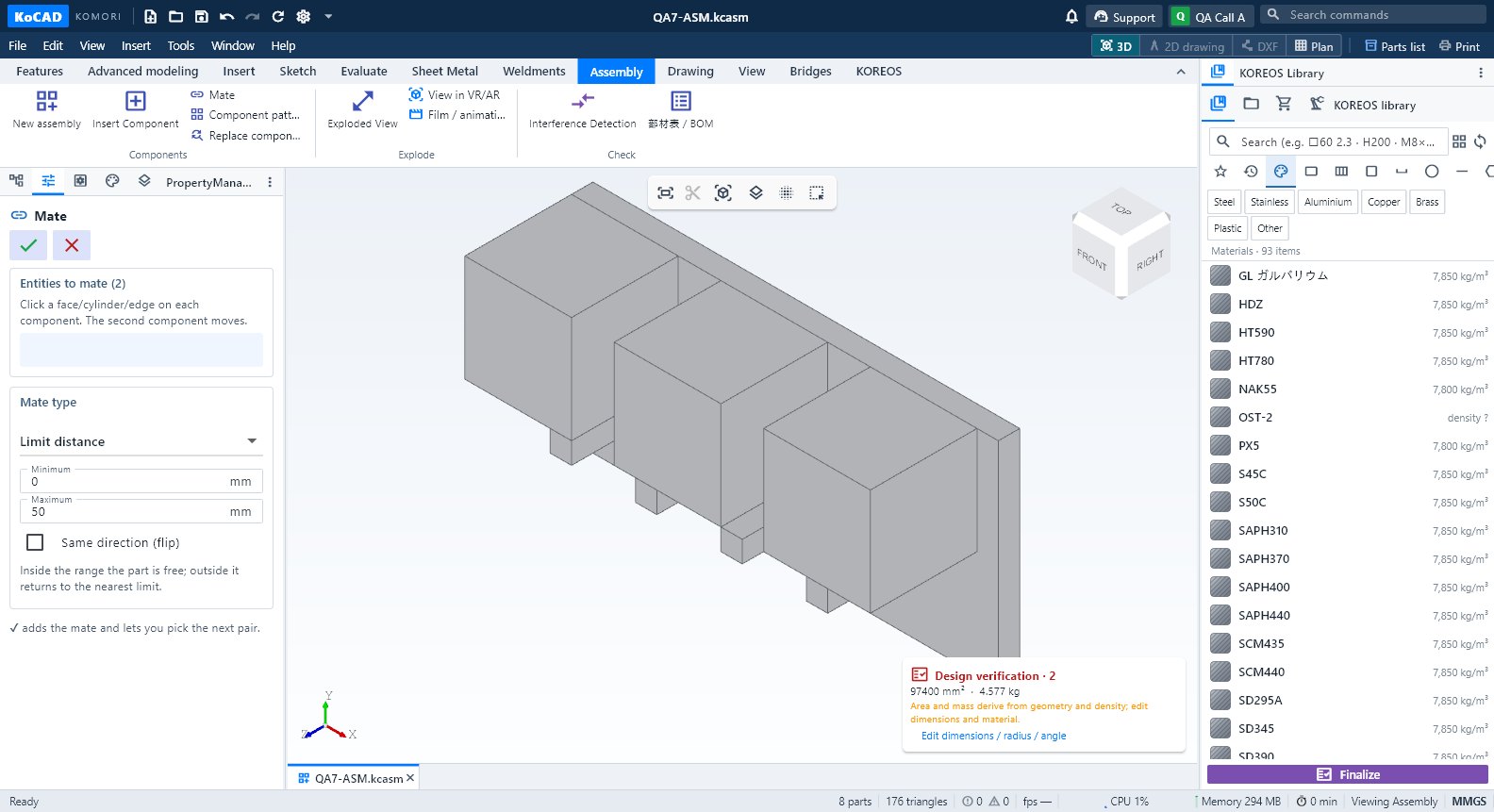
New assembly, Insert Component, Mate, Component pattern, Replace component, Exploded View, VR/AR, Film, Interference Detection and 部材表/BOM.
此文章暂无您的语言版本,以English显示。
本页目录
What it is
An assembly (.kcasm) combines parts (.kcpart), STEPs and sub-assemblies. An assembly opens straight on this tab.
Groups and buttons
- Components: New assembly · Insert Component · Mate · Component pattern · Replace component.
- Explode: Exploded View · View in VR/AR · Film / animation.
- Check: Interference Detection · 部材表 / BOM.
Step by step
- New assembly, then Insert Component (part, assembly or STEP).
- Mate: select two faces/edges/holes and choose the type (coincident, parallel, perpendicular, concentric, distance, angle, limit).
- Component pattern repeats a component (linear, circular or following a part pattern).
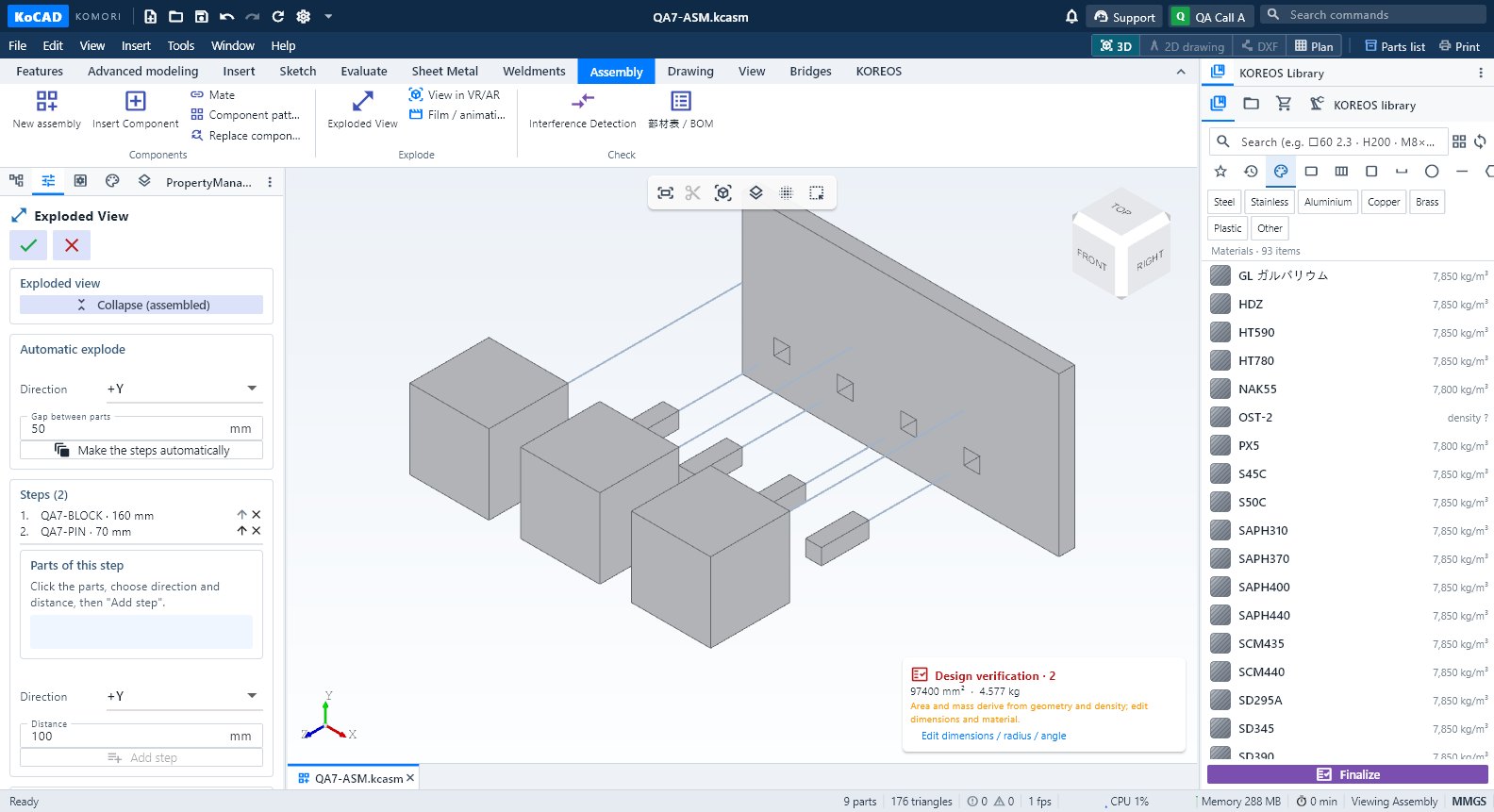
- Exploded View: click the parts, choose direction and distance and Add step — or Make the steps automatically. Play (assembly instruction) animates the steps.
- 部材表 / BOM: parts list (flat or indented) with quantities and mass.
Tips
- The exploded view is display only: mates and 部材表 do not change. It is saved in the file and shows in the assembly drawing.
- Big assembly: View → Large assembly mode (Auto above 1,500 parts) keeps rotation smooth.
- A click picks the top component; Alt+click goes one level down.
Common mistakes
- Mate refused: it conflicts with another one. Delete or edit the old mate in the tree.
- No explode/assembly option in the film: create an exploded view first.