











KoCAD · 界面与功能
Workflow: check design rules (JIS) before the shop
Design verification → design rules: holes, edges, bolts, welds, materials, guard rails and stairs; choose a fastener; Finalize blocks errors.
此文章暂无您的语言版本,以English显示。
本页目录
What it is
While you model, KoCAD checks fixed JIS rules and house rules. The result is in Evaluate → Design verification → design rules and in a summary in the view corner. Each warning says what is wrong, why, what to do and the source.
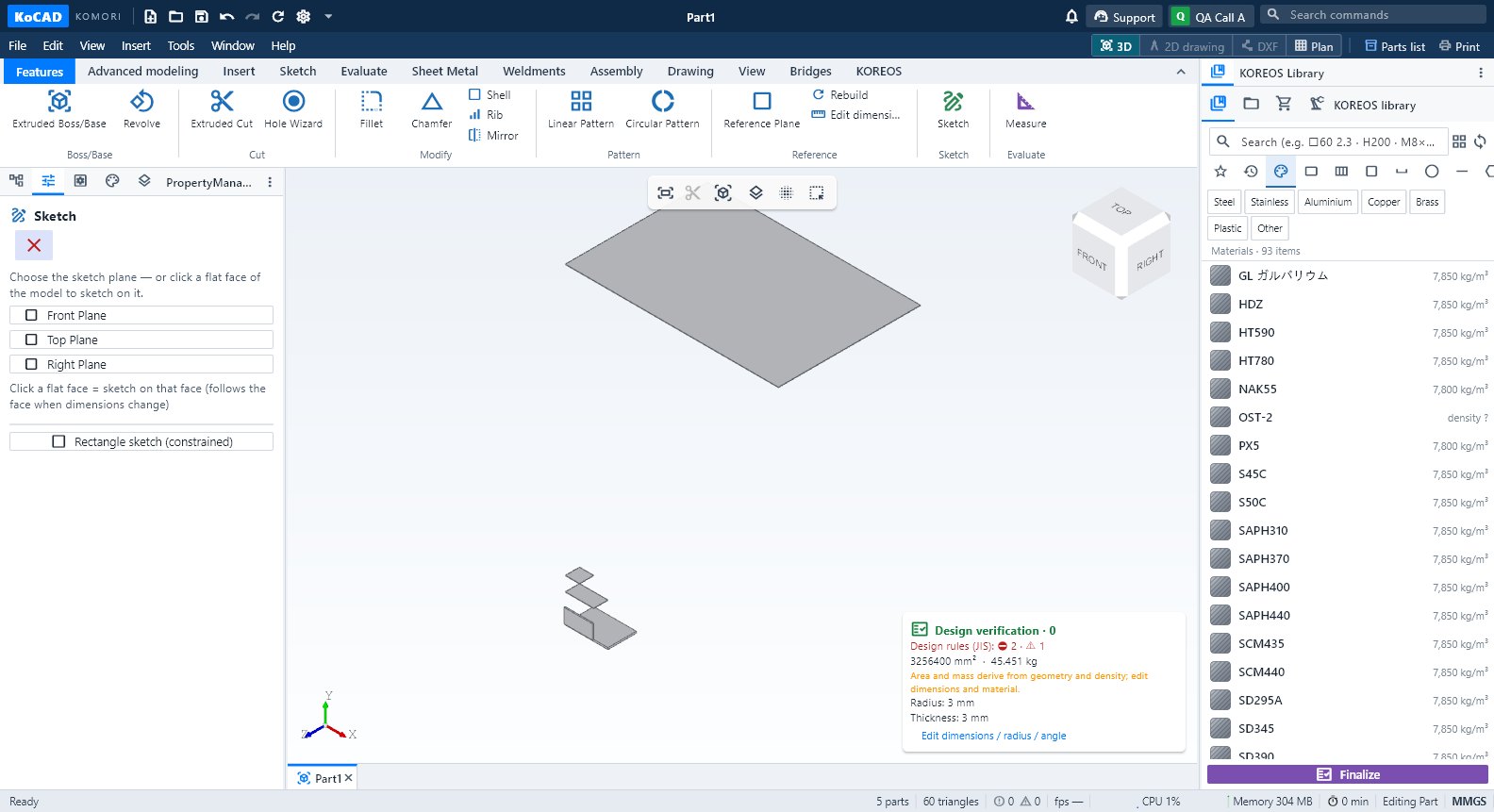
What is checked
- Hole smaller than the bolt or outside JIS B 1001 clearance; hole too close to an edge or another hole.
- Bolt without property class; steel bolt in stainless/aluminium (corrosion); aluminium-to-steel welding; filler wire per material pair; weld leg size; plate too thin for MAG; welded galvanised steel.
- Angled bar with a square cut; sharp inner corner on a cut-out; guard rail on a high platform; stair rise, going, slope and width.
Step by step
- In Project data enter the type (table, platform, stair, structure), the load and the floor height.
- Open Design verification and read the warnings. Use Check all for the full check.
- To choose a bolt: Choose fastener — shear force per bolt (kN), total plate thickness, thinnest plate and material. KoCAD returns bolt, property class, nut, washers, hole, edge distances and the JIS length.
- In Finalize the rules run again; an error blocks the upload until it is fixed or the responsible designer's review is ticked.
Tips
- Bob uses the same checker and repairs his own plan. Ask: "check the design rules".
- Rule repository: export the JSON, review limits/sources and load the corrected version.
Common mistakes
- Without a load the capacity is not checked (shown as a note). It is a screening: it does not certify JIS compliance or load capacity.