KoCAD · 界面与功能
Mouse and selection like SolidWorks / Fusion 360 / AutoCAD
Options › Mouse › Profile: SolidWorks (middle = orbit, Ctrl+middle = pan, Shift+middle = zoom), Fusion 360 and AutoCAD (middle = pan, Shift+middle = orbit) or KoCAD (middle = orbit, Shift+middle = pan, Ctrl+middle = zoom). Orbit is free (trackball) or turntable, around the point under the cursor (or the view centre), sensitivity 0.5×–2×. The wheel zooms at the cursor; middle double-click fits all; touchpad: two fingers orbit/pan, pinch zooms.
此文章暂无您的语言版本,以English显示。
Options › Mouse › Profile: SolidWorks (middle = orbit, Ctrl+middle = pan, Shift+middle = zoom), Fusion 360 and AutoCAD (middle = pan, Shift+middle = orbit) or KoCAD (middle = orbit, Shift+middle = pan, Ctrl+middle = zoom). Orbit is free (trackball) or turntable, around the point under the cursor (or the view centre), sensitivity 0.5×–2×. The wheel zooms at the cursor; middle double-click fits all; touchpad: two fingers orbit/pan, pinch zooms.
Selection: click selects; Ctrl+click adds or removes; Shift+click adds (in the tree, the range since the last click). Left-drag on empty space: left to right (blue box) takes what is completely inside; right to left (green box) takes what the box crosses. Ctrl+A selects all; Esc clears. The tree and the 3D view show the same selection.
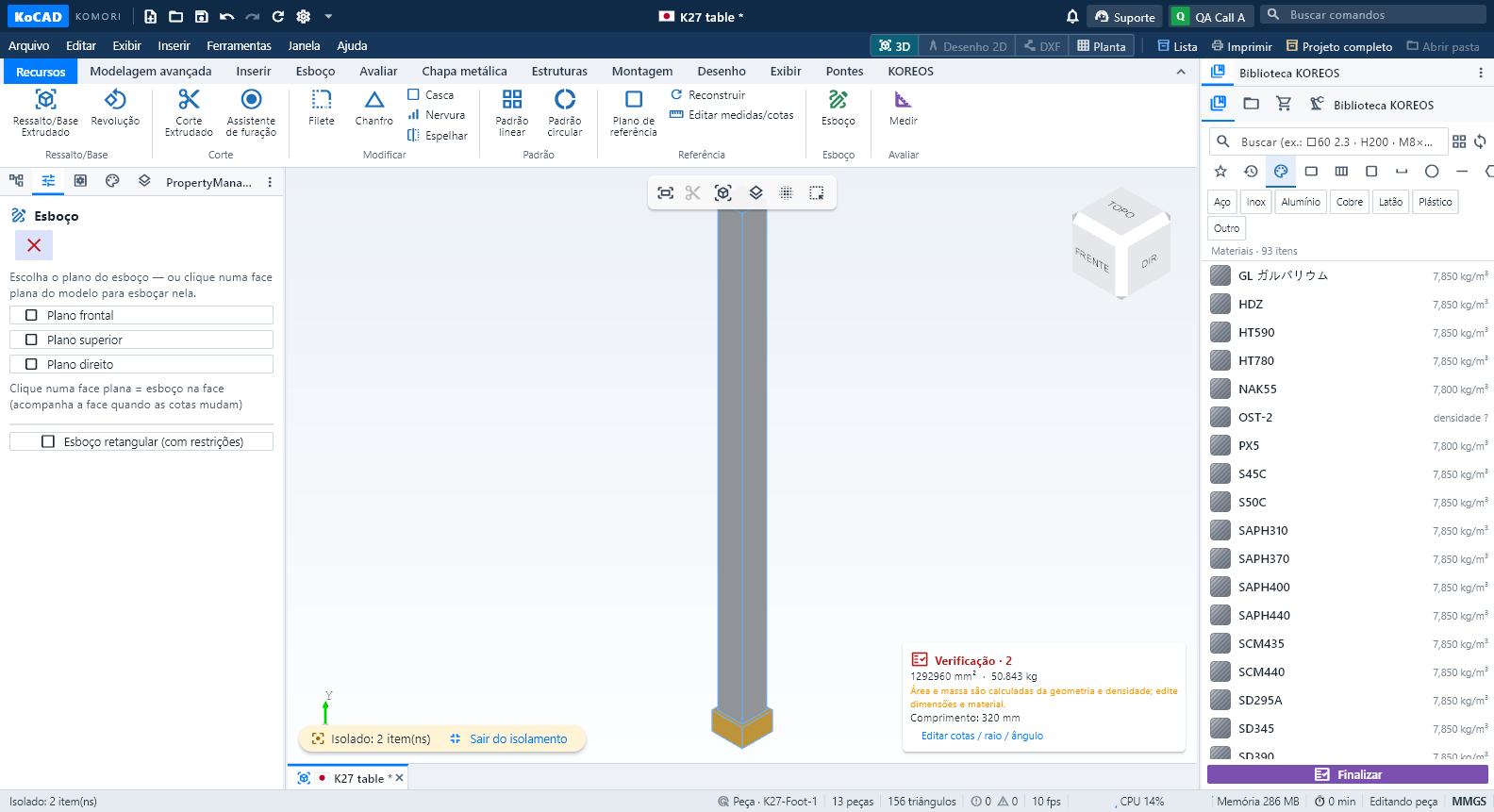
With a selection: Isolate (Ctrl+I) shows only it without changing the document — the yellow "Exit isolation" brings everything back; Hide / Show all; Open in its own tab (component from another file); Batch properties (KOREOS library material and process 工程). In Print, "Selection only" prints just the selected parts.