











KoCAD · 界面与功能
Simple tab: every button, for people who never used CAD
The first tab of KoCAD (0.33+): large buttons with everyday names, ready models per profile, drawing by typing the size, outputs in one click.
此文章暂无您的语言版本,以English显示。
本页目录
The Simple tab is the first of the ribbon. It does the essentials in a few clicks and everything it makes is a normal tree feature — someone who knows CAD opens the same part in the full tabs and carries on.
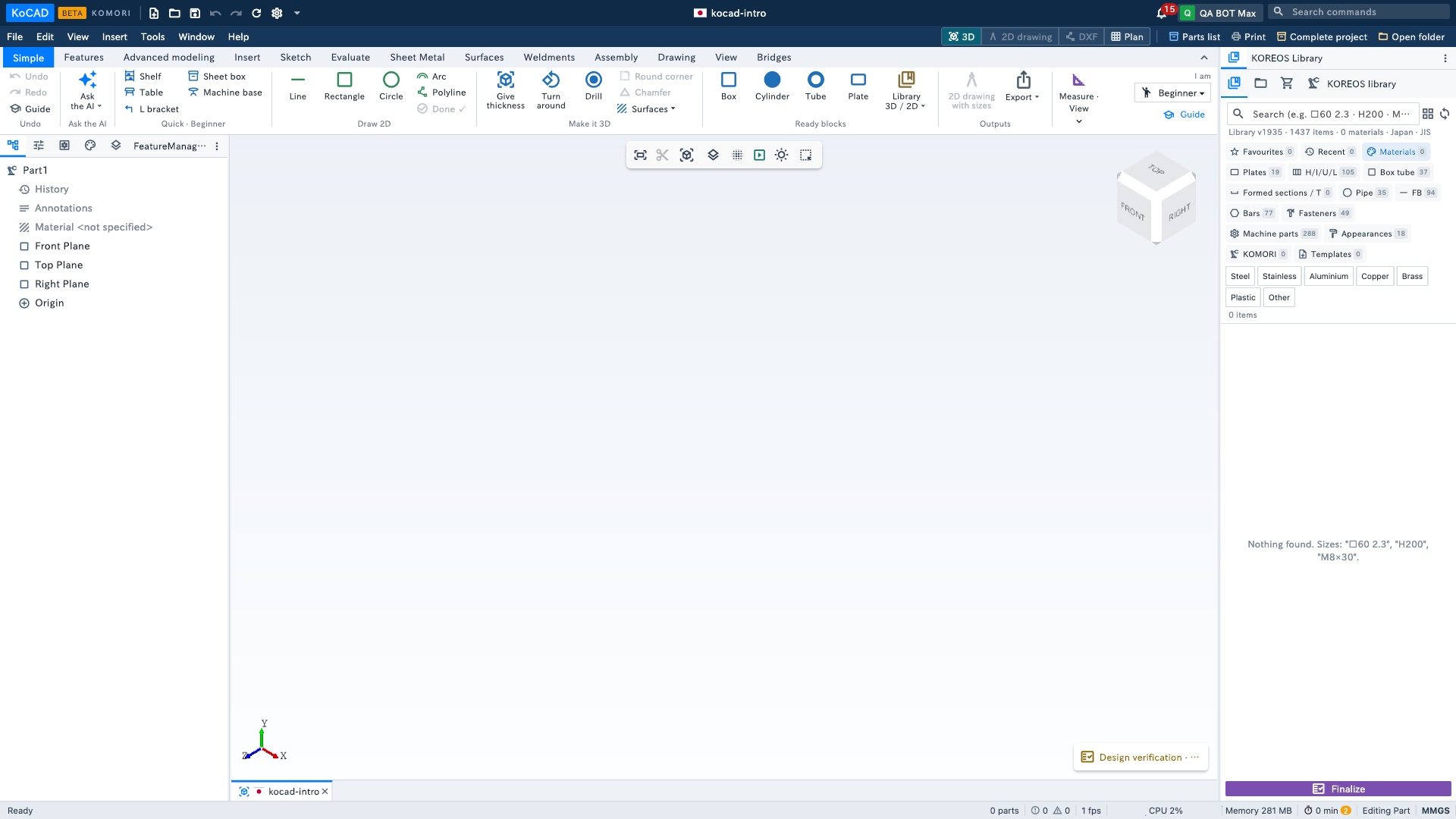
The groups, left to right
- Undo — Undo, Redo and Guide (5 steps, lighting the right button).
- Ask the AI — opens Bob with ready examples. Uses your own AI (Options › Connect AI).
- Quick · (your profile) — the ready models change with the profile: Beginner (Shelf, Table, L bracket, Sheet box, Machine base); Architect/site (Room walls, Levels, Stairs, Guardrail); Engineer (Bent sheet (U), Welded frame, Standard holes, Check).
- Draw 2D — Line, Rectangle, Circle, Arc, Polyline and Done ✓. Draws on the plane in view; type the size while drawing: 200x100 (rectangle), 150<30 (length and angle), 50 (diameter or length).
- Make it 3D — Give thickness (join, separate or cut out), Turn around, Drill (4 corners, 1 in the centre, a row), Round corner, Chamfer and Surfaces ▾.
- Ready blocks — Box, Cylinder, Tube, Plate (drag into the view or click) and Library 3D / 2D ▾ (standard profiles and bolts, insert as 3D or 2D, turn 2D ⇄ 3D).
- Outputs — 2D drawing with sizes (automatic A3 sheet) and Export ▾ (DXF, PDF, STEP, bill of materials, print).
- Measure · View — Measure, Weight, Dimension; See 2D drawing, Cut to see inside, Explode.
- Right corner: I am ▾ (switch profile) and Guide.
Where to change it
Tools › Options… › General: Who uses it, Tab that opens first (Simple or full) and Show the first-steps guide again.