KoCAD · 入门
First steps: never used a CAD? 5-minute missions per profile (Beginner, Architect, Engineer, Game designer)
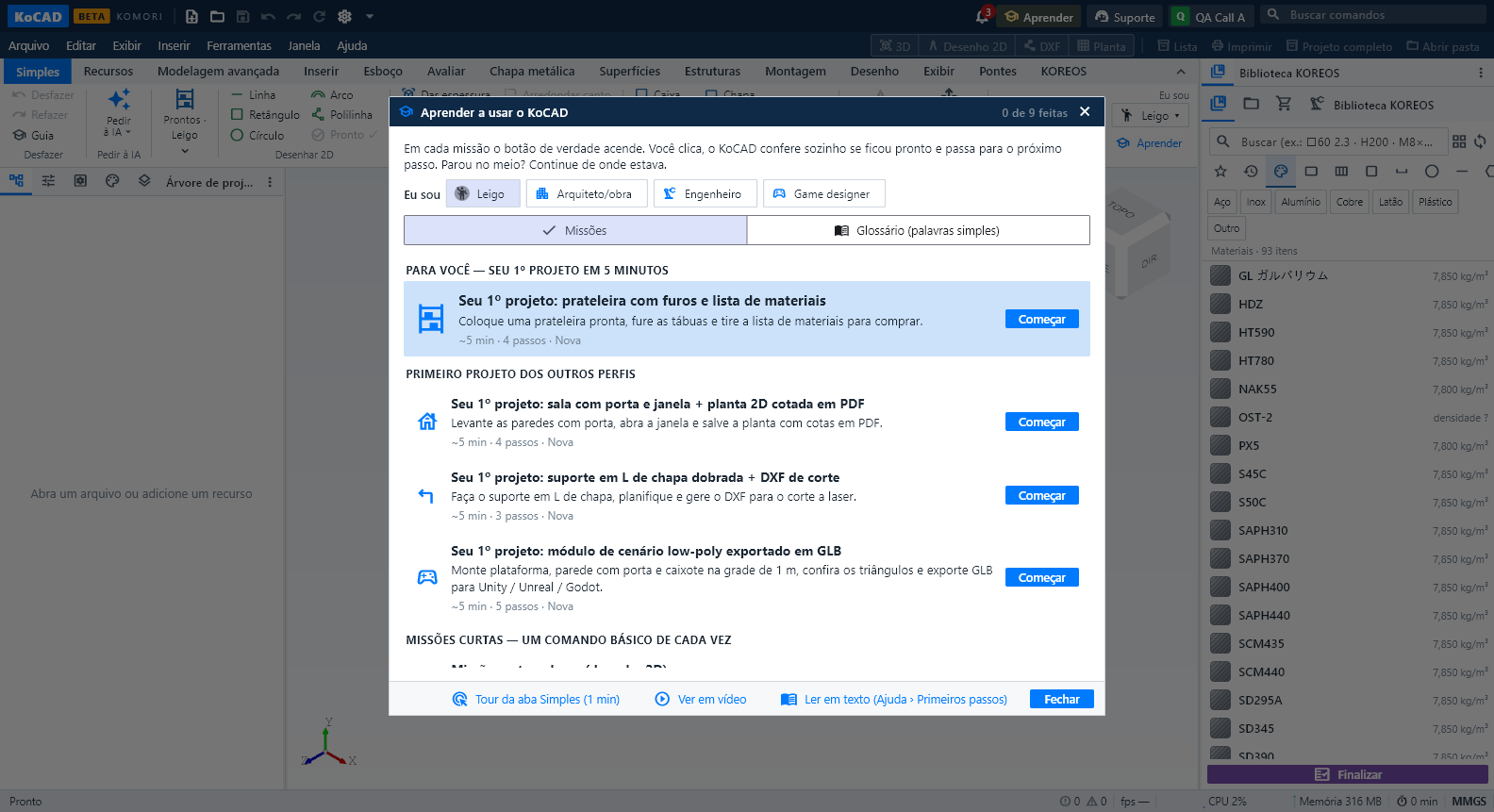
KoCAD teaches while you use it. Click Learn (top bar, Help › Learn or the corner of the Simple tab) and pick a mission. At every step the real button lights up with an orange ring and a card in the corner says what to do in plain words. You click the lit button; KoCAD checks by itself that it worked (the piece, the hole, the drawing, the file) and moves on. Made a mistake? Undo (Ctrl+Z). Stopped h
此文章暂无您的语言版本,以English显示。
本页目录
Never used a CAD? Start here
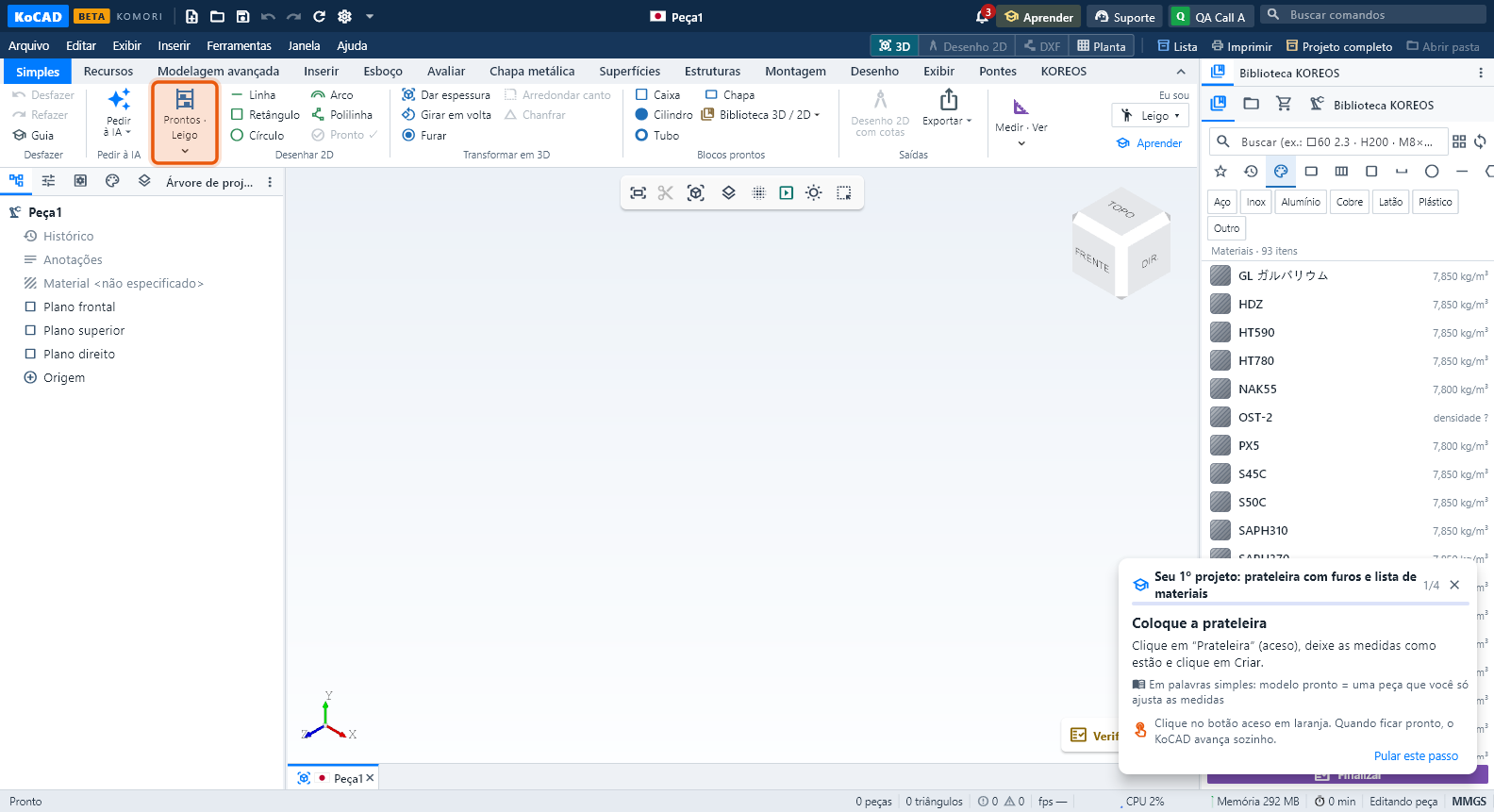
KoCAD teaches while you use it. Click Learn (top bar, Help › Learn or the corner of the Simple tab) and pick a mission. At every step the real button lights up with an orange ring and a card in the corner says what to do in plain words. You click the lit button; KoCAD checks by itself that it worked (the piece, the hole, the drawing, the file) and moves on. Made a mistake? Undo (Ctrl+Z). Stopped halfway? The mission continues where you were.
Rather watch first? In the Learn centre, Watch the video opens your profile trail (recorded from the real app, with subtitles). All trails: the article Learn: videos and trails (kocad-aprender).
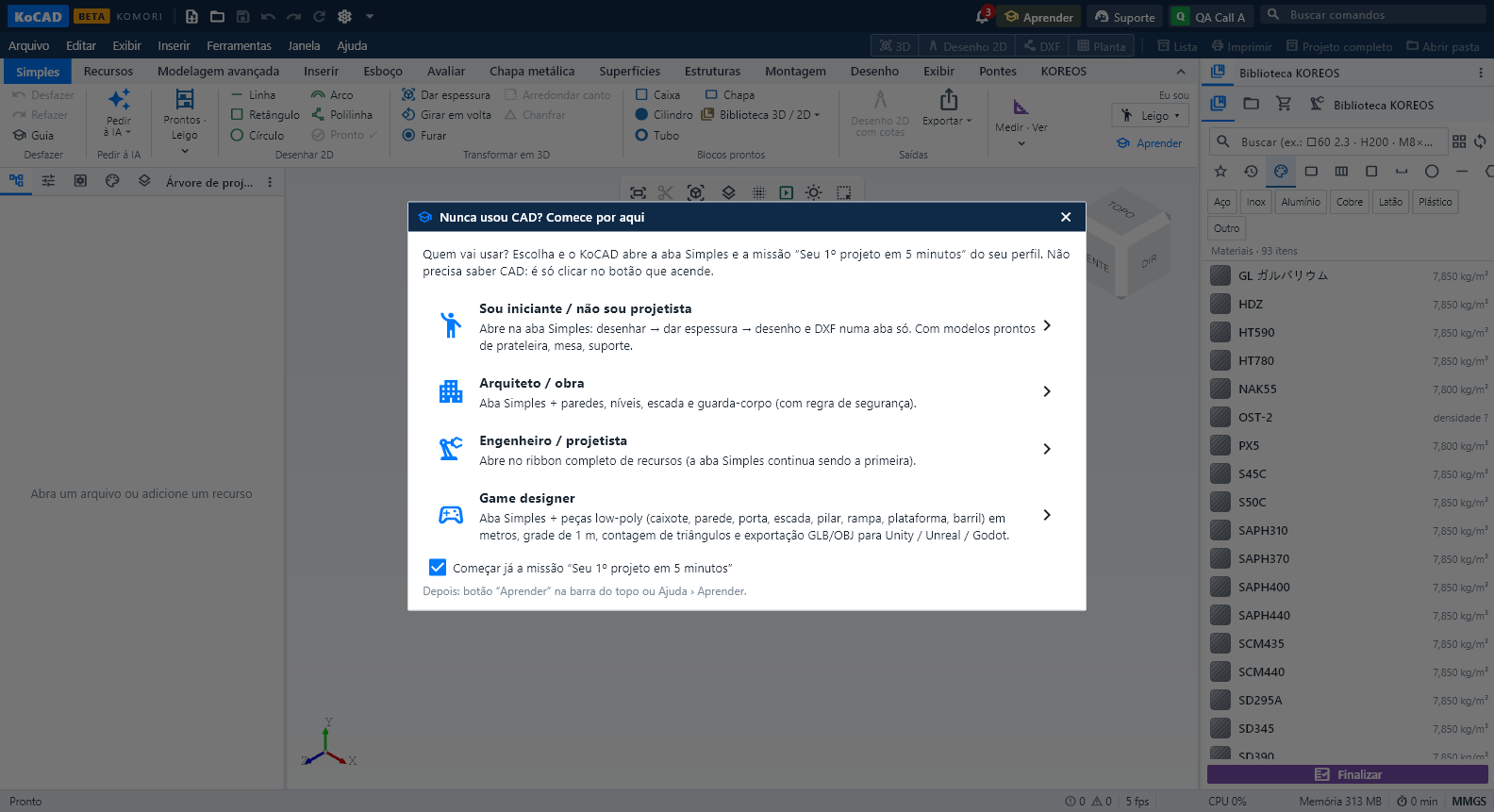
Who are you?
On the first open — and once after updating — KoCAD asks who is using it. Change it anytime in I am ▾ (corner of the Simple tab) or Settings › General.
- Beginner — Simple tab with ready shelf, table, bracket, sheet box and machine base.
- Architect / site — walls with a door, window, levels, stairs and guardrail (with the safety rule).
- Engineer — bent sheet, sheet L bracket, welded frame, standard holes; opens on the full ribbon.
- Game designer — low-poly pieces in metres, 1 m grid, triangle count and GLB/OBJ export.
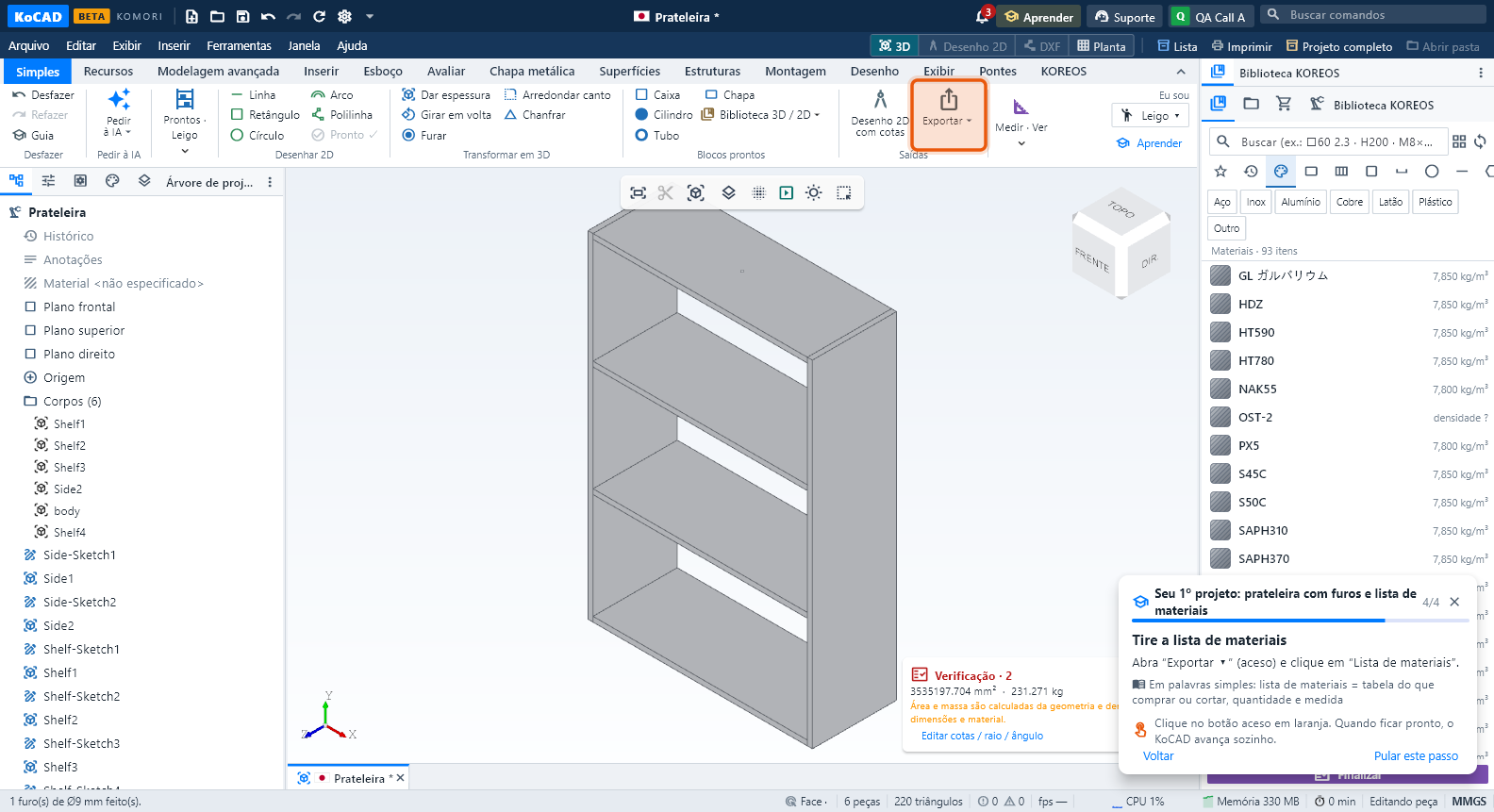
Beginner: shelf with holes and a parts list (5 min)
- Click Shelf (lit) and Create — the sizes can stay as they are.
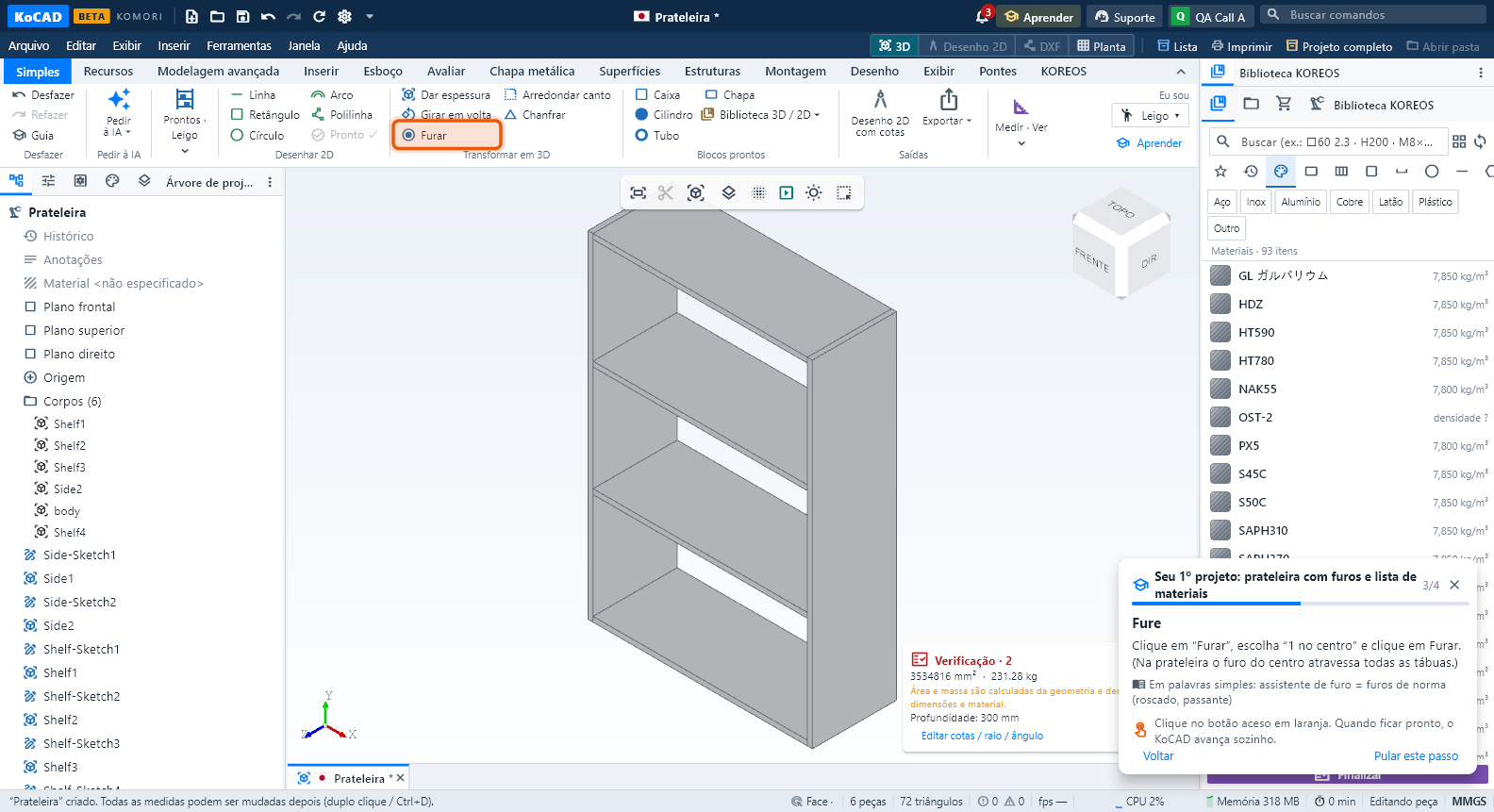
- In the 3D view, click the top face of the highest board.
- Drill → 1 in the centre → Drill: the hole goes through every board.
- Open Export ▾ and click Bill of materials.
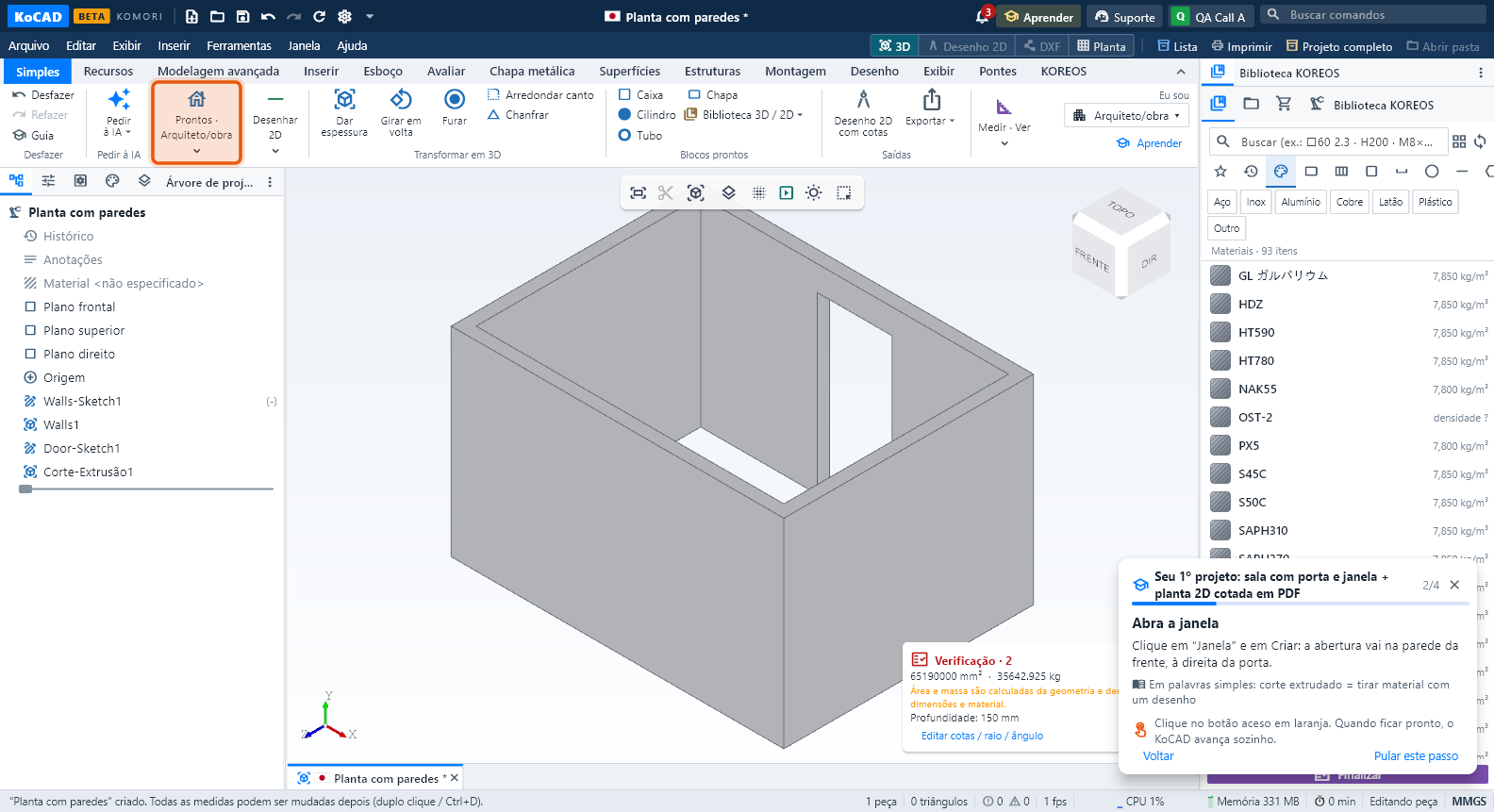
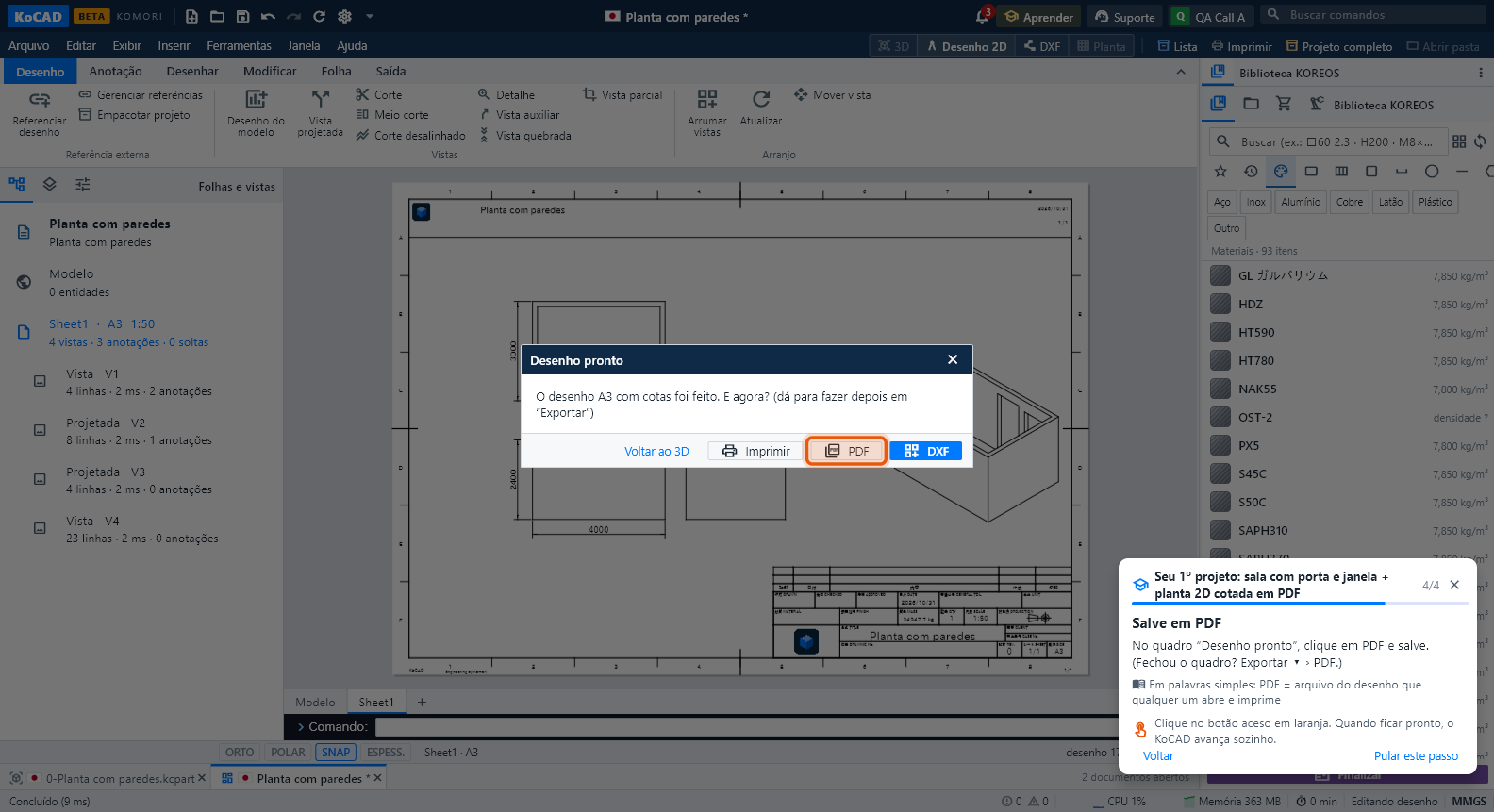
Architect: room with door and window + dimensioned plan in PDF (5 min)
- Room walls → Create: a 4 × 3 m room with its door.
- Window → Create: the opening goes in the front wall, right of the door. (No walls yet? KoCAD tells you to make them first.)
- 2D drawing with sizes: save the part with a name; the A3 sheet shows the plan (top view), front, side and dimensions.
- In the Drawing ready box, click PDF and save.
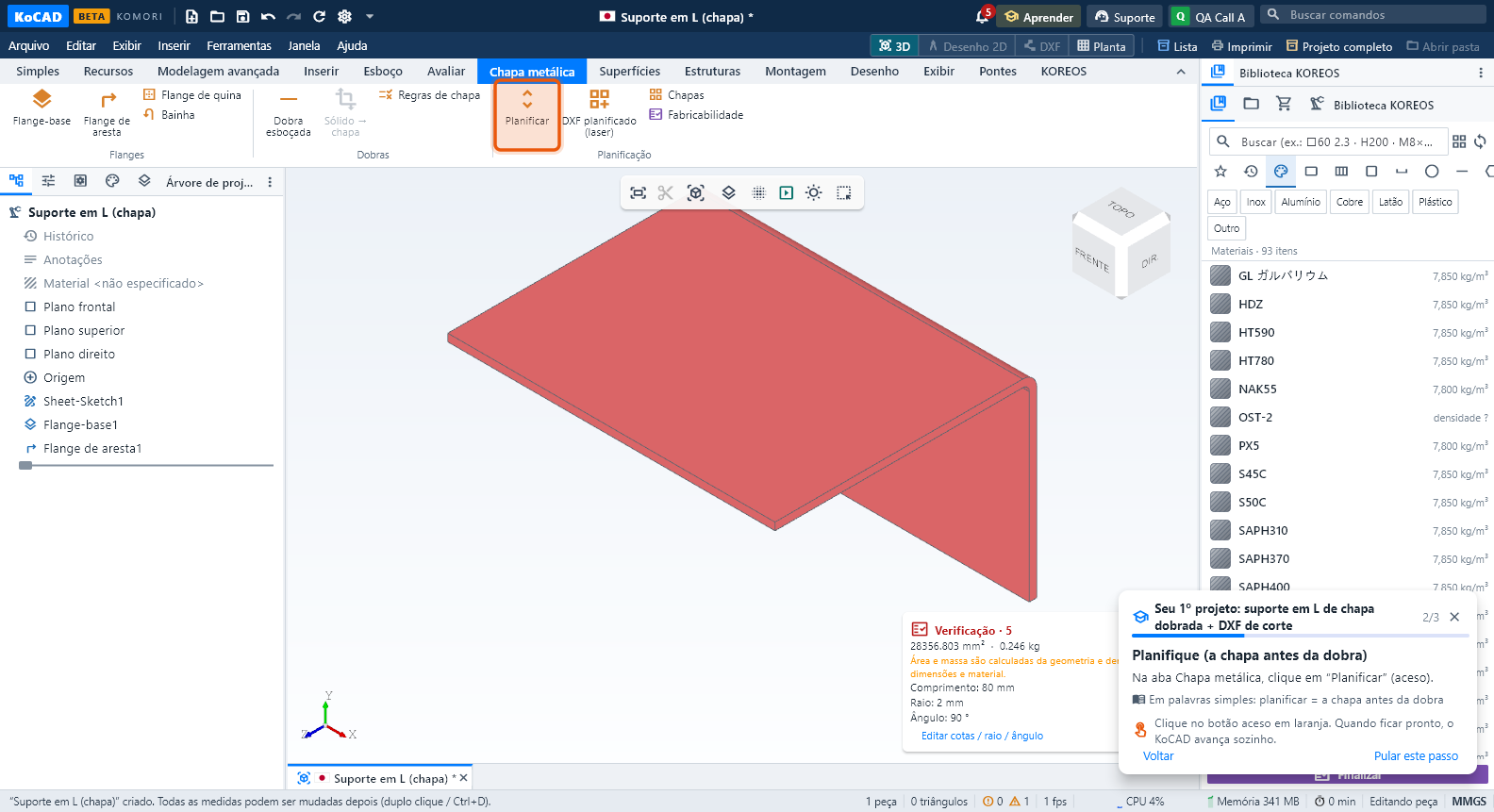
Engineer: bent-sheet L bracket + cutting DXF (5 min)
- L bracket (sheet) → Create: one sheet with one bend.
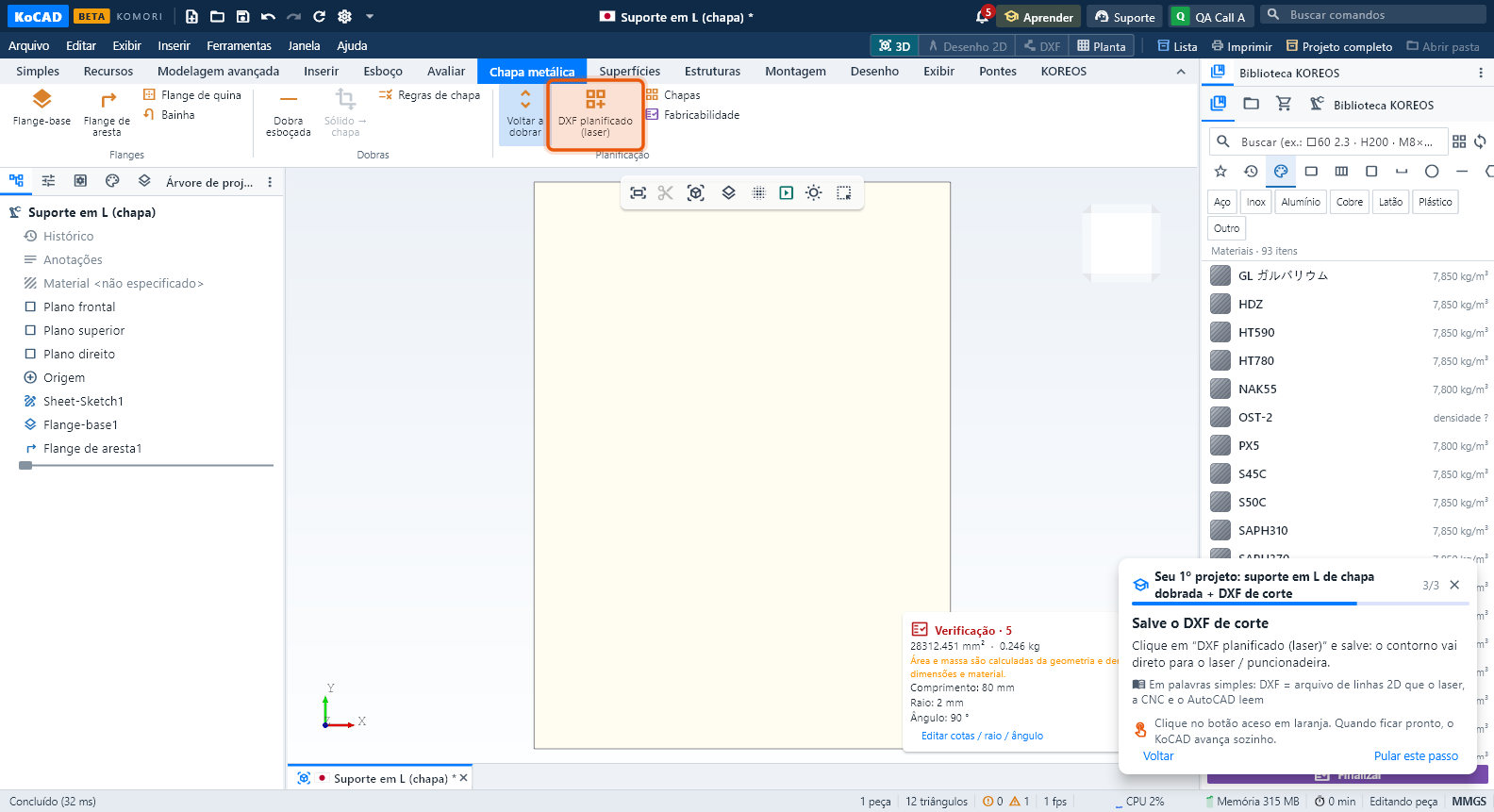
- The mission opens the Sheet Metal tab: click Flatten.
- Click Flat DXF (laser) and save.
Game designer: low-poly level module as GLB (5 min)
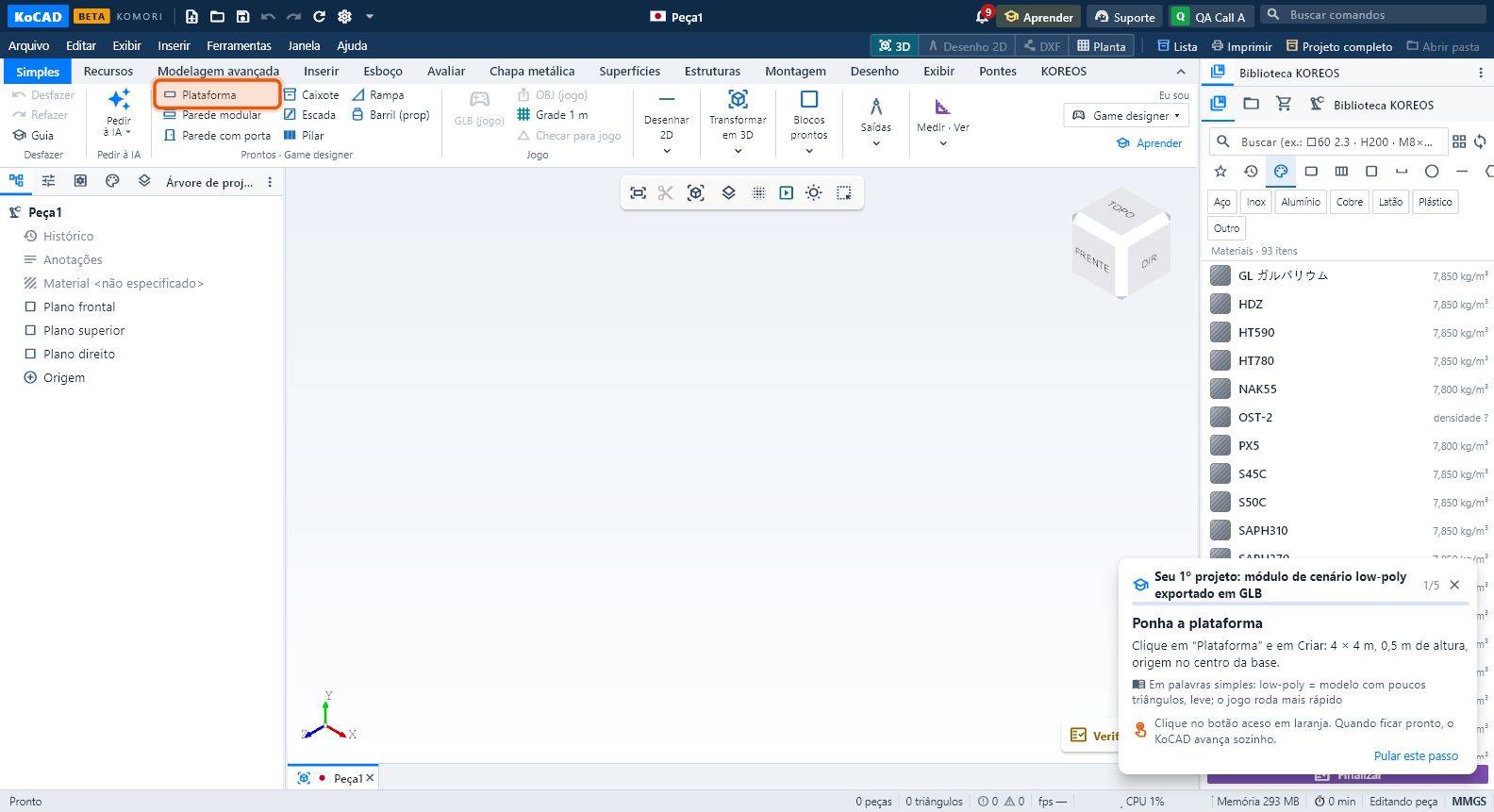
- Platform → Create: 4 × 4 m, 0.5 m high, origin at the centre of the base. The 1 m grid appears on the ground.
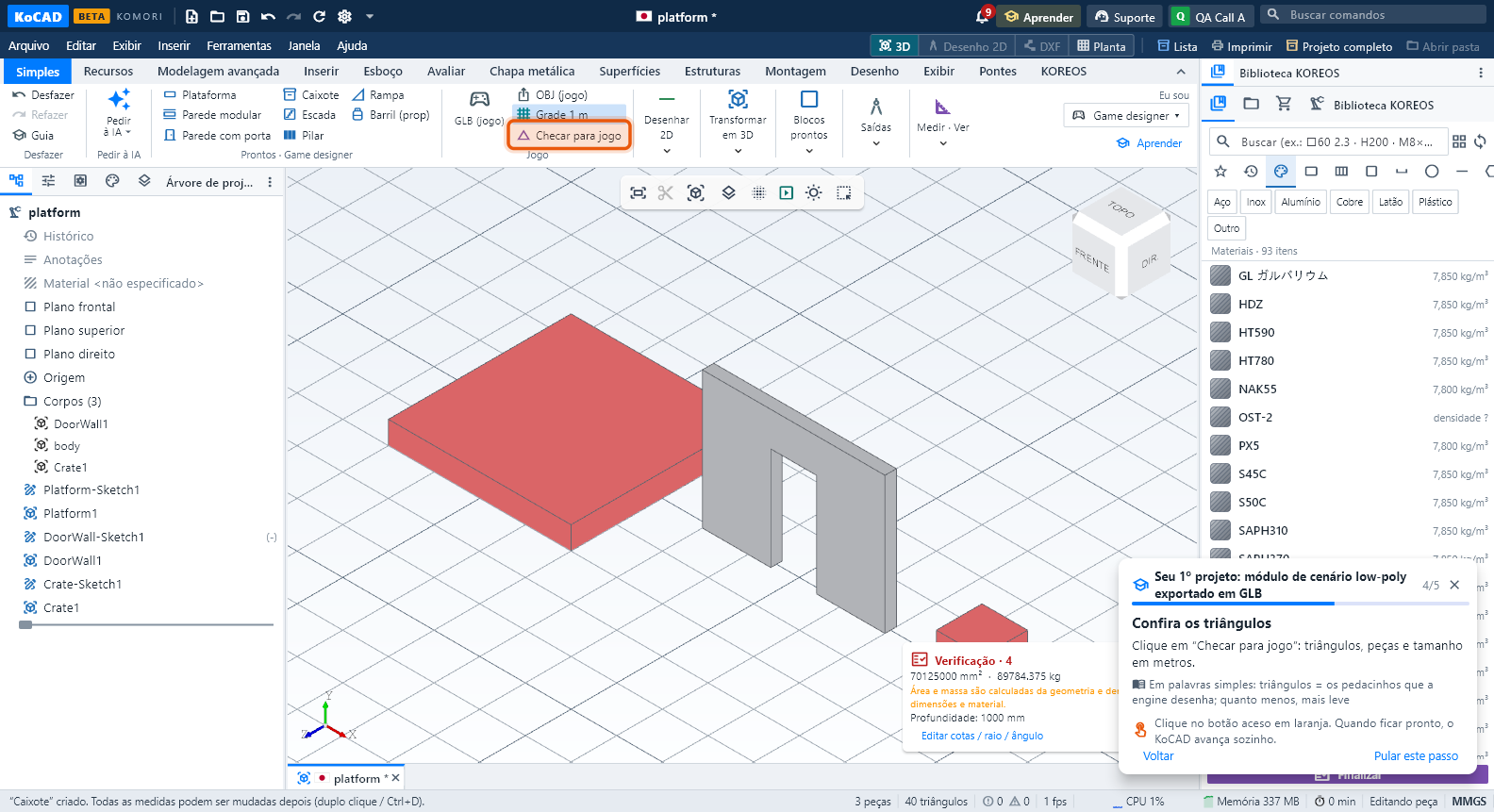
- Wall with door → Create: it lands beside it, on the next metre of the grid.
- Crate → Create: a 1 m cube = 1 grid square.
- Game check: triangles (52 for this module), pieces and size in metres.
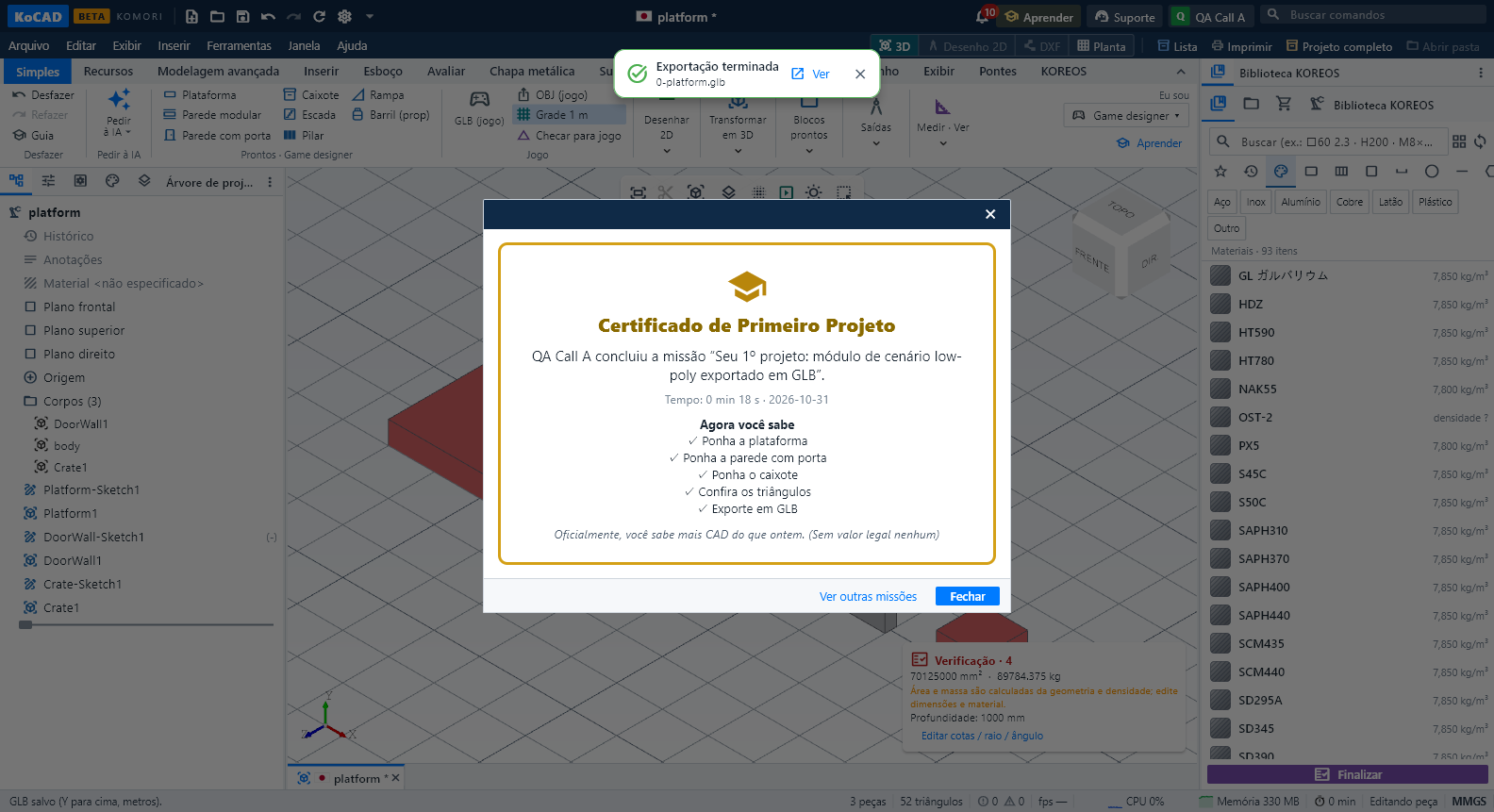
- GLB (game) and save. Unity: drag into Assets (glTFast). Godot: opens directly. Unreal: Import. Need FBX? Open the GLB in Blender and export FBX. OBJ (game) is also in metres with Y up.
Short missions (2 min each)
- Sketch — Rectangle → one click in the 3D view → type 200x100 and Enter → Done ✓.
- Give thickness — draw the rectangle, click Give thickness, type the thickness in mm.
- Hole — Plate → Create → Drill (4 corners).
- Measure — Box → Measure → click an edge.
- Export — Box → Export ▾ › STEP (3D).
Plain-words glossary
Sketch = a 2D drawing on a plane. Give thickness (extrude) = give volume to a closed drawing. Hole = a standard drilled or tapped hole. Chamfer = cut a corner at an angle. Fillet = round a corner. Dimension = fix a size with a number. Face / edge. 2D drawing / plan = the sheet to print. Bill of materials = what to buy or cut. DXF = 2D lines for laser, CNC and AutoCAD. STEP = 3D for other CADs. GLB = 3D for game engines. Low-poly = few triangles, light. Pivot = the point the engine places and rotates the piece by.