KoCAD · 界面与功能
3D light and look
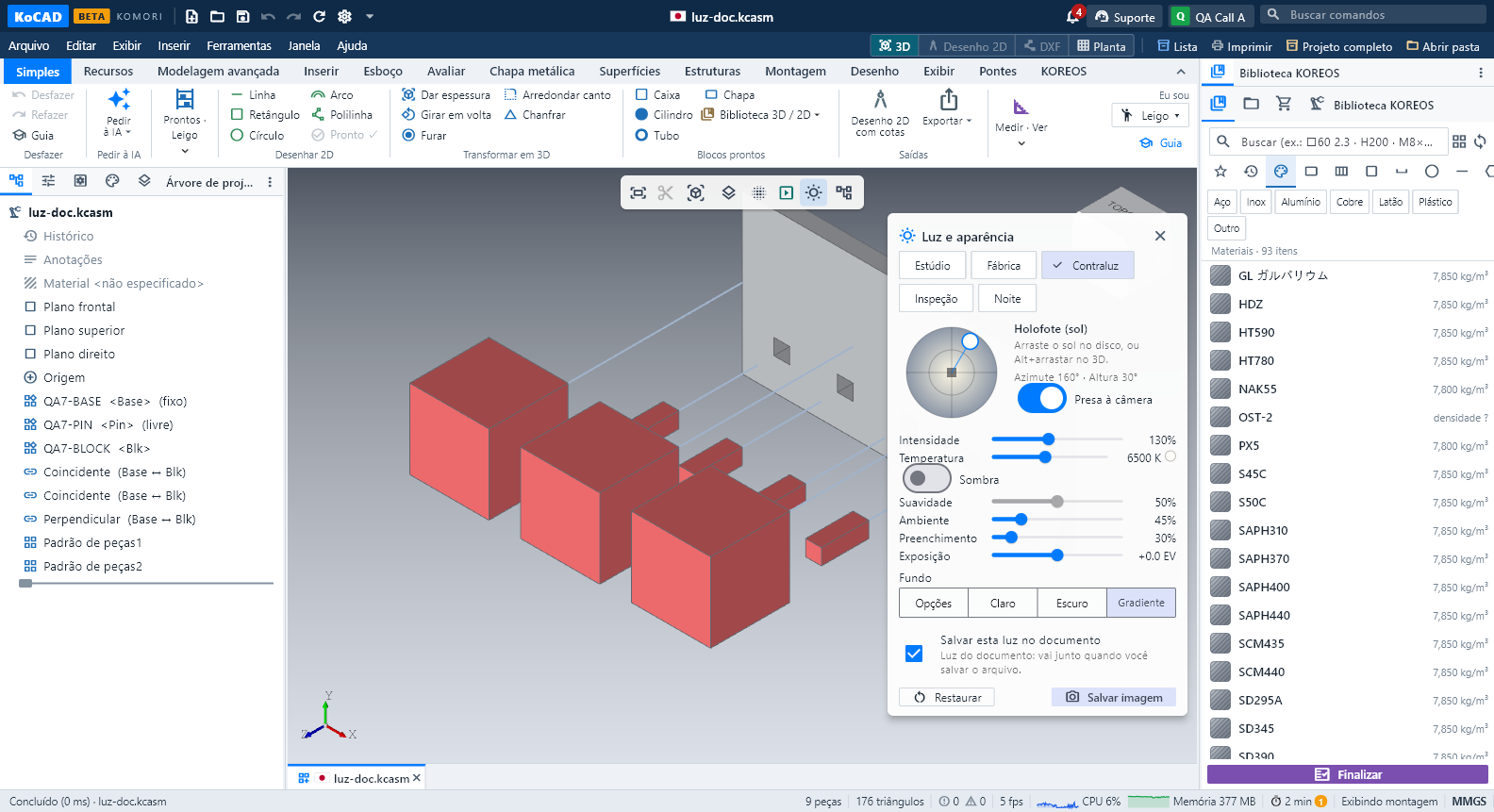
KoCAD's 3D view now has a light control ("spotlight"). Open it with the sun on the floating bar of the 3D view (next to Fit, Views and Display), the menu View › Light, the ribbon View › Light, or the Light button of the Simple tab. A small panel appears in the corner of the 3D view; close it with × or by clicking the sun again.
此文章暂无您的语言版本,以English显示。
KoCAD's 3D view now has a light control ("spotlight"). Open it with the sun on the floating bar of the 3D view (next to Fit, Views and Display), the menu View › Light, the ribbon View › Light, or the Light button of the Simple tab. A small panel appears in the corner of the 3D view; close it with × or by clicking the sun again.
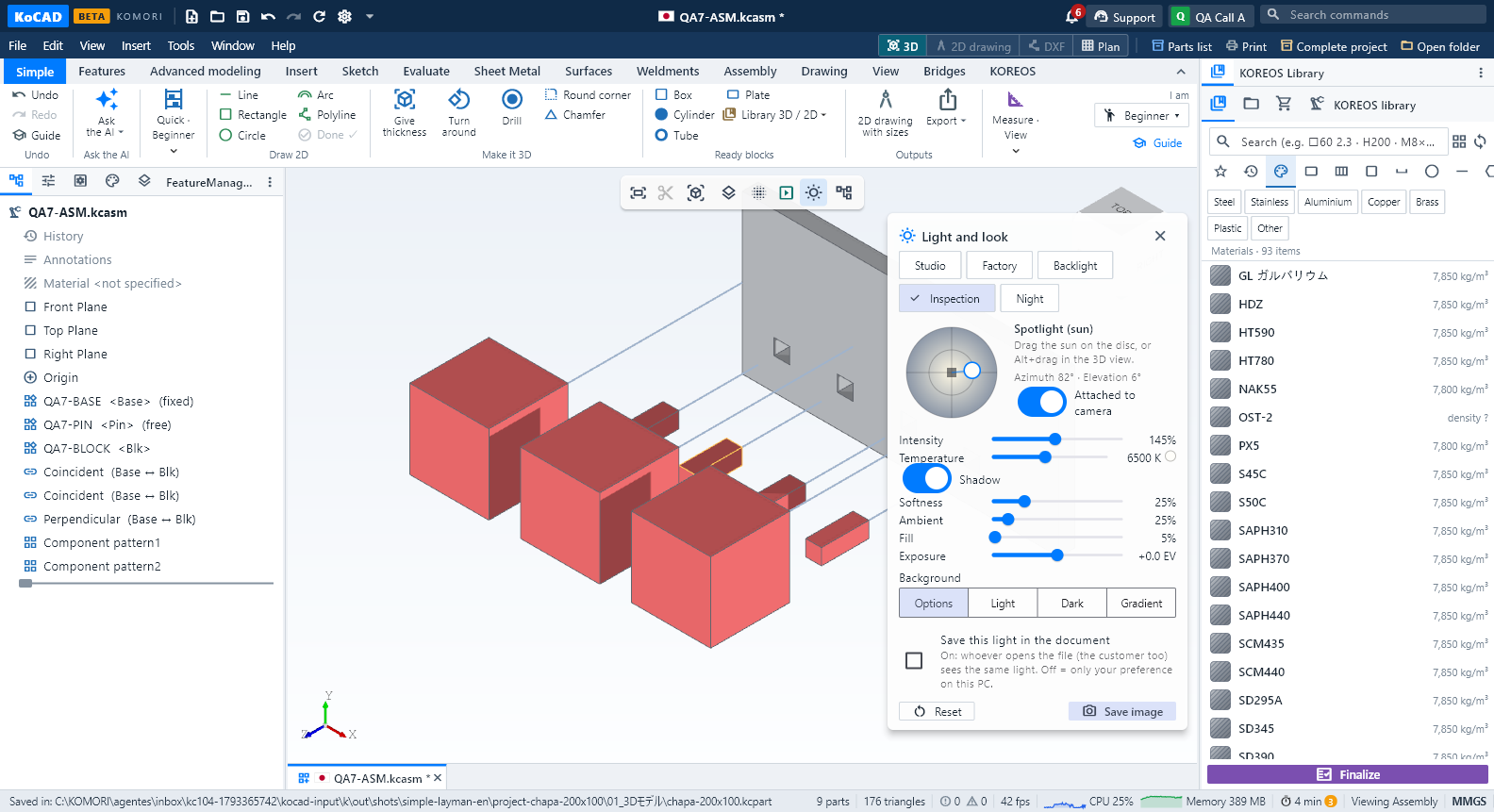
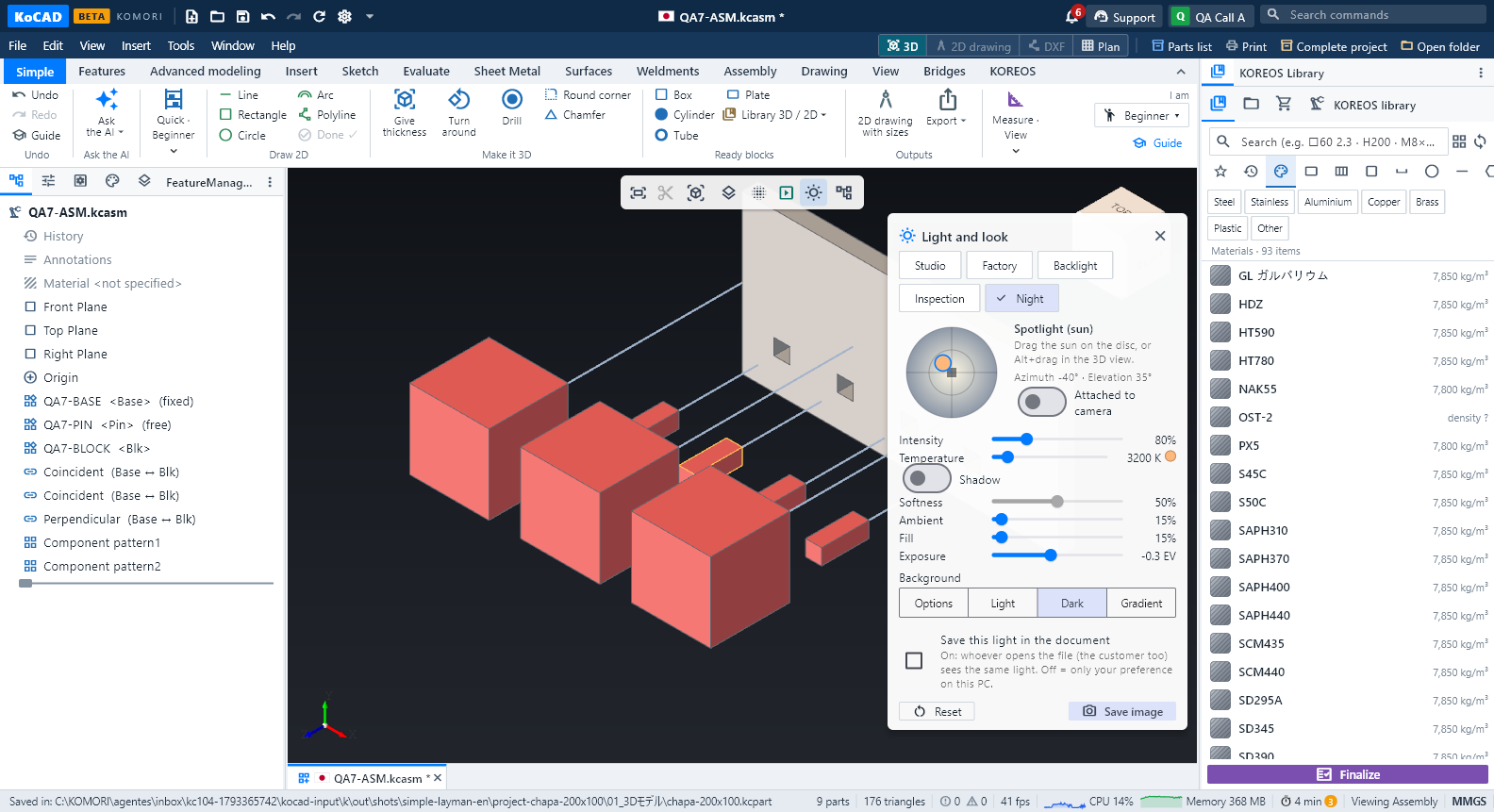
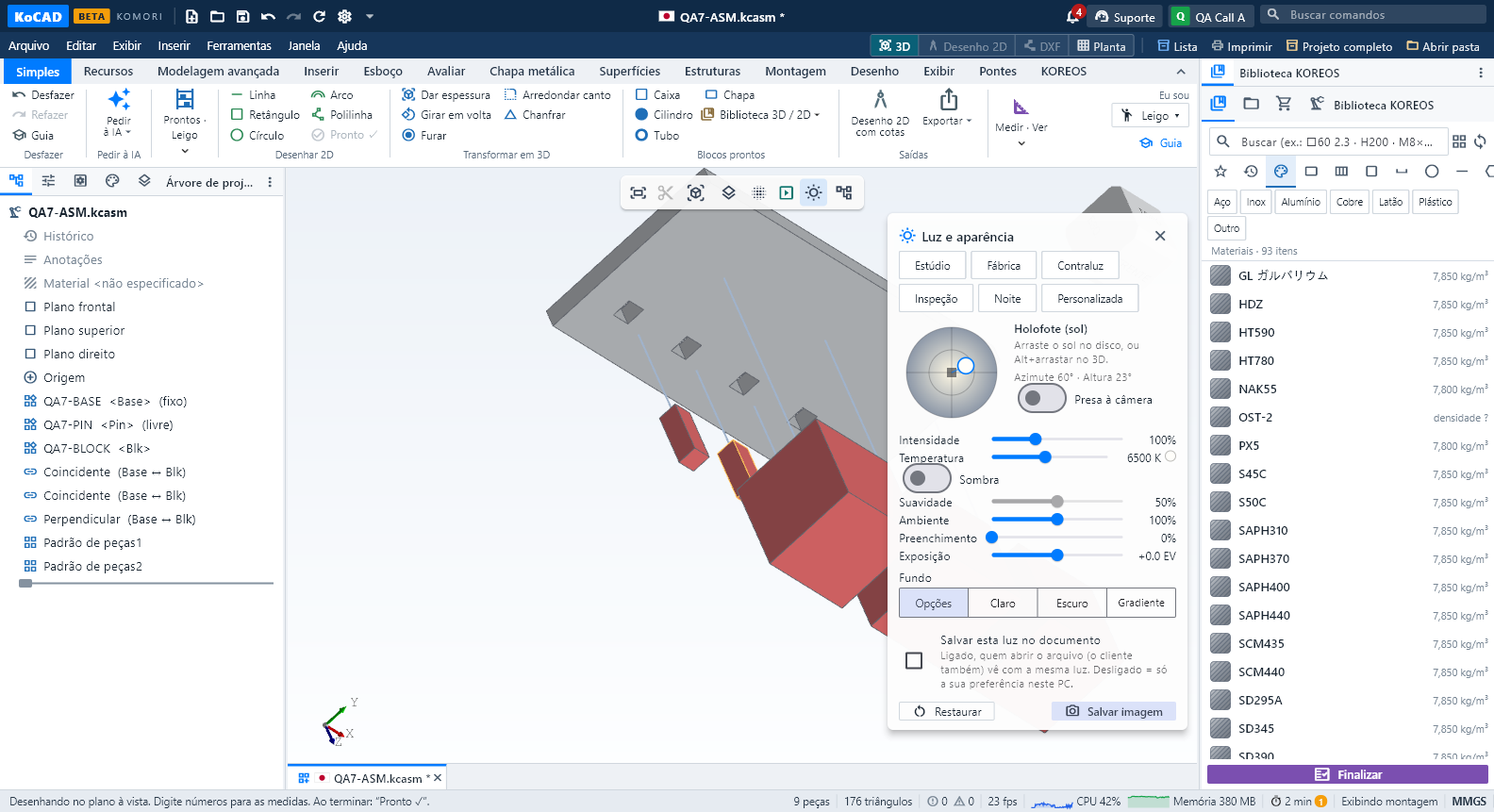
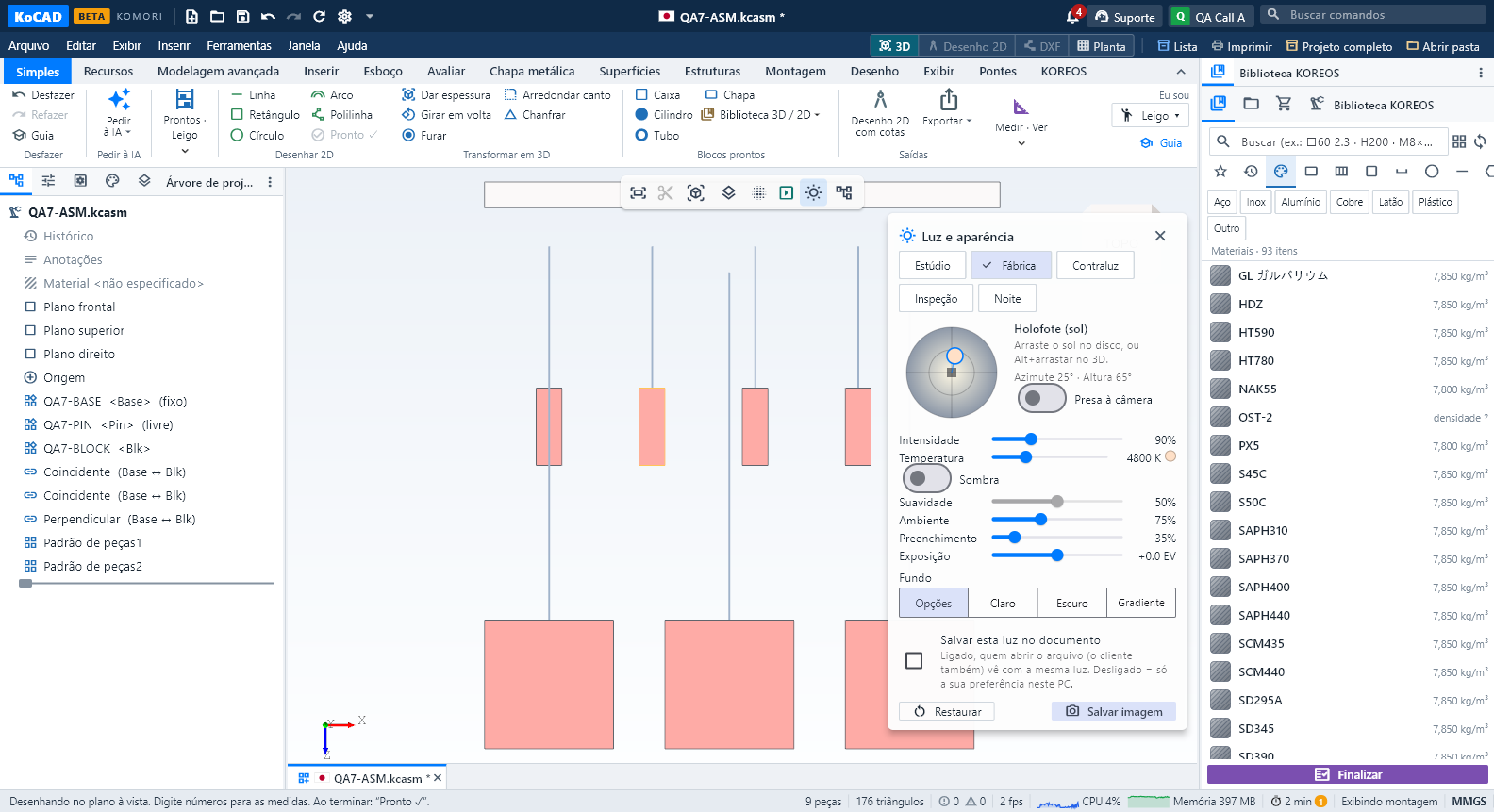
Presets: Studio is the usual KoCAD light (default). Factory lights from above, like a shop-floor white LED, fixed to the part. Backlight comes from behind and makes outlines and edges stand out. Inspection is a raking light from the side, with shadow: dents, waviness and weld beads show up. Night is a warm low light on a dark background, for presentations.
Moving the spotlight: drag the sun on the disc — the centre is light from the front (your eye), the middle circle is from the side and the rim is from behind; up is from above. Or, directly in the 3D view, hold Alt (Option on the Mac) and drag with the left button. An Alt+click without dragging still goes one level down in an assembly, as before. On Linux, if the window manager uses Alt+drag to move windows, use the disc in the panel.
Attached to camera: on, the light moves with the view (headlight). Off, the light stays fixed to the part: rotate the model to see other sides lit.
Settings: Intensity, colour Temperature (1800 K warm to 12000 K cool; 6500 K = white), Shadow on/off and its edge Softness, Ambient (lifts everything), Fill (lifts the dark side), Exposure (−3 to +3 EV) and Background (Options = the one of Tools › Options › Colours, Light, Dark, Gradient). Reset goes back to Studio.
Light on any PC: the shadow starts off. Switched on in a PC without a strong graphics card, KoCAD lowers its quality by itself and hides the shadow while you rotate (it comes back when you release the mouse) — the panel tells you when this happens. If the PC's graphics cannot draw the shadow (old OpenGL — today the Mac too), the panel says so; the choice is kept and the shadow shows when the file is opened on a PC that draws it.
Your light and the document's light: your choice is kept for your account on this PC. Tick Save this light in the document to store it in the file: whoever opens it (the customer too) sees the same light. Untick to go back to your own preference.
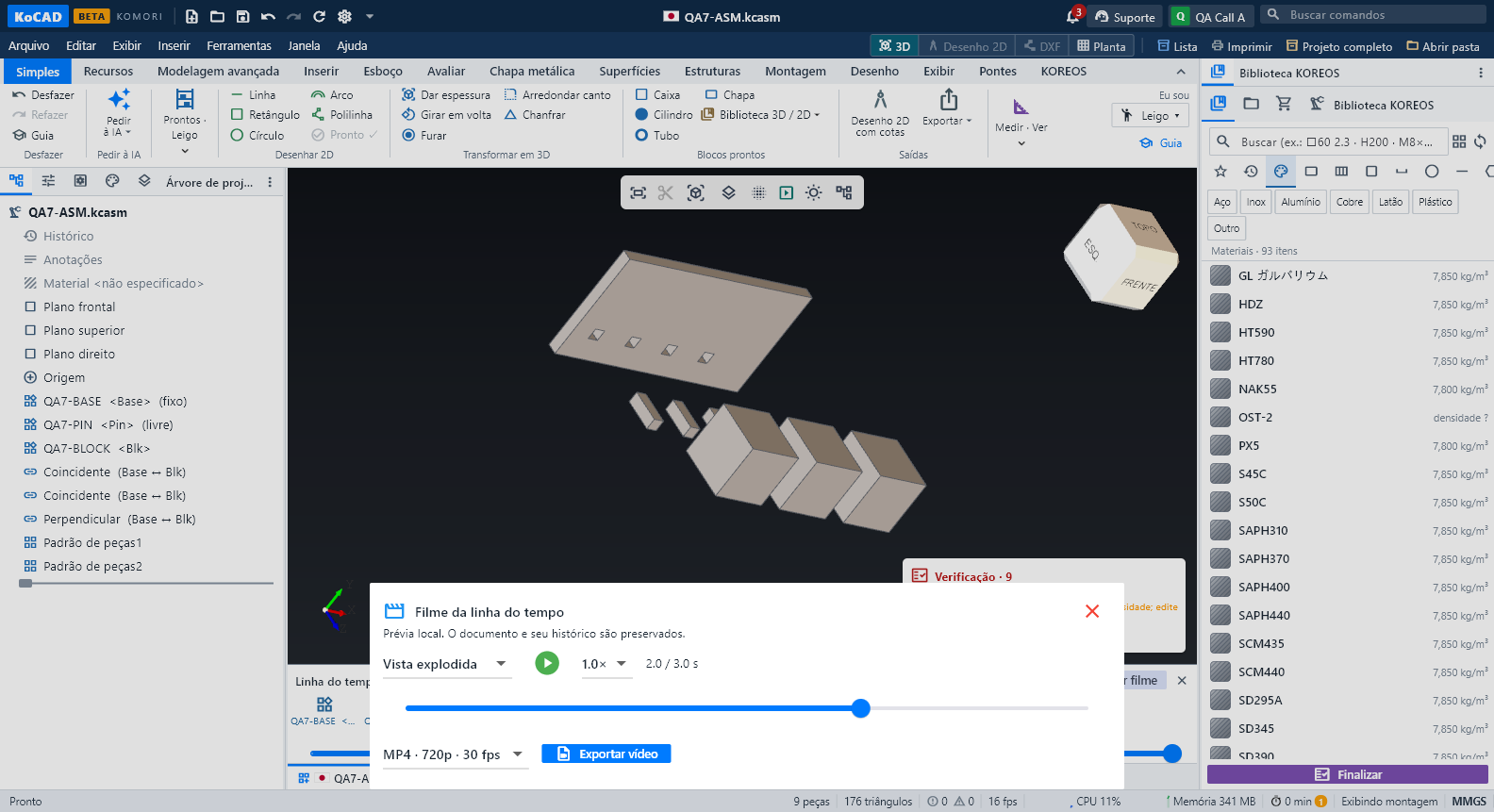
Movie, images and VR/AR: the chosen light goes into Play / export movie (MP4 and GIF, assembly and exploded), Save image (a 1920×1080 PNG of the current view, in the panel or View › Save image…) and the VR/AR link: the viewer on a phone, tablet or headset lights the part the same way; change the light while the link is open and it updates.