











KoCAD · 界面与功能
How to make the exploded view and detect interference
Separate the parts in steps to show the assembly, and find parts that clash before manufacturing.
此文章暂无您的语言版本,以English显示。
本页目录
What this is for
The exploded view moves the parts apart in steps, for assembly manuals, presentations and movies. Interference Detection looks for parts that occupy the same space — an error that is expensive when found on the shop floor.
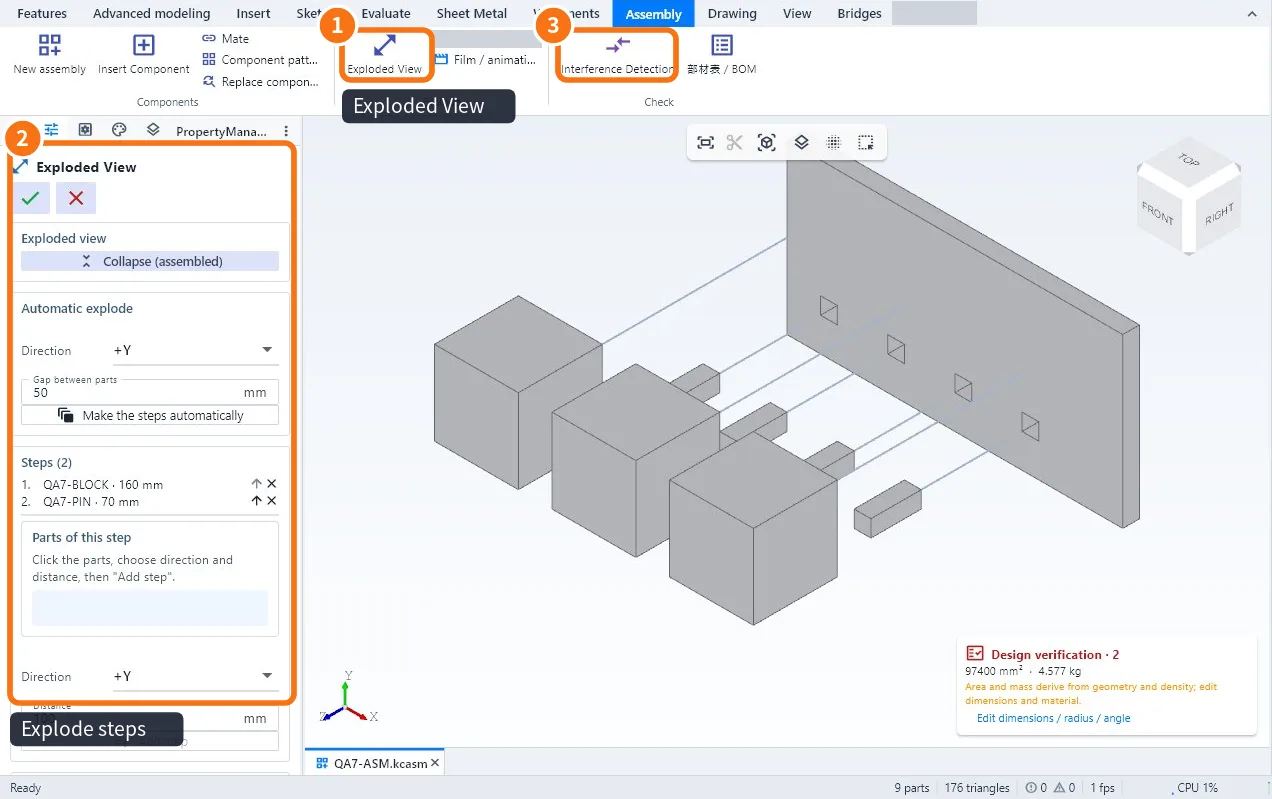
Step by step: exploded view
- Open the assembly and click Exploded View ①.
- Use Auto explode for a first result, or build it step by step ②:
- Click the parts of the step, choose the direction (axis or edge) and the distance. Click Add step.
- Repeat for the other steps. The order of the steps is the order of the animation.
- Confirm. The exploded view is saved in the assembly; use the same button to collapse and explode.
Step by step: interference
- With the assembly open, click Interference Detection ③ (Assembly or Evaluate tab).
- KoCAD lists each pair of clashing parts, with the interference volume.
- Click a line to highlight the place in 3D.
- Fix it (size, position or clearance) and run again until the list is empty.
Common mistakes
- A bolt shows interference at the thread: a thread modelled as a full cylinder touches the tapped hole; this is expected — check it is only the thread.
- Assembly opened from GLB/OBJ/STL is not checked: display meshes have no exact volume; open the STEP to check interference.
Related articles
- How to assemble parts: new assembly, insert components and mates
- How to record an MP4 or GIF movie of the build or the assembly
- Workflow: assemble, explode and document an assembly