











KoCAD · 入门
Beginner path: your first finished part without knowing CAD
A shelf from a ready model, its weight in wood and the drawing with the sizes as PDF — in a few minutes, with the Simple tab only.
此文章暂无您的语言版本,以English显示。
本页目录
You don’t need to know what “extrude” or “sketch” mean to start. In the Simple tab, with the Beginner profile, buttons have everyday names and there are ready models: Shelf, Table, L bracket, Sheet box and Machine base.
Step by step
- Open KoCAD and sign in. The first time, “Welcome to KoCAD — who is using it?” appears: choose I am a beginner / not a designer. The Simple tab will open first.
- In the Quick · Beginner group, click Shelf. The sizes are filled in, in millimetres. Change what you want (e.g. width 900 and 5 shelves) and click OK.
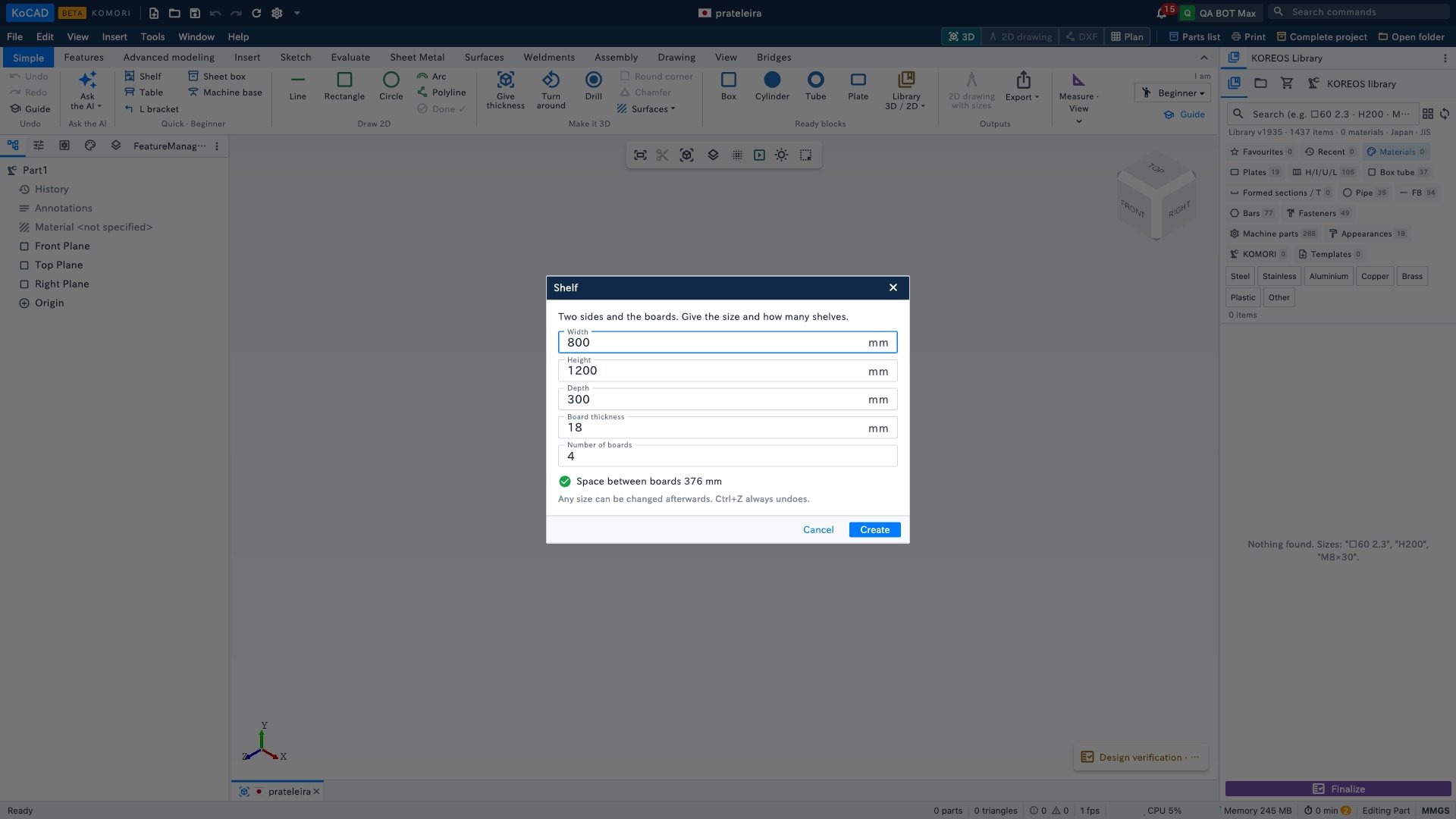
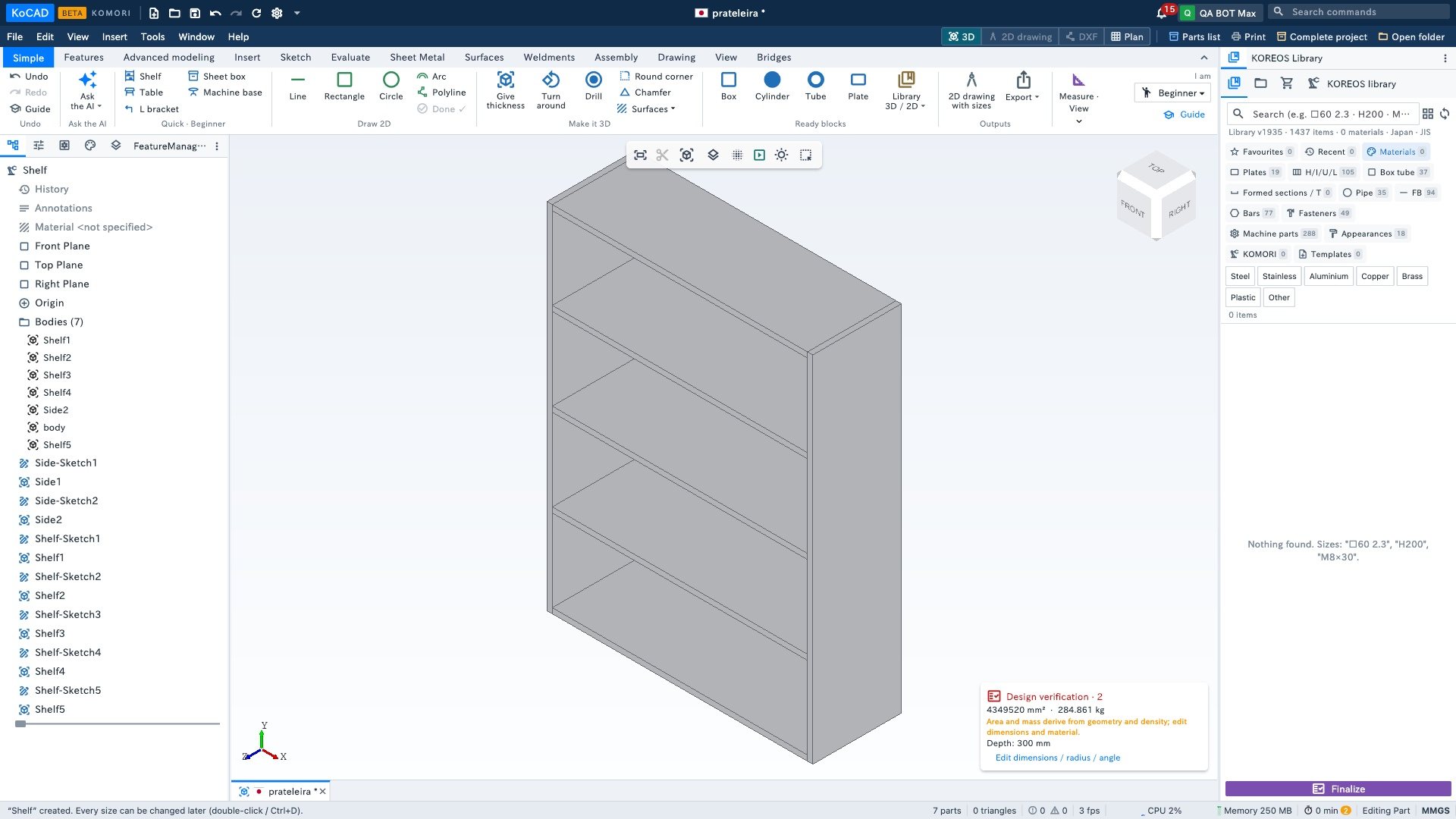
- The shelf appears in 3D, already split into sides and boards. Turn it with the middle mouse button (two fingers on a trackpad).
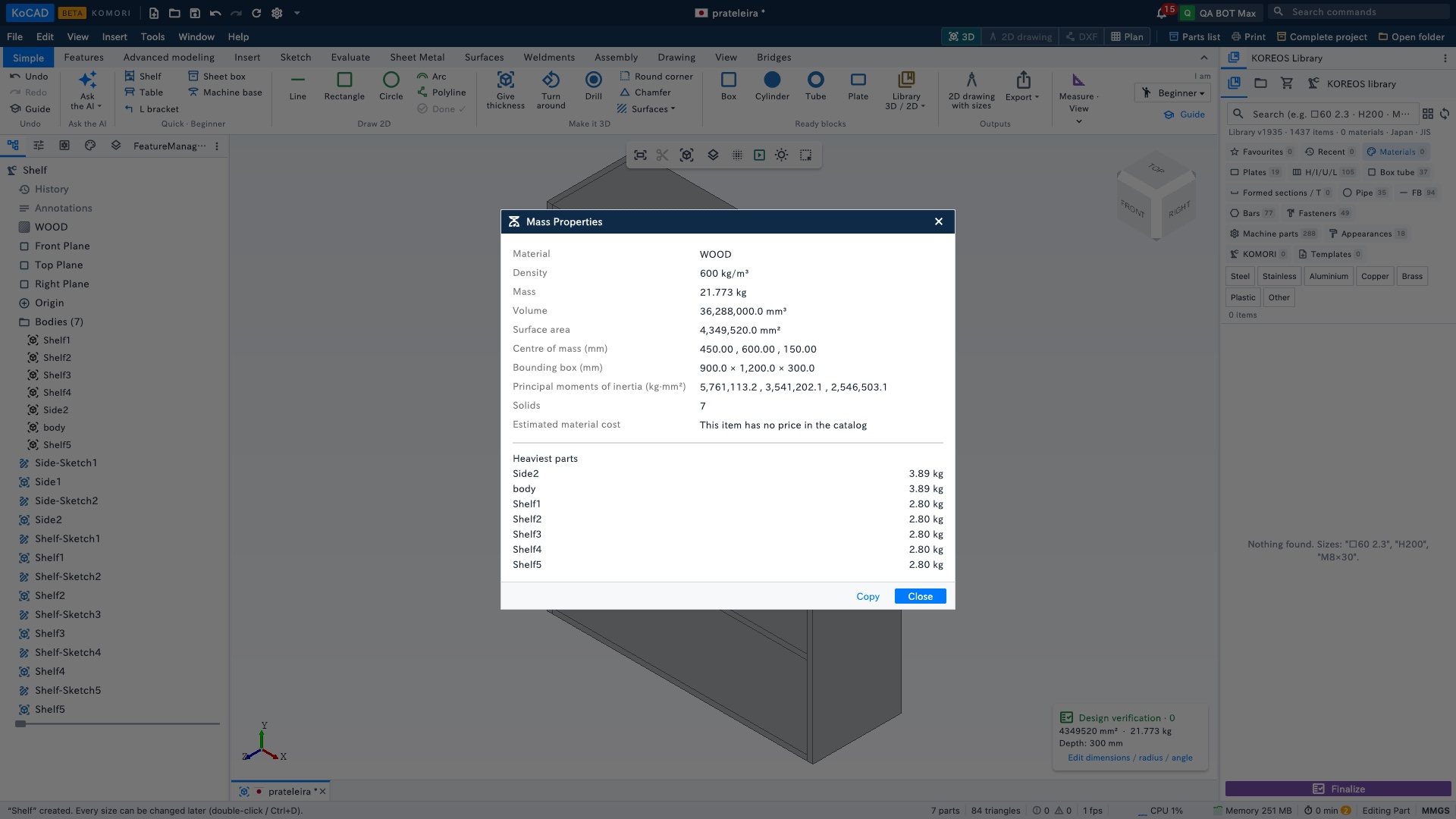
- Click Weight, choose Wood and see the volume and weight.
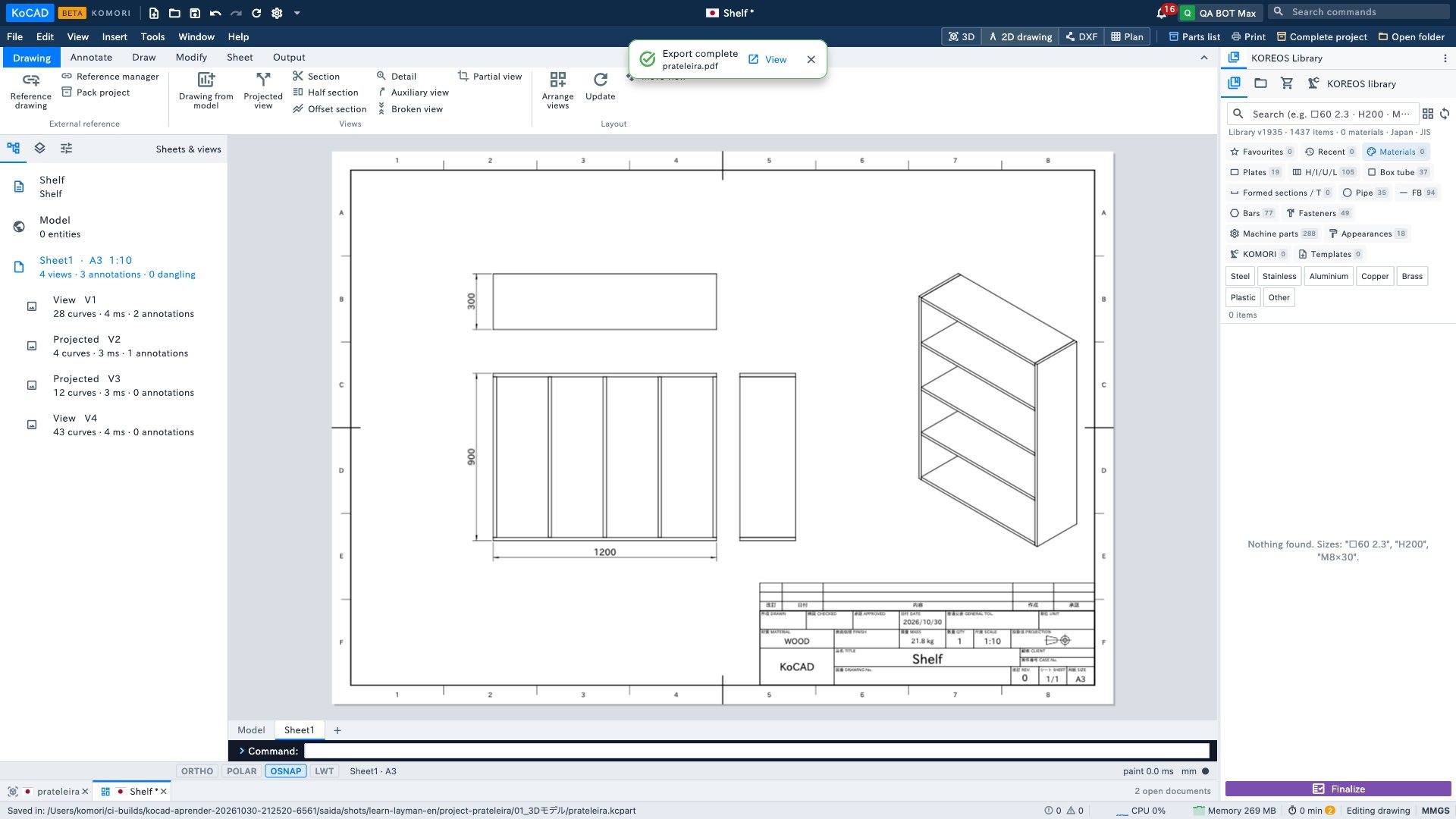
- Click 2D drawing with sizes. KoCAD saves the part in the project folder and lays out an A3 sheet with views and sizes.
- In “Drawing ready”, click PDF (to print or send) or DXF (for a cutting machine). Choose where to save.
After this first part
- Something that is not a ready model? Watch “Draw by typing the size, then give thickness”.
- Need holes? “Drill: 4 corners and 1 in the centre”.
- Wrong size? “Measure, weigh and change a size” — or double-click the part in the tree (Ctrl+D).
- The Guide button (corner of the tab) walks you through 5 steps, lighting the right button.