KoCAD · 入门
Basics: measure, weigh and change a size
Distance between faces, weight from the material and how to change a size after it is done (Dimension / Ctrl+D).
此文章暂无您的语言版本,以English显示。
本页目录
Measure
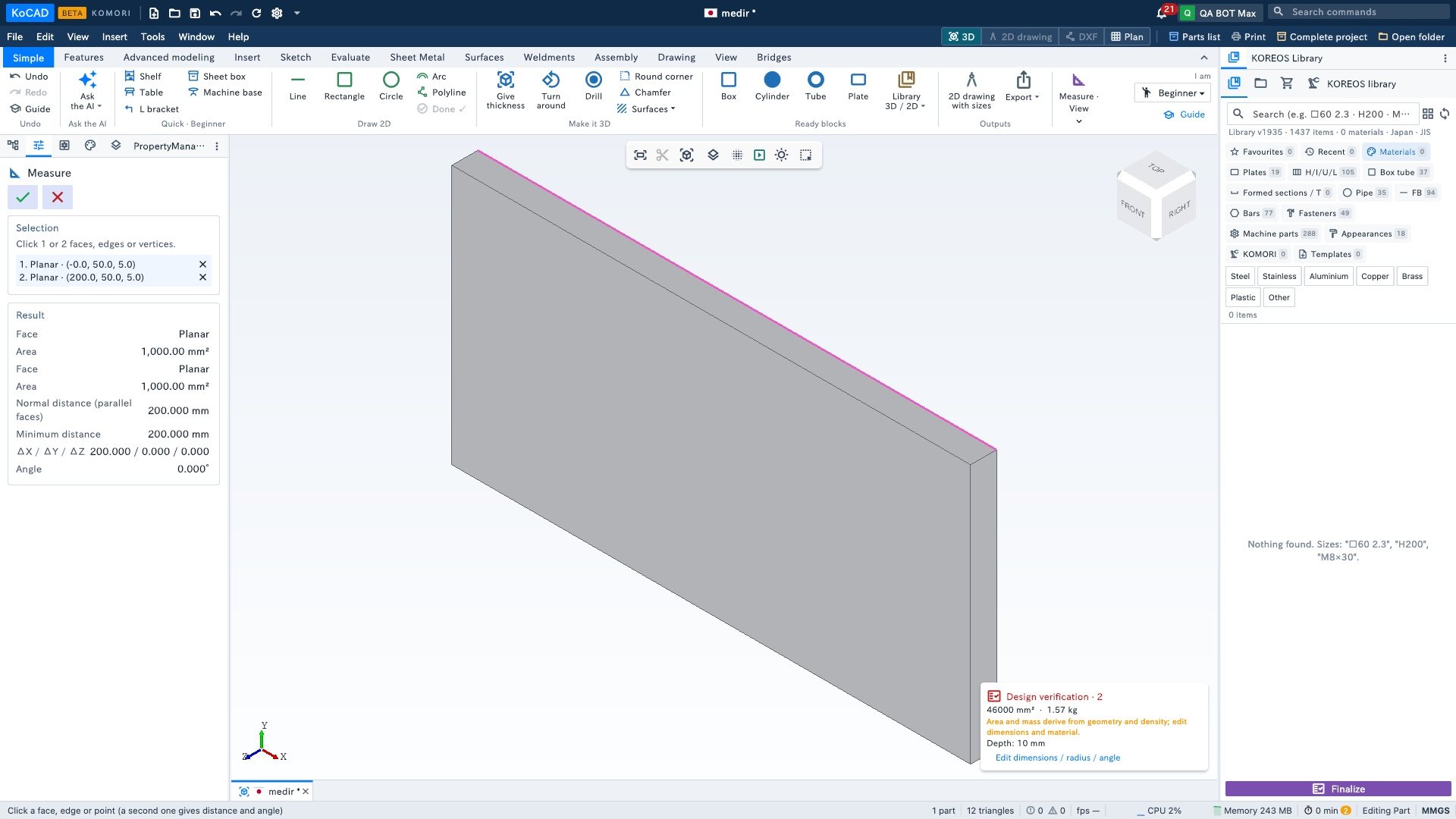
- Click Measure, then two faces, edges or points of the part.
- The distance (and the angle or area when they make sense) shows in the left panel.
Weigh
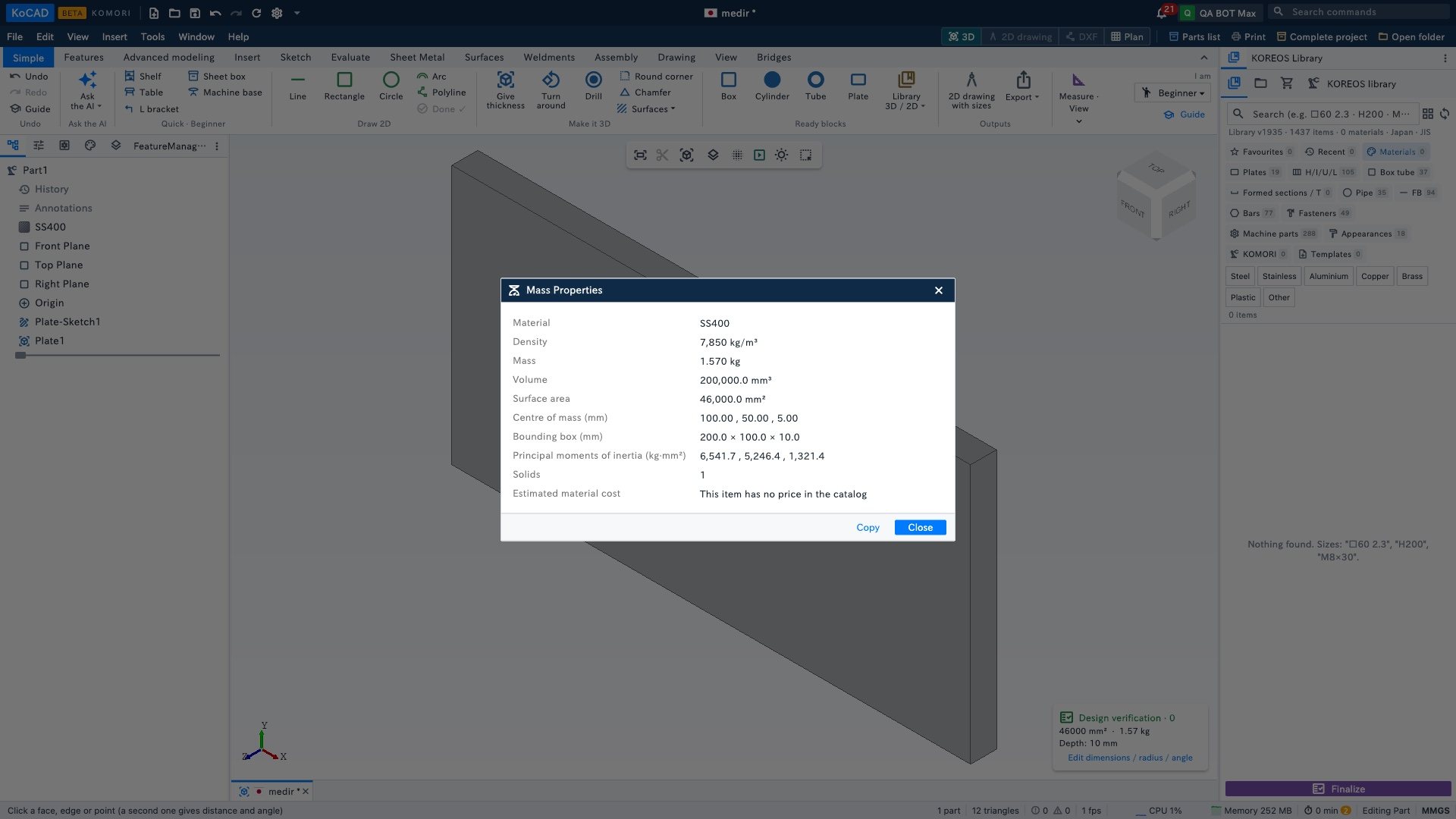
Click Weight. If the part has no material yet, pick one (Mild steel, Stainless, Aluminium, Brass, Plastic, Wood). KoCAD shows volume, mass and centre of gravity.
Change a size (the most common question)
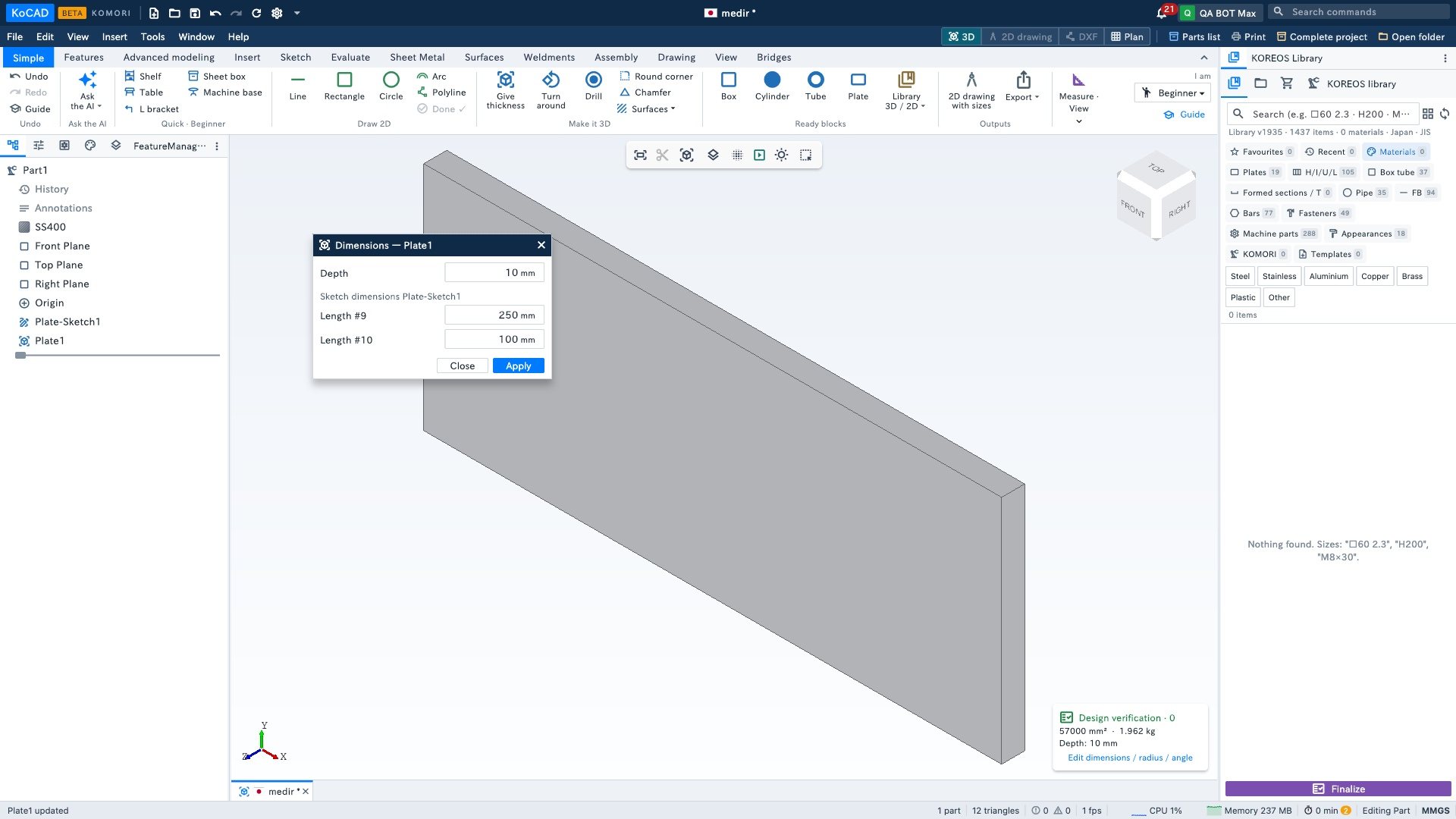
- Click Dimension (or press Ctrl+D, or double-click the feature in the tree). The sizes of the part appear, each in a box.
- Change the number (e.g. 200 → 250) and apply.
- The part rebuilds itself, with the holes and everything that depends on it; the 2D drawing follows.