










- NewOpen in KoCAD straight from KOREOS: the "Open in KoCAD" button of a file in KOREOS (a file sent by the assistant or the DXF of the parts list) now opens the KoCAD installed on your computer, on Windows, Mac and Linux. The file is downloaded to Downloads › KoCAD and opens at once. Nothing is overwritten: if the name already exists, the new one becomes "name (2)". If KoCAD is still asking you to sign in, the file opens right after you sign in. On the Mac it arrives with the next KoCAD for Mac update.
- ImprovedWith KoCAD already open, the link does not start a second copy: the file goes to the window that is already open, in a new tab, and that window comes to the front. For safety, KoCAD only accepts links from KOREOS and only downloads files from your own account; a link from another site is refused with a message.

KoCAD
Lightweight 2D/3D manufacturing CAD linked to KOREOS cases.
Start here
See all (24) →- Learn KoCAD: short videos and a path for each profileStart here: KoCAD in 2 minutes, paths for beginners, architects, engineers and game designers, and subtitled videos of the basic commands.
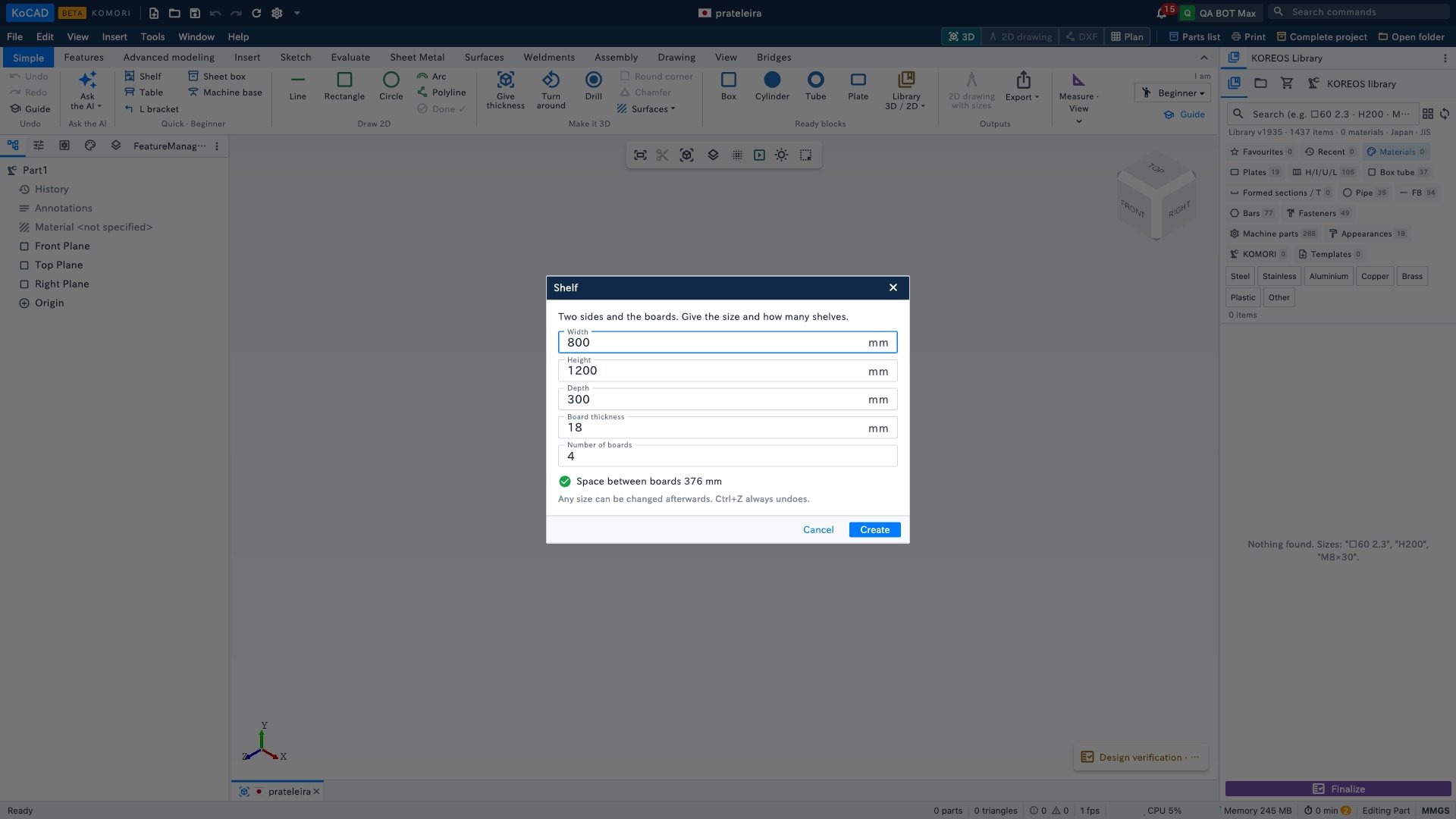 Beginner path: your first finished part without knowing CADA shelf from a ready model, its weight in wood and the drawing with the sizes as PDF — in a few minutes, with the Simple tab only.
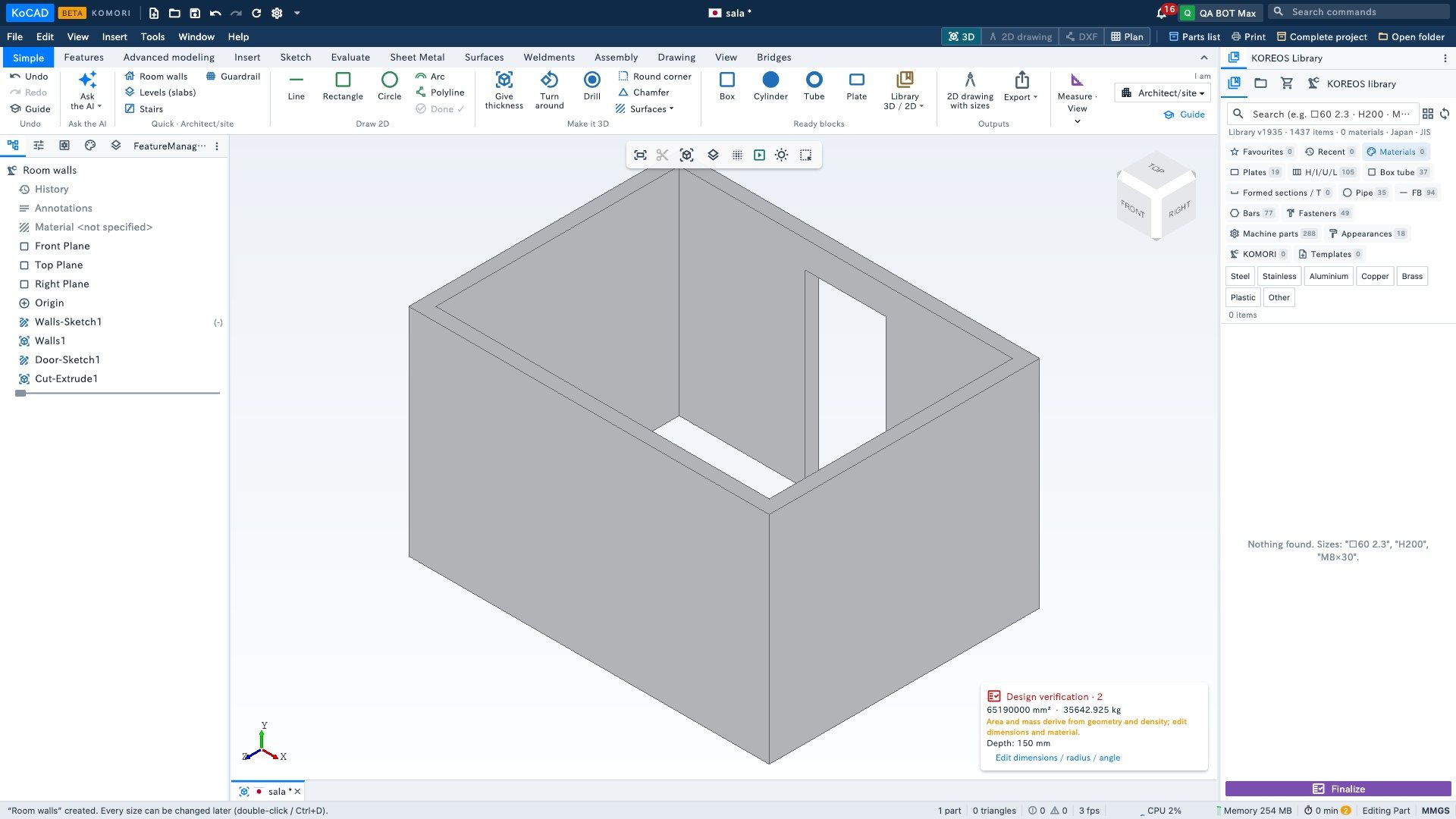 Architect path: walls, door, window, stairs and the plan as PDFA room with a door, a window cut by typing its size and the dimensioned plan as PDF; stairs and guardrail with a rule check.
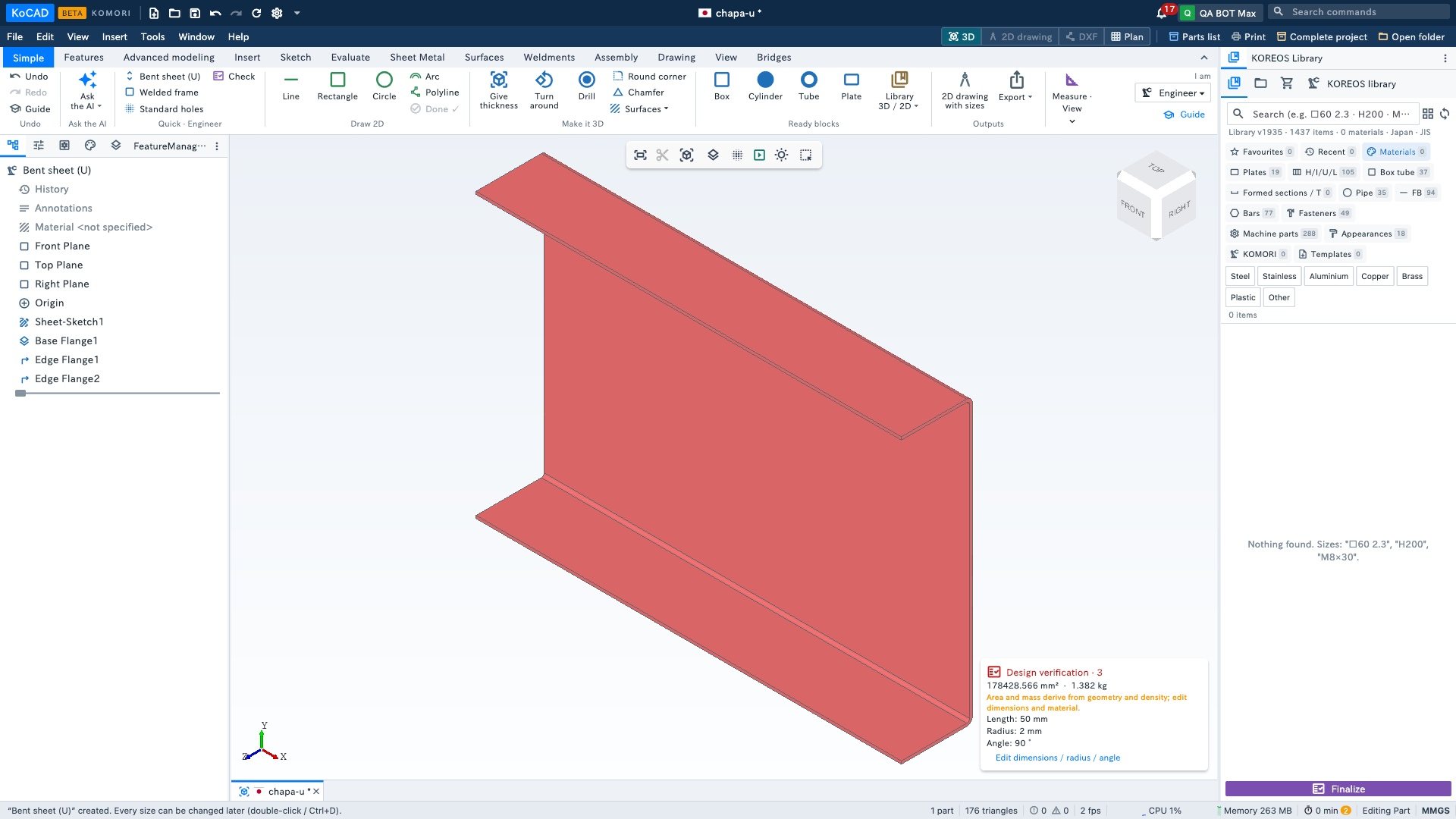 Engineer path: bent sheet, laser DXF, welded frame and STEPFrom the bent-sheet ready model to the flat DXF for the laser and the dimensioned drawing; where welded frames, checks and STEP are.
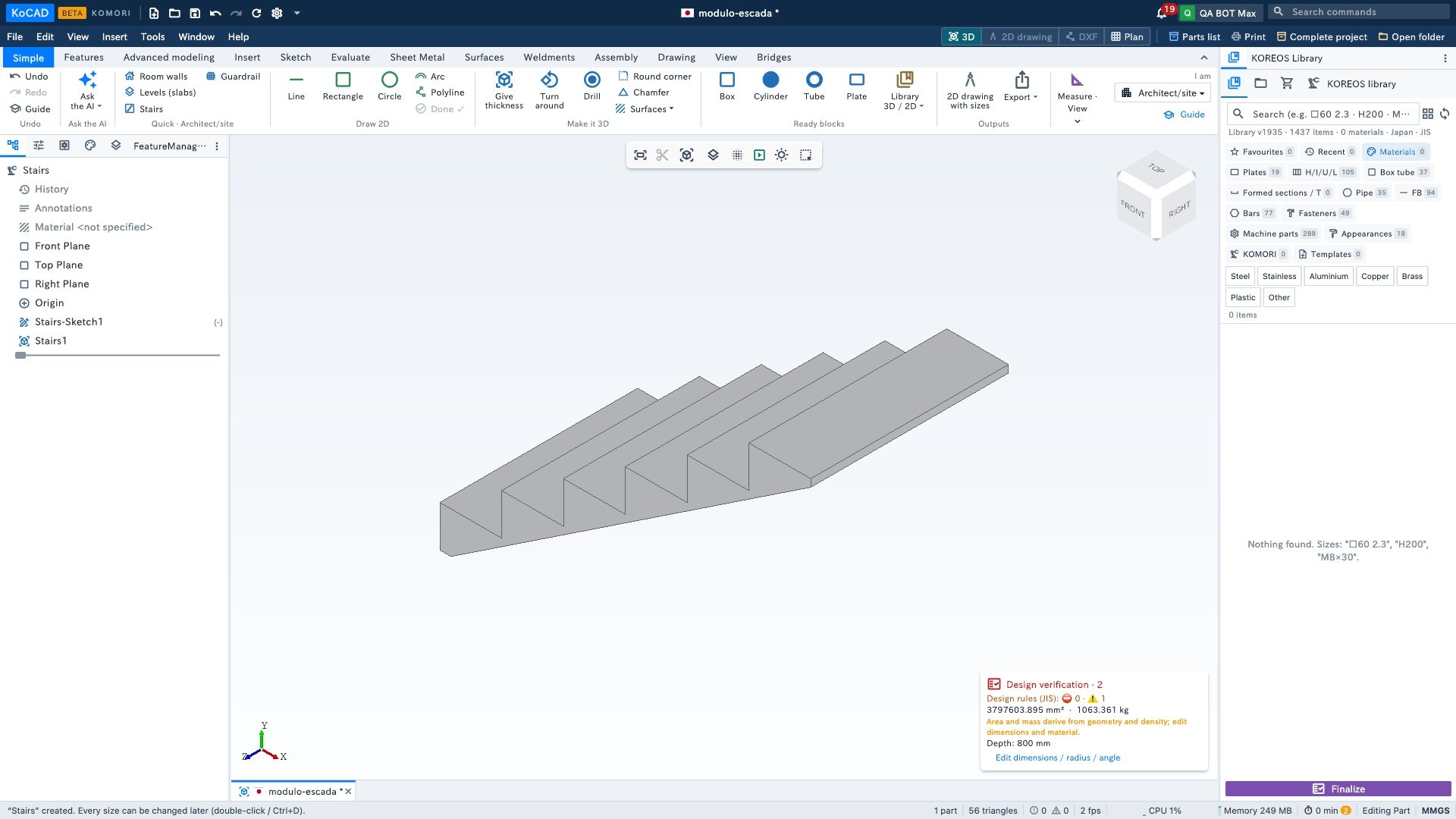 Game designer path: low-poly modules as GLB for Unity, Unreal and GodotWhy use a CAD for game modules, a stairs module with exact sizes and the GLB/OBJ export to the engine.
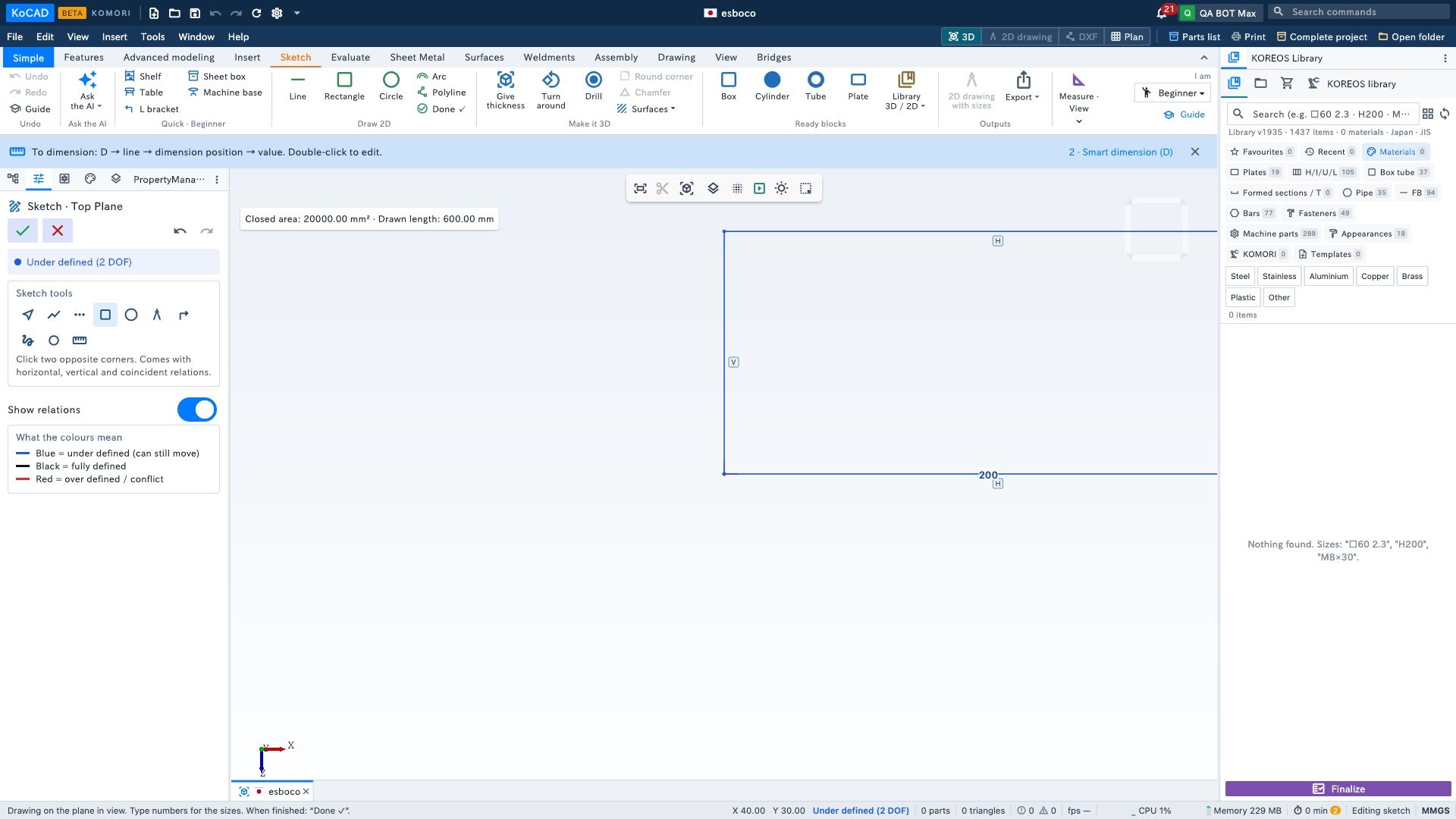 Basics: draw by typing the size, then give thicknessAn exact rectangle by typing 200x100, then a 3D block with “Give thickness” — the fastest way to make a part from scratch.
Screens & features
See all (79) →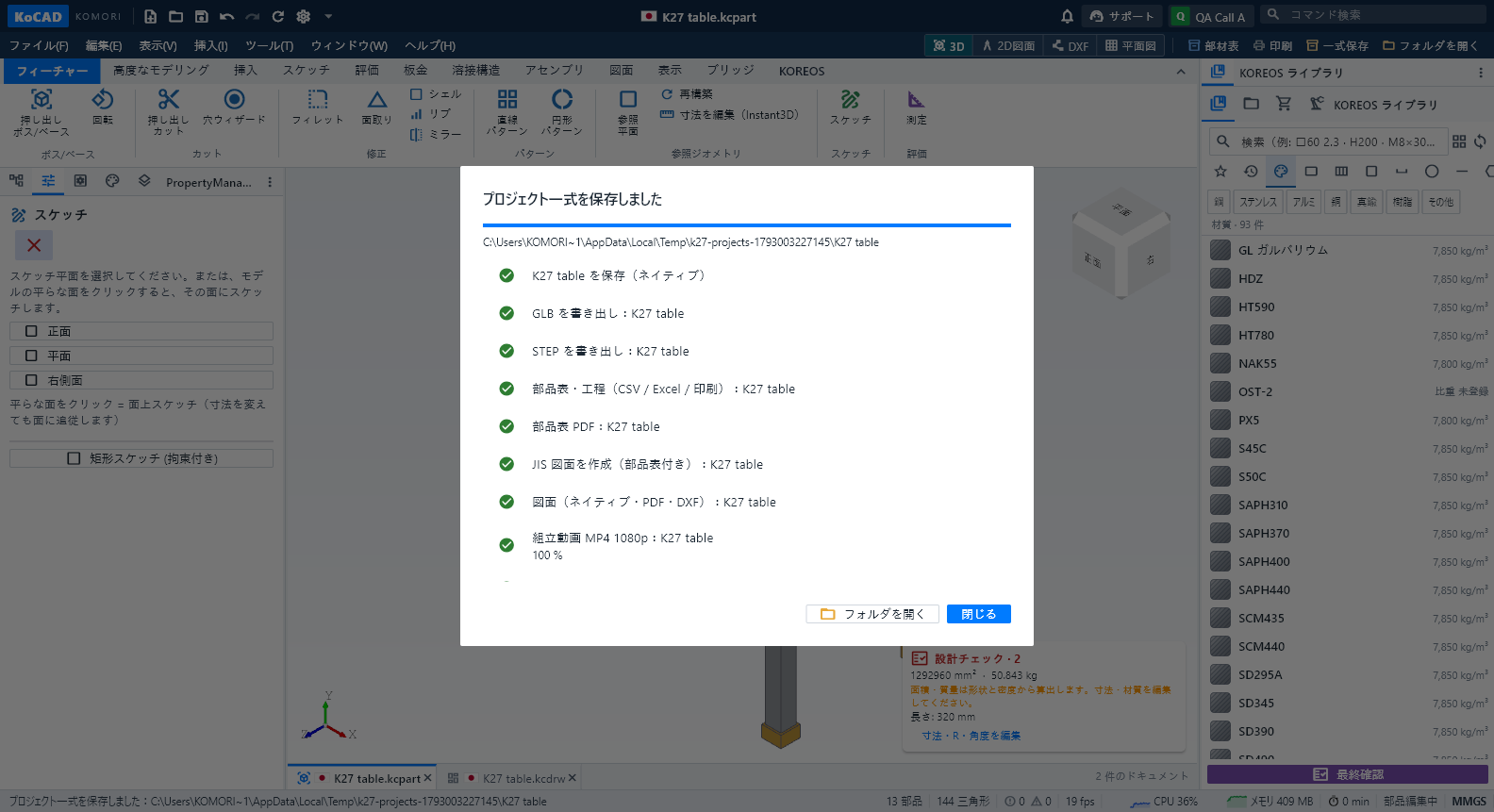 Save and open the complete project (every file, always current)File › Save complete project (or the "Complete project" button next to Print and Open folder) writes everything into the project folder: native parts and assemblies in 01_3Dモデル (with GLB and STEP), native 2D drawings in 02_図面 with their PDF in 05_PDF・印刷, the drawing DXF and each sheet part's cutting/flat DXF in 03_DXF(切断・レーザー), bill of materials and processes as CSV, Excel, PDF and prints in 04_部品表, and the construction film as MP4 1080p in 07_動画 (plus the exploded-view film
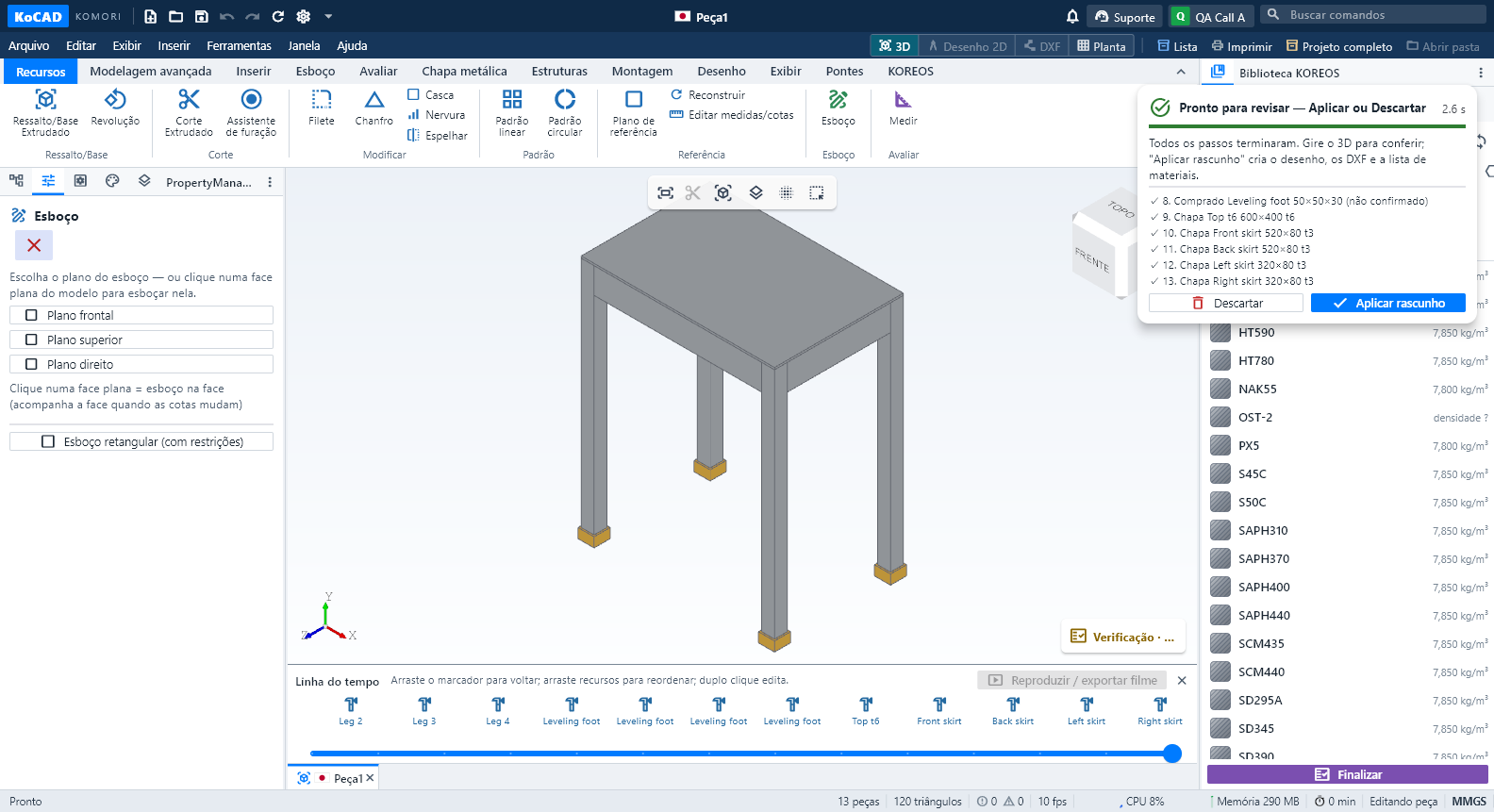 Live AI generation: premises from the standard, real steps, ready to reviewEngineering premises come from the project's country/standard and appear collapsed: "Premises: Japan · JIS standard (edit)" with chips (SS400, plate t3.2/t4.5, tube □40×40×2.3, M8 Ø9 hole…). Click to edit the text; "Back to default" restores it. In a US, Brazil, ISO or EN project the premises change (A36, UNC, NBR, S235…) and are marked to confirm while those standards have no catalogue.
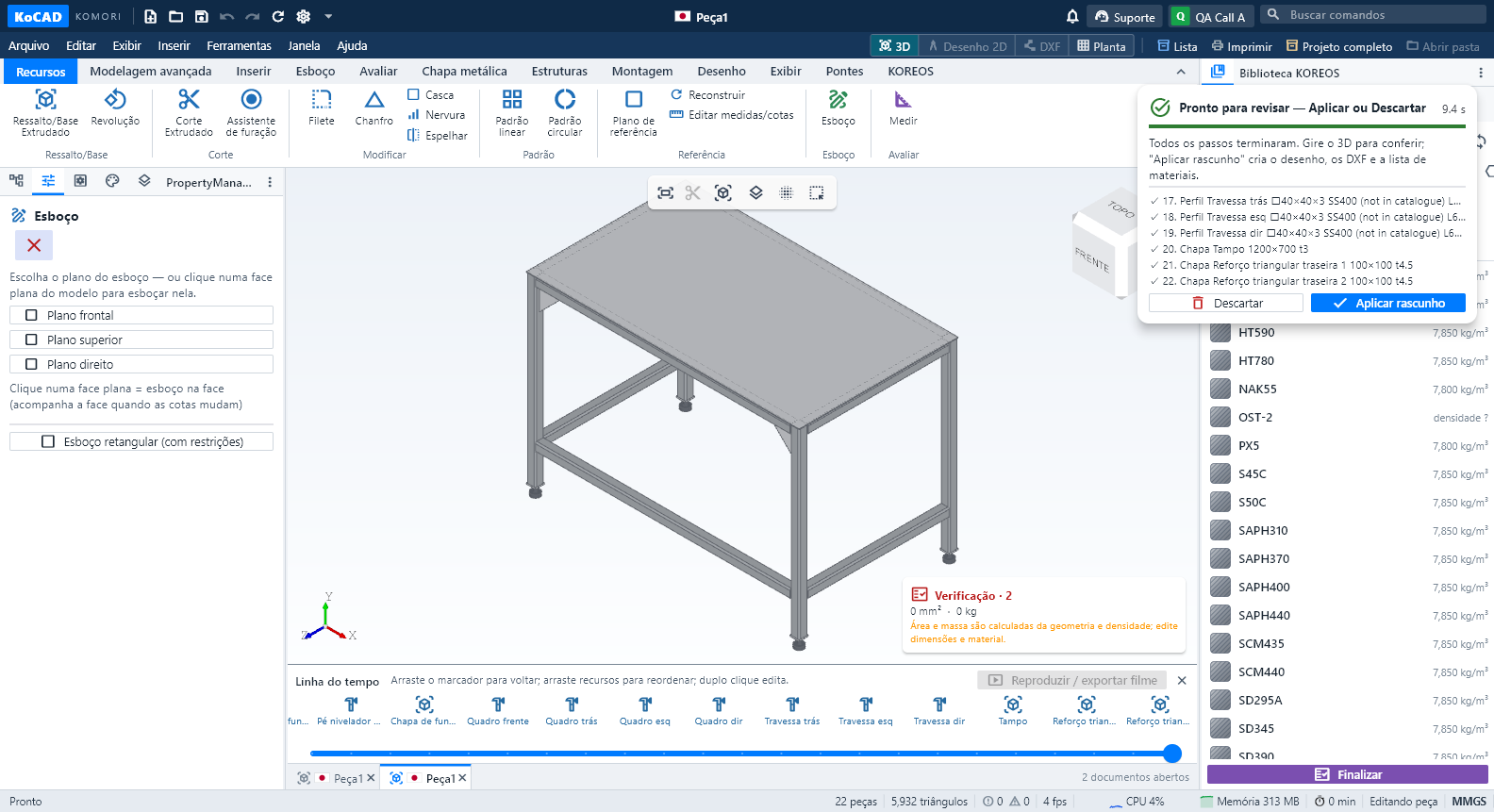 Generate with AI like an engineer: premises, patterns and real-model inspectionIn Generate with AI (or by asking Bob), write the request as usual, for example: "Welded workbench 1200 × 700 × 850 mm total height with feet, SS400, 4 legs 40×40×3 tube, top frame, rails 200 mm from the floor, braces in the rear corners, 3 mm top plate, 4 leveling feet".
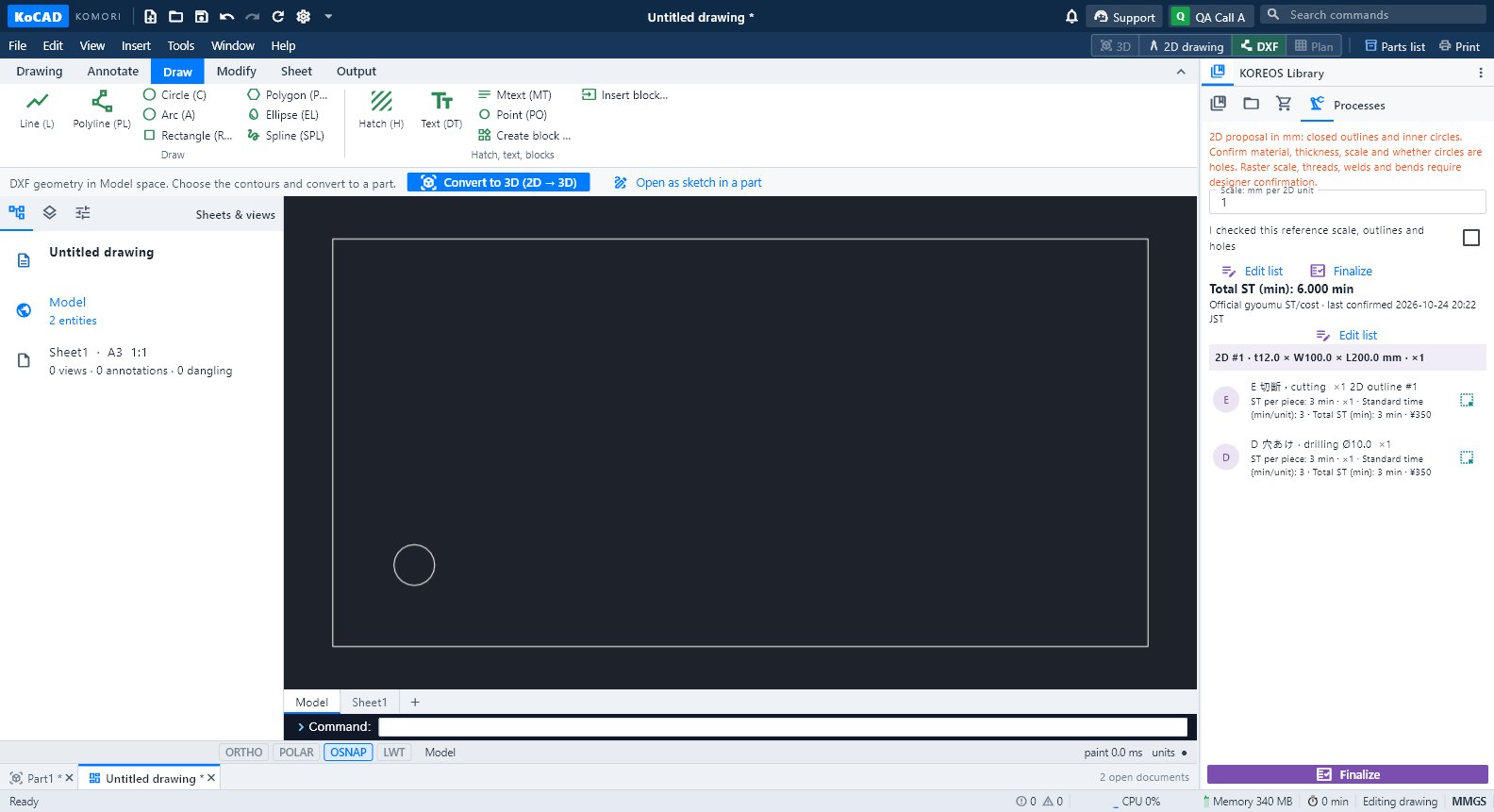 Workflow: from a drawing (photo, PDF, DXF, DWG) to a 3D modelThree ways: trace the image in a sketch, convert a DXF/DWG (2D → 3D) or ask the AI (Generate with AI / Bob) — always with a preview before applying.
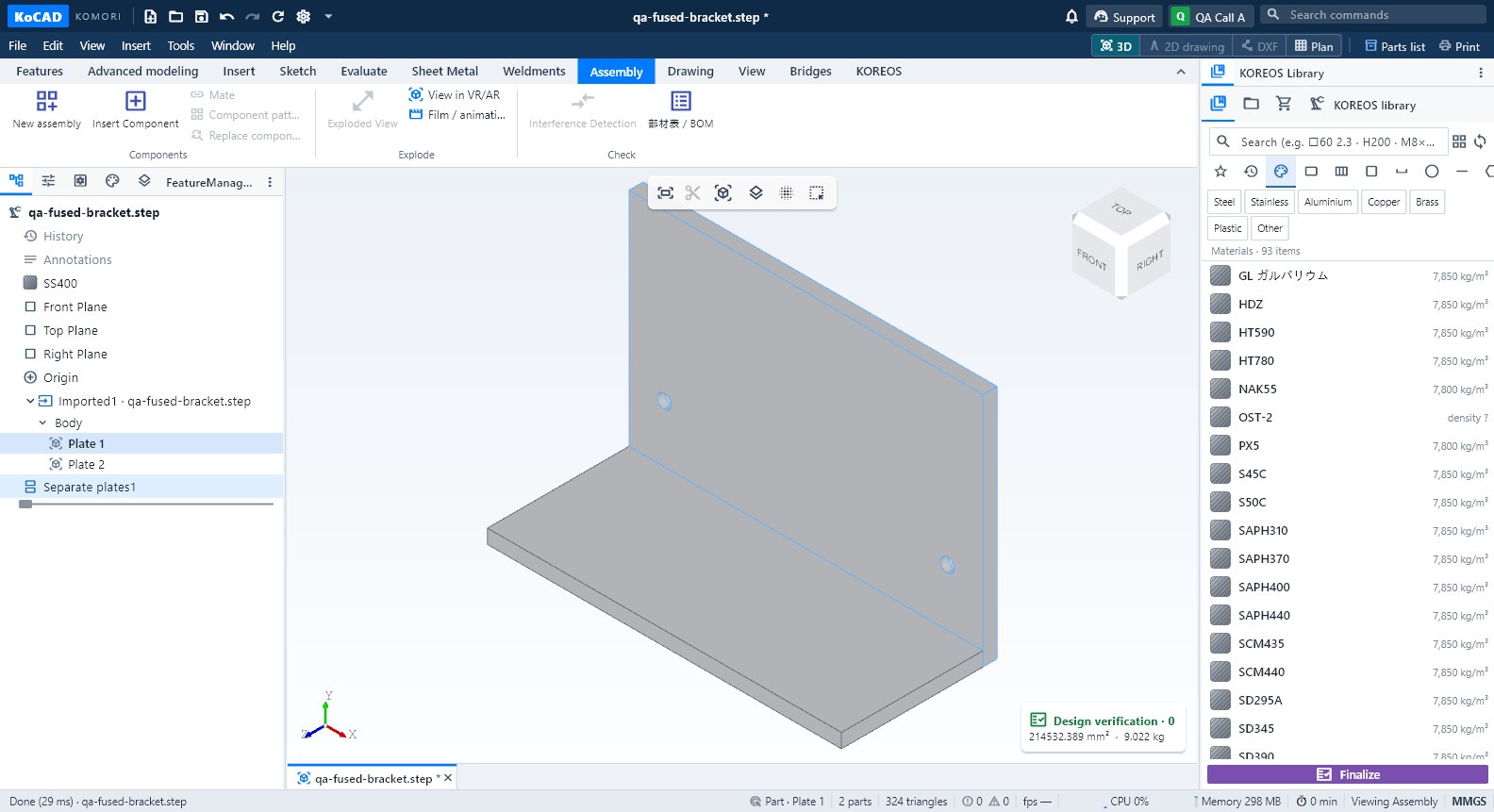 Workflow: import STEP, SolidWorks or GLB and separate the partsOpen a STEP assembly, select and check each part, split a welded single solid into parts, and what changes with GLB/OBJ/STL.
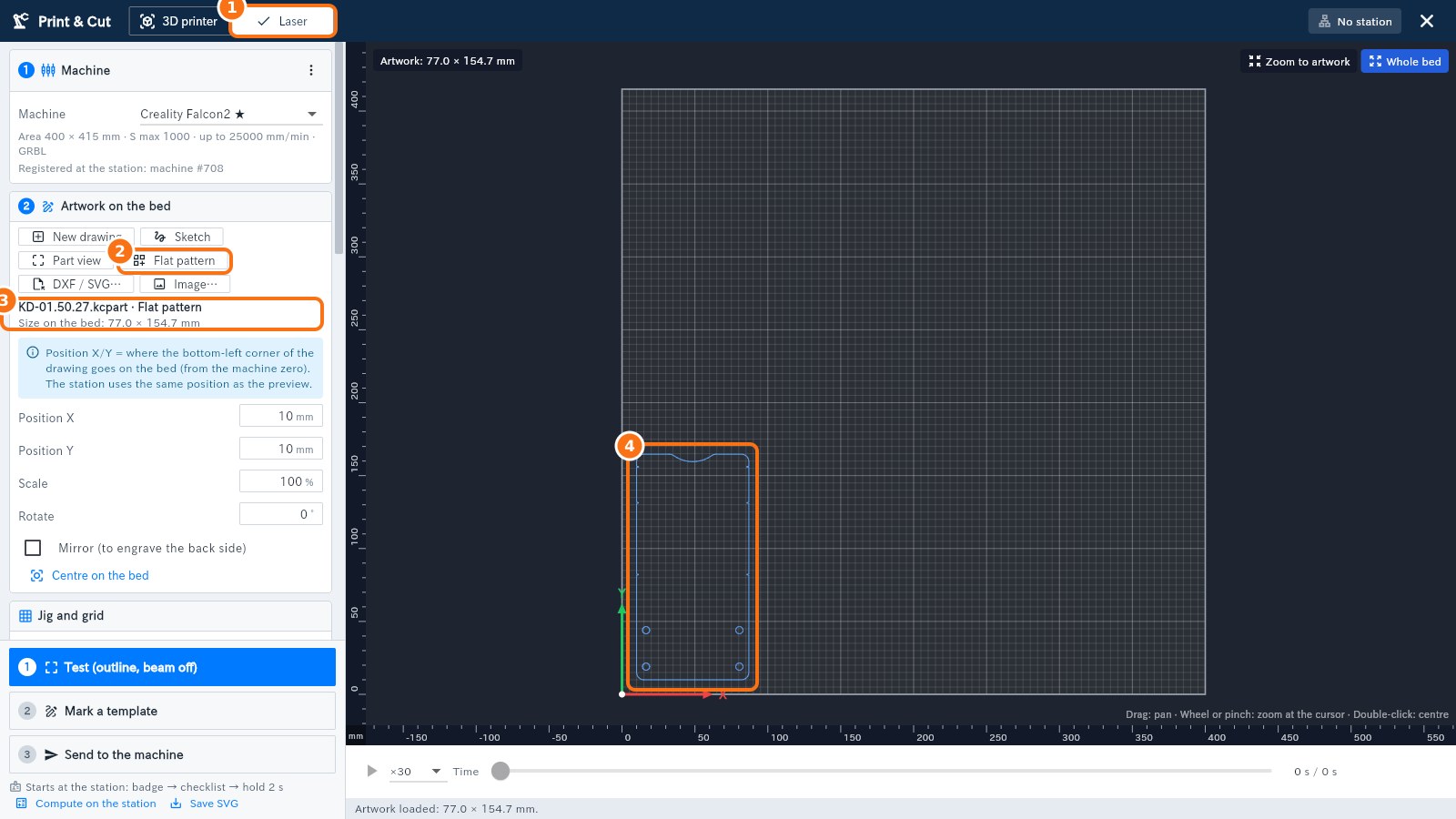 Workflow: sheet metal → flat pattern → laser DXF → nestingSheet rules (K = 0.44), Flatten, flat DXF for the laser (AM_0/AM_3/AM_5) and Sheets: how many sheets to buy and the cutting package.
FAQ
- KoCAD frequently asked questions (use, files, standards and AI)Internet, languages, formats, SolidWorks, standards, K-factor, recovery, Bob and more.
- Questions: materials, mass, sheet metal, weldments and 部材表Material and density, net and purchase weight, K-factor, profiles, cut list, BOM and costs.
- Questions: purchase, license, PCs, payment and privacyHow to buy, price, how many PCs, what happens at expiry, invoices and where your data stays.
- Questions from people starting with KoCADI don’t know where to start, do I need AutoCAD?, how do I change a size, how do I send it to the laser, the site or a game, and more.
- KoCAD glossary in plain wordsSketch, extrude, dimension, feature, tree, flat pattern, DXF, STEP, GLB… what each word means, without jargon.
Troubleshooting
- What to do when… (modeling, 3D view, files and printing problems)Likely cause and fix for the most common day-to-day KoCAD problems.
- What to do when… (sign-in, license, PCs and AI)The sign-in and license messages, what they mean and what to do.
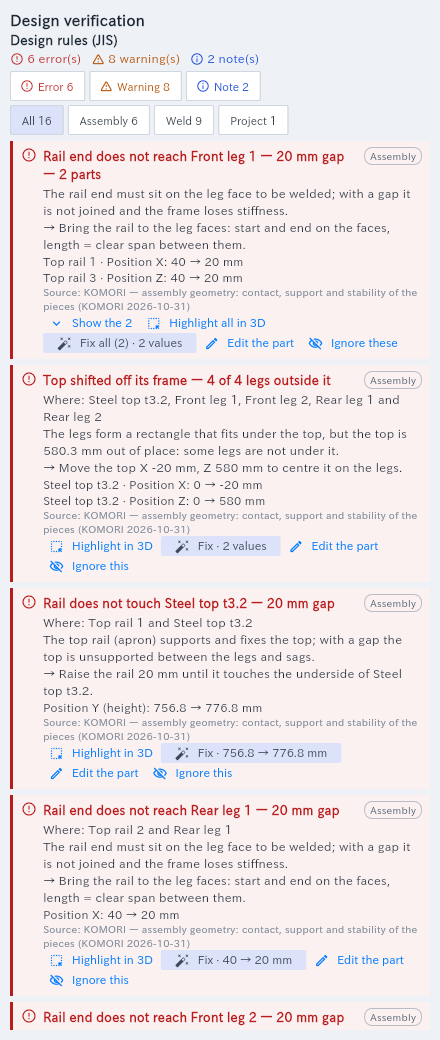 Verification: find and fix assembly problems (leg, top, rail)What it is. The Design verification panel (opens with a project, or from the red/orange counter on the top bar) checks the
model like a shop engineer: does every leg reach the top? is the top over its legs? does each rail end on the leg face? do all legs
stand on the same floor (wobbly table)? is any piece loose? It also checks hole × bolt (JIS), weld × thickness, bolt class, stairs
and guardrails.
- Beginner problems: what to do when…Grey button, “Give thickness” does nothing, hole on the wrong face, can’t find a button, can’t save, the part left the view.