











KoCAD · Màn hình & chức năng
View tab: orientation, styles, section, hide/isolate and windows
How to look at the model from any side, cut the view, hide parts, work with two monitors and change the theme.
Bài viết này chưa được dịch sang ngôn ngữ của bạn: đang hiển thị bản English.
Trong trang này
What this is for
The View tab does not change the model: it only changes how you see it. Use it to check a hidden detail, show the design to someone or gain room on screen.
Groups and buttons
- Group · Buttons · Shortcut
- Orientation · Zoom to fit · Normal to · Zoom to selection · Front · Top · Right · Isometric · F · Ctrl+8 · — · Ctrl+1 · Ctrl+5 · Ctrl+4 · Ctrl+7
- Display style · Shaded with edges · Shaded · Hidden lines removed · Wireframe · Perspective · Section view · —
- Visibility · Hide · Isolate · Exit isolate · Show all · Ctrl+Shift+H (show all)
- Selection · Select all · Open in its own tab · Batch properties · Ctrl+A
- Window · Detach to another window · Restore the default layout · Dark theme · —
Step by step: section view
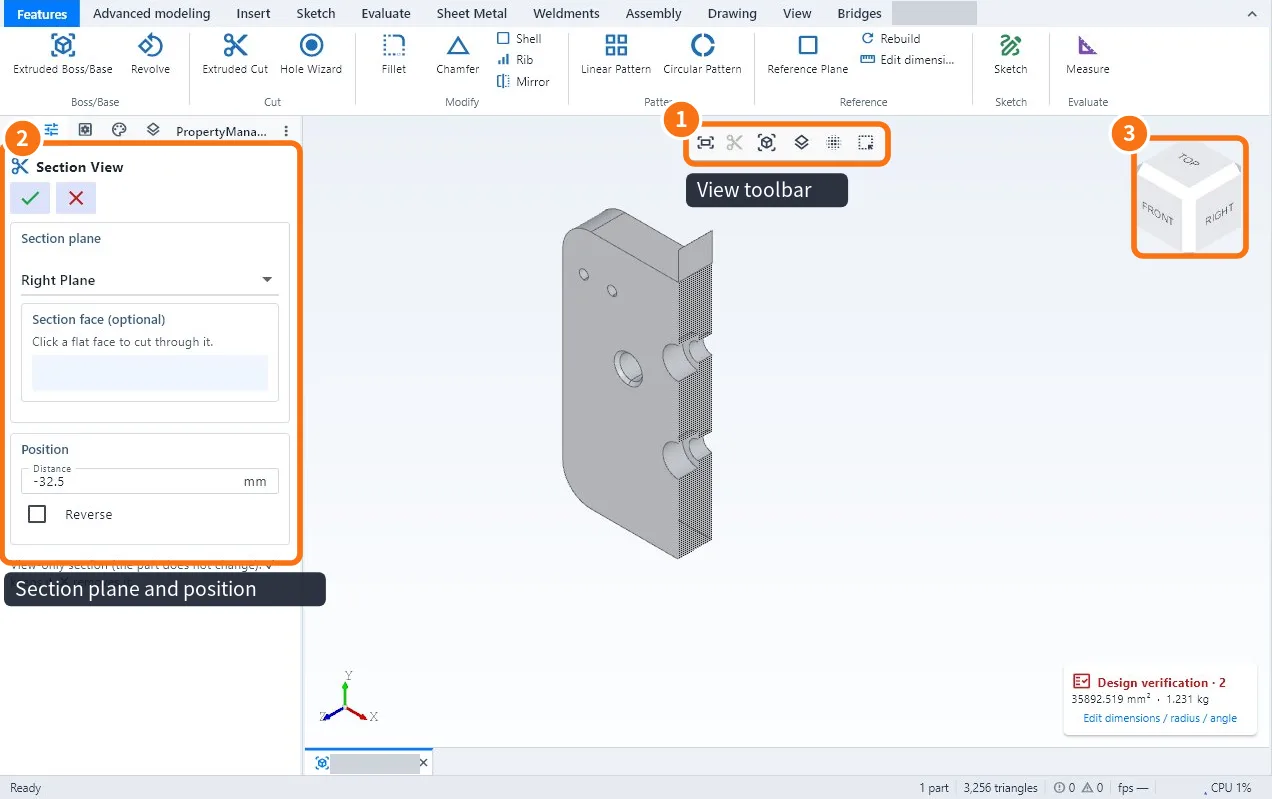
- Click Section view (View tab or the view toolbar ①).
- In the panel ② pick the section plane (front, top, right) or click a flat face of the part.
- Drag or type the position of the cut. Tick Flip to see the other side.
- Confirm with ✓. The section is visual only: the part does not change.
- To leave, click Turn off section view.
Step by step: see a hidden part in an assembly
- Select the part in the view or in the tree.
- Click Isolate: only it stays on screen. Or Hide: only it disappears.
- Go back with Exit isolate or Show all (Ctrl+Shift+H).
Tips
- The view cube ③ turns to the clicked face; a corner gives the isometric view.
- Assembly with thousands of parts: View → Large assembly mode draws in groups and hides small parts while rotating.
- Detach to another window moves a panel (tree, properties, library) to the second monitor.
- Theme, background and density are in Options → Colours & theme.
Common mistakes
- "Normal to" does nothing: select a flat face (not an edge).
- The part "disappeared": it is hidden; use Show all.
- The section does not show in the 2D drawing: the View-tab section is on screen only; in the drawing use the Section view.
Related articles
- The KoCAD main window, part by part
- Mouse, trackpad and keyboard shortcuts (full list)
- How to measure distances, see mass and centre of gravity and section the view
- How to repeat and replace components and work with large assemblies