











KoCAD · Màn hình & chức năng
How to open and import files (KoCAD, STEP, IGES, STL, DXF, SolidWorks and more)
Every format KoCAD opens, what you can do with each, and how to split a STEP into parts.
Bài viết này chưa được dịch sang ngôn ngữ của bạn: đang hiển thị bản English.
Trong trang này
Formats KoCAD opens
- Format · Extensions · What it becomes
- KoCAD · .kcpart · .kcasm · .kcdrw · Editable part, assembly and drawing
- STEP · .step · .stp · Exact solids (parts and assemblies) — the best format to exchange with other CADs
- IGES · .iges · .igs · Surfaces/solids from older CADs
- Meshes · .stl · .obj · .glb · .gltf · .3mf · Display mesh: rotate, measure, use in movies
- 2D · .dxf · .dwg · 2D drawing (can become 3D)
- SolidWorks · .sldprt · .sldasm · .slddrw · Preview and properties; the 3D comes from the STEP with the same name or from SolidWorks installed on the PC
- Package · .zip · Zipped complete project
Step by step
- File → Open… (Ctrl+O) or drag the file onto the window.
- Large files show progress with stages and expected time.
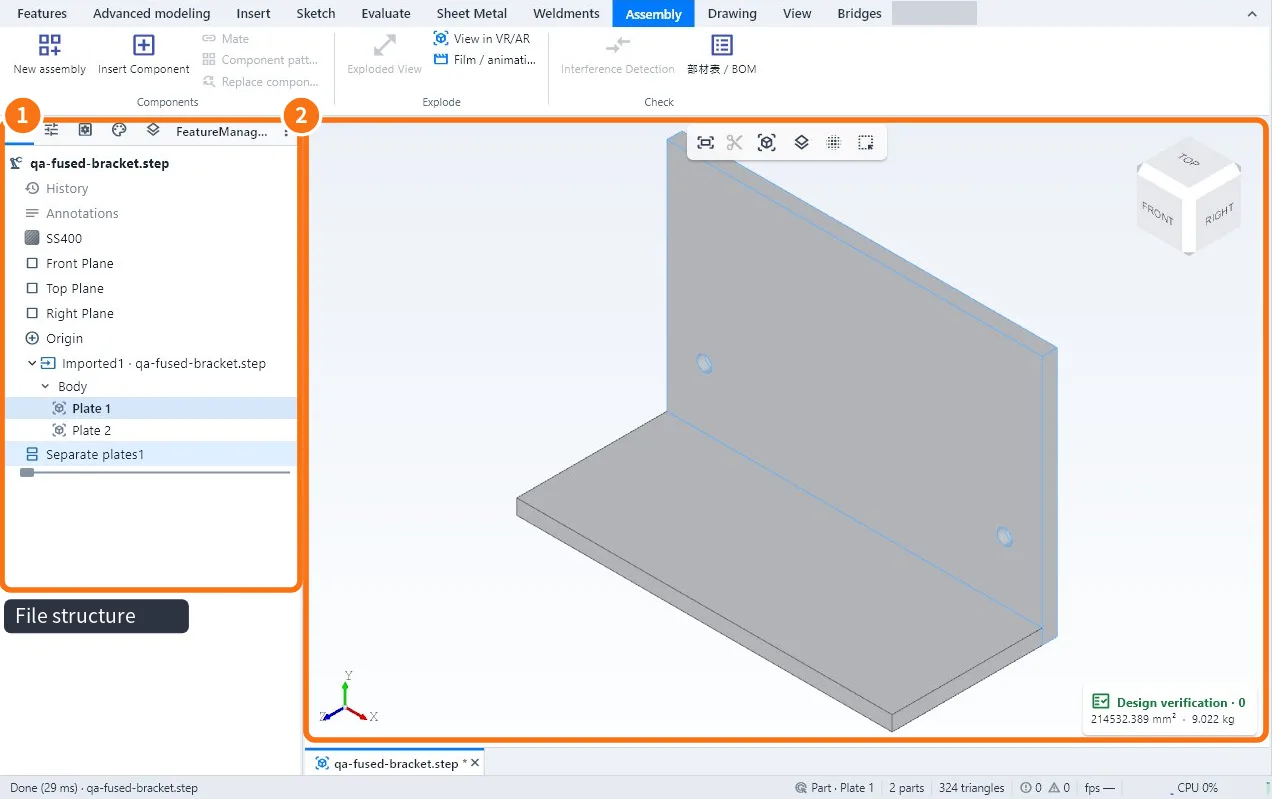
- The tree ① follows the file structure (assembly → parts).
- Click a part in the view ②: it is highlighted and the panel shows its data.
- A welded set that came as a single solid? Select it and use Split into parts (right-click). The original is kept; Ctrl+Z undoes.
- From KOREOS (web): click Open in KoCAD on a file (sent by the assistant or the DXF of the parts list). The file is saved to Downloads › KoCAD and opens at once. If a KoCAD window is already open, the file opens in a new tab and that window comes to the front.
Open a whole project
- Open folder: lists the files of the project folder.
- Open complete project: opens the set saved with Save complete project.
- Recent files are in the File menu (the number of items is set in Options → General).
Common mistakes
- STEP without material: many CADs do not export material; set it in the tree.
- SolidWorks file opens only as a preview: the STEP with the same name or SolidWorks on the PC is missing; see "Bridges with SolidWorks".
- "Generic" density: imported material with too low a density; change the material.
Related articles
- Workflow: import STEP, SolidWorks or GLB and separate the parts
- How to export the 3D (STEP, IGES, STL, OBJ, GLB, BREP)
- How to work together with SolidWorks (Bridges tab)
- How to convert a solid (or a STEP) to sheet metal and check manufacturability