KoCAD · Màn hình & chức năng
How to use the 3D Showcase and record MP4
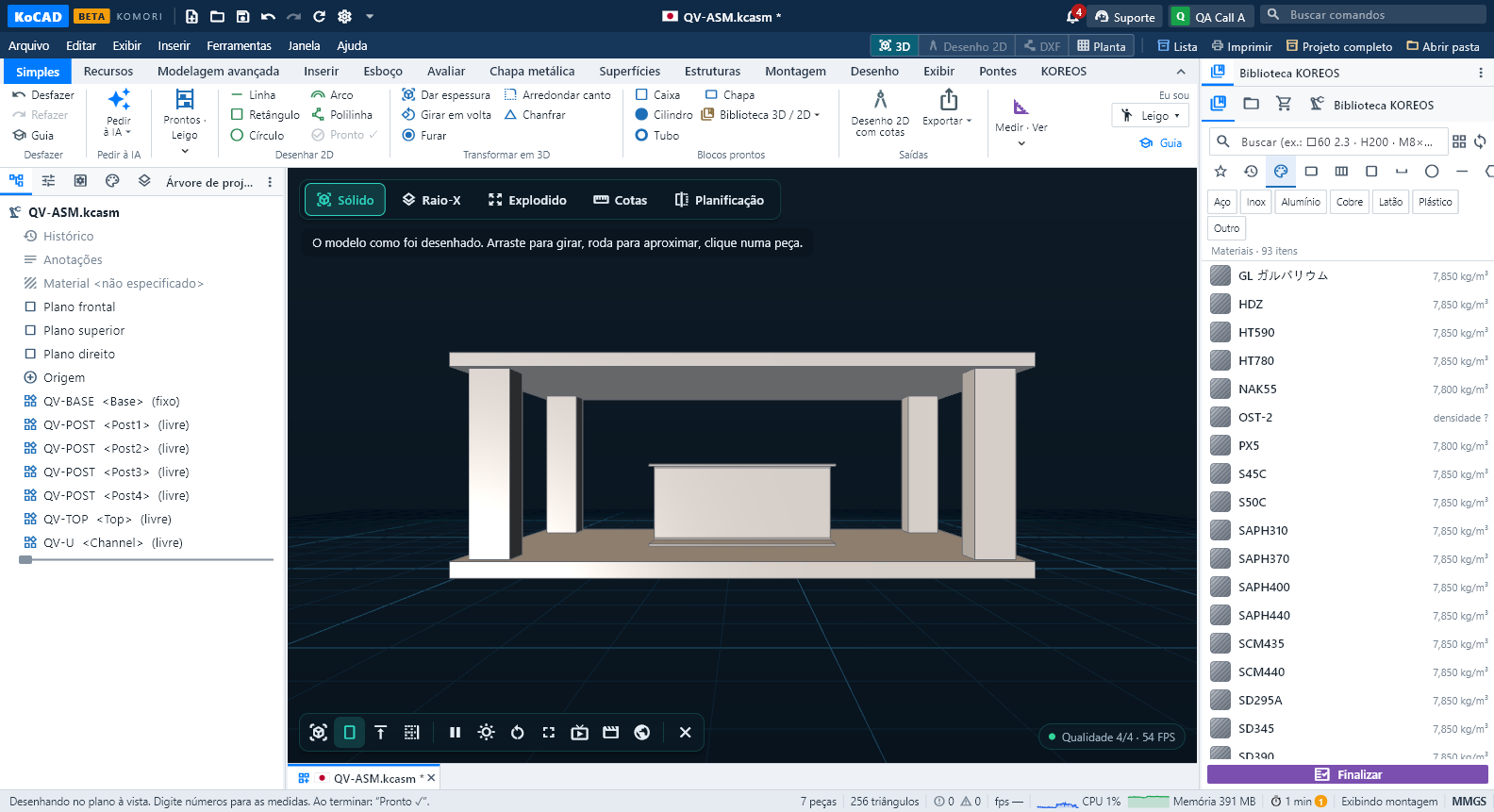
The 3D Showcase is the 3D for showing the project — separate from the engineering 3D. It is at the top of the window, next to 3D · 2D drawing · DXF · Plan: click 3D Showcase (shop-window icon, or Alt+8 / Ctrl+Shift+V). It works with any open model (part, assembly or structure). The background turns dark with a floor grid, the presentation light comes in and the model turns slowly. The engineering ribbon (modelling, assembly, drawing), the tree and the panels hide so nothing confuses.
Bài viết này chưa được dịch sang ngôn ngữ của bạn: đang hiển thị bản English.
3D Showcase is now its own tab at the top of the window, right next to 3D · 2D Drawing · DXF · Plan. It is the 3D for showing, completely separate from the engineering 3D: the stage is dark with a presentation light and the model turns slowly. Close the tab and the engineering 3D comes back exactly as it was — no camera, no style, no view is touched.
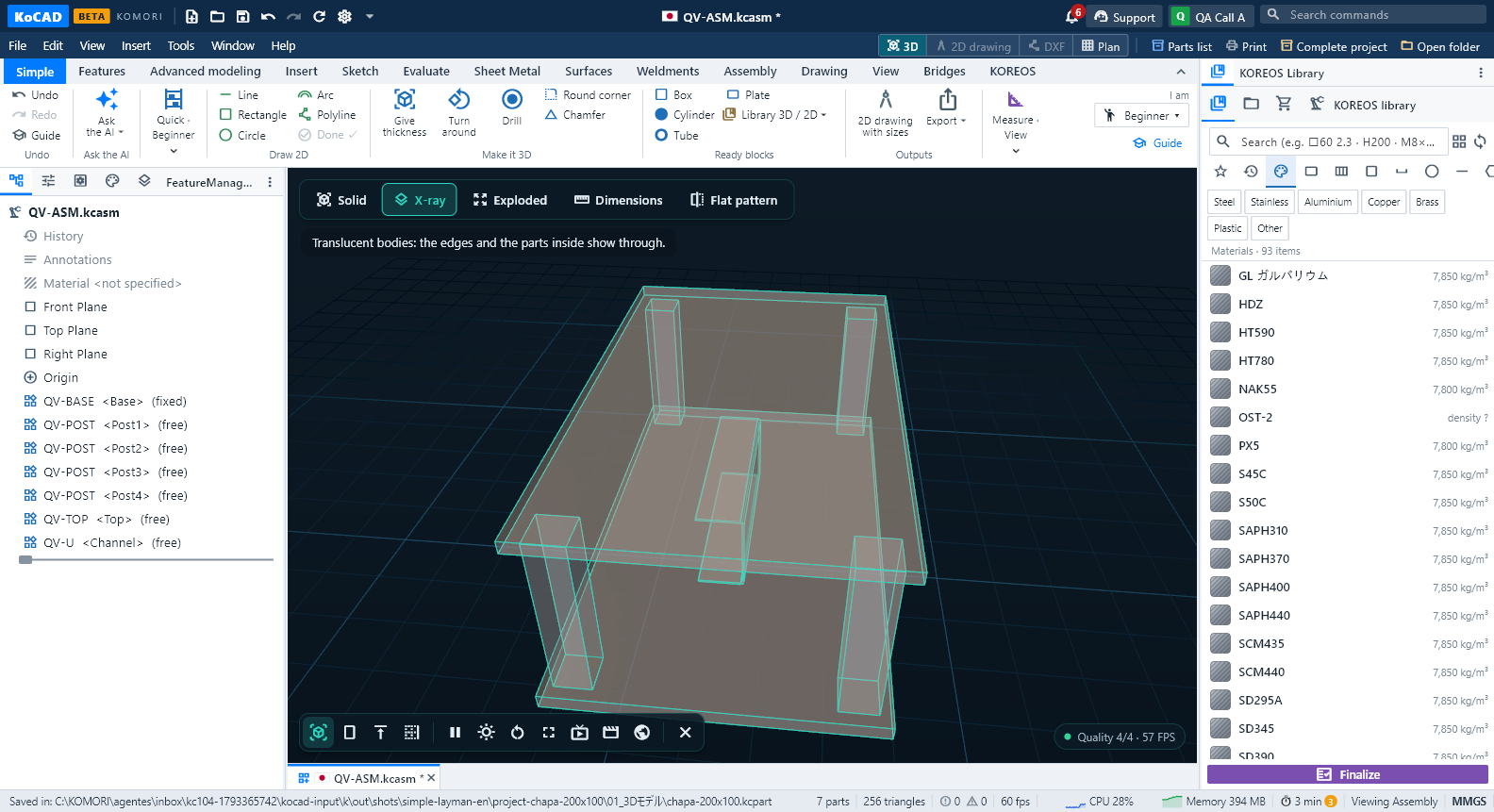
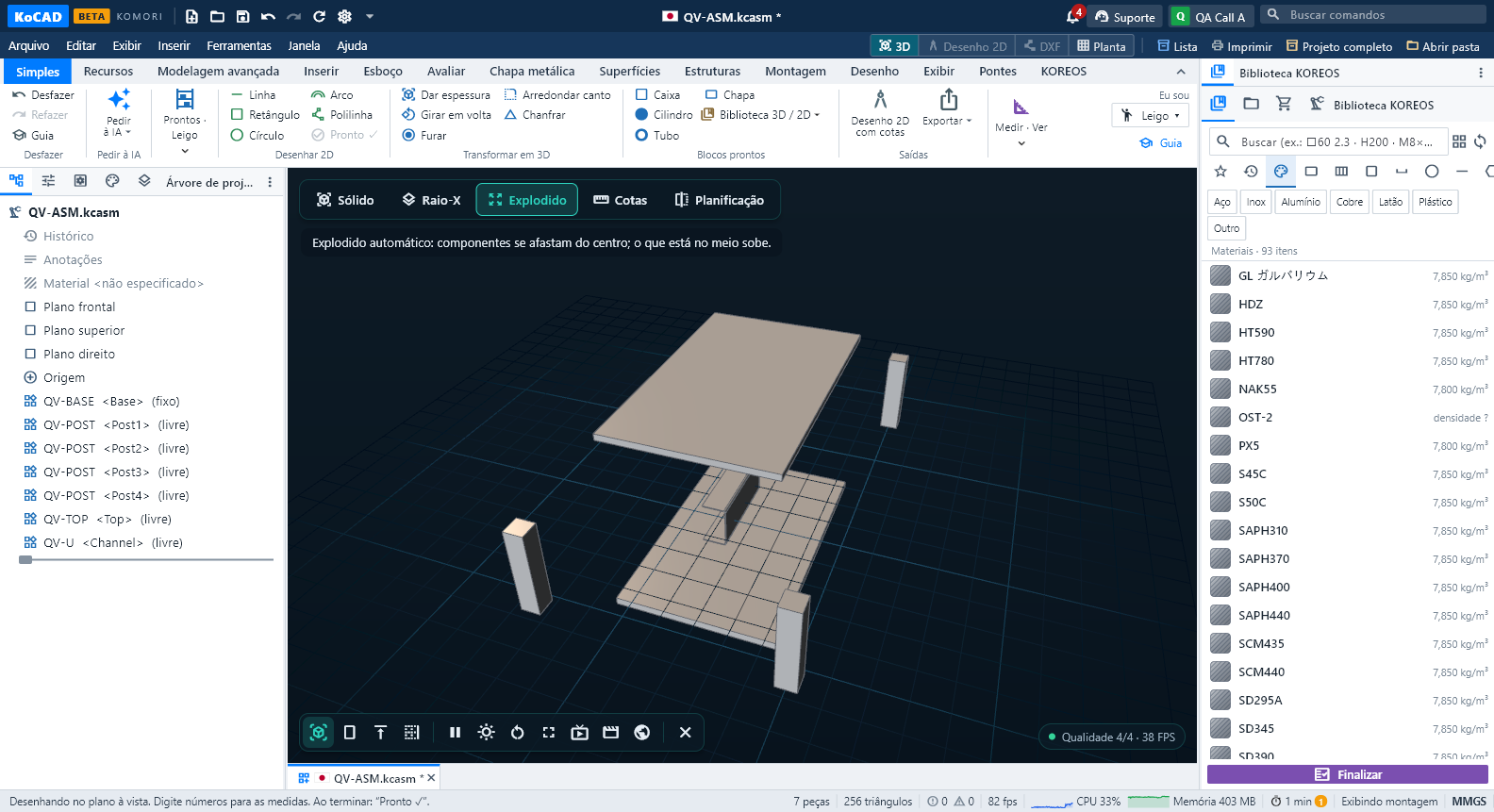
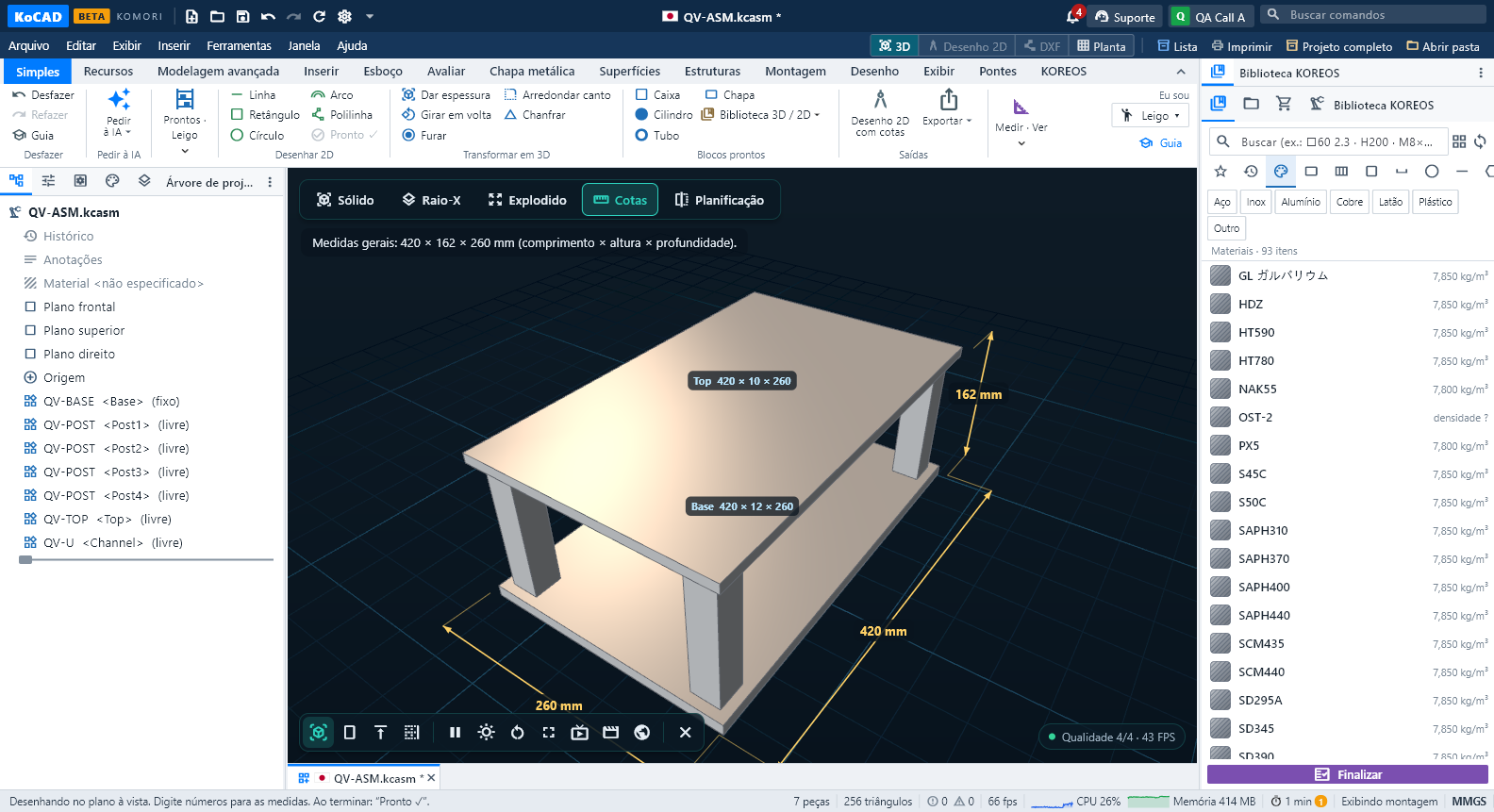
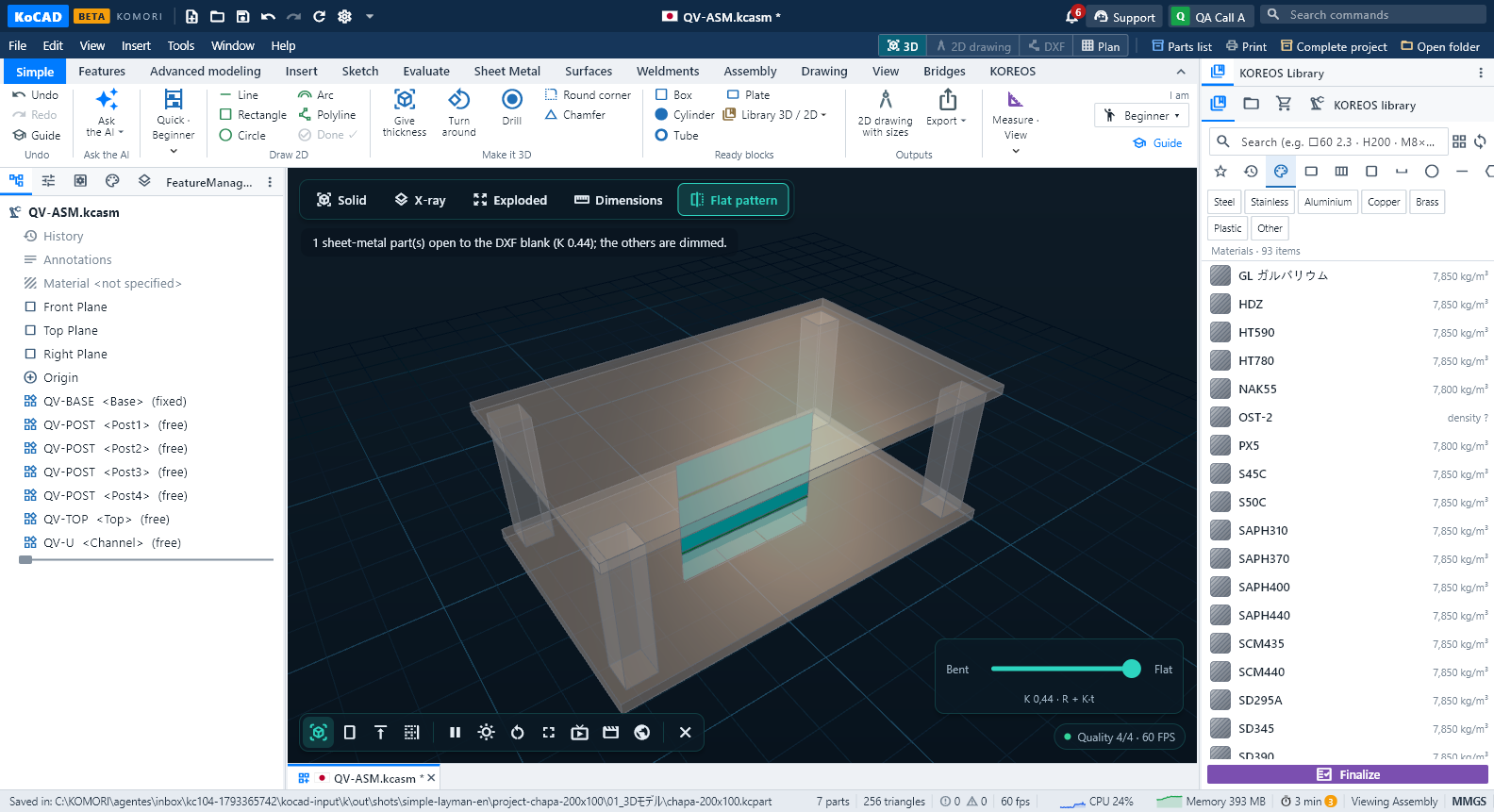
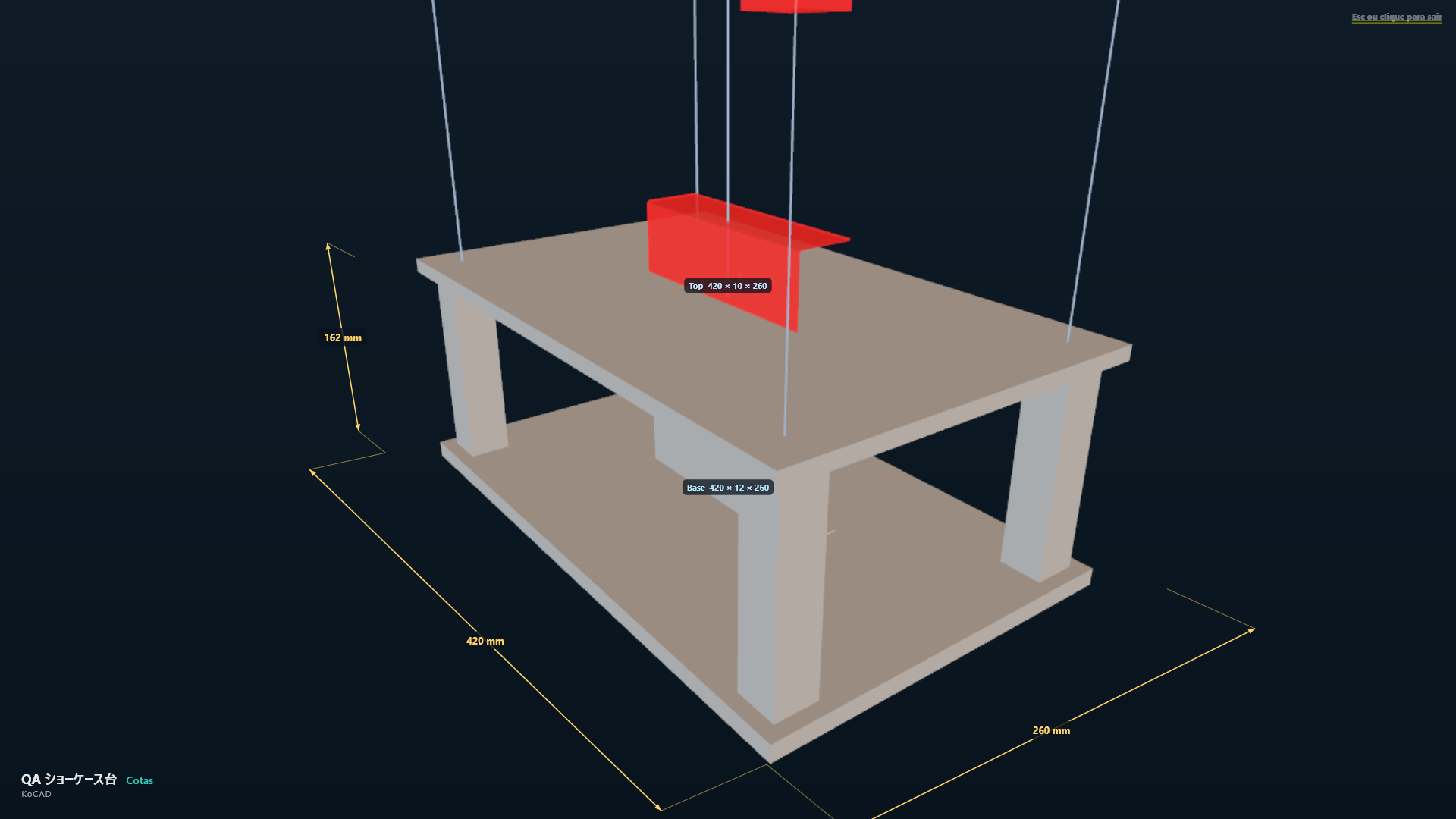
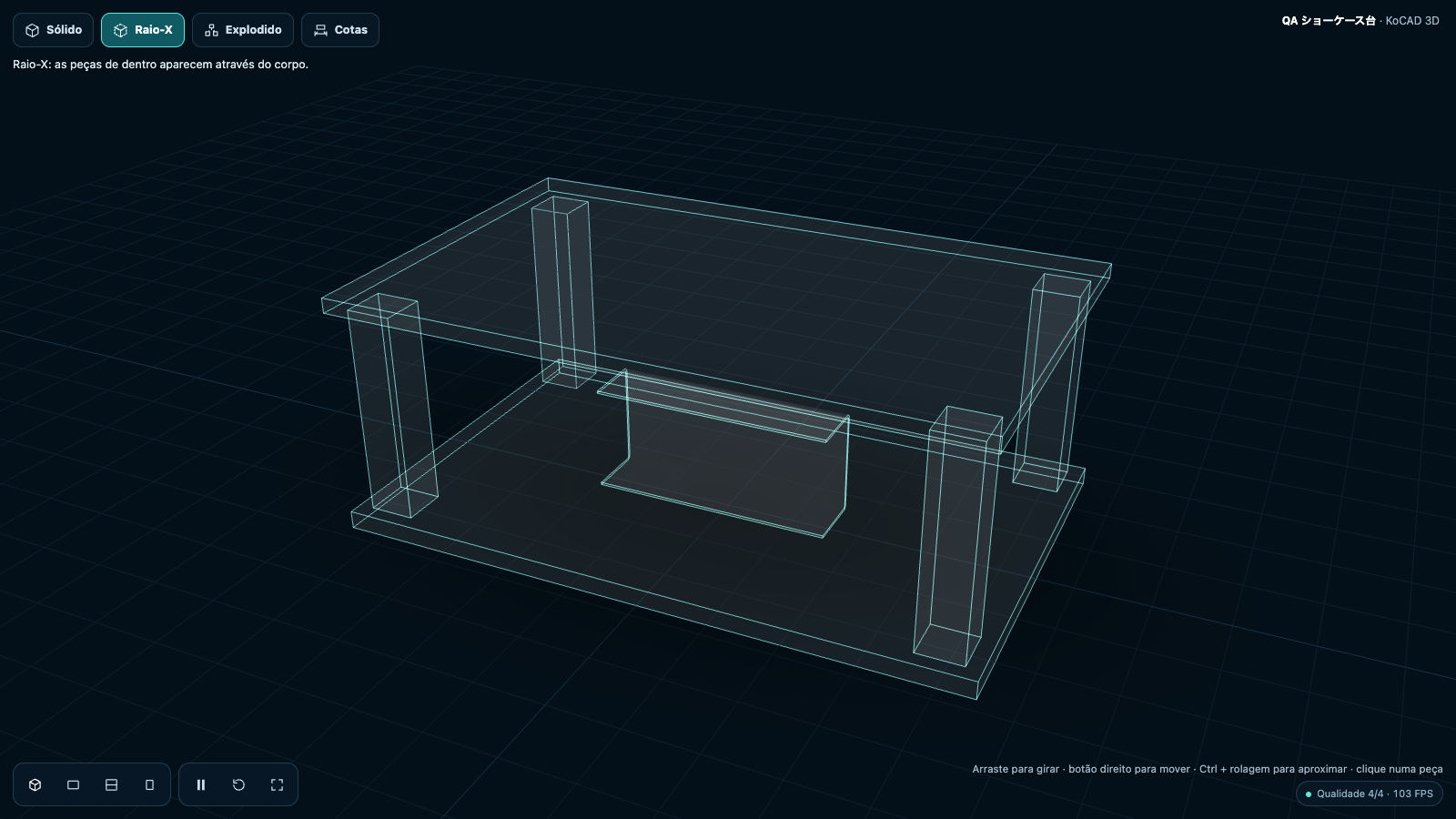
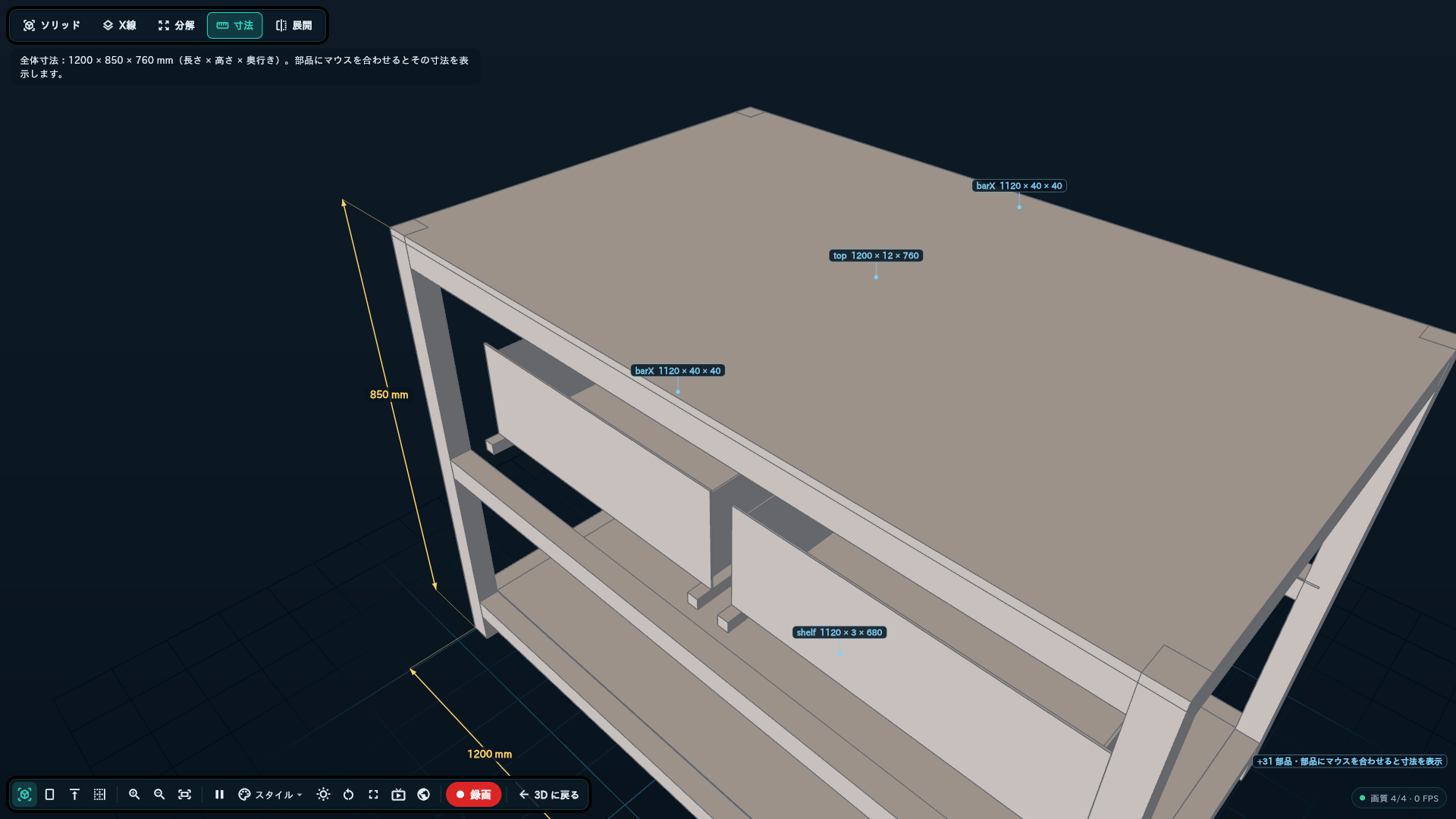
The 5 modes (buttons at the top of the showcase view, with smooth transitions): Solid is the model as designed. X-ray makes the bodies translucent with highlighted edges: what is inside shows. Exploded uses the document's own exploded view when there is one; otherwise KoCAD moves every component away from the centre (the ones in the middle lift). Dimensions shows the overall size of the model's box (length × height × depth) and, in an assembly, the size of the biggest components. The dimension lines no longer overlap each other — each one is placed in its own clear space. Flat pattern opens the bent sheet-metal parts with an animated bend that ends on the DXF blank — the usual calculation (K 0.44, neutral fibre); the other parts are dimmed. Drag the Bent ↔ Flat bar to stop anywhere.
Zoom and dimensions (0.39): zoom works like in the engineering 3D. The mouse wheel zooms towards the cursor, the trackpad pinches. + / − in the bottom bar zoom at the middle and Fit (the frame icon) brings the whole model back, centred. Double click a part to go to it (on empty space: Fit). Zooming stops the turntable; Turn starts it again. When the 3D Showcase opens, the model fills the view and the floor grid is a discreet base the size of the model. In Dimensions the overall size is drawn as real dimension lines (extension lines and arrows) outside the model on three sides, and labels never overlap (what does not fit is counted as "+N parts"). Hover a part: only that part is outlined, with its own size. Part names are readable — never a STEP machine id; without a name, "Part 13". In a big project, zooming in switches to the sub-assembly / part level. In the cinema the wheel or + / − zoom too, and Video zoom in the recording window sets how close the video is.
Visual style and views: a style selector lets you switch between shaded, shaded-with-edges, wireframe and other presets; the view buttons Isometric, Front, Top and Side glide to place. Reset goes back to Solid in isometric. Click a part: a card shows its name, where it sits in the assembly, material, quantity and mass.
Moving: left-drag to turn, wheel to zoom (true zoom with full range — no more limited or simulated magnification), middle button as usual. Touching stops the turntable; Turn starts it again.
Light on any PC: the corner shows Quality n/4 · FPS. On an 8 GB PC without a graphics card, when the 3D gets slow KoCAD lowers the quality by itself: edges first, then the grid (and a 30 fps cap), finally 70 % resolution. Nothing is edited: the document stays the same (no "*" modified mark).
Cinema full screen (F11): pressing F11 removes all the interface and runs an automatic tour of the 5 modes with a turning camera, in a loop, with a discreet caption showing the project name. For the factory TV, trade fairs and customer presentations. Leave with Esc, a click or any key.
Live projection on a projector (HDMI): connect an external HDMI projector and activate Project › Project showcase on HDMI…. The live 3D Showcase is sent to the projector in real time. Because the projector rarely sits straight in front of the screen, KoCAD provides three mapping tools: Corner mapping (drag the four corners of the projected image to match the physical screen), Mesh mapping (a finer grid for curved or irregular surfaces) and Mask (hide the parts of the image that fall outside the usable area). Once you have set the mapping, it is saved on the server tied to that projector — open any other project and the same mapping is applied automatically, no need to redo it.
● Record: the ● Record button in the showcase toolbar saves a video of the current tour. Choose MP4 at 720p, 1080p or 4K (the highest resolution the PC allows) or a short GIF. When the file is ready, click Open folder to go straight to it.
Web package: View › Web package of the model… writes a folder with the model (GLB) and the same 3D viewer as the website (Solid, X-ray, Exploded, Dimensions, views, turntable, full screen, click a part). Open index.html in a browser — it works straight from the disk, a USB stick or an e-mail attachment — or upload the folder to a site. The animated flat pattern stays in KoCAD.