











KoCAD · Bắt đầu
Getting started: your first part in 4 steps
Sketch, Smart Dimension (D), extrude with depth and a 2D drawing — the shortest path from a new part to the shop drawing.
Bài viết này chưa được dịch sang ngôn ngữ của bạn: đang hiển thị bản English.
Trong trang này
What it is
KoCAD is KOMORI's 3D CAD, linked to KOREOS (materials and 部材表). On first launch the First steps window shows 4 cards; reopen it from Tools → Options… → Updates → First steps.
KoCAD for Mac is now universal: the same file runs on Apple Silicon Macs (M1, M2, M3, M4…) and on Intel Macs, just like KOCHAT. macOS 12 (Monterey) or later is required.
Step by step
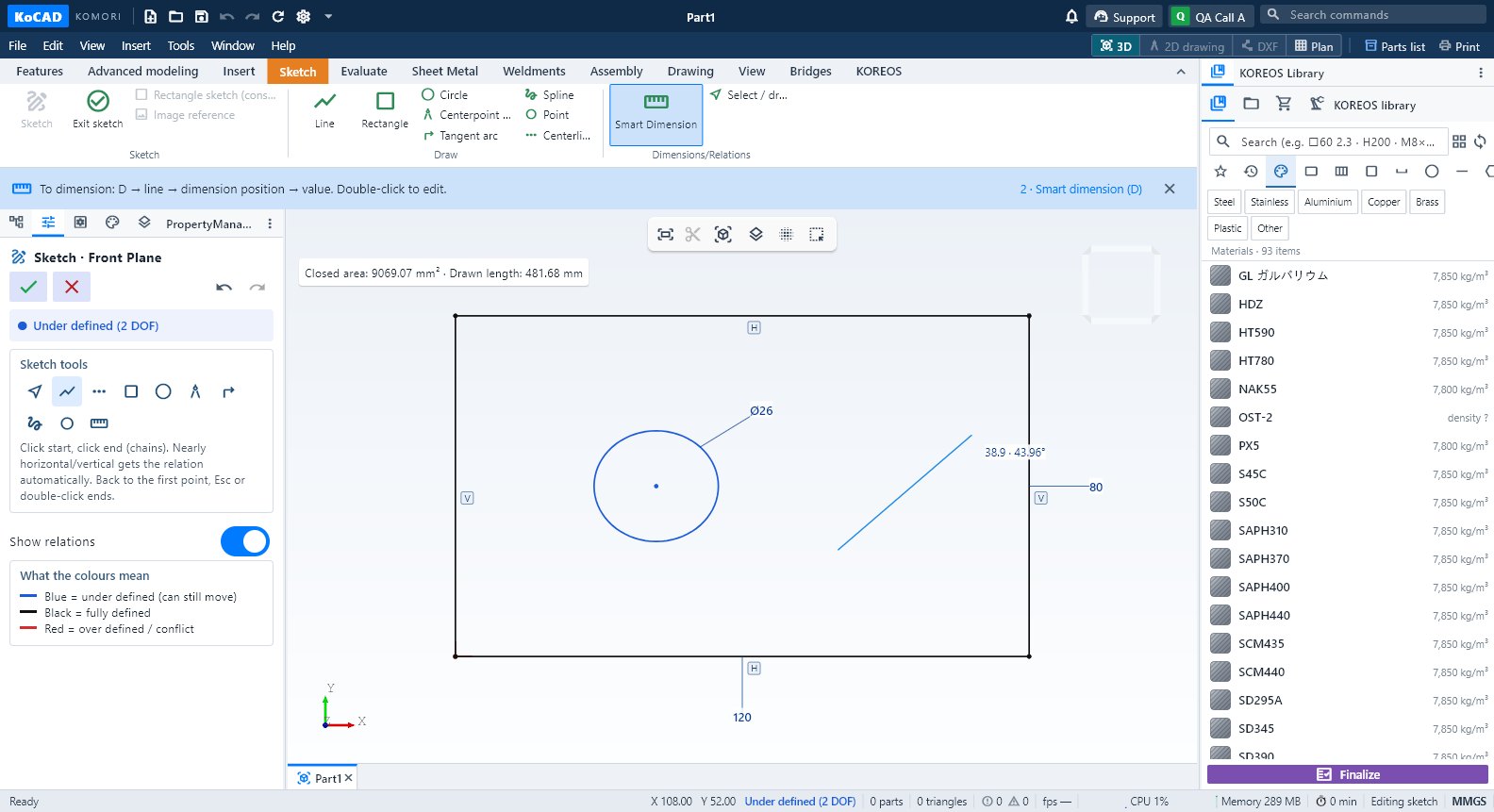
- Sketch: click New part (Ctrl+N), then Sketch. Pick a plane (Front, Top or Right). On the Sketch tab use Line, Rectangle or Circle. The outline must be closed to become a solid.
- Dimension: Sketch tab → Dimensions/Relations → Smart Dimension (key D). Click the line (or circle/arc), click where the dimension goes, type the value in mm and confirm. For the distance between two points, click both points. Esc leaves the tool. Double-click an existing dimension to edit it.
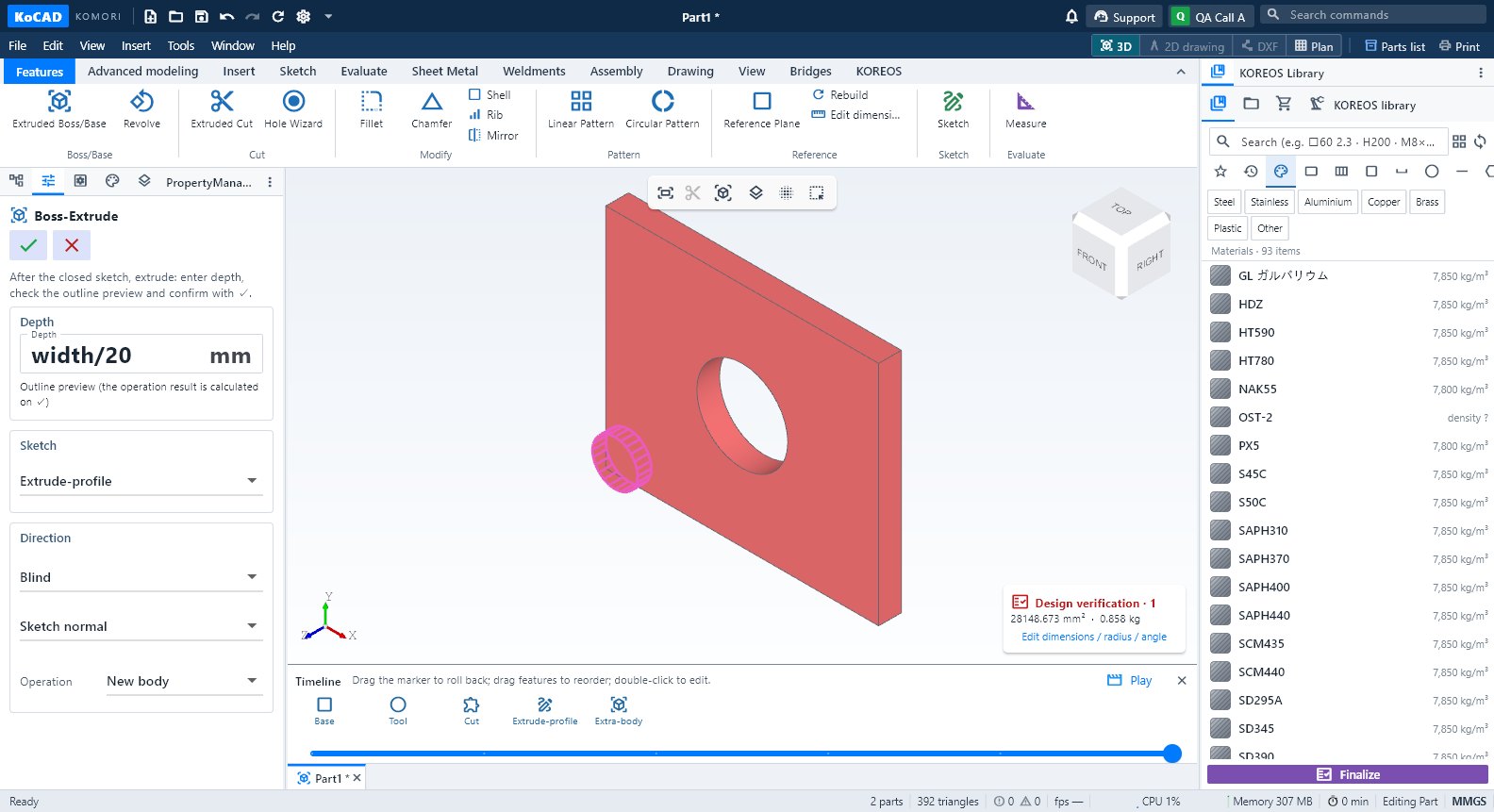
- Extrude: click Exit sketch (✓). With a closed outline, the extrude PropertyManager opens on the left. Type the depth in mm, check the outline preview and confirm with ✓. You can also use Features → Extruded Boss/Base.
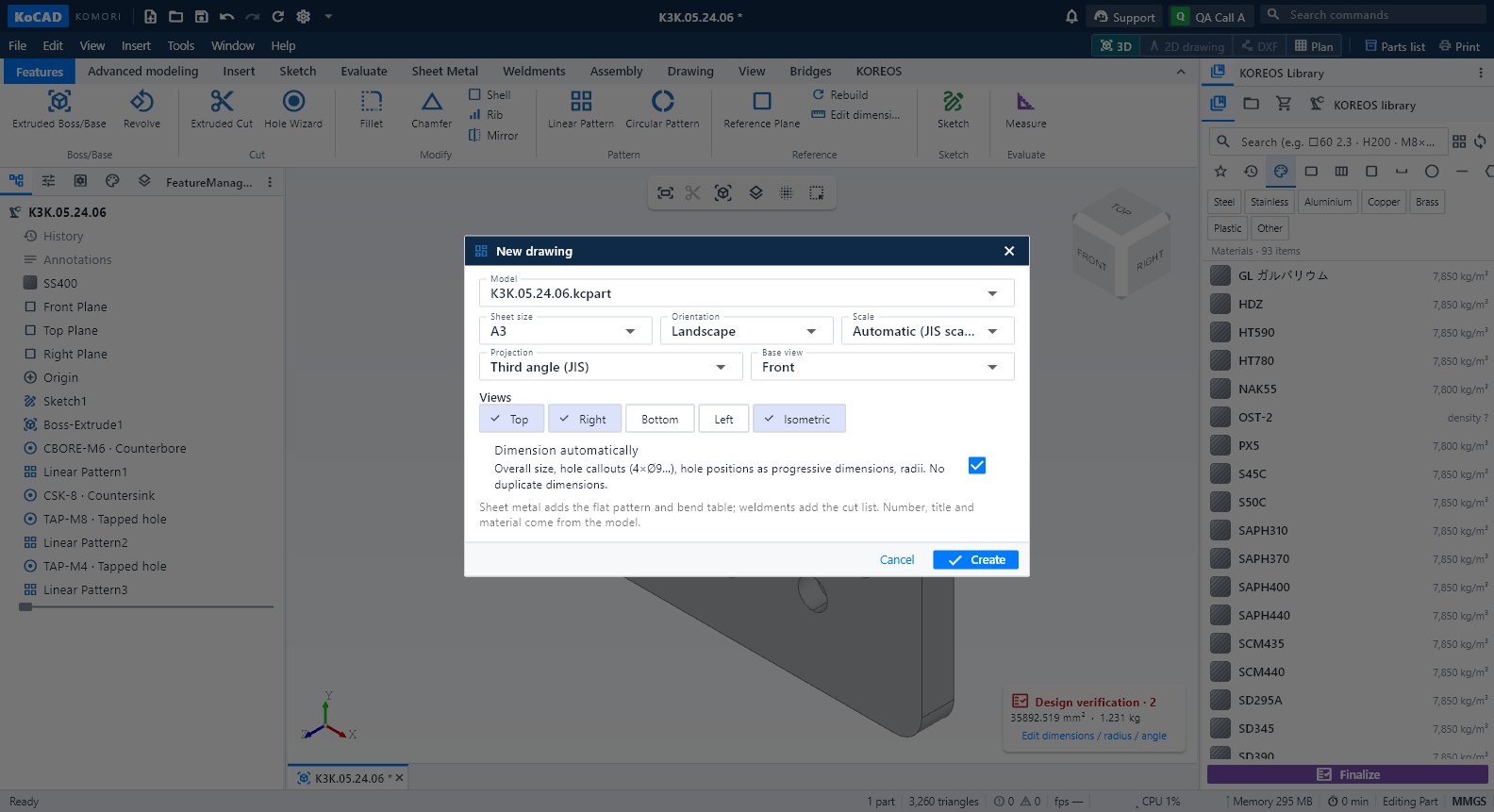
- 2D drawing: Drawing tab → Create a 2D drawing from this part. Save the part when asked, then choose sheet and scale. To start from scratch use New 2D drawing (also in File → New).
Tips
- Sketch colours: black = fully defined, blue = under defined, red = over defined (as in SolidWorks). The status bar shows the state.
- Sketch dimensions set width and height; depth is set in the extrusion. Double-click the feature in the tree to change it later.
- Save with Ctrl+S: parts are .kcpart, assemblies .kcasm, drawings .kcdrw.
- Stuck? Open Support (title bar) and ask Bob; he reads this same Wiki.
Common mistakes
- No extrusion appears: the outline is open (one line does not touch the next). Drag the point until it snaps or redraw with Rectangle.
- Red dimension: it conflicts with another relation. Delete the red relation or dimension.
- Looking for "Insert → Dimension": it does not exist. Dimensions are in Sketch → Dimensions/Relations → Smart Dimension (D).