KoCAD · Bắt đầu
KoCAD 0.43.7 — "Open in KoCAD" from a KOREOS link
How to open a KOREOS file in the installed KoCAD with one click, whether KoCAD is closed or already open.
Bài viết này chưa được dịch sang ngôn ngữ của bạn: đang hiển thị bản English.
Trong trang này
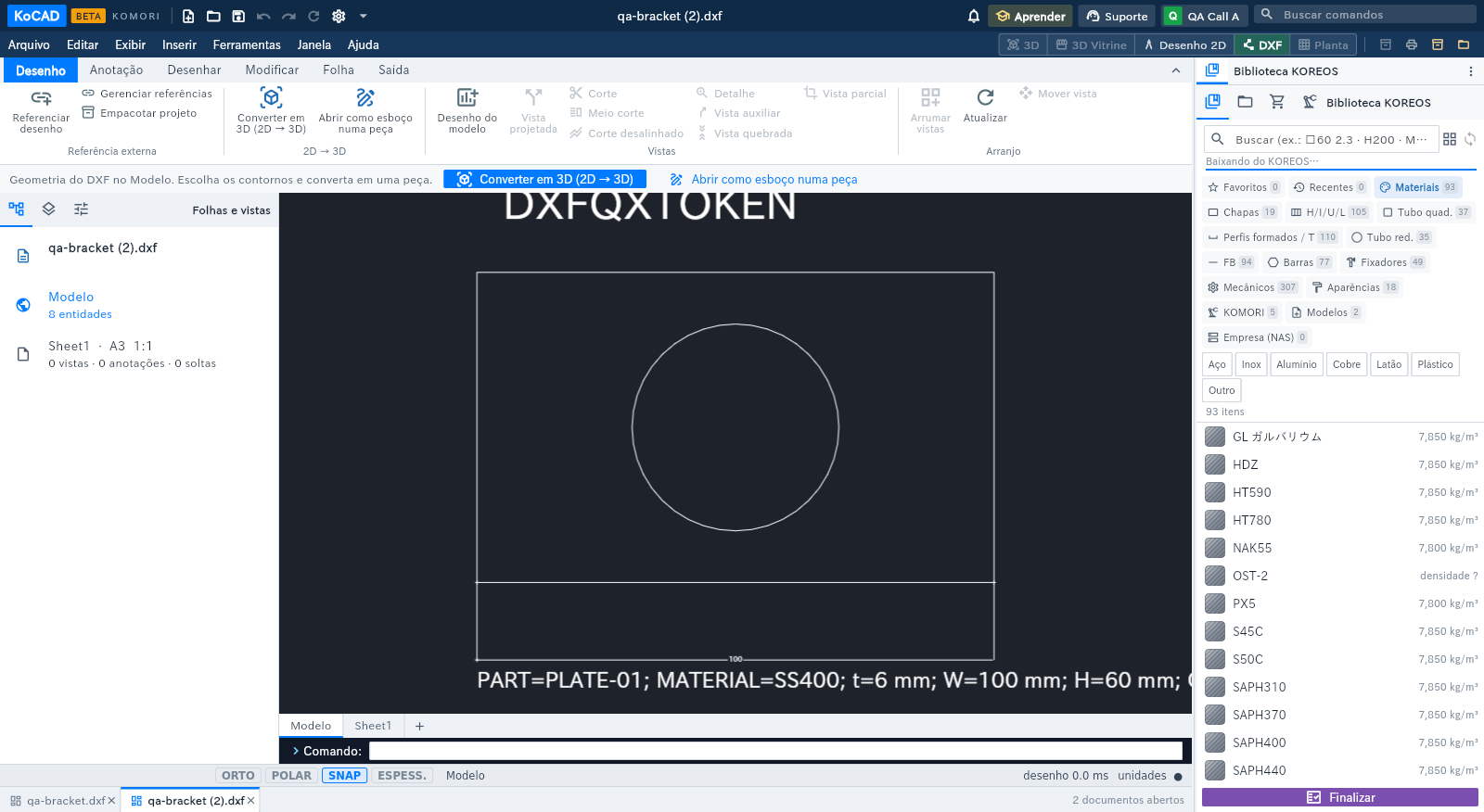
In KOREOS, drawing files (the file the assistant sent, the DXF of the parts list) have an "Open in KoCAD" button. From version 0.43.7 that button opens the KoCAD installed on the computer (Windows or Linux; on the Mac it arrives with the next KoCAD for Mac update). The pictures are real KoCAD captures made with a test account.
1. Click "Open in KoCAD"
On the file page in KOREOS, click "Open in KoCAD". If the browser asks whether it may open KoCAD, confirm. KoCAD opens, downloads the file to the Downloads › KoCAD folder and shows it in the editor. Nothing is overwritten: if a file with the same name exists, the new one is saved as "name (2)". If KoCAD asks you to sign in, sign in with your account and the file opens right after. Without KoCAD installed, use the download button on the same page and open the file in KoCAD web.
2. KoCAD already open, and safety
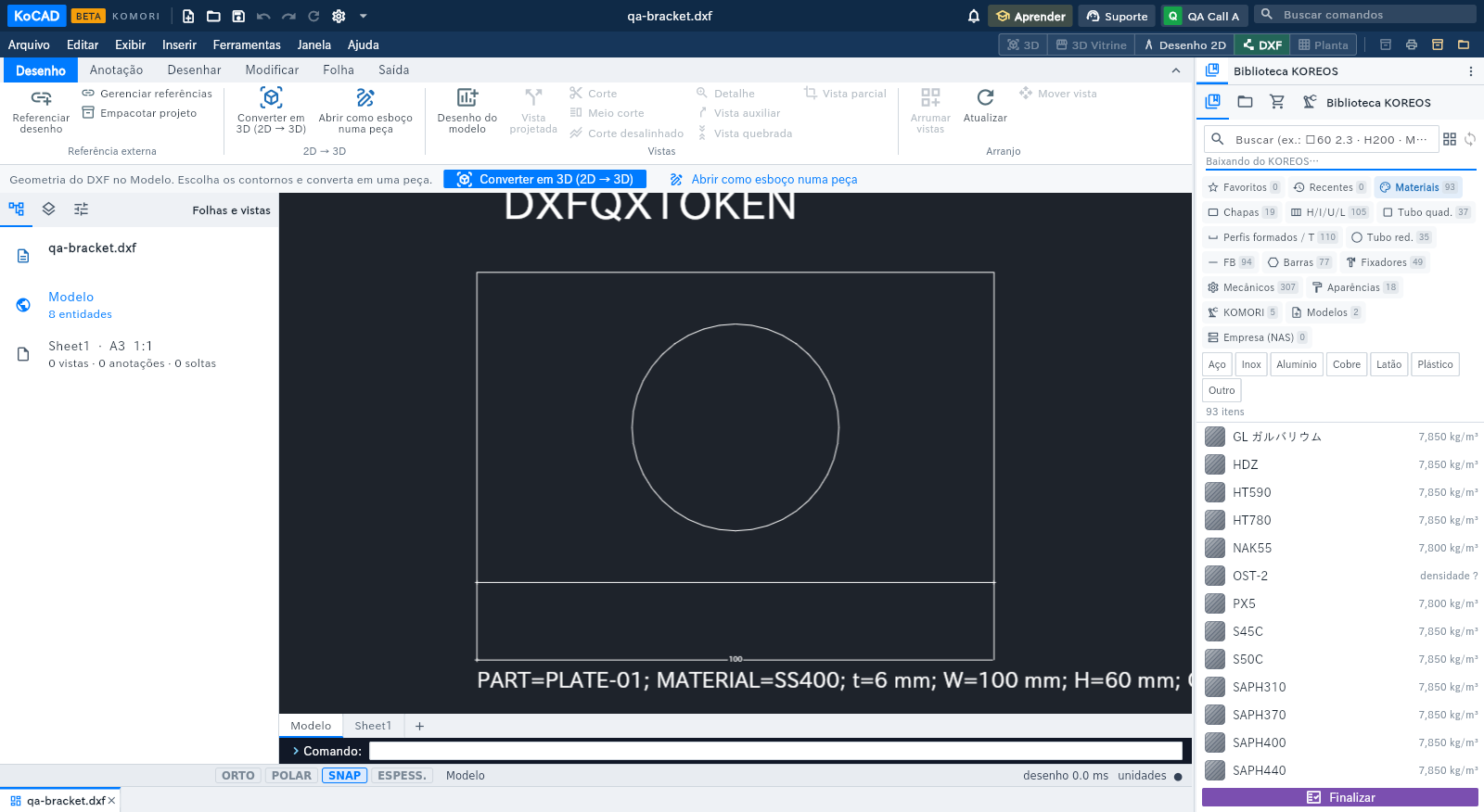
If KoCAD is already open, the link does not start another copy: the file goes into a new tab of the open window and the window comes to the front. KoCAD only accepts links from KOREOS and only downloads files from your own account; a link from another site is refused with a message. Without internet, a message asks you to check the network and open the link again.