











KoCAD · Màn hình & chức năng
How to make the bill of materials (部材表 / BOM) and export it to CSV
Parts, quantities, material and mass of the assembly, by level, ready for a spreadsheet or the drawing table.
Bài viết này chưa được dịch sang ngôn ngữ của bạn: đang hiển thị bản English.
Trong trang này
What this is for
The 部材表 / BOM lists everything in the assembly: each part with quantity, material and mass. Use it for purchasing, to check the total weight and for the parts table of the drawing.
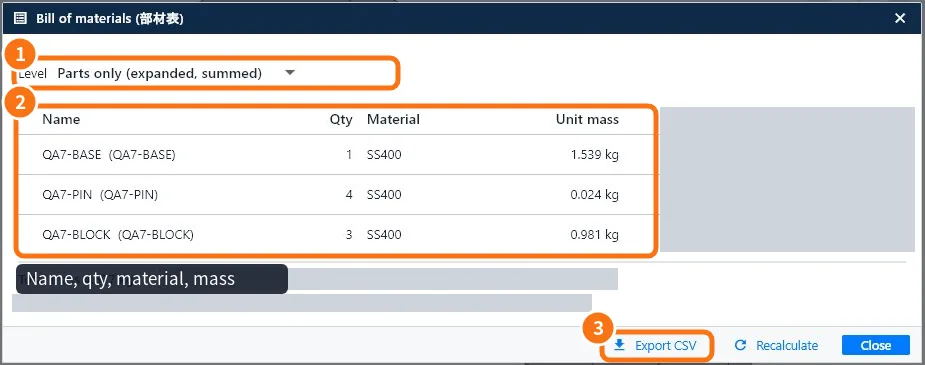
Step by step
- Open the assembly and click Assembly → 部材表 / BOM.
- In Level ① choose how to list: parts only (expanded, quantities added up) or by sub-assembly.
- Check the columns ②: Name (with the code), Qty, Material and Unit mass. The total mass is shown below.
- A line has no material? Close, set the material on the part and use Recalculate. On a customer account, a part without material gets its mass estimated as SS400 (marked in the table), the same way the Verification does; the price and 見積 columns do not appear.
- Click Export CSV ③ to open it in Excel or send it to the supplier. The exported table mirrors what you see on screen: on a customer account it contains no price or 見積 columns.
In the 2D drawing
In the assembly drawing, the Parts list (部品表) on the sheet option puts the table above the title block: item, name, material, quantity and mass. It follows the model, and balloons number the parts in the view.
Common mistakes
- Doubled quantity: the same part was inserted twice in the same place; delete the copy.
- Mass 0: the part has no material.
- Bolts do not show: choose the expanded level to list the parts inside sub-assemblies too.
Related articles
- Part material, mass and bill of materials
- How to make the cut list and work out how many bars to buy
- How to create the 2D drawing of a part or assembly