











KŌLOGY · Màn hình & chức năng
How to register several labels at once
At pickup, scan several labels in a row, review each draft and save the deliveries one by one without mixing up the boxes.
Bài viết này chưa được dịch sang ngôn ngữ của bạn: đang hiển thị bản English.
Trong trang này
What it is for
At pickup you often collect many boxes that were not on the route. With Scan multiple labels (or OCR · multiple labels) the app reads the labels in a row and creates a draft for each. You review and save them one by one — each parcel keeps its own details.
Where it is
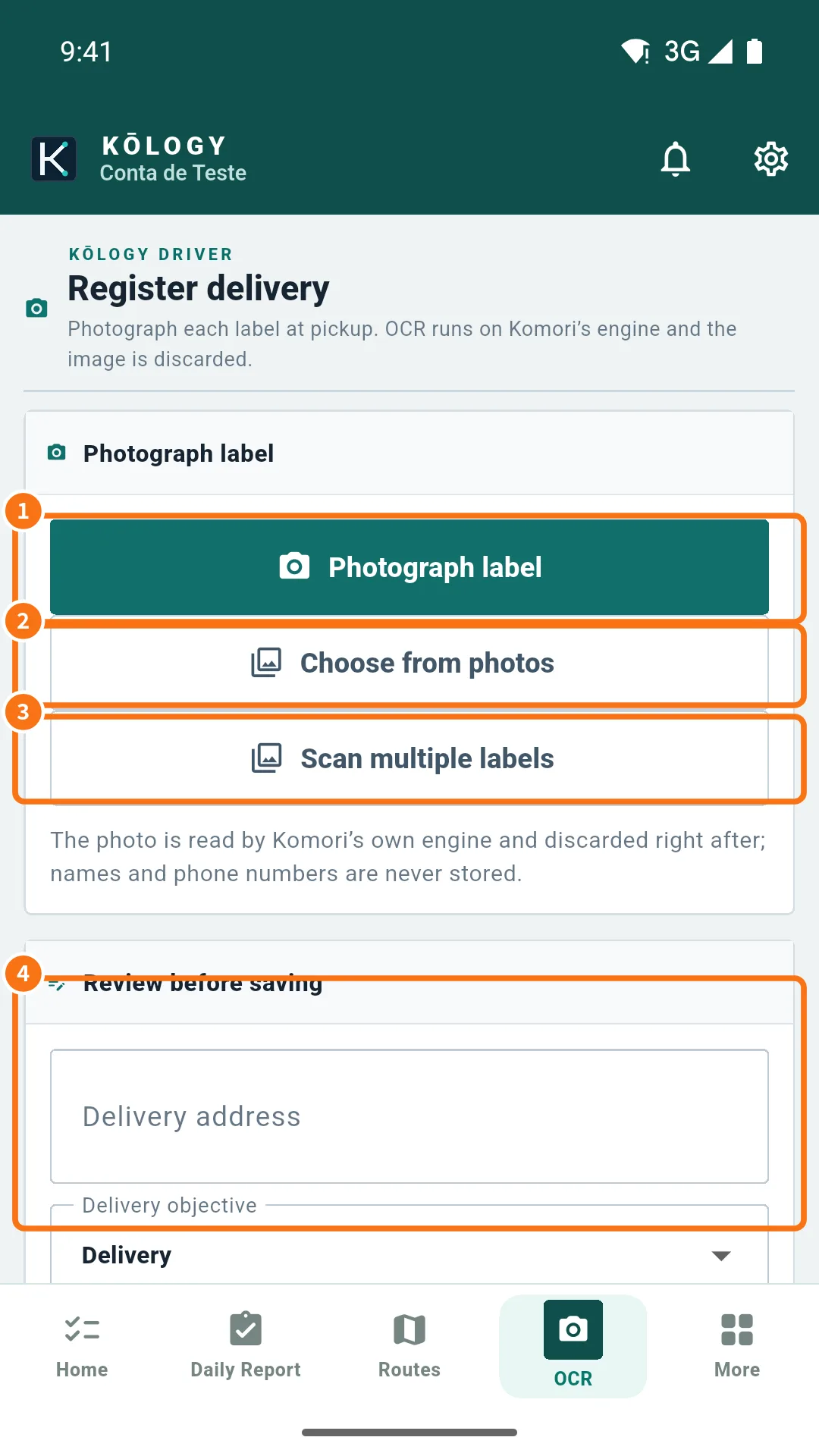
OCR tab → Scan multiple labels; or on the map, Map tools → Add delivery → OCR · multiple labels. To type without photos, Manual · multiple deliveries.
Step by step
- Open the OCR tab and tap Scan multiple labels (③).
- Choose or photograph the labels, one per box. The app reads each one and shows how many are waiting for review.
- Tap the first draft. Check Delivery address, postal code, Tracking number, parcel count and Pickup at.
- Tap Save. The draft becomes a delivery and the route is recalculated. Move to the next one.
- A box with an unreadable label? Tap Add a manual delivery to the batch and type it.
- A draft you do not need (a repeated photo, for example)? Tap Remove this draft from the batch.
Tips for good reading
- Shoot in good light, without glare, with the whole label straight.
- Always check the house number (番地/号): without it the server refuses.
- Choose the right base in Pickup at before saving the first one.
Common mistakes
- A label was refused as a duplicate: that tracking number was already registered today. Remove the draft.
- No signal in the middle of the batch: choose Save and send later; the deliveries go up when the signal returns.
- I closed the app halfway: unsaved drafts may be lost. Save one by one.
Related questions
- Scan a label (OCR) and register a delivery
- Pickup bases and saved destinations
- Delivery history and pending uploads