











KŌLOGY · Màn hình & chức năng
Scan a label (OCR) and register a delivery
Photograph the label (送り状), check the address and postal code and save: the delivery joins your route and the route is recalculated.
Bài viết này chưa được dịch sang ngôn ngữ của bạn: đang hiển thị bản English.
Trong trang này
What it is for
The OCR tab registers new deliveries from a photo of the label (送り状). The app reads the address, postal code and tracking number; you check and save — the stop joins today's route and the route is recalculated. Use it at pickup or when a parcel arrives that was not on the route.
Where it is
Bottom bar → OCR (Register delivery screen). Also from Scan box address on Home and from Map tools → Add delivery. It also works in the browser.
Step by step
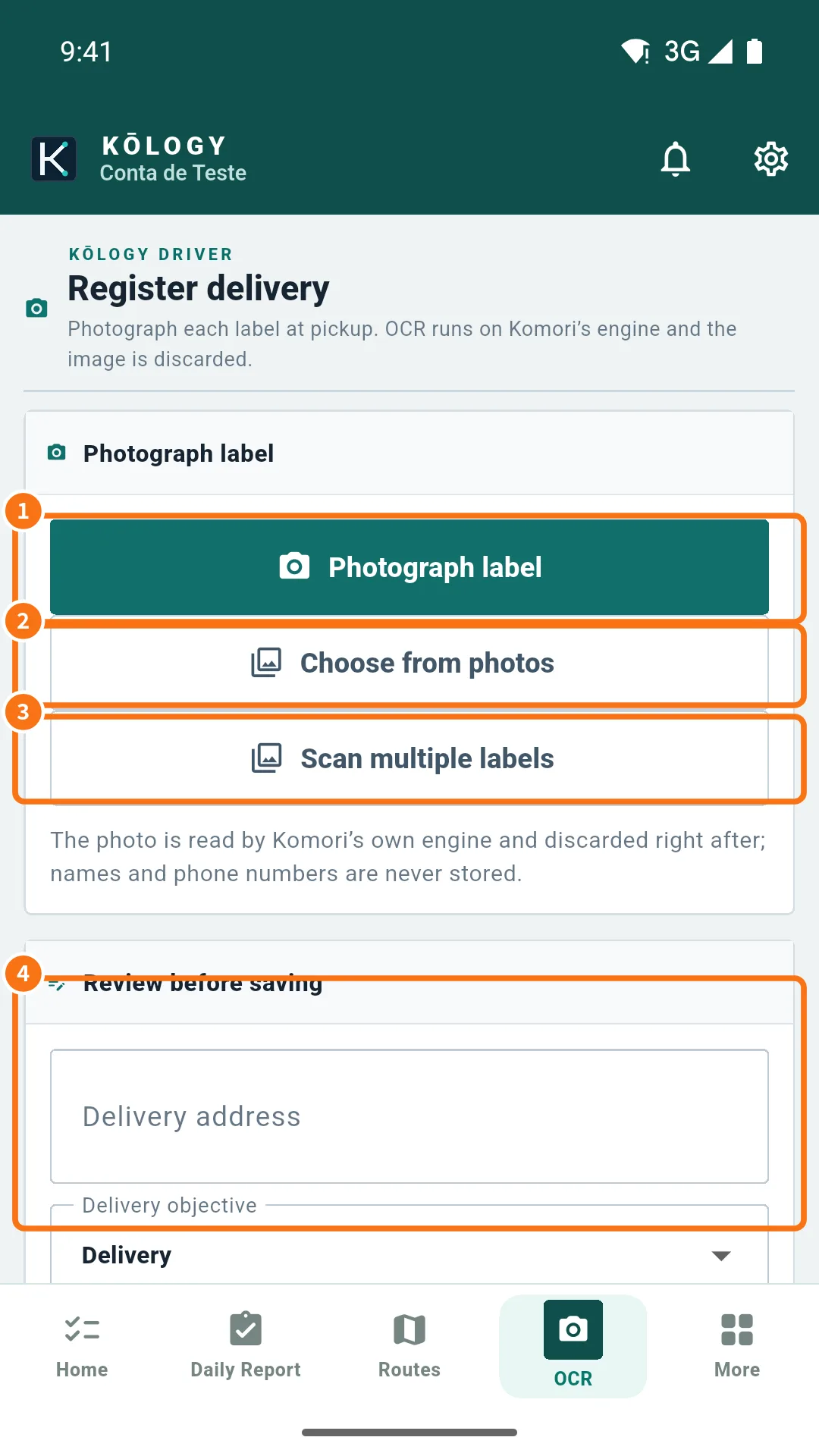
- Tap Photograph label (①). Frame the whole label without glare. If the photo is already on the phone, use Choose from photos (②). For several boxes, use Scan multiple labels (③).
- Wait for “Reading the label…”. The fields are filled in.
- Under Review before saving (④), check Delivery address, the postal code (the magnifier checks it against the official database) and Tracking number.
- Choose the Delivery objective: Delivery, Collection, Exchange or Return. Set the parcel count and Pickup at (the base where you collected the box).
- For a building or shop, fill in Unit / floor / shop. To reuse a known address, tap Use saved destination.
- Optional: Destination guidance (building/visual reference and guidance for future deliveries), This parcel's characteristics, parcel colour and the time window (No time, Morning, 12:00–14:00 …).
- Optional: Package and delivery calculation — type, weight, size, Service time (min) and Collect on delivery (No collection, Cash on delivery or Freight collect, with the amount in ¥).
- Tap Save. You see “Delivery registered and route recalculated.”
Other ways to register
- Scan label code (icon in the map search): the barcode/QR fills only the reference; check the address with OCR or by hand.
- Manual · one delivery / Manual · multiple deliveries: type without a photo.
Common mistakes
- Label already registered today: the same tracking number cannot be added twice in a day.
- Address without number (番地/号) or postal code not confirmed: the server refuses. Add the number or fix the postal code.
- Address in Latin letters (romaji): the app tries to convert it via the postal code; if it cannot, it fills from the postal code and asks you to complete it.
- No signal: the app asks whether to Save and send later. The address is checked on upload.
- Camera blocked: tap Open settings and allow camera or photos. You can also fill in by hand.
Related questions
- How to register several labels at once
- Pickup bases and saved destinations
- Delivery history and pending uploads