











KŌLOGY · Màn hình & chức năng
Route order: optimize, reorder and map tools
Let the app calculate the best sequence, change the order by hand and learn each item in Map tools.
Bài viết này chưa được dịch sang ngôn ngữ của bạn: đang hiển thị bản English.
Trong trang này
What it is for
The stop order defines the path on the map and in navigation. KŌLOGY can calculate the Best sequence from your position, or you can Reorder the stops yourself. This and other map options live in Map tools.
Where it is
On the route map (DRIVER tab), the Map tools button (sliders icon). In earlier versions the route card also had direct optimize, navigate and refresh buttons.
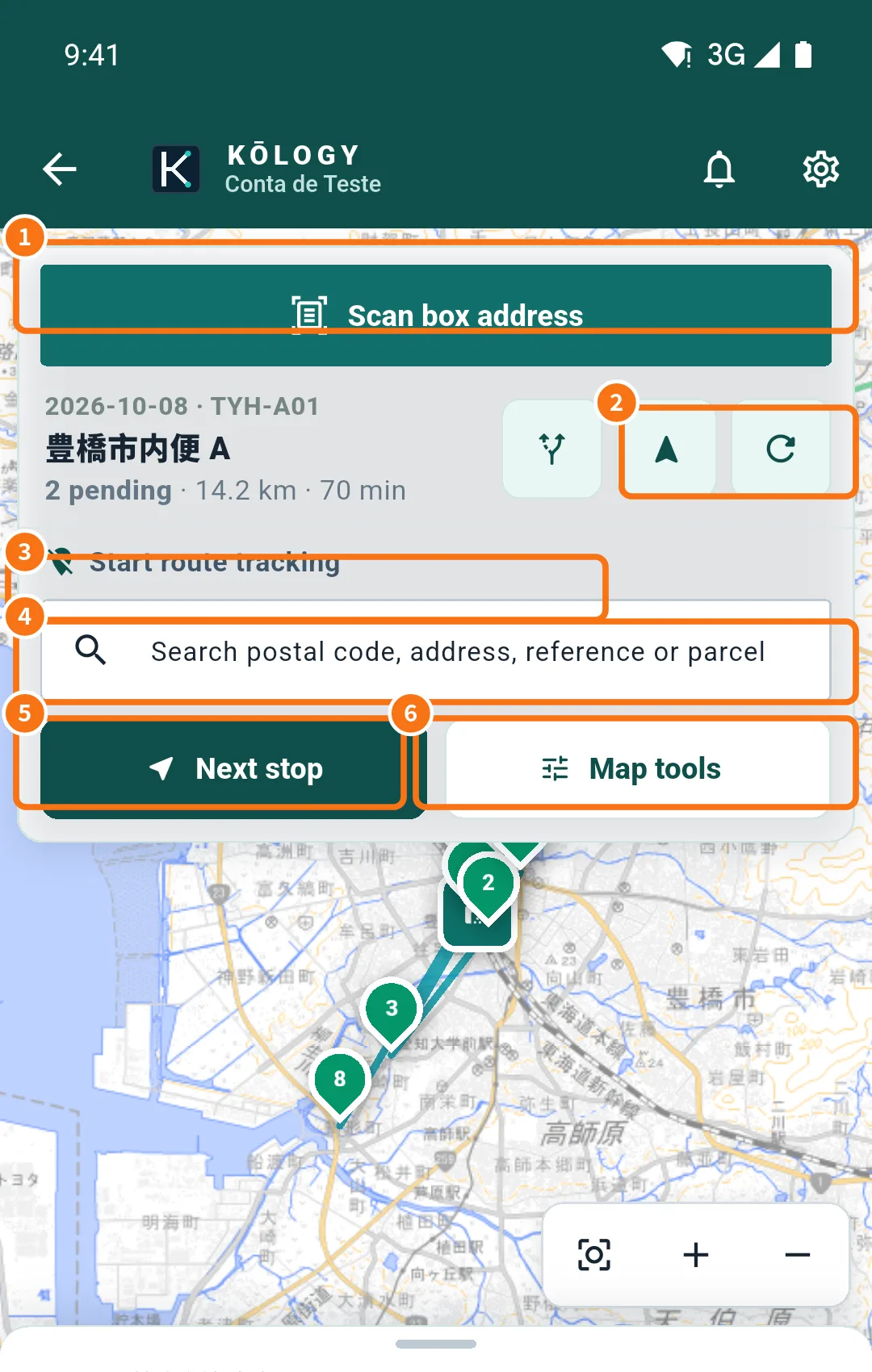
In the screenshot: ① Scan box address, ② route buttons (best sequence, navigate, refresh), ③ Start route tracking, ④ search, ⑤ Next stop, ⑥ Map tools.
Items in Map tools
- Add delivery: Manual · one delivery, Manual · multiple deliveries, OCR · one label, OCR · multiple labels.
- Fit operation: shows all stops on screen.
- On-duty location and Start/Stop route tracking.
- Map engine: OSM vector, GSI pale, GSI standard, OpenStreetMap raster and others.
- Pickup bases: show or hide the bases.
- Best sequence and Reorder.
- Whole route in Google Maps.
- Refresh.
- Route guidance: Voice guidance, Announce the next delivery and Automatic route optimization.
- Settings.
Step by step: best sequence
- Turn on the phone's GPS.
- Open Map tools → Best sequence.
- The app shows “Route optimized: −N min”. If you do not like it, tap Undo to restore the previous order.
Deliveries fixed by the company and time windows are respected (“N deliveries fixed by the company kept in place”). With Automatic route optimization on, the order is redone when the route starts and when deliveries are added or removed.
Step by step: reorder by hand
- Open Map tools → Reorder.
- Use Move up and Move down on each stop.
- Tap Save order. The map and navigation follow it until you tap Best sequence.
Common mistakes
- “No location: turn on GPS to optimize from your position”: turn location on and try again.
- “estimate without the road network”: the time saved is approximate.
- The order changed by itself: automatic optimization is on in Route guidance; turn it off if you prefer your own order.
Related questions
- Routes and deliveries on the map
- Navigate to the delivery
- Driver app settings