











KŌLOGY · Màn hình & chức năng
Route centre and deliveries
The map of the day's operation: routes, deliveries, drivers, bulk selection, publishing and optimisation.
Bài viết này chưa được dịch sang ngôn ngữ của bạn: đang hiển thị bản English.
Trong trang này
What it is for
The route centre is where the company organises the day: it creates deliveries, builds routes, picks the driver, publishes the route to their phone and follows every stop on the map.
Where: web Main → Staffs (the «Live operations» screen); app Staffs → Routes & deliveries.
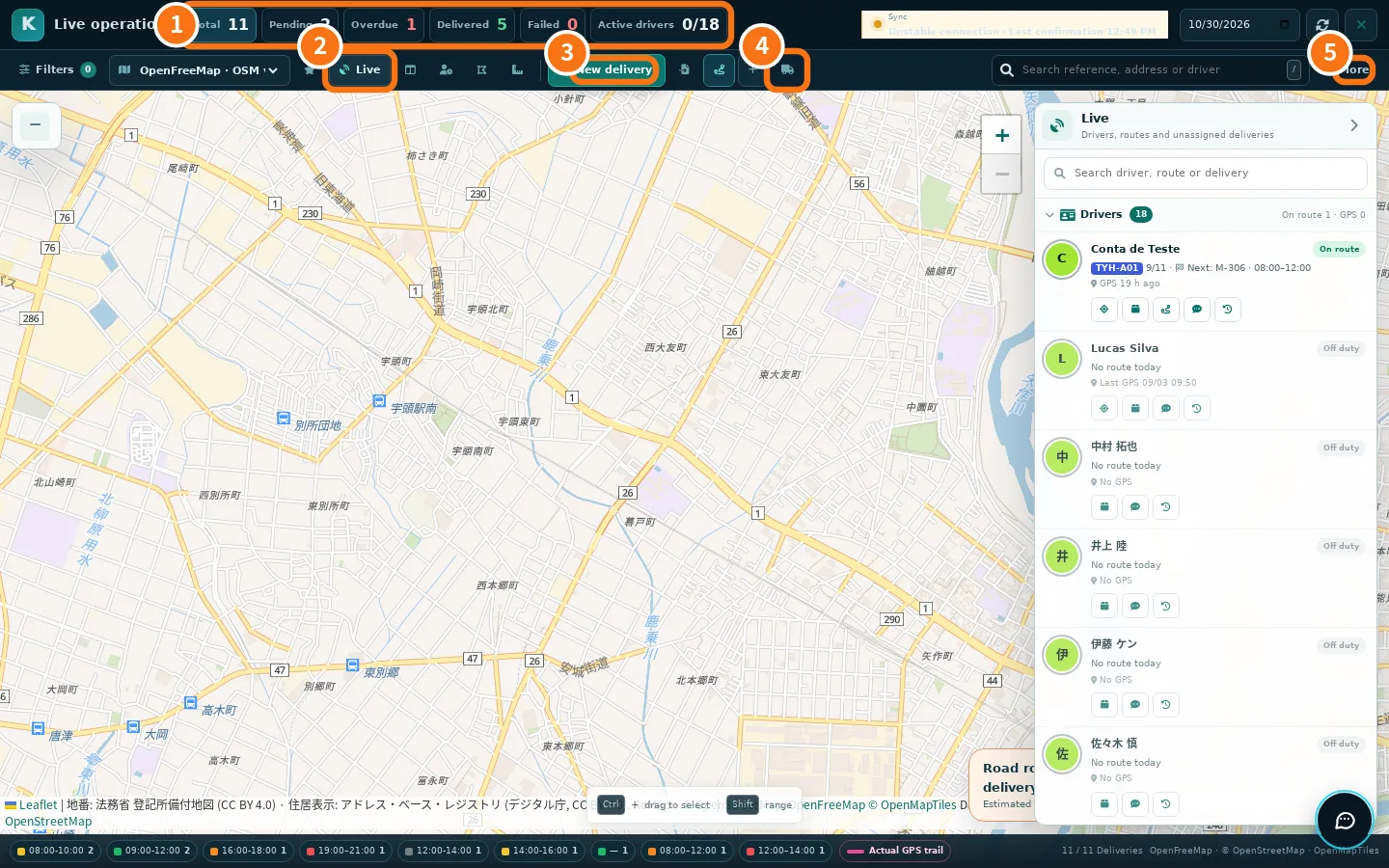
What is on the screen
- ① Today's numbers: Total, Pending, Overdue, Delivered, Failed and Active drivers. Click a number to filter the map.
- ② Live: a panel with three sections that open and close — Drivers, Today's routes and Deliveries without a driver. Next to it are Route panel, Drivers on duty, Operating areas and Map tools (measure, draw).
- ③ New delivery: adds a delivery (see «Create a route and add deliveries»).
- ④ Driver mode: «Do your own deliveries as a driver».
- ⑤ More: Pickup bases, New driver, Performance, Delivery registry (every delivery with filters), Export and print and Fit operation.
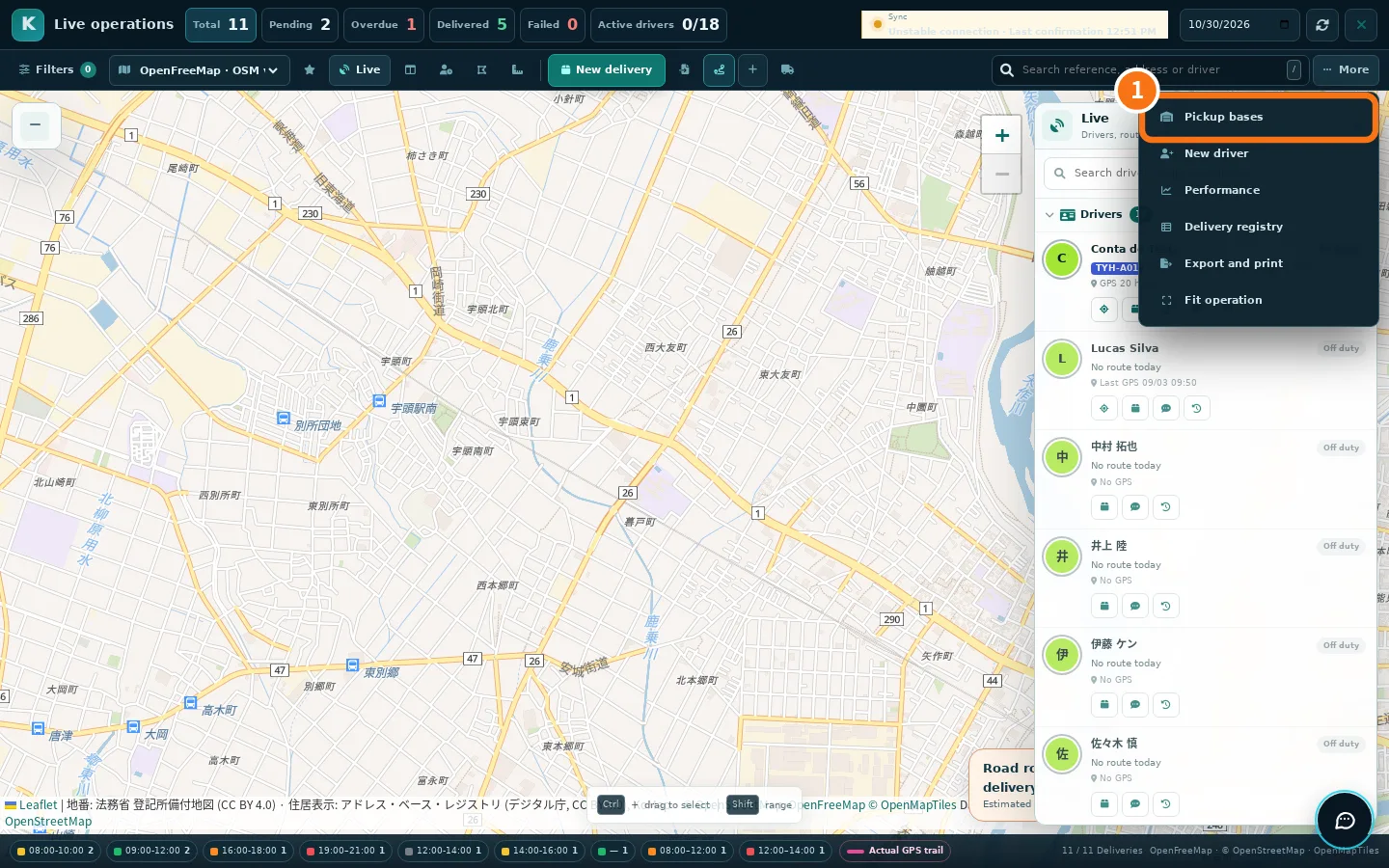
On the left are Filters, saved views (star) and the map engine (OSM vector, GSI maps, OpenFreeMap light or dark and others). At the bottom is the legend by time window.
Life of a route
- Status · Meaning
- Draft · Still being built; the driver does not see it.
- Published · Shows in the driver's app.
- In progress · The driver started the route.
- Completed / Cancelled · Finished or cancelled.
On a route you can Publish or Unpublish, Optimize order, move stops up or down, Duplicate, Archive and Cancel route.
Step by step: organise several deliveries at once
- Select the deliveries: on the web, Ctrl + drag on the map (Shift selects a range); or tick them under «Deliveries without a driver» and use «Select all».
- On the selection bar choose Organize (in the app, Organize selection).
- Pick the action: Move to a route or planning queue, Assign driver, Change time window or Create exception route.
- Tap Apply to selection. If you make a mistake, use Undo.
- Open the route and tap Publish to send it to the driver.
Common errors
- «Address without coordinates yet» The delivery has no point on the map. Open it and check the postal code and address.
- «The operation changed on another screen. Data reloaded.» Someone else changed it at the same time. Check and repeat the action.
- «Road route unavailable.» No connection or deliveries without coordinates; the map still works.
Related questions
- Create a route and add deliveries
- Import spreadsheets, scan labels and batch planning
- Live team and drivers on duty