











KŌLOGY · Bắt đầu
Getting started as a driver: install and sign in
Install KŌLOGY, sign in with the access your company gave you (or request registration) and learn the five driver tabs.
Bài viết này chưa được dịch sang ngôn ngữ của bạn: đang hiển thị bản English.
Trong trang này
What it is for
KŌLOGY is the app for delivery drivers. You do the daily report and roll call (日報 and 点呼), see your routes on the map, navigate to each address, record every delivery, and check your shift, vehicle and payments. This article shows how to install, sign in the first time and find your way around.
Who uses it and where
Drivers of a company that uses KŌLOGY, and independent drivers. The app is available for Android (Google Play) and iPhone (App Store). The same menus also open in the browser at kology.its-komori.com, but voice navigation, offline sending and push notifications exist only in the app.
Step by step: first sign-in
- Install KŌLOGY from your phone's store and open it.
- At the top of the sign-in card you see Company: KŌLOGY (default). Only tap Change (①) if your company gave you a Company code; type it and tap Use this company. Without a code, leave it as it is.
- Choose I am a driver (②).
- Enter the E-mail or phone (③) and the Password (④) your company registered for you.
- Tap Sign in (⑤). Forgot your password? Tap Forgot your password? (⑥): if an account exists, a reset link is sent.
- The first time, the app asks Turn on notifications?. Tap Turn on to get route, shift and payment notices.
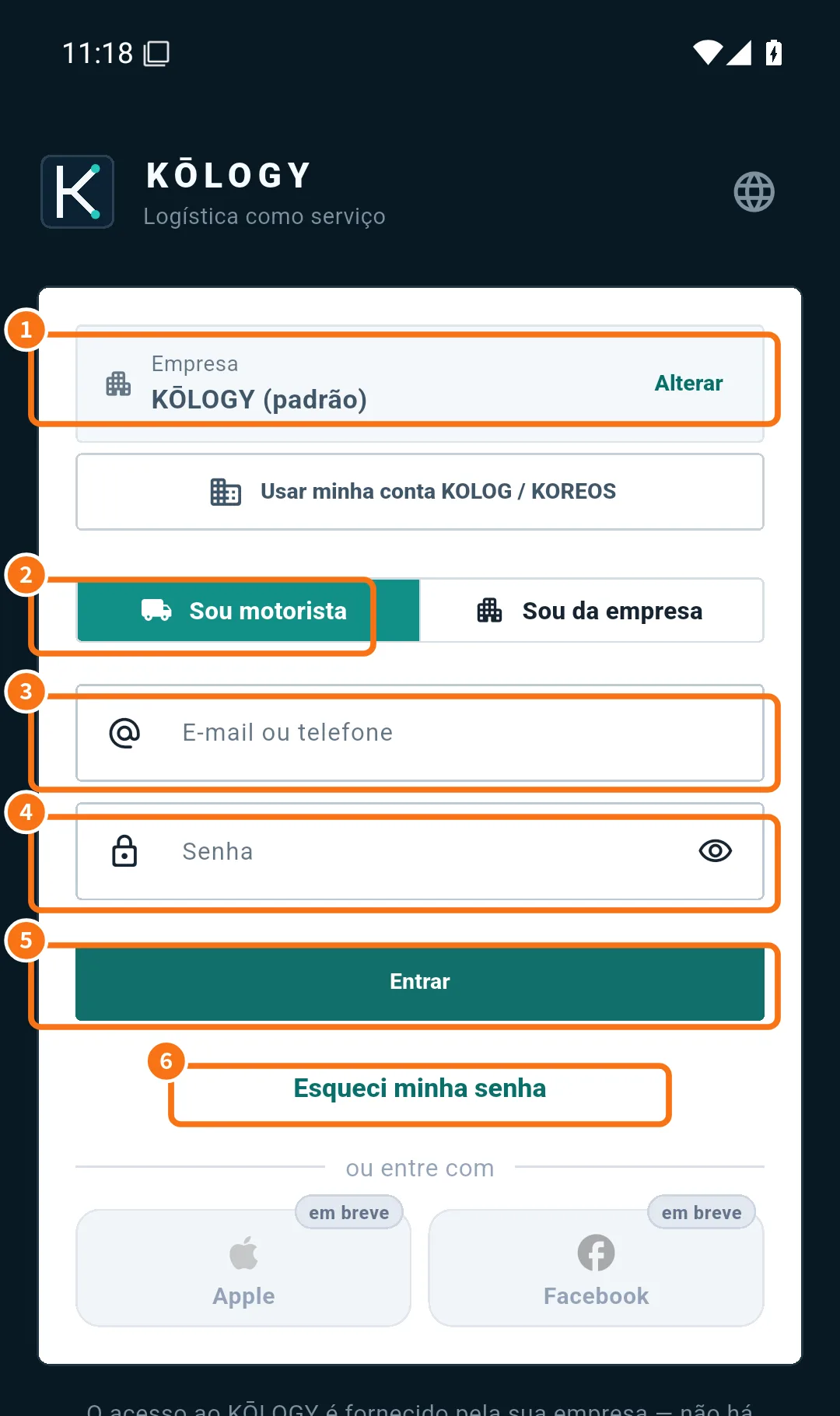
The screenshot is in Portuguese; the buttons are in the same place in English.
No access yet?
- If your company allows sign-up in the app, Driver registration appears below Sign in. Enter the Company code or invitation, tap Check company, fill in your name, e-mail or phone and a password (8–128 characters with a letter and a digit), tick the privacy policy and tap Request registration. You can sign in once the company approves.
- If you see “KŌLOGY access is issued by your company”, ask the office for your login.
- Working on your own? See “Independent driver: free account and invitations”.
The five driver tabs
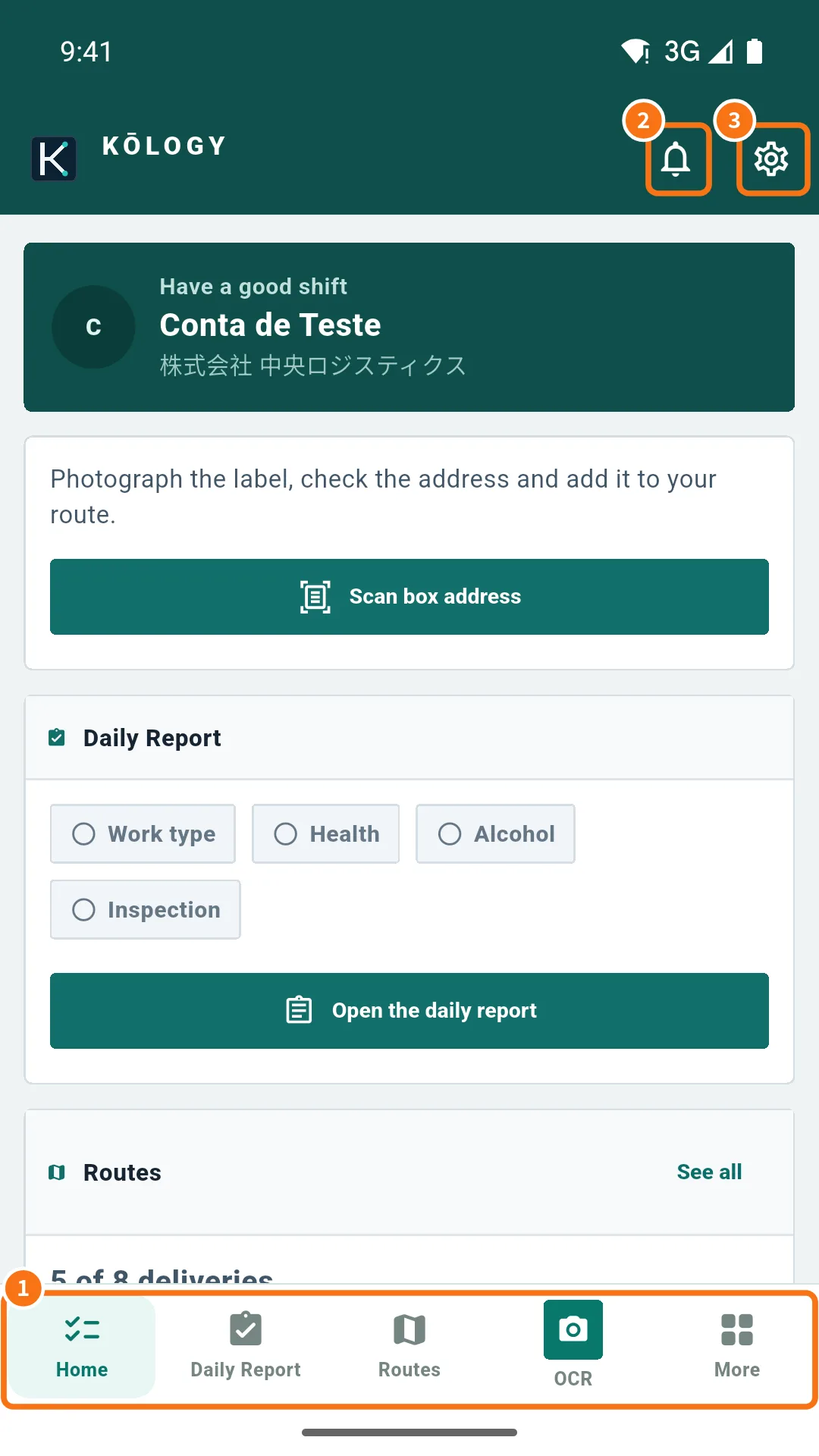
- The bottom bar (①) has Home, Daily Report, the middle tab DRIVER (your route map — older versions call it Routes), OCR and More.
- The bell (②) opens Notifications.
- The gear (③) opens Settings. Next to the bell there is also the Support icon and, when something is still unsent, the N pending badge.
Common mistakes
- “Wrong password” with the right password: check you chose I am a driver, not Company / manager.
- “Company address not allowed”: the company code is wrong. Tap Back to default and try again.
- “Your account is not linked to a company yet” on Home: the company has not linked your login to a driver yet. Contact the office.
Related questions
- Driver Home screen
- Driver daily report (日報 and 点呼)
- Independent driver: free account and invitations