











KŌLOGY · Screens & features
How to record a delivery (delivered, absent, failed)
Mark arrival, completed delivery or failure with the reason, confirm the collection, attach a proof photo and fix a wrong record.
On this page
What it is for
Every stop needs a status: Delivered when the parcel was handed over, or Failed with the reason (absent, refused, address not found…). The status updates the route at once, tells dispatch and counts in your performance.
Where it is
On the route map: tap the stop → Arrived / Delivered / Failed. In the KŌLOGY navigator: the Record delivery button.
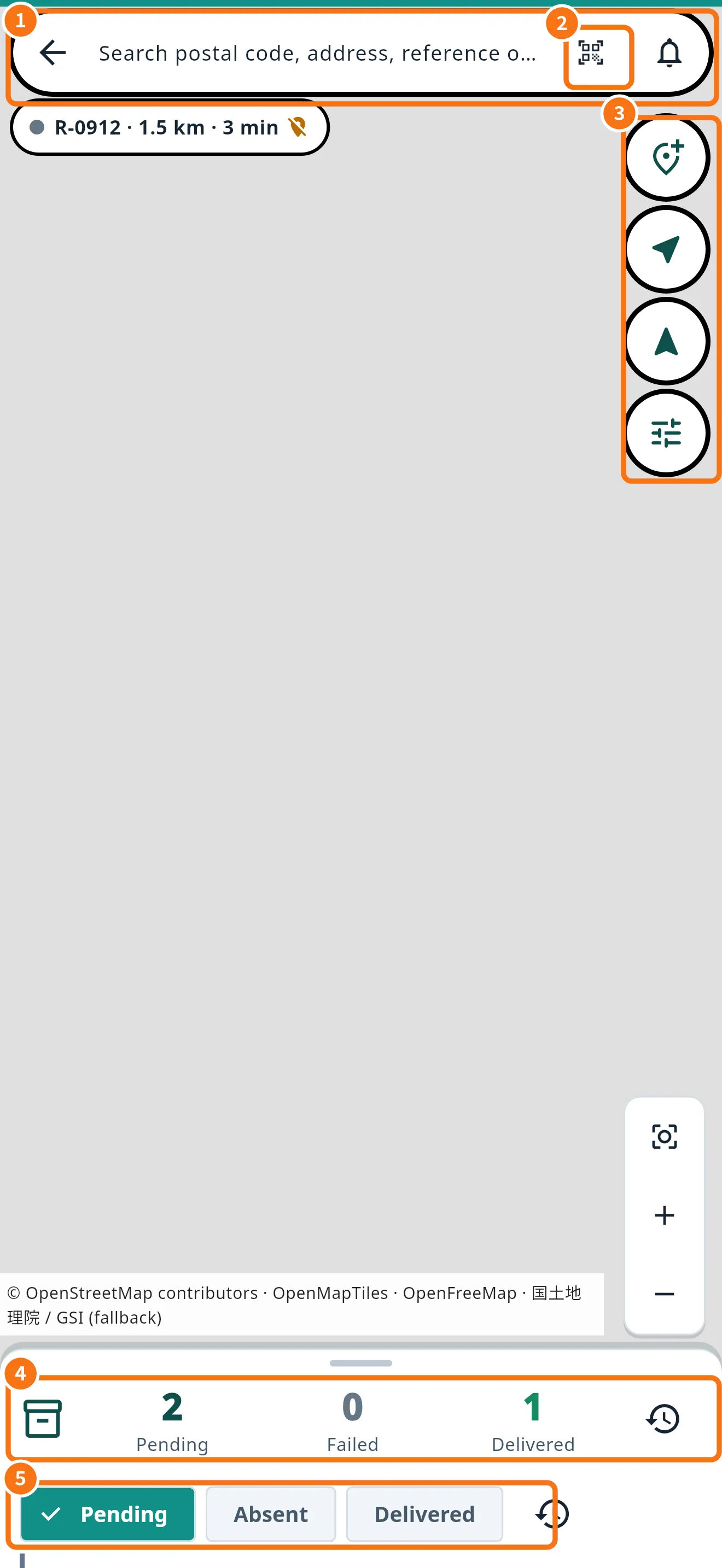
Step by step: delivery completed
- Tap the stop and Arrived / Delivered / Failed.
- On arrival, tap Arrived (optional, marks you are on site).
- If the delivery has a collection (cash on delivery or freight collect), tick I collected ¥…. Without it the app will not complete.
- Optionally write a Note and take a Proof photo. The photo is checked and discarded — KŌLOGY stores no proof.
- Tap Delivered. The stop leaves the pending list and the next one is announced.
Step by step: could not deliver
- On the same sheet, under Reason, choose Not received, Absent, Refused, Damaged, Address not found or Other.
- Write a Note if it helps dispatch.
- Tap Failed. To leave the stop for later without failing, use Skip.
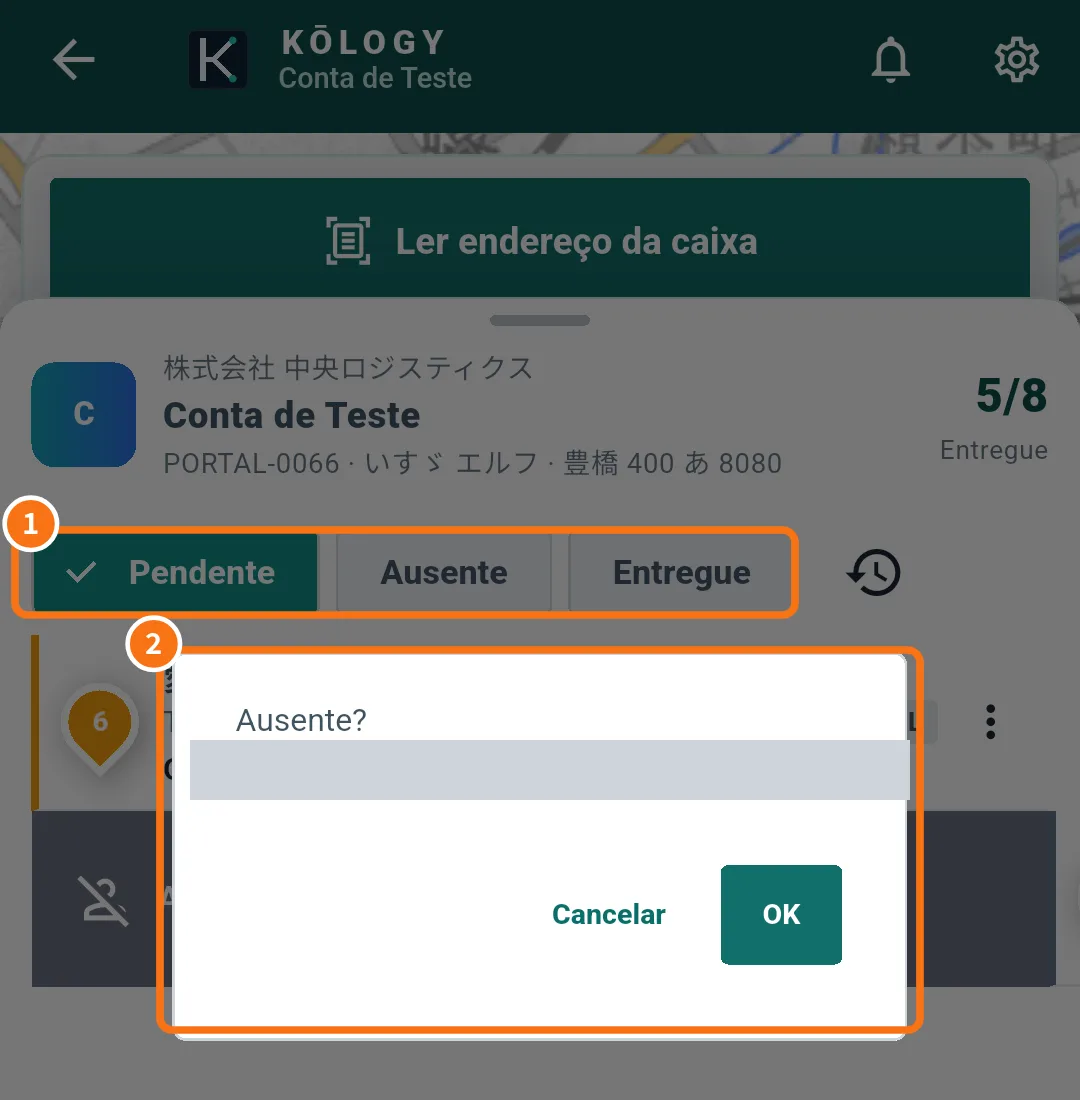
In the screenshot (Portuguese): ① filters Pending, Absent, Delivered; ② the “Absent?” confirmation — tap OK to record or Cancel.
Fix a record
- Marked Delivered by mistake: open the stop and tap Reopen completed delivery → confirm “Return this delivery to the queue?”.
- Trying again a delivery that failed: open the stop and tap Redelivery.
Common mistakes
- “Confirm the collection before completing the delivery.”: tick the collection box.
- “This delivery was completed or changed”: dispatch changed the stop; go back to the route.
- Dispatch does not see the status: check the N pending badge and tap Send now.
Related questions
- Routes and deliveries on the map
- Delivery history and pending uploads
- KŌLOGY navigator