











KŌLOGY · Screens & features
How to create a route and add deliveries
Add deliveries one by one (or by scanning the label), build the route, pick the driver, optimise and publish.
On this page
What it is for
This is the everyday job: getting deliveries into the system and handing the driver a ready route.
Where: web Main → Staffs (route centre) → New delivery; app Staffs → Routes & deliveries → New delivery / New route.
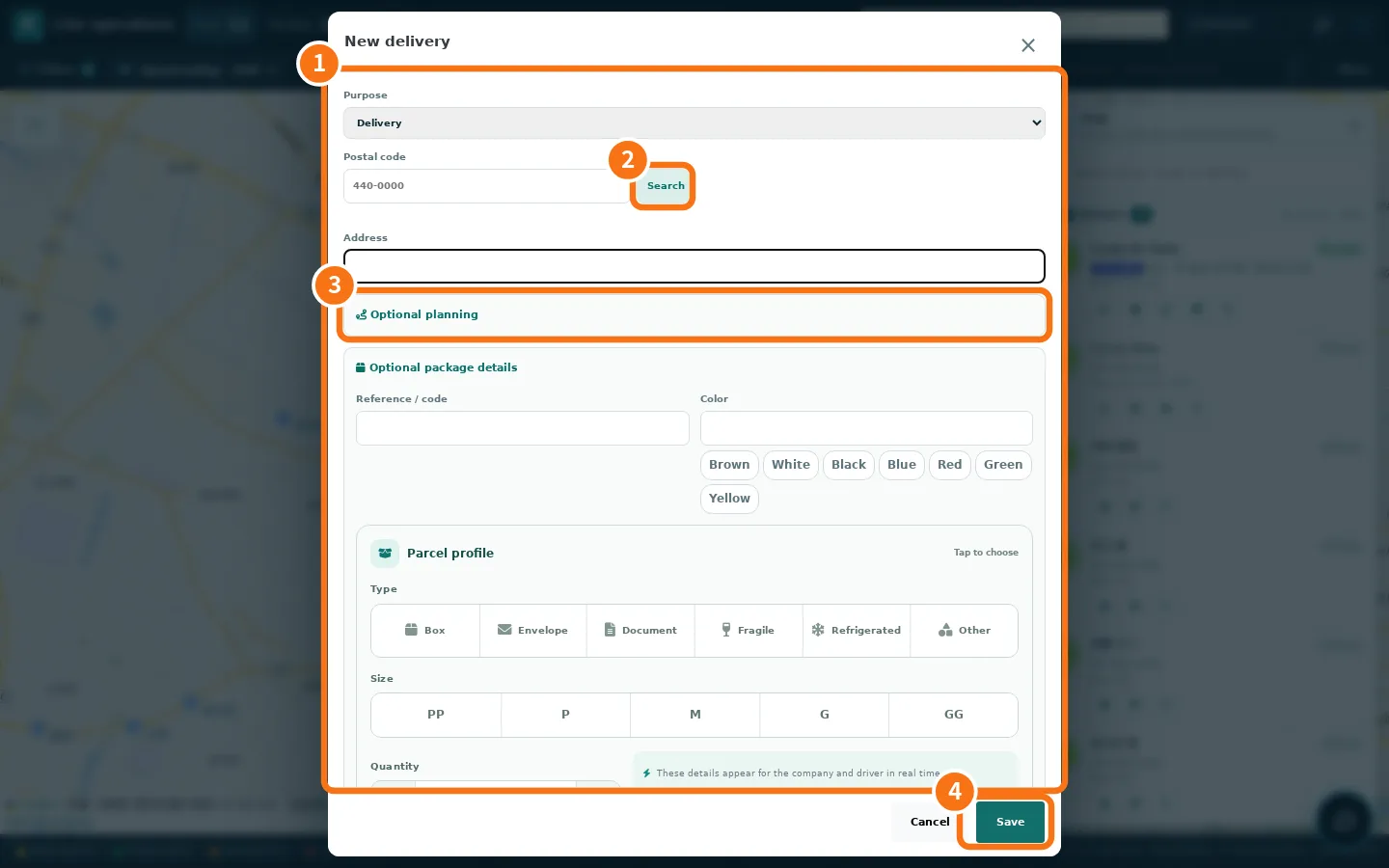
1. Add a delivery
- Tap New delivery. Pick how: Manual · one delivery, Manual · multiple deliveries, OCR · one label or OCR · multiple labels.
- On the web, choose the ① Purpose (Delivery, Collection, Exchange, Return), type the postal code and tap ② Search: the address fills in. Complete the number and building.
- In the app you can tap Scan box address and photograph the label: the app reads the address and you check it.
- Optional: Reference, Time window, Destination guidance (Place name, Tip for the next driver), Collect on delivery (Cash on delivery or Freight collect, with the amount) and package details (code, colour, type, size, quantity).
- In ③ Optional planning (web) or For driver (app), choose the route/driver or leave it in the Planning queue · unassigned. In the app, Publish to the driver now sends it right away.
- Tap ④ Save.
2. Build and publish the route
- Tap New route. Give the Route name, pick the driver, the Vehicle and the Base / departure.
- Put deliveries on the route: select them and use Organize → Move to a route or planning queue, or assign from the driver's card in Deliveries & assignment.
- Tap Optimize order (or the magic wand Optimize route). The order respects time windows and pinned deliveries; you can Undo.
- Tap Publish. The route shows in the driver's app. When you want them to start, use Start route (they get a message with sound).
Common mistakes
- Delivery with no point on the map. Check postal code and number; open the delivery and fix the address.
- The driver does not see the route. It is still a Draft. Tap Publish.
Related questions
- Route centre and deliveries
- How to import spreadsheets, scan labels and plan in batch
- Live team and drivers on duty